



One wise person once uttered the words, ‘To start is to be halfway there’. So if we follow this mantra, getting started quickly will help to make music faster, more efficiently and build up your own knowledge and techniques. This will be your workflow, a process that fits best for you as a producer. While this may be personal and unique it helps to learn from others and from some best practices on how to get started and pick up some tips and tricks along the way. The manual alone will never get you to the ultimate position in your process, but it will help and contribute. This is where this section comes in. To help you get started quickly. You can master your art and the integration of ONE into your own setup and workflow now and even better going forwards. Here we take a less traditional approach. Instead of just giving the quick guide to 4 on the floor beats with maybe a bass line pitched in, we take a look at how ONE is used from an artists view point. Giving an insight into how ONE is used in a studio or live setup and their creative process. We introduce the inside track on how Oora integrates ONE into his workflow, how he uses some of the features to get tracks moving quickly and how this can lead to high quality, original and interesting music making. This runs in conjunction with Oora’s ONE video tutorials. We could argue that mastering the art of ONE in music making in general is an aspiration that is never conquered, but equally some artists do get nearer to this magical point more than others. Oora is an inspiration in this area, someone who has helped develop ONE MKII into what it is today and who is prepared to share their own learnings with others. Take your time, adopt and adapt your process and make the journey fun.
2.1 Example Generic Workflow
Everyone will develop their own style and workflow when using OXI ONE. In order to get started here is a generic workflow guide to using ONE followed by some techniques and tips for the workflow process.

New Project
[Shift] + [Clear] for a full clear. Press [Load] to load and existing project or open a new, free project slot.
Connect some gear
Ensure an audio device such as a synth or drum machine or PC/Mac based DAW is connected. MIDI TRS, MIDI USB, MIDI Bluetooth or CV and Gate are all connectivity options.
Configure the I/O
Configure CV Gate using the grid, [Shift] + [Gen] for analog outputs. MIDI can be configured in the settings using [Shift] + [Back] for Config.
Set up a sequencer
Hold [Shift] + Seq [1] - [8] to select sequencer MIDI Channel and edit settings. Hold [Shift] + Knob 1 to set tempo.
Set the mode
Page 1 - knob 4, sets Mono, Poly, Chord, Multi, Stochastic, or Matriceal.
Set the scale & root
Hold [Shift] + knob 3 to select a scale and Knob 4 for root note.
Set the length
Hold [Init] + [Pad] or turn knob 2 for start, [End] + [Pad] or Knob 3 for end.
Program notes
Tap [Pad] to add or remove notes. Hold [Pad] + [Pad] to extend a note.
Generator
Generates notes using an advanced Euclidean model. Tap [Gen]
Random Generator
Applies notes randomly. Tap [Randomizer]
Keyboard
The keyboard can be used to play and record notes, [Rec] + [Play].
Edit notes
Tap [Pad] to add or remove notes. Hold [Pad] + [Pad] to extend a note.
Set the pitch
The grid layout may determine pitch in rows.
Edit Velocity
Turn knob 1 to change the global velocity or [Pad] + turn to edit step.
Edit Gate
Turn knob 3 to change the global gate length or [Pad] + turn to edit step.
Modulation
Modulation creates automation lanes or assigns LFOs to destination parameters on the the external gear. Tap [Mod] or [LFO] to open the editor.
Many options exist to add variation to a pattern or improvise on-the-fly.
Add Variations
Set repeats
Turn knob 4 or hold step [Pad] and turn knob 4.
Perform mode
For live improvisation, press [Perf]. Transpose or affect all sequencers.
Probability
Set a step probability. Hold [Pad] step + turn knob 4.
Flow
Hold [Flow] + tap step [Pad] to apply a flow step. This will only trigger while holding the flow button when playing a sequence.
Save Project
Hold [Shift] + Tap [Save]
2.2 A Simple Expressive Sequence
While Mono is a simple sequencer mode on OXI ONE MKII it is still is packed with powerful features and is the perfect starting point. Here we build an expressive and playable sequence and demonstrate how quick it can be to get creative and be inspired by OXI ONE.
Link to Oora’s workflow video here.
Expressive Mono Sequencer Phrase
- Ensure the synths are connected or for this example maybe connect
to a DAW on a Mac or PC using MIDI. Set 3 tracks with instruments. Track 1 and 2 pulse / pluck style sounds and track 3 a bass pad. Each of the following sequencers will connect to these DAW tracks. Hold [Shift] + hold [Clear] each sequencer 1,2,3.
- Set the project tempo. Hold [Shift] + turn (BPM) knob 1 to set to 120
beats per minute.
- Select sequencer 1 and set to Mono mode. Tap Seq [1]. Hold [Shift] +
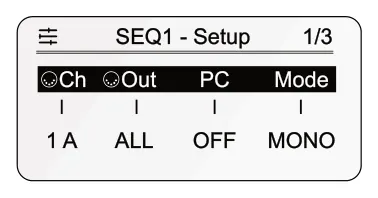
[1] to open the sequencer settings. Turn (Mode) to set the sequencer to ‘MONO’. This is in page 1 of 3 for SEQ 1.
I. Set scale and root. While holding [Shift] + turn (Scal) knob 3 and (Root) knob 4. Set to Minor C2. The octave range is set with (Oct) knob 2.
II. Set the pattern length to 6 steps. Hold [End] + tap a pad in column
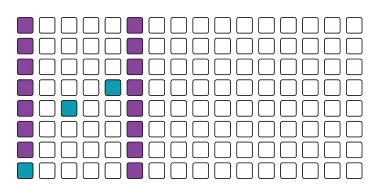
- Alternatively knob 3 will change end step while holding [End]. The first step, set with [Init], should by default be 1.
III. Add 3 steps as follows: Step 1 to C2, Step 3 to F2 and Step 5 to
G2. To set these steps, columns represent steps, so use column 1,3 and 5. Rows represent the notes. The display shows the notes when tapping a pad to set the step note. Pads assigned with notes are lit.
IV. Hold Step 3 [Pad] + tap [Page] to select the accumulator page.
While holding Step 3 [Pad], turn knob 1 (Amt) and set to +1st. Repeat for Step 5, setting the accumulator (Amt) to -1st.
V. Press [Play] to listen to the pattern created over the 6 step range.
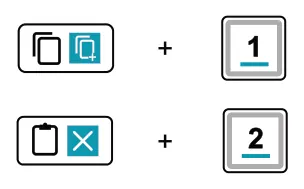
- Copy sequence 1 to sequencer 2. Hold [Copy] + tap Seq [1] then hold
[Paste] + tap Seq [2]. The sequencer will be copied. If this is controlling a different track in the DAW it may need to change channel to match the DAW track. Channel is set for the sequencer in its settings, [Shift] + Seq [1], then turn (Ch) Knob 1.
Link to Oora’s workflow video here.
► Expressive Mono Sequencer Phrase (Continued)
- Both sequencers play the same pattern. However pressing, [Perf] will
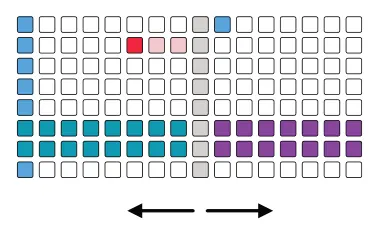
open the performance page. This allows each of the sequencers to be transposed or rotated on the fly allowing ad libs and performances to be played out. Row 1 represents sequencer 1 and row 2, sequencer 2. The central white column is the original state, i.e. no transposition. Press a pad either side in these rows to transpose up or down.Hold [Shift] + [Pad] in row 1 and 2 to rotate patterns. Try these out and experiment with the performer while the sequencer plays.
- Create a third mono mode seq on track 3. Follow the previous steps to
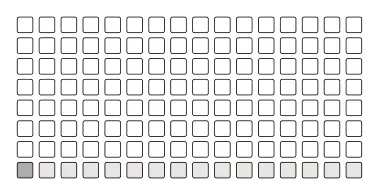
create and configure the sequencer as a mono mode sequencer. Add a long note for C2, bottom row. Hold Step 1 + tap step 16 to assign a tied note.This will represent a long bass pad and should be set to the channel for this track in the DAW.
- Lets add some variation with the flow button. Flow steps will only play
while the flow button is held. Set steps 4 and 6 to notes G#2 and A#2 respectively. To dd these notes hold [Flow] + tap [Pad]. This assigns the steps as only flow steps. When playing the sequence, hold [Flow] to trigger these steps or release to play without these steps being triggered.
- Experiment once again in [Perf] mode to transpose sequencer patterns in
harmony.
- Ensure the project is saved, hold [Shift] + tap [Save]. This will be a good
starting point from which to progress further.
2.3 Chords, Repetitions and Harmonization
Chord mode allows a melody of chords to be selected from a library of scales, chords and voicing available and patterns to be build from these. Add flow steps to create variations and link the pattern to the previous project to play all patterns in harmony.
Link to Oora’s workflow video here.
Building a Chord Pattern
- Start from the previous project.
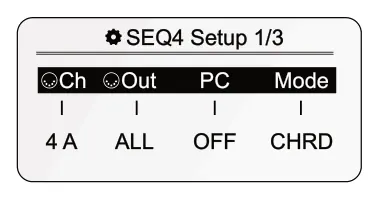
- Select sequencer 4 and set to Chord mode. Tap Seq [4]. Hold [Shift] +
[4] to open the sequencer settings. Turn (Mode) to set the sequencer to ‘CHRD’. This is in page 1 of 3 for SEQ 4.
- Now to assemble some chords.
I. In the main sequencer view, set scale and root. Hold [Shift] + turn (Scal) knob 3 and (Root) knob 4. Set to Minor C2. The octave range is set with (Oct) knob 2.
II. Press [Keyboard] to open the scale pads and chord selector.
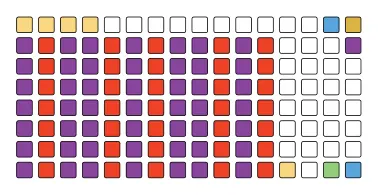
III. Column 13 & 14 will select chord types, column 15, voicing /
inversions and column 16 voice spread. The second top row in the 16th column will selected between the chord banks.
IV. Audition the chords to find the ones to save. To store a chord,
hold the pad keyboard for the chord and at the same time hold an empty, top row pad 1-12 for a few seconds. The pad will illuminate yellow when a chord is stored.
- The stored chords can now be used to sequence a melody. To pick
and place a chord from sequencer view, hold [Keyboard] to show the chord view page and tap a stored chord pad 1-12 top row. Release the [Keyboard] button and tap any step pad to place the selected chord on the grid. Repeat for other chords to build a melody.
- Now consider adding more interest and variation with some repeats.
The OXI ONE repeat engine offers a wide range of options to add repeats, spread their intervals, add ramps and more. Hold a chord step [Pad] + tap [Page] to select the step submenu for the repetition settings. While still holding the pad, turn knob 1 (Rept) to set repetitions.
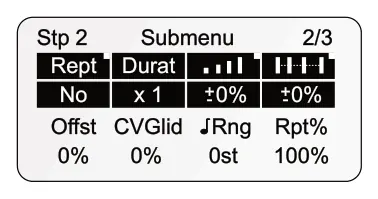
- While still holding the step pad, try adjusting other parameters. Maybe
set the repetition spacing with knob 4 and adjust the ramps with knob
- Experiment while playing the chords.
Link to Oora’s workflow video here.
► Building a Chord Pattern (Continued)
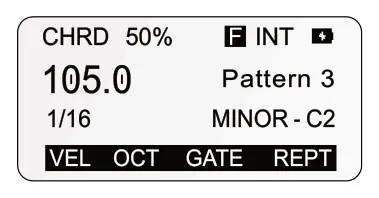
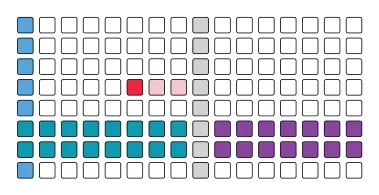
- An alternative control for repetitions is to press (Rept), knob 4 from the
CHRD 105.0
main sequencer screen. This will open the pad column editor for repeats. Tap [Pad] to add repeats and [Shift] + [Pad] will adjust repeat duration, indicated by the red lit pads.
- To use flow to trigger only selected step repetitions, hold the step to edit
[Pad] + tap knob 4. This switches focus to edit the lower Rept% parameter in the step submenu. With the pad still held, turn knob 4 to set Rept% to ‘Flow’. Now the repeats will only be applied when the [Flow] button is held.
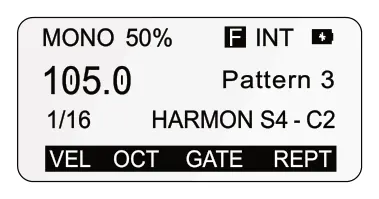
- Let’s link the chord sequencer playback to the mono sequencers
MONO 105.0
playback in an harmonious way. First, select sequencer [1]. Set the scale using [Shift] + (Scal) knob 3 to ‘HARMON S4’. This takes sequencer 1’s harmonization lead from chord sequencer 4. Repeat for sequencer 2.
- Press [Perf] mode and experiment by transposing sequencer patterns.
These will now play and transpose in harmony. The mono sequencers 1 & 2 will follow the harmonic lead of sequencer 4. Transposing the chord sequencer in the performer grid will control the chord and mono sequencers harmonization.
- Ensure the project is saved, hold [Shift] + tap [Save]. A good habit to get
into for saving iterative development of the project.
2.4 Multitrack for Drums
Multitrack mode allows each row to act an independent sequencer. Individual MIDI channels can be set per row. If all sequencers were set to multitrack mode, OXI ONE would offer 64 tracks of sequencing. Lets create a drum pattern using the multitrack sequencer.
Link to Oora’s workflow video here.
Building a Drum Pattern
- Start from the previous project.
- Select sequencer 5 and set to Multitrack mode. Tap Seq [5]. Hold
![Building a Drum Pattern diagram: SEQ 5 - Setup [T:5] 1/3 Ch T.Out T.PC Mode 5 A ALL OFF MULT](../../img/oxi-one-mkii/workflow/workflow-018.webp)
[Shift] + [5] to open the sequencer settings. Turn (Mode) to set the sequencer to ‘MULT’. This is in page 1 of 3 for SEQ 5.
- Destination instruments can be configured using one MIDI channel
per drum, for example kick on channel 5. However some instruments will respond to a single channel when each note represents a drum instrument. For example, Elektron Digitakt can be used with an individual note for each track. Both can be used in OXI ONE with a multitrack sequencer.
- Setting up a multitrack track.
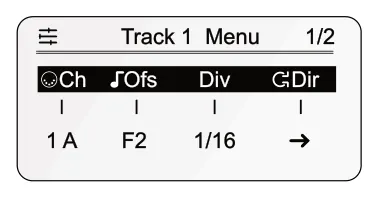
I. To open the track menu, hold Sequencer [5] + Press Column 1 [Pad] for the track to select. Alternatively, press [Track], then press column 1 [Pad] to select a track.
II. Turn (Ch) knob 1 to set the MIDI channel. This is for the selected
track and not for the sequencer globally.
III. Hold [Shift] + tap [Keyboard] to set preview mode. Any sounds
triggered from the MIDI output will be audible.
IV. Turn (Ofs) knob 2 to select a note offset. This is the note that the
steps on the track will trigger and send to the MIDI channel. The note should represent the destination instrument, example ‘C1’.
V. Repeat for all tracks to configure.
- The behaviour when programming multitrack steps can be changed in
the [Shift] + [Config] > workflow options. This depends on your personal preference:
Track Select priority in multitrack.
- Yes: First tap of a step will select the track to edit, then subsequent step taps will assign triggers to the chosen step.
- No: Trigger steps can be added immediately on any track when tapping a pad.
- Each track will represent a drum instrument, for example kick, snare,
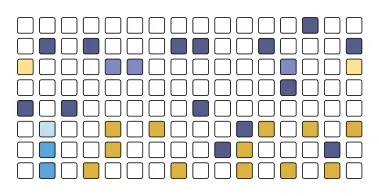
hi hat etc. Program steps on each track to create a drum pattern. Playing the track will help to test sequence options.
- Each track is independent so lengths, time divisions and direction.
Also variations in the sound can also be applied. For example:-
- Tap (Vel) knob 1 when in the main page to control velocity of the selected track using the grid pad column editor.
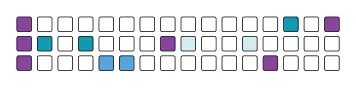
- Tap (Rept) knob 4 when in the main page to assign repeats to each step of the selected track using the grid pad column editor.
- Tap (Gate) knob 3 and then turn to adjust all gate lengths for the selected track.
- Hold [Shift] + press [Flow] to open the groove editor for the selected track. Grooves can be also be applied per track.
- An alternative drum programming feature is the drum generator. This
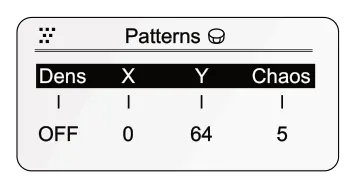
will automatically generate patterns for the first three tracks of a multitrack sequencer.
I. The track layout will automatically generate a kick on track 1, snare on track 2 and hats on track 3.
II. Hold [Random] + tap column 1 [Pad] for track 1, 2 and 3. This
changes the status to drum generator tracks. Pads will be light bright blue when activated.
III. Set the track length to 32 steps. The drum generator is optimised
for this length. Press [32] then hold [End] + tap the last column pad rows for the three tracks. Remember a multitrack can have the length setting per track.
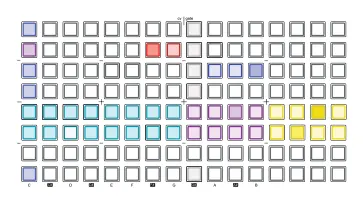
IV. Press [Play] to generate patterns for these tracks.
- Try using [Perf] to manage the drum tracks on the fly, using mutes
and the preset variations to play ad libs and improvisations.
2.5 Magic of Modulation Lanes
Modulation is a term that refers to the control of a parameter to add movement and variation. For example a whammy bar on a guitar modulates the strings. In electronic music modulation is typically applied through envelopes and low frequency oscillators. This example focusses on a unique feature in OXI ONE, modulation lanes. These are track lanes dedicated to the modulation or external and internal parameters. Modulation is an application and setup specific. Therefore this workflow is only a general introduction to the principles of using modulation lanes in OXI ONE.
Link to Oora’s workflow video here.
Instrument Definitions
- OXI ONE supports instrument definitions. What does this mean?
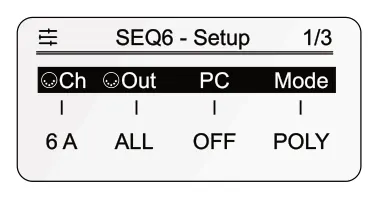
Several profiles are loaded onto the device using the OXI App which act like MIDI presets. They provide the predefined mapping between the OXI ONE and the external device. This makes life easier where all CC controls are pre-configured and can simply be loaded to a track.
- As an example, create a ‘POLY’ track on say sequencer [6]. Follow
the previous guidance for MIDI and sequencer configuration.
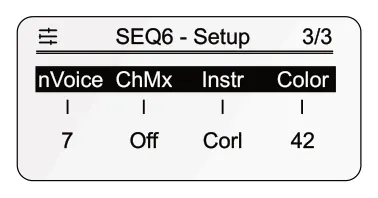
- To assign an instrument definition to seq 6, open the sequencer setup
using [Shift] + Sequencer [6]. Tap [Page] button to choose page 3/3
- Then turn (Instr) knob 3. The loaded definitions are listed. New
definitions can be added to the device from the app. As an example, choose OXI Instruments Coral, a Eurorack effect module.
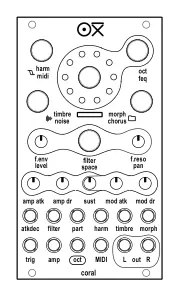
- Connect OXI ONE to the Coral device, in this example using the USB
connection option.
- Press [Mod] to view the mapped parameters for sequencer 6 and
Coral device.
Modulation Lanes
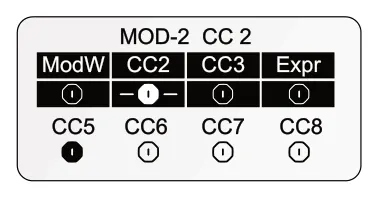
- Track 6, for this example will focus on modulating another device. In
this case OXI Coral is the destination. It is assumed audio will be channelled through Coral, maybe as generated in one of the other workflow examples.
- On sequencer 6, press [Mod]. This opens the modulation function with
8 individual modulation lanes available. Think of these as modulation sequencers.
- If an instrument definition has been used the destinations are pre-
mapped. If not [Shift] + [Mod] opens the modulation matrix settings.
- In the mod page, the 4 knobs represent a lane. Tap and hold a knob
to turn the modulation lane on or off. Tap a knob to switch the focus between the upper 1-4 and lower 5-8 lanes.
- Turning a knob, when active, will adjust all the step modulation
amount simultaneously. This is the value sent to the destination parameter from OXI ONE mod lane. Think of this as a set of steps, each adjusting the parameter value as the sequencer plays. Good examples are a filter cutoff, amount of reverb applied or the overall dry/wet mix of an effect.
- With a mod lane selected, the pads can be tapped to assign a value
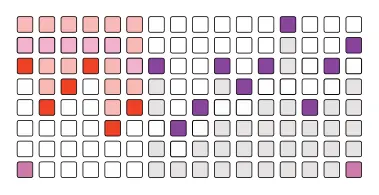
to each. Swiping across the pads to draw a modulation curve is possible. The grid pads act as column editors.
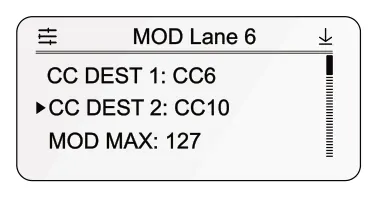
- To edit the modulation matrix for a specific lane, hold [Shift] + tap knob
of the modulation lane to edit. A set of options for the CC destination as well as range settings are possible. Internal destinations can also be applied.
- Try setting loops or different time divisions. Also include more than
one mod lane to modulate other device parameters in the same sequence but with independent shapes.
- To get even more advanced with modulation routing, it is possible to
route and external input, say a CV control from a Eurorack device, through OXI ONE and out to a MIDI destination. Experiment with routings and controls in the [Shift] + [Mod] settings. This all depends of course on your hardware configurations and setups.