



6.4 Poly Sequencer Mode

Poly or polyphonic mode is similar to mono mode but poly mode can accommodate up to 7 notes per step. Adding an 8th note will remove the first note added. Poly mode differs from chord mode in that chord mode uses predefined chord formations and voicing while poly allows free flowing entry of multiple notes per step in any formation. A maximum of 128 steps are available across the 8 pages of the grid. Rows can be scrolled up or down to access the notes of each octave available in the range, especially useful when using multiple notes on a step.
Viewing & Editing a Poly Sequencer
Grid View: Example: Major Scale, Root C2
![Viewing & Editing a Poly Sequencer diagram: Tap one or more [Pad] buttons to select or deselect a note step. cv gate Scroll Grid C3 Hi Notes Lo Notes Rows laid out piano roll style based on the current scale B2 A2 2 G2 push / turn F2 or E2 D2 1 + A B C2 C C#...](../../img/oxi-one-mkii/poly-mode/poly-mode-002.webp)
Activate or deactivate step. Quickly tap [Pad].

Tapping any pad in a column will select it, or deselect if already active. Place up to 7 notes per step, the first is replaced if placing an 8th note.
Create tie. Hold 1st [Pad] + tap last [Pad]


Inverted ties. Hold last [Pad] + tap 1st [Pad].
Muting steps. Hold last [Mute] + tap [Pad].


Any existing step notes that are not visible in the current pad range will be indicated in the top or bottom row of the grid to indicate that notes exist off the grid in the indicated column. Scrolling the octave range will bring these notes into view.
Poly Sequencer Parameters
The generic details of the sequencer setup, track and step options have been covered elsewhere in this manual. Here is a refresher of the options for the poly mode sequencer with any further details on poly mode specific parameters detailed additionally. The [Page] button will flash to signify that multiple pages exist. Press [Page] to to cycle through the available pages. Hold a parameter knob to reset.
![Poly Sequencer Parameters diagram: Sequencer Setup Options + The sequencer setup is accessed by holding [Shift] + [1] - [8].](../../img/oxi-one-mkii/poly-mode/poly-mode-008.webp)

nVoice. Number of voices for the poly sequencer. Maximum is 7 is the default. With a setting of 7, a maximum of 7 notes can be added to each step, an nVoice set to 5 allows 5 notes and so forth. Fresh notes are added incrementally, 0 upwards otherwise older notes use the oldest, inactive voice.
ChMx. Channel Multiplexing. Hold (ChMx) knob to switch between Lo and Hi options. The ChMx setting will redistribute the active voices, typically created from a chord, to the other incremental MIDI channels, upwards from the base. See Domino sequencer for expanded details.
![Poly Sequencer Parameters diagram: Track Menu Options. Poly mode has a single track so these settings operate globally for this sequencer mode. Press the [Track] button to access. Oct. Navigate grid, up or down. Knob 1. Track Menu Dir. Playback...](../../img/oxi-one-mkii/poly-mode/poly-mode-010.webp)
Step Options
Some step parameters can be edited globally, covering all steps, or can be edited at an individual step level. Multiple steps can also be edited collectively. Poly sequencers include an accumulator per step.
![Step Options diagram: Global - Press [Step] Tap (Knob) for the selected parameter to edit to switch between the upper and lower options in a dual parameter row display. Step/Accml Global Rept Durat AcmM - ... ... ... ... Offst - ... Step...](../../img/oxi-one-mkii/poly-mode/poly-mode-011.webp)
![Step Options diagram: Individual Step - Hold step [Pad] + [Page] to cycle through pages. Submenu 2/3 Stp 2 Accum 3/3 Stp 2 1/3 Stp 2 D2 Rept Durat Amt Acml+ Mode Acml- Vel Oct Gate Trig 0% +- +- CVGld Rpt% No x 1 0% Trig Acm% +0st Wrap...](../../img/oxi-one-mkii/poly-mode/poly-mode-012.webp)
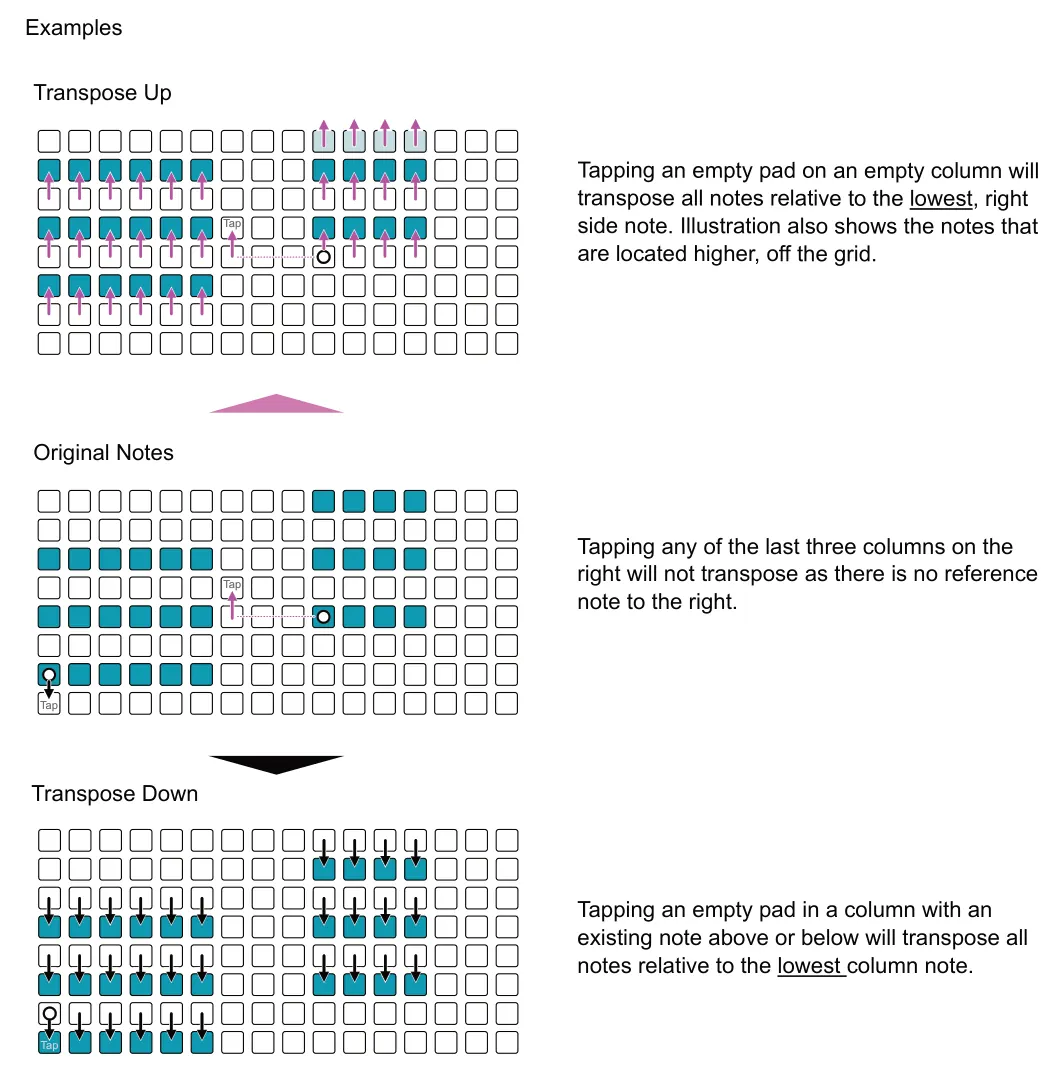
Transposing Poly Notes & Chords
Transpose all Notes Quickly tap Seq [1] + [Pad].


Copying / Pasting Steps
The copy / paste options in poly mode can be quite powerful and useful. Chord mode sequencers can even be copied and pasted into a poly mode sequencer to expand the options for editing chords and tweaking progressions.
Copying the poly mode steps will also copy their parameter settings. Pasting steps will be applied with the parameter settings and change or set notes relative to their original note position.
Copy one or more steps. Hold [Copy] + tap one or more [Pad]s to copy. Multiple pads can be selected, with the step count displayed. Also copies tied steps. The first step selected is the anchor reference.
Paste steps. Hold [Paste] + tap [Pad] for the destination step pad to paste into. This pad will be the anchor and the reference for pasting multiple steps simultaneously. Also pastes tied steps.
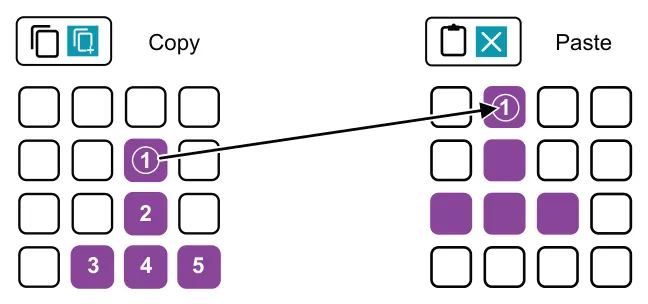
First pad selected in a cluster of notes will act as the anchor and form the reference.
Paste all notes in their relative positions to the first, anchor pad.
The guide given above for copying steps is particularly useful for poly mode sequencers. However the same process can be applied in the mono mode when copying and pasting one or groups of notes. The process of copying and pasting columns detailed below is more useful in poly mode especially when building chord melodies.
Copy column of steps. Hold [Copy] + tap an empty [Pad] from the column of notes to copy. Multiple columns with multiple notes can be selected, with the column count displayed. Also copies tied steps. The first step selected is the anchor reference.
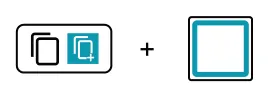
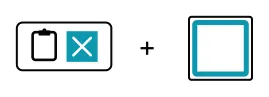
Paste column steps. Hold [Paste] + tap [Pad] for the destination column to paste into. The copied columns will be pasted. A quick way to paste chord progressions

Poly Arpeggiator
Poly mode has a dedicated arpeggiator which uses the notes on the poly grid as the source from which to create an arpeggio instead of the keyboard. Access to the poly arp is made using the [Arp] button in a poly sequencer in sequencer grid view. The poly arp is integral to the poly mode engine but still follows the general principles and functionality as the keyboard arpeggiator.
Ensure a multiple set of notes are programmed into steps on the grid, typically set to longer notes, or tied notes in a chord. The sequencer must be playing. The arpeggiator will operate at the defined time division for the duration of the sequenced notes. Individual short notes may not sustain the arpeggiator pattern generation for long enough so ensure the source notes allow the arpeggio to be generated over the appropriate time period.
![Poly Arpeggiator diagram: Accessing the Poly Arp Tap [Arp] to select. Hold to temporary view arp options. Grid must be in poly mode and sequencer view. If in keyboard view, only the generic keyboard arp is selected. Select the Poly Arp...](../../img/oxi-one-mkii/poly-mode/poly-mode-022.webp)
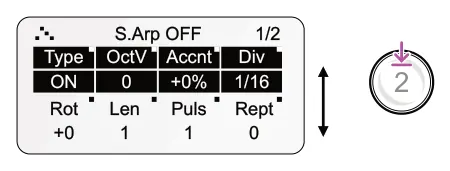
Tap (Knob) of the respective parameter to toggle between the upper or lower option for editing.
Corner tagged parameters can be modulated.
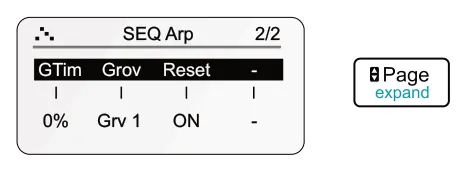
Tap [Page] button to cycle through the arp pages. Page button flashes when pages are available.
| Poly Arp Parameters Page 1/2 | |||
|---|---|---|---|
| Type Off / On - Arp algorithm | OctV Octave voicing range | Accnt Velocity accent | Div Time division |
| Sets the arp on/off. On sets the direction and style (displayed in the header) for the musical phrase. | Introduces a number of octave higher or lower notes into the arpeggio. | Varies the note velocity based on the ‘Grov’ groove template. | Sets the arp specific time intervals. This can be different to the main sequencer. |
| Rotate Euclidean rotation | Len Euclidean phrase length | Puls Euclidean pulses | Rept Euclidean pulse repeats |
| Rotates the Euclidean pulses + right or - left. | Sets the total length of the Euclidean phrase. | Number of pulses in the Euclidean generator. | Generates repeats for pulses in the Euclidean generator. |
| Poly Arp Additional Parameters Page 2/2 | |||
|---|---|---|---|
| Gtime Timing of the groove | Grov Groove Templates | Reset Reset | |
| Adjusts the velocity timing of the arp notes within the selected groove. | Selects a groove template. These are applied to the velocity profile of the arpeggio. | Option to reset the arp pattern to start at the beginning when new arp notes are applied. | |
Keyboard View

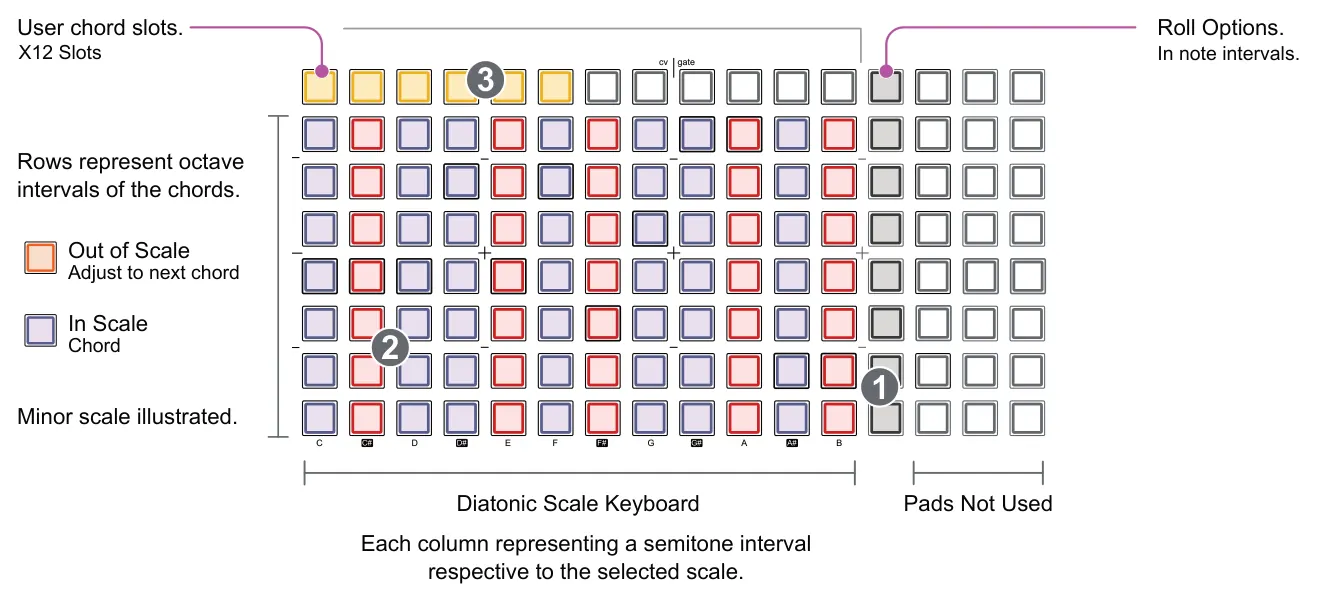
The keyboard view in a poly sequencer offers some unique features for working which chords. The keyboard itself pretty much operates with a 'lite' version of the chord keyboard and also has the ability to play and capture up to 12 chords to a user slot library. These chords can then be used to 'pick and place' into the sequencer pattern or can be played in performance mode for the Poly sequencers.
![Keyboard View diagram: Press [Keyboard] button to select or deselect keyboard view in a Poly sequencer.](../../img/oxi-one-mkii/poly-mode/poly-mode-026.webp)
While Playing the pattern [Play]
![Keyboard View diagram: Set Roll Interval. Select keyboard [Pad]. 1](../../img/oxi-one-mkii/poly-mode/poly-mode-028.webp)
Tapping any pad in a column will choose a note interval for playing the note or chord roll.
![Keyboard View diagram: Play chord. Select keyboard [Pad]. 2](../../img/oxi-one-mkii/poly-mode/poly-mode-029.webp)
Hold the pads in the columns will trigger the chord. Chord layout is based on the current scale and root.
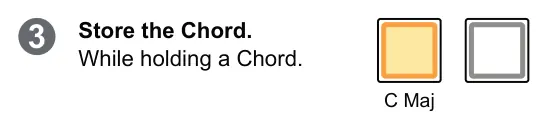
While holding the chord or note, hold a user chord slot in which to store the chord for > 2secs . These are unlit on the upper row and lit orange when a chord is stored..
Pick & Place Chords To sequence chords from the stored slots, firstly tap one of the stored, upper row pads to choose the chord. Switch to the sequencer mode and tap any pad to place the chord in the sequencer grid. Repeat the process to place more of the same chord or switch back to the keyboard mode and pick another chord to place.
Stored chord are also accessible from the Performance mode page and can be played from the Perf Grid.