



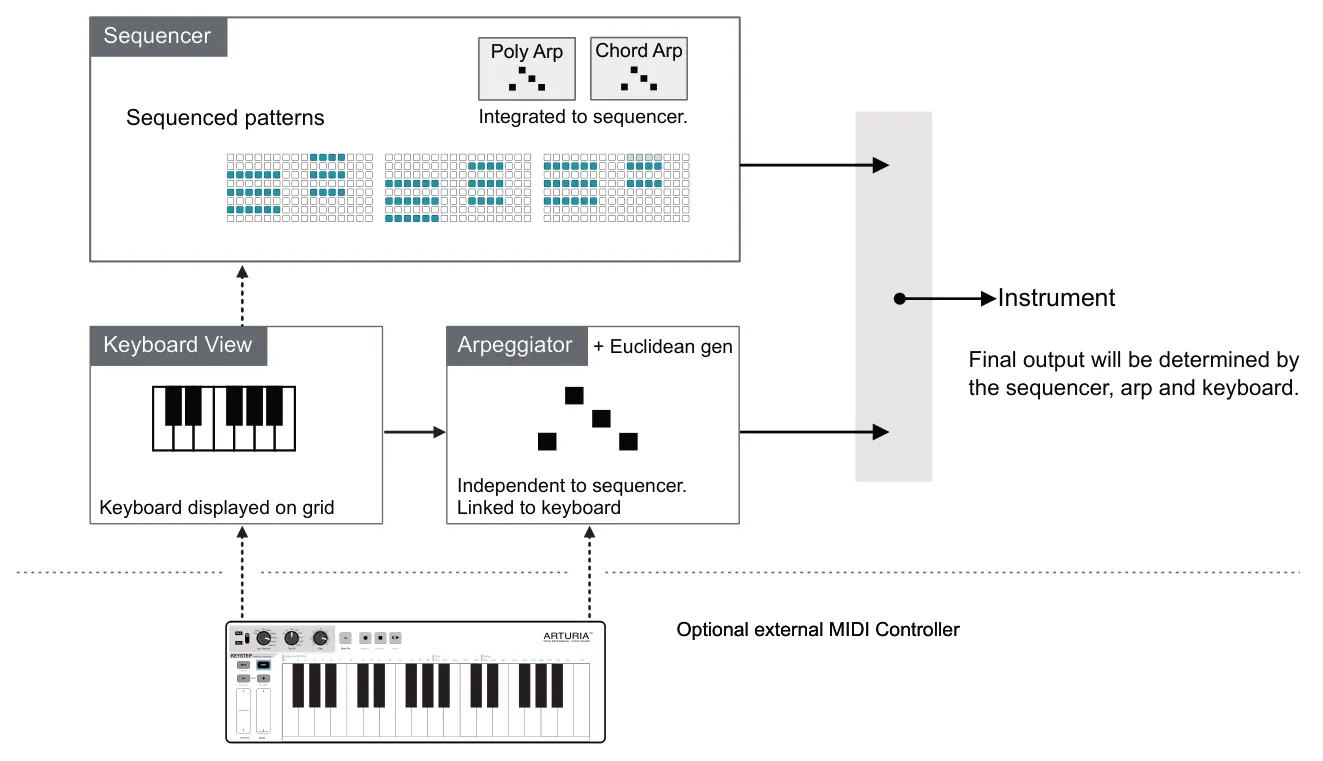
A set of tools and helpful features are available that operate globally across many of OXI ONE’s modes and functions. It makes sense to get to know these tools before diving deeper into the sequencer modes, as many of them will be helpful to know when working within these modes. Of course, several other tools are more associated with specific modes and operate only in certain environments and settings. These exclusive tools will be explained alongside the sequencer modes in the next section. This chapter will help to differentiate between the tools integrated into the sequencer modes, described later, and those that can operate as stand-alone production or performance tools yet still serve all of the sequencers. Some functions add to the workflow to speed it up or simplify the production process, while others enhance the live performance experience; most do both. Some examples of these performance tools include the grid keyboard. This feature allows the grid to be presented and played in a piano style keyboard, either chromatically or based on other scales. The internal keyboard can provide input to sequencers or help to create live ad-libs and improvisations. Also, flow selectively triggers (or not) certain events on the fly, and roller is a simple creative tool that can work in many of the available modes. You can read this section in-depth or scan through it to be aware of what is available and refer back later. Either way, this section is a comprehensive guide to the global toolkit for developing songs further and performing them live.
5.1 Keyboard View
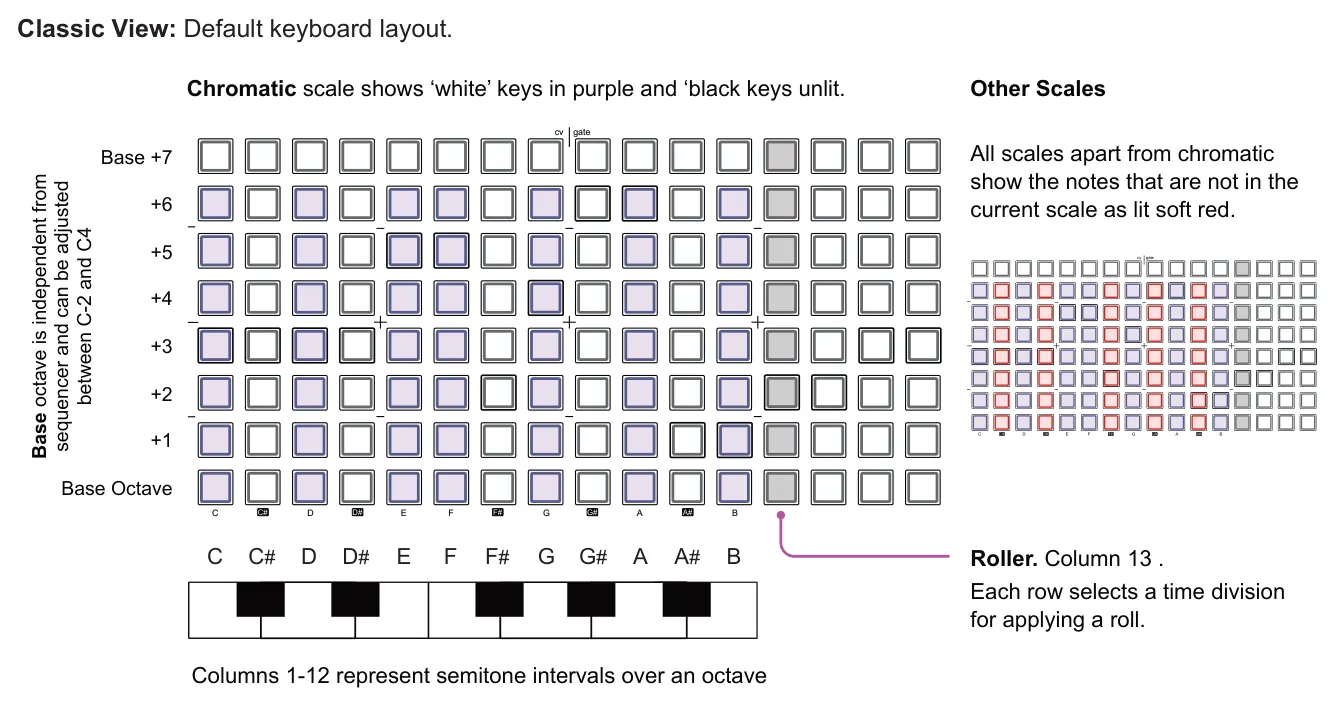
Sequencer view is the normal ‘home’ view where the grid generally represents pitch and steps. However the grid can be switched to a keyboard view where columns represent notes and the rows represent the octave for each note. The exact layout is dependant on the scale selected and the current sequencer mode. Keyboard is presented in a classic style or in an isomorphic style or for multitrack mode, a drum pad style layout.
Accessing the Keyboard View
Select Keyboard view. Tap [Keyboard].
Tap to select or hold to temporary view the keyboard. Keyboard button will be lit white in keyboard view.
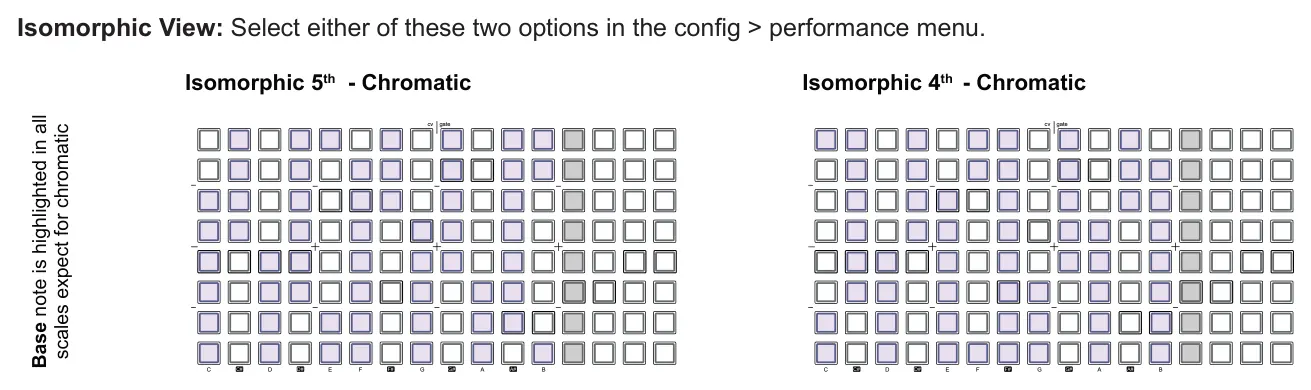
Isomorphic view displays a fixed interval between notes in the same column, laid out different to the normal musical convention. With the interval between notes being fixed it makes playing of chords a simple process.

It is possible to access a number of important and relevant parameters directly from keyboard view.
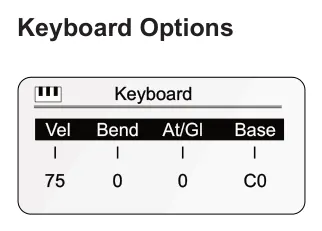
A set of default keyboard options are displayed when in keyboard view. These can be edited by the 4 knobs. Hold (Knob) to reset its value to the default setting.
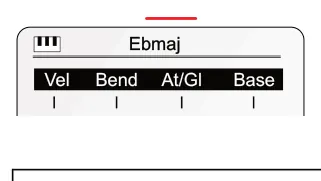
Chord Recognition. The chord will be identified and displayed in the keyboard while a chord is played in the header of the primary keyboard page.
| Keyboard Parameters | |||
|---|---|---|---|
| Vel Velocity | Bend Manual Pitch Bend | At/Gl Aftertouch / Pressure | Base Base Note |
| Velocity value of each note played on the keyboard. Range 1-127, default 75. | Performs a dynamic pitch bend for notes played. Range -128 to 127, default is 0. | Controls the output for aftertouch or pressure / glide. Glide is CV only. Range 0-127, default 0. | Base note for keyboard. Independent from sequencer. Located at the bottom grid row. |
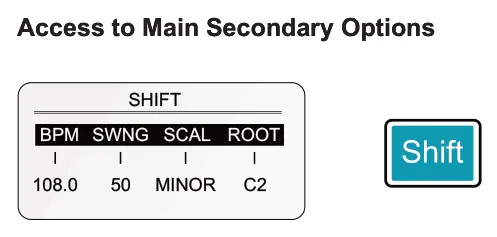
The global secondary parameters are accessible directly within the keyboard view by holding shift and turning a knob.
Poly & Chord Mode - User Chords
The Chord and Poly keyboard views both offer the option to store user chords or notes into a set of pads. These are located in the top row, first 12 columns. To store a note or chord, hold the notes then hold the user chord pad. Full details are covered in the Poly and Chord mode descriptions.
5.2 Looping Patterns

The overall pattern is configured with start and end points which determine the entire pattern length. In addition a loop can be set to play within the pattern that operates on a continuous cycle with its own defined start and end points.
![5.2 Looping Patterns diagram: Full pattern length Initial Start Step Hold [Init] + [Pad] End / Last Step Hold [End] + [Pad] Loop Last Step Loop Start Step Tap [Pad] Tap [Pad] + + Loop](../../img/oxi-one-mkii/performance-tools/performance-tools-009.webp)
![5.2 Looping Patterns diagram: Press both [Init] + [End] to select loop view. Both buttons will be lit in loop view. +](../../img/oxi-one-mkii/performance-tools/performance-tools-010.webp)
Select loop view
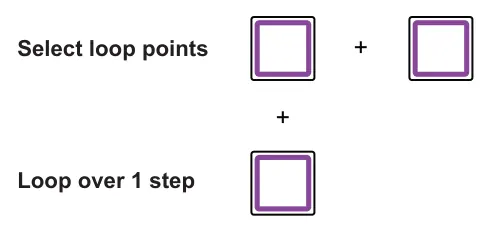
Press both start [Pad] + end [Pad] together to select loop start and end. Loop points are indicated in loop view by purple lit columns.
Press both start [Pad] + end [Pad] in the same column but on different rows.
The Init and End buttons will flash when a loop is set.
![5.2 Looping Patterns diagram: Press [Init] or [End] to deselect loop points. Both buttons will be lit to indicate loop view is still selected. or Clear loop points The loop will be released based on the ‘loop sync release’ setting. This is found...](../../img/oxi-one-mkii/performance-tools/performance-tools-012.webp)
The pattern will play continuously within the loop range when in a loop. A number of loop settings are also available in the loop for each sequencer. Loops can be set for each sequencer, in multitrack mode this is for each track.
Loops can be edited while playing a pattern. Transposing the pattern or editing steps can still be performed if a loop is active.
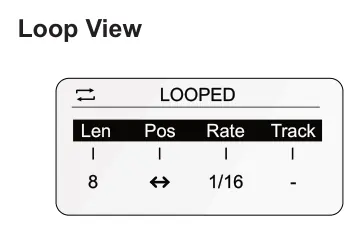
The settings apply to the selected sequencer when loop is on and a loop is set.
| Loop Options | |||
|---|---|---|---|
| Len Length intervals | Pos Loop position | Rate Individual loop speed | Track Multitrack track to edit |
| Doubles or halves the loop length from the current start. If no loop exists, a new loop is created when editing. | Shifts the entire loop in 1 step increments forwards or backwards. Hold [Shift] to move in increments equivalent to the current loop length. | Rate or division of the playhead when playing in the current loop. | Selects track 1-8 to edit individually or edit all simultaneously. These only apply to tracks in multitrack mode. |
Snapshots & Loops
Snapshots and loops can operate together in a complimentary way. This can add to the creativity. The snapshot and loop logic follows:-
- Loops can be used in snapshots.
- Snapshots can be used within loops.
- Exiting a snapshot will also exit the loop.
- Exiting a loop does not exit the snapshot.

Loop view is available in all sequencer modes with exception of Matriceal mode. The loop option is not available in this mode
5.3 Arpeggiators

An arpeggiator or arp is a function that is described as playing ‘broken notes.’ Instead of playing multiple notes simultaneously as a chord, an arp separates and sequences each note into a looped pattern or musical phrase called arpeggios. In ONE, think of this as a sequence within a sequence.
Arp is linked to the grid keyboard and when accessing [Arp], the keyboard view will open automatically. In addition to the keyboard arp, poly and chord modes also have a dedicated arpeggiator which use the notes on the grid as the source from which to create an arpeggio. Access to the poly and chord arp is made using the [Arp] button in each sequencer grid view.
![5.3 Arpeggiators diagram: Navigating the Arp Settings Select the Arp Options. Tap [Arp].](../../img/oxi-one-mkii/performance-tools/performance-tools-017.webp)
Tap to select or hold to temporary view the arp options. Button is lit when arp ‘type’ is on and is unlit when arp is off.
In mono, multitrack, stochastic, matriceal modes the keyboard arp is used and keyboard view will open automatically. Poly and chord mode must be in sequencer grid view for the sequencer arp and keyboard mode for keyboard arp.
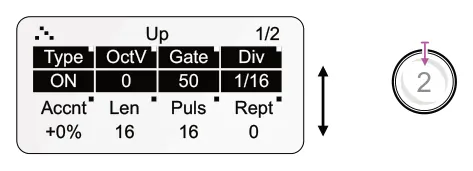
Quickly tap (Knob) of the respective parameter to toggle between selecting the upper or lower parameter for editing.
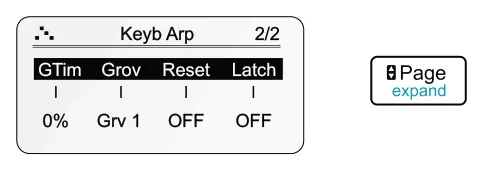
Tap [Page] button to select between arpeggiator pages. Page button flashes when additional pages are available.
Editing & Controlling the Arp
![Editing & Controlling the Arp diagram: Turn (Type) knob 1 in arp page 1 to turn the arpeggiator type on or off. Once set to on, quickly change on/off by, holding [Shift] + tap (Type), knob 1. In keyboard view, the [Arp] button will flash if the type is...](../../img/oxi-one-mkii/performance-tools/performance-tools-020.webp)
Turn (Knob) of the respective parameter to adjust its value. Tap the (Knob) to switch between upper and lower parameters. To reset any of the parameters, Hold (Knob) > 2 secs for the respective parameter.
Press [Play] to play sequencer. Play must be on in order for an arp to work irrespective of whether the sequencer is active or not.
Press [Rec] to record the arpeggio into the sequencer. The global keyboard arp will also captures velocity and groove. Does not apply to chord arp which cannot be recorded.
![Editing & Controlling the Arp diagram: Hold function. Hold [Shift] + Tap [Arp] to toggle hold on or off. Hold will retain or remove notes added on the keyboard and not require them to be manually held when played. Hold - button turquoise. +](../../img/oxi-one-mkii/performance-tools/performance-tools-024.webp)
Held notes are retained when exiting the keyboard view or when the sequencer is changed. Use in conjunction with ‘latch’ on page 2 to add and retain multiple notes incrementally.
Creative tips for Arpeggios
- Consider layering arps using the 8 sequencers to build complex and generative passages and songs. The ‘hold’ feature is useful here.
- Modulation and LFO’s can be applied to arp parameters opening up a whole new dimension of creativity. Experiment and try things out.
- Remember the flow, probability and logic features can also expand the arp flexibility even more.
- Try changing the reset to differentiate pattern position or groove reset.

The workflow and parameter controls are designed for easy access and quick, creative control when working in an arpeggiator environment. They may therefore differ slightly to the standard ONE control conventions.
The ONE arpeggiator is an advanced tool for creating interesting melodies and phrases. The arp can appear complex so taking a little time in this section will help to get a better understanding.
The OXI ONE arp consists of two components that work together to generate the output phrase. Firstly is the arpeggiator core engine, this is the component that converts a chord to sequenced notes, assigns the playback order, speed and velocity profile. In addition a Euclidean generator applies further manipulation of the arp generated notes. The Euclidean elements consist of length, pulse and repeats and contribute to the output phrase by adjusting the note sequence and timing to create interesting rhythms.
| Arpeggiator Parameters Page 1/2 | |||
|---|---|---|---|
| Type Off / On - Arpeggio algorithm | OctV Octave voicing range | Gate Gate length | Div Note timing division |
| When on, sets the arp direction and style for the musical phrase. Also can be set to off. | Introduces a number of higher or lower octave notes, into the arpeggio. Range is -7 to +7. | Length of the arp note gate between 2-100 based on ‘Div’ time division. The default is 50. | Sets the arp specific note intervals. This can be different to the sequencer. |
| Accnt Velocity Accent | Leng Euclidean phrase length | Puls Euclidean phrase pulses | Rept Euclidean pulse repeats |
| Varies the arp note velocity in a pattern from a selected ‘Grov’ groove template selected. Range -100 to +100% | Sets the total length of the Euclidean phrase. Range is 1-32, default is 16. | Number of pulses in the Euclidean generator. Range is 1-32, default is 16. | Generates repeats for pulses in the Euclidean generator. Range is 0-16, default is 0. |

| Arpeggio Additional Parameters Page 2/2 | |||
|---|---|---|---|
| Gtime Timing of the groove | Grov Groove Templates | Reset Reset | Latch Keyboard Latch notes selection |
| Adjusts the velocity timing of the arp notes within the selected groove. | Selects a groove template. These are applied to the arpeggio timing and velocity. | Resets the arp pattern position, groove, all or none to start at the beginning when new arp notes are applied. * | Works in conjunction with the keyboard hold. Multiple notes can be selected and locked on. |
* Arp pattern reset on note change is also available in the config > performance settings.
| Grov - Groove Templates | |
|---|---|
| Number | Name |
| Grv 1 | Trancey Groove 16th |
| Grv 2 | Disco Light Swing 16 |
| Grv 3 | Tambourin 16th |
| Grv 4 | Bomba Acc 16th |
| Grv 5 | Shaker ChaCha 16th |
| Grv 6 | Loosely Flow 16th |
| Grv 7 | Claves Accent 16th |
| Number | Name |
| 8 | Caixa Accent 16th |
| 9 | Charanga Shaker 16th |
| 10 | Dancehall 16th |
| 11 | Disco Indie 16th |
| 12 | Fusion Tight 16 |
| 13 | African Timbales 16 |
| 14 | Quinta Loca 16th |
To apply a standard swing, use Groove 1 and adjust the Gtime parameter accordingly. Groove may apply a velocity profile to the arpeggio or affect note timing or both.
User groove profiles can be created externally as well as in the OXI App and loaded to ONE.
Deconstructing the Arpeggiator
These examples show the behavior of the arpeggiator and the affect that some of the key settings have on the arpeggiated output. The ONE arpeggiator is an advanced tool featuring traditional arp functions, Euclidean pulses and groove templates. It is a great example of how the internal ONE ecosystem brings together features for more creativity and musical inspiration.
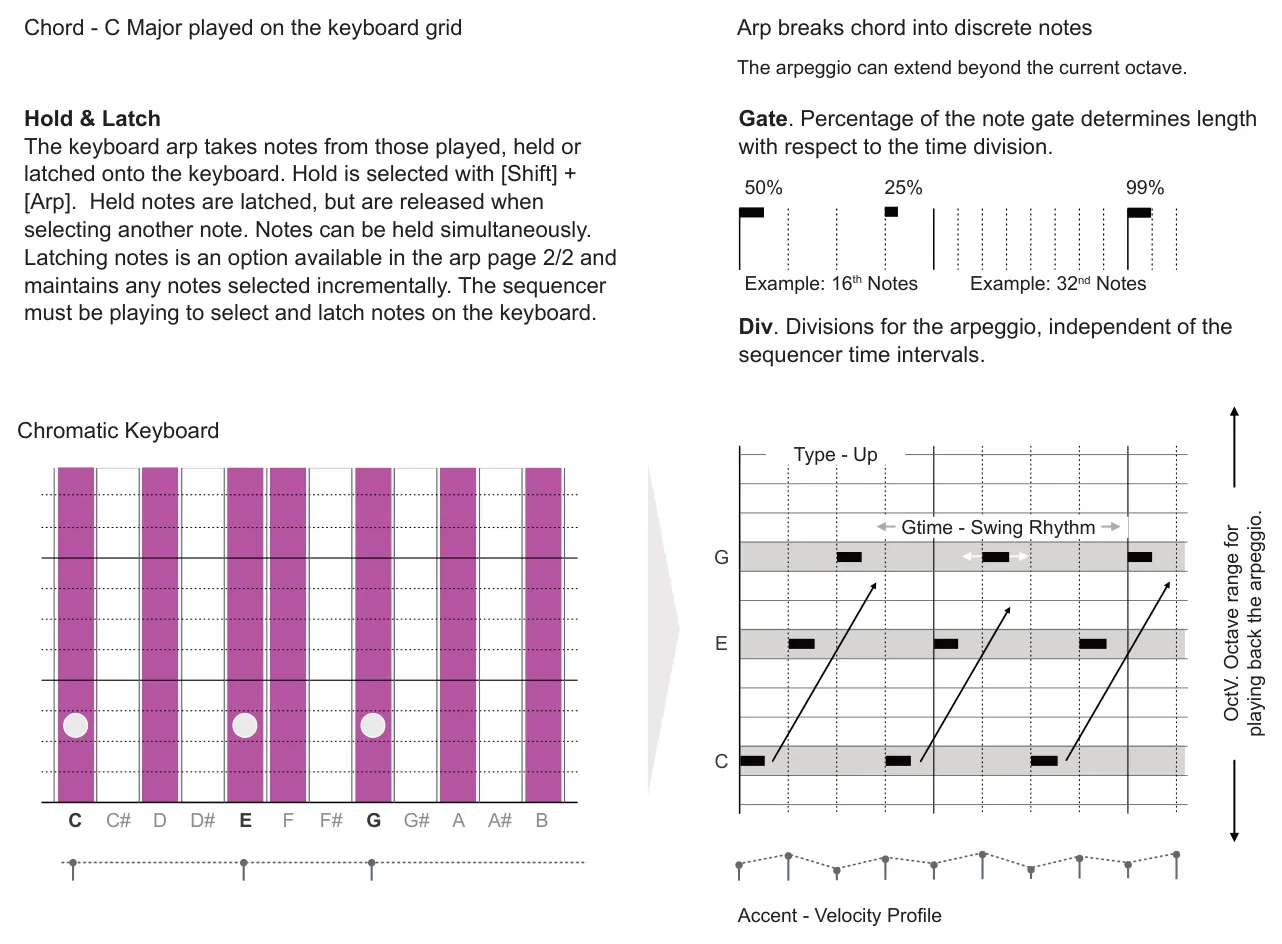
Scale: Chromatic Root C2, Chord C Major
Groove Engine
Accnt. The accent option sets the amount of velocity profile that is applied to the arpeggio. The profile is based on the template selected in the Grov option and creates a soft or emphasised musical groove. This groove is based on velocity deviations through the arpeggio.
GTime. In addition to velocity creating a rhythmic texture, Gtim can also apply a swing style groove to offset the micro timing of some notes. A range of +/-100% controls the amount. This rhythmic style is taken from the selected template chosen from the Grov options.
Reset
The reset behavior of the arpeggiator when new arp notes are applied can be set. The Reset parameter is found in page 2 of the arp parameters edited with (Knob 3). The pattern position, ‘aPos’ can be reset only, Groove, ‘Grve’ only or ‘All’, reseting both groove and arp pattern position. Reset can also be set to off, allowing it to freely run.
Type. Type sets the arpeggiator on or off, and if on, selects one of twelve algorithms. The active algorithm is displayed in the arp page header. This generally controls the direction and pattern behavior of the generated arpeggio notes. The arpeggio loops based on notes selected.
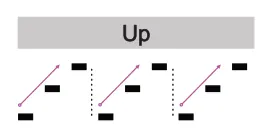
Notes are played lowest first and incrementally up the scale across the octaves selected then back to the lowest note in the selected range. Example has 3 notes.
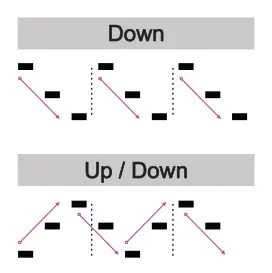
Notes are played highest first and incrementally down the scale across the octaves selected then back to the highest note in the selected range. Example has 3 notes.
Notes are played lowest first and incrementally up the scale across the octaves selected then back down the range. Loops through this cycle continuously. Example has 3 notes.
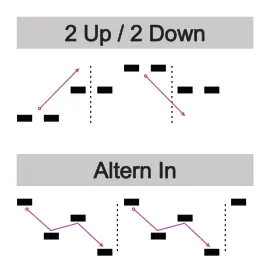
Notes are doubled up at the arp time intervals and play lowest first, then up the scale and the octaves selected then, back down the range. Loops this cycle continuously. Example has 3 notes.
Notes alternative in sequence starting from the upper notes and working downwards in a ‘zig-zag’ style then back to restart at the upper note. Example has 4 notes.
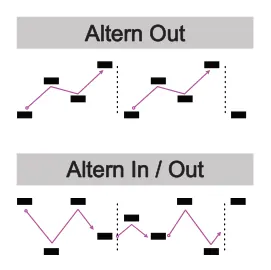
Notes alternative in sequence starting from the lower notes and working upwards in a ‘zig-zag’ style then back to restart at the lower note. Example has 4 notes.
Notes alternative in sequence starting from the upper note then lower note before working inwards in a ‘zig-zag’ style then back to restart at the upper note. Example has 4 notes.
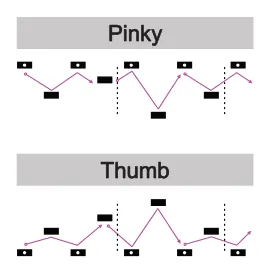
Notes are generated based on the upper note as the ‘anchor’ reference, with all other notes alternating in turn with the upper note. Example has 4 notes.
Notes are generated based on the lower note as the ‘anchor’ reference, with all other notes alternating in turn with the lower note. Example has 4 notes.
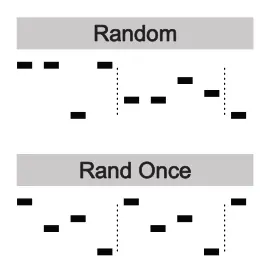
Notes are generated randomly throughout the arpeggio and change in an evolving, but unpredictable way. Example has 4 notes.
Notes are generated randomly throughout the initial arpeggio cycle and then remain in the same pattern for the arpeggio cycles. Example has 4 notes.
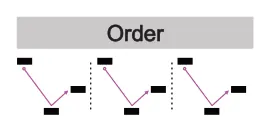
Notes are played in the arpeggio in the order that they are played on the keyboard. Example has 3 notes.
In addition to the standard arpeggiator function which generates pitch based arpeggios, the ONE arp also has integrated Euclidean rhythm generator which creates more interesting grooves and musical passages. The Euclidean generator operates on the timing of the arp generated notes adding a more complex layer of pattern generation.
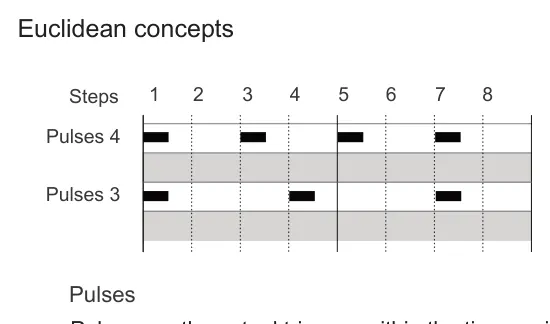
A Euclidean pattern is one generated using a mathematical formula for note placement and timing. In simple terms, a number of pulses are generated at equally spaced intervals within a defined length. Think of the ONE arp generating an initial arpeggiated pattern with the Euclidean generator optionally adding more manipulation of note timing and developing the rhythm even further.
Steps
A Euclidean generator needs a time duration, typically beats in the time interval. This can be set in steps to determine the overall length to operate within. Example 8.
Pulses are the actual triggers within the time period that generate notes. A Euclidean generator takes the selected number of pulses and distributed them as evenly as possible across the time period.
ONE Euclidean generator
Steps
| 1 | 2 | 3 | 4 | 5 | 6 | 7 | |
| 1 | 2 | 3 | 4 | 5 | 6 |
Arp
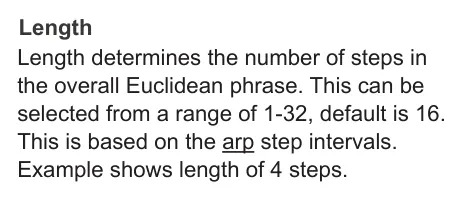
Length 4
Pulse 3
Output
Pulses
Pulses are the step triggers distributed within the length. The options are between 1-32 to fit the available length range, default 16. The source of pulses comes from the notes in the arpeggio handled in batches set by length. Example above shows 3 pulses, repeat set to 0.
In essence the actual output of the arp will be the arpeggiated notes further affected by the groove and Euclidean generators. So with length and pulse set to the same number, the output will be a pure arpeggio with no Euclidean affect applied, for example defaults are both length and pulse set to 16.
Repeats
There is an additional Rept option that can be adjusted between 0-16 with default at 0. This feature selects how many repeats are added to a Euclidean pulse and works in conjunction with the other Euclidean settings. This may not be easily recognised where a high number of pulses are already generated or the length is set low. A good example in use is with a repeat of 0, length of 16 and 1 pulse, one note will be generated into the 16 step phrase. If repeat is set to 8 it will place 8 additional notes after the original pulse, a total of 9 notes in the arp pattern.
5.4 Flow
Is flow a tool or a button? Well it’s both. The general concept is that flow is a feature that enables specific events and actions to be configured to only operate under a certain condition. That condition being linked to the status of the flow button. For example, notes can be sequenced to play but only while the flow button is pressed, otherwise these notes do not play in the pattern.
![5.4 Flow diagram: Events can be set to operate based on the flow button condition. Any ‘flow’ assigned functions will only operate when the [Flow] button is held.](../../img/oxi-one-mkii/performance-tools/performance-tools-037.webp)
Flow
![5.4 Flow diagram: Hold [Flow] + tap [Pad] to add a ‘flow’ step. Steps will only be triggered in a playing pattern while the [Flow] button is held. Flow Step +](../../img/oxi-one-mkii/performance-tools/performance-tools-038.webp)
Flow can also be applied in various menus including the step menu options.
Flow can be configured at various points around the OXI ONE feature set. It is not an exclusive function only for note triggers. This makes flow a powerful feature, especially for live performances and improvised sessions.
An example is the mono mode accumulator. The Acm% parameter in the step options also has Flow and Flow available. This allows the accumulator to operate, or not, with control from the [Flow] button.
Generally speaking, flow is a parameter found within the probability options of a function
Example: Note events set using the step menu
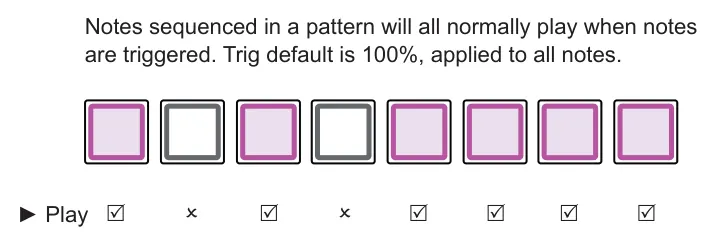
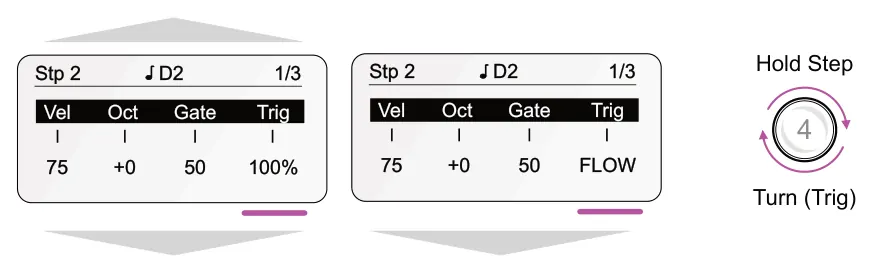
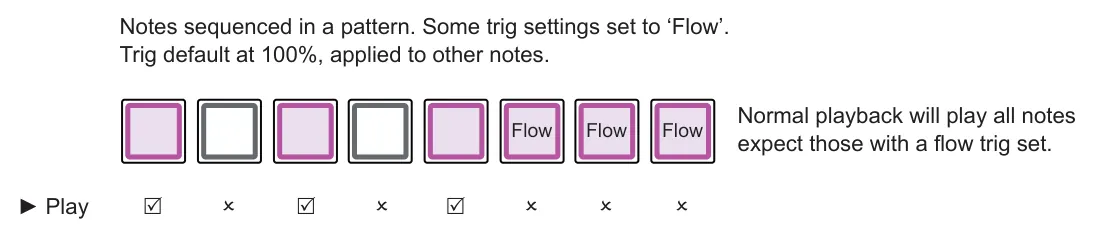
![Example: Note events set using the step menu diagram: With [Flow] held, all notes including flow trig notes play. If [Flow] is not held, flow notes do not play Flow Flow Flow ☑ ✗ ☑ ✗ ☑ ☑ ☑ ☑ ► Play](../../img/oxi-one-mkii/performance-tools/performance-tools-042.webp)
![Example: Note events set using the step menu diagram: Notes sequenced in a pattern. Some trig settings set to ‘Not Flow’, ie FLOW. Trig default at 100%, applied to other notes. If [Flow] is not held, all notes play. With [Flow] held, notes set to 'Not Flow' wont play....](../../img/oxi-one-mkii/performance-tools/performance-tools-043.webp)
Flow configured events are activated when the [Flow] button is held. The ‘not flow’ option works in the opposite way. Flow configured events are not activated when the [Flow] button is held.
5.5 Roller

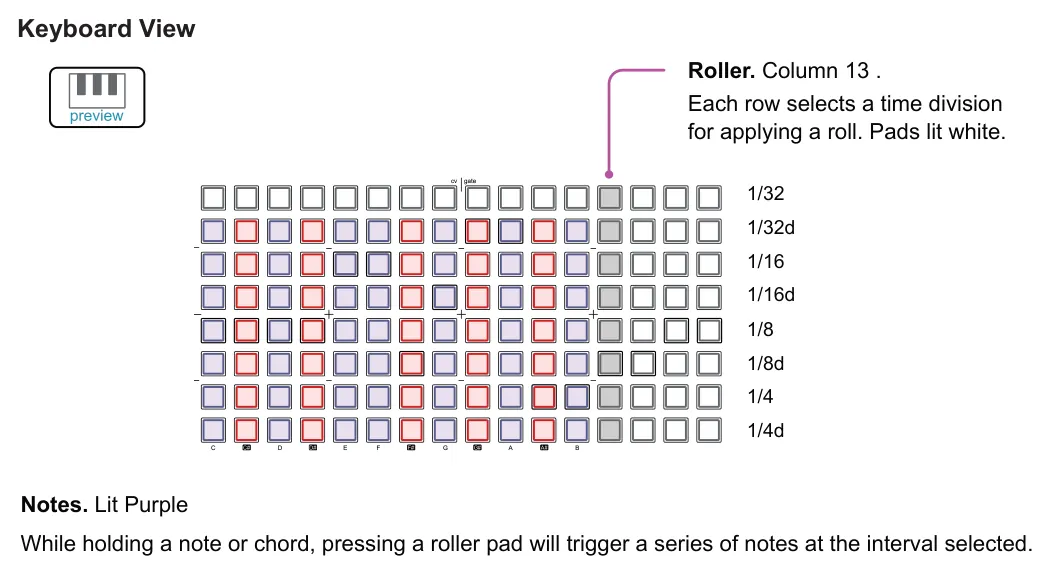
Roller is a tool for mono, poly, multitrack, matriceal and stochastic modes which triggers a pattern roll at defined note intervals. The roller is located in keyboard view and controlled with column 13 in the grid where each pad triggers a note interval. Arp should be off and notes played on the keyboard with the transport playing.
Editing & Controlling Roller
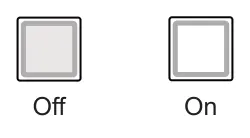
Tap [Pad] in column 13 to toggle roller time interval ON, button is brightly lit. When inactive button is dimly lit white.
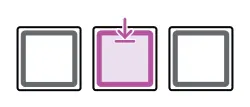
The transport must be playing for roller to be used. Play any note using the grid keyboard to play a roller note.
![Editing & Controlling Roller diagram: Hold [Shift] + Tap [Arp] to toggle ‘hold’ on or off. Hold will retain any notes played simultaneously on the keyboard. Notes are not required to be continuously pressed. Held pads will flash. +](../../img/oxi-one-mkii/performance-tools/performance-tools-048.webp)
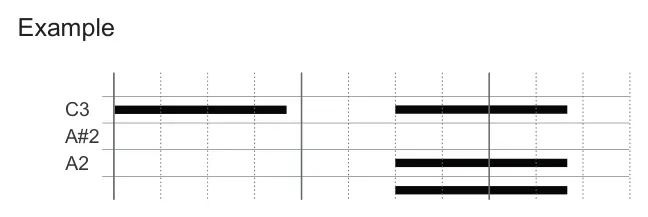
Notes and chords held on the grid keyboard. Played as normal
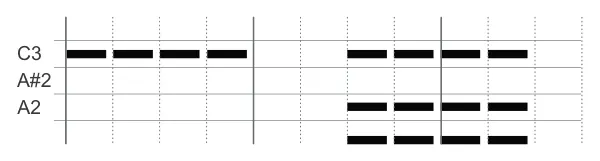
Notes and chords held on the grid keyboard. Roller with pad 1/16 set to On.
5.6 Random Perform
OXI ONE can create random variations to existing patterns on the fly, ideal for performing live, improvisation, experimentation or just jamming. Random performance function is non-destructive, varying parameters and patterns temporarily while retaining the original pattern and its data integrity. Random perform is accessible directly by pressing [Randomizer]. Random pattern generation using the [Randomizer] is explained in an earlier chapter. In multitrack and matriceal modes random perform affects each of the tracks independently.
Random Perform
The principle of the random perform is to introduce random rhythmic and melodic pattern variations while performing live or while playing out existing patterns. Parameters and settings that affect the pattern musically can be ‘performed’ like an instrument, affecting all steps in a selected track or sequencer. The process allows for experimentation and exploration by temporarily or periodically varying parameters from their original position while being able to restore original sequence settings.
Quick Tap [Randomizer] to open the random perform menu page. Hold [Randomizer] to temporarily display the menu, exiting on release.
Random perform menu
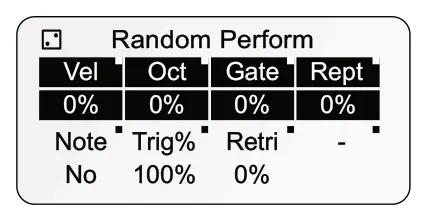
Randomizer - Perform Page
Parameters set are variations from the original value and timing is preserved. These can be adjusted to create variations on-the-fly or before playing. Hold a knob to reset its value. This is particularly important to restore the original setting.
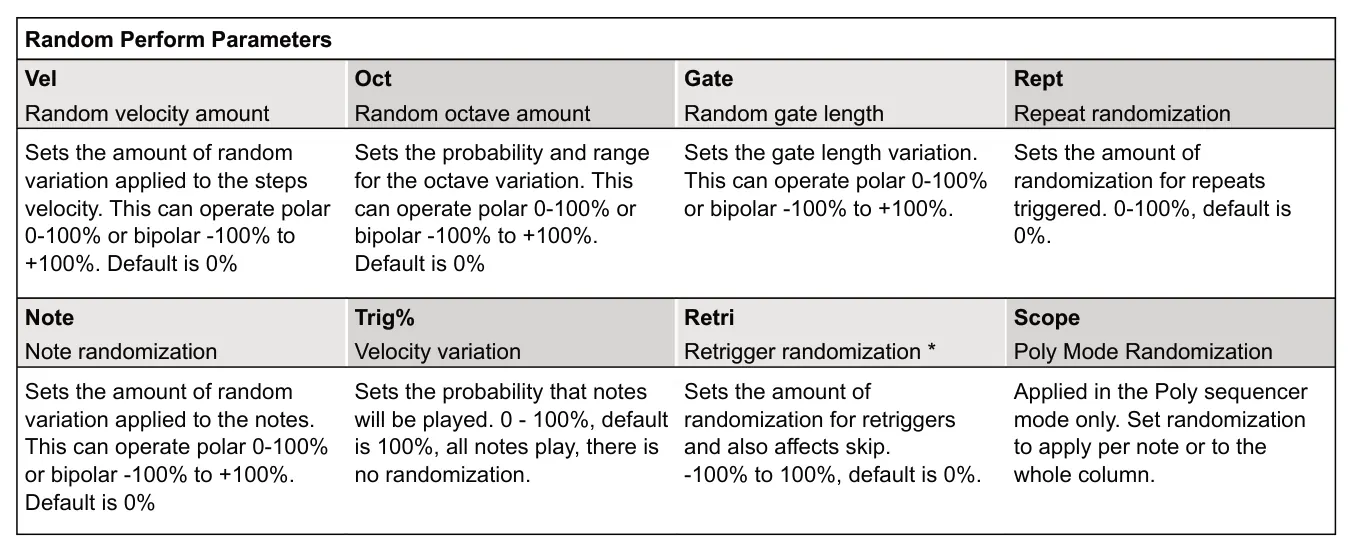
* The behaviour of ‘Retr’ also affects skips. Skips are added randomly when the ‘Retri’ value is negative. In the range 0-32% skips
and some retriggered are converted to triggers randomly. Values above 33% to 100% increase probability of retriggers being applied and skips have even more chance of being triggered.

Select the random generator [Randomizer]. In this mode, switch between the random generator and random perform pages by tapping [Randomizer] or using [Shift] + [Randomizer].
Random Performance in Multitrack Mode

In multitrack mode the random perform function operates for each track. The tracks can be muted or unmuted for randomization. This doesn't mute the sequencer, but just mutes the randomization applied.
Muting multitrack randomize perf
In the random perf function, hold the [Randomize] button + tap the multitrack grid column 1. The multitrack column 1 is a track selection function. Tapping each track while holding the randomize will mute the applied randomization, playing the original sequence or unmute randomization, applying the random perf variations.
![Random Performance in Multitrack Mode diagram: In Random Perf, page displayed, Hold [Randomizer] + tap column 1 [Pad] to mute or unmute the randomization. +](../../img/oxi-one-mkii/performance-tools/performance-tools-056.webp)

Randomize Matriceal Matrices

In matriceal mode the random perform option can be used for each tracks matrices. This will apply a random series of steps to the selected matrices. The ‘Rnd’ % by holding a step [Pad] + turning (Knob 4) will be applied with this function. The randomization can be undone.
![Randomize Matriceal Matrices diagram: Step Lane Step Lane Step Lane Hold any [Pad] in the upper 16 pad lane section to select and tap [Randomizer]. + or Hold any [Pad] in the upper 16 pad lane section to select and tap (Knob 4). 4 + TRIGGER The...](../../img/oxi-one-mkii/performance-tools/performance-tools-059.webp)
Randomize Poly Mode

The 'Scope' parameter is available in random perform for the poly mode sequencer. Scope selects whether to randomize per note or the whole column. Column randomization is useful for rhythmic chords and repeats and these settings help tame the randomization to maintain the musicality.
5.7 Perform
OXI ONE has a unique and powerful performance tool, presenting the grid pad as a live performance or improvisation instrument. The performance view displays a representation of all assigned sequencers on the grid and allows the pads to be used to control the performance of the sequencers while playing. Sequencers can be muted, transposed and more depending on the mode.
![5.7 Perform diagram: Tap [Perf] to open the performer grid. Hold [Perf] to temporarily select the grid. Perf will exit on button release. Select Perform Select Mode](../../img/oxi-one-mkii/performance-tools/performance-tools-061.webp)
Pads and grid zones represent performance controls based on the sequencer mode assigned. Each row therefore represents the sequencer and the pads control the specific performance feature. Pad colors represent the control and are not representative of the assigned sequencer color scheme.
| 1 2 3 4 | cv gate Mono Seq 1 Chord Seq 2 Mono Seq 3 Poly Seq 4 | ||||||
| 5 | Mult Seq 5 | ||||||
| 6 7 8 | Mult Seq 6 Matriceal Seq 7 Stochastic Seq 8 | ||||||
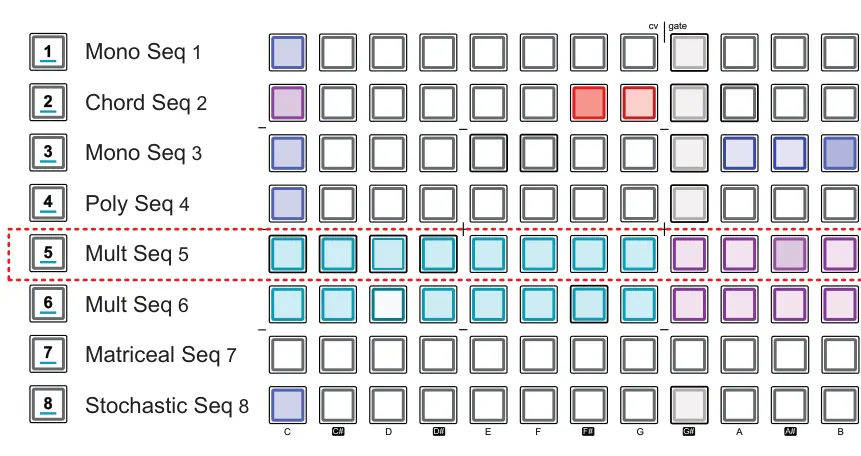
Press a [Pad] for the specific function on the row for the sequencer to control. Rows represents sequencers. Pad brightness or color represents active state

Perform Apply a variation
![5.7 Perform diagram: The [Init] and [End] functions can be used to edit a sequencer length while in the perform page. However edits only possible with the knobs and not the grid pads.](../../img/oxi-one-mkii/performance-tools/performance-tools-064.webp)
Start / End Seq Range

Each function and its sequencer mode will be described individually to help with the understanding of the available options per sequencer. Remember, all 8 sequencers are represented collectively on the grid and this will change if the sequencer modes are changed.

The first pad column for mono, poly, chord, domino, saga, MIDI Player and stochastic sequencer modes will mute or unmute the sequencer. Multitrack and matriceal use the first 8 or 4 columns as track mutes respectively. This centralises control which is important when using mutes as a performance function. For multitrack and matriceal sequencers, each track can be muted independently. Each track is therefore represented by a column.
Tap a pad to mute / unmute a sequencer or multi track or matriceal track.
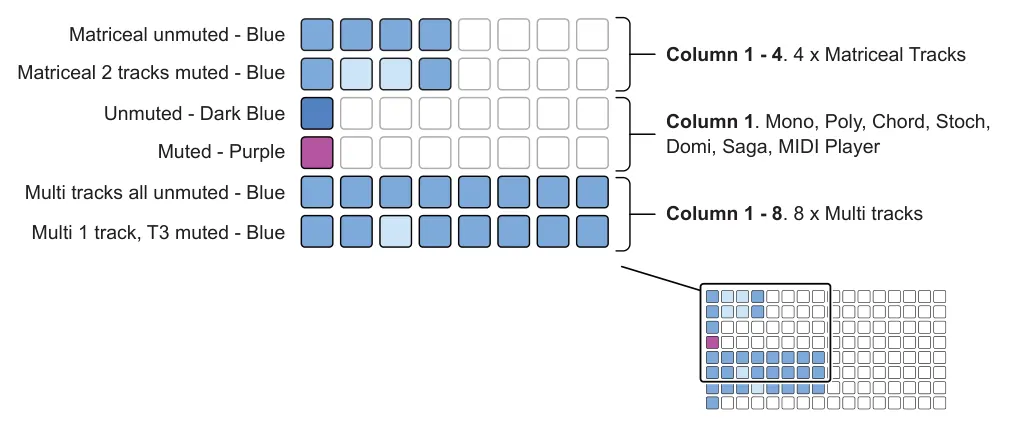
Warning: Performance mute states are retained when the per page is closed. Muted tracks and sequencers may not be visible in the other operating modes if muted in the performance page. Check the performance page mute states and other functions if the sequencer seems muted or playing out of pitch.

For all sequencer modes except multitrack and matriceal, the central pad group represents transposition of each sequencer. The white lit pad indicates the original setting, no transposition. Each pad to the right increments by 1 semitone and each pad to the left decrements by 1 semitone. Transposition is made within the currently selected scale notes.
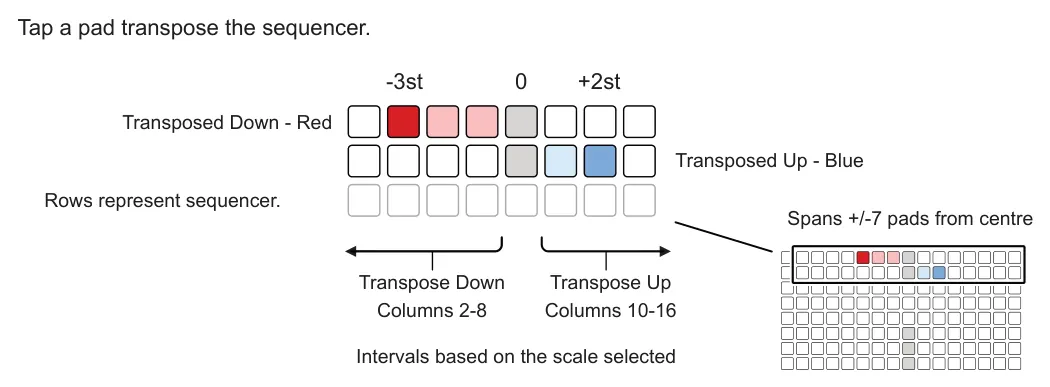
Rotating a Sequencer

Available with: Mono, Poly, Chord, Domino, Saga, and Stochastic
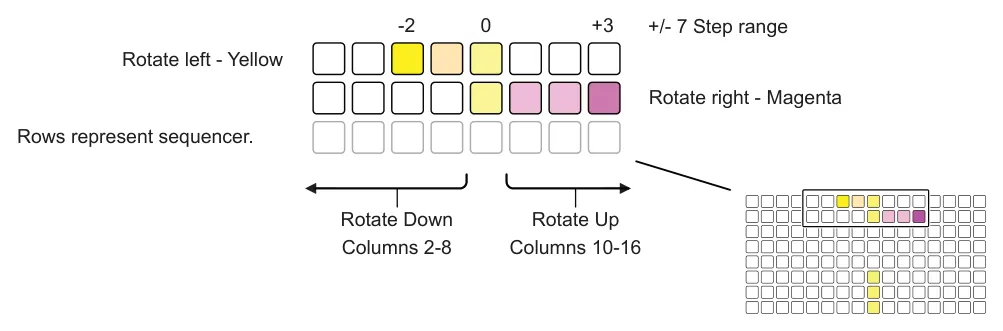
For all sequencer modes except multitrack and matriceal, the sequencer can be shifted right or left in 1 step increments. The original position is shown with the yellow pad column. Access to the option for rotation is by holding [Shift] while editing pads.
Secondary Grid Rotate Option
![Rotating a Sequencer diagram: Hold [Shift] + Tap a pad rotate the sequencer.](../../img/oxi-one-mkii/performance-tools/performance-tools-071.webp)
Fills

Available with: Multitrack, Matriceal
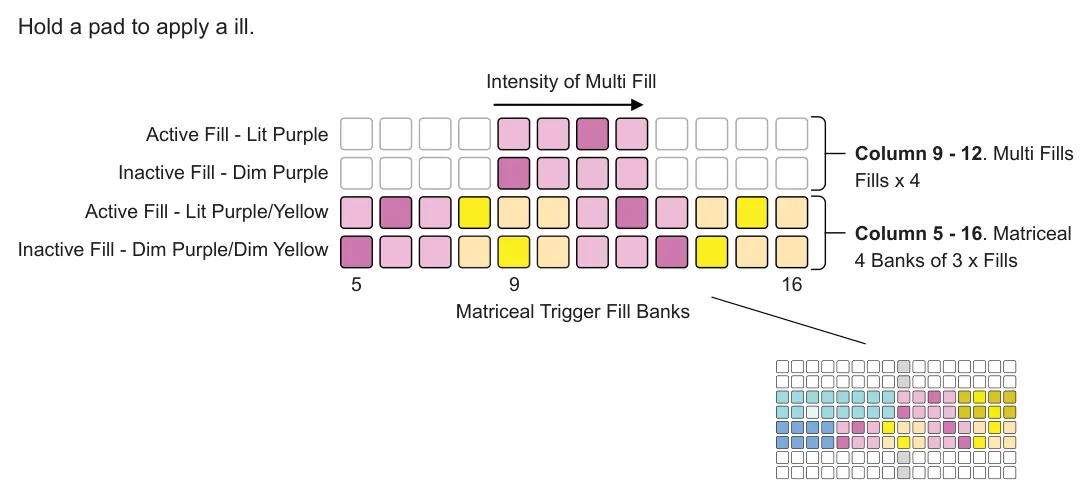
The multitrack and matriceal have fills of varying intensity. Fills repeat notes at musical intervals based on the point of fill selection. Multi fills are located across columns 9-12 and matriceal's random trigger fills across columns 5-16.


Loops

Available with: Multitrack
The final 4 pads capture and replay loops live while the sequencer plays. Each of the 4 pads captures a defined loop step length.
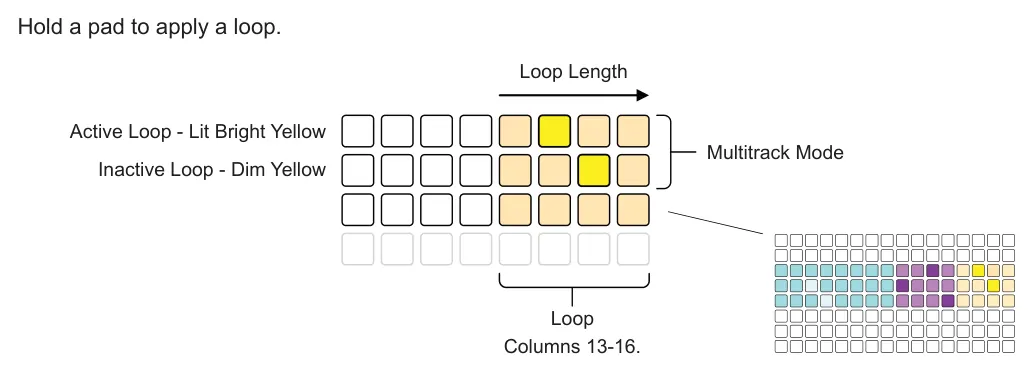
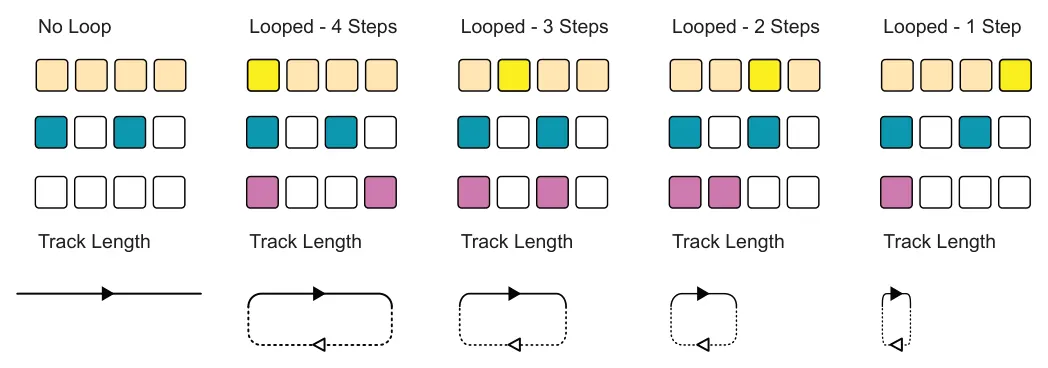
Loops are initially captured in running sequence at the point that the loop is selected. If changing the loop the length is adjusted within the existing loop range.
Release a selected loop pad to deselect. Exiting the loop will based on the ‘loop sync release’ setting. This is found in Config > Performance options. No Sync, Bar or Beat are the options.



User chord function is available for poly and chord. This allows chords created in a sequencer's keyboard mode to be accessible in the performance page. Chords can then be manually played to trigger in time with the pattern as it plays, replacing the current sequencers notes with the chord. The options to latch the chords on hold or ignore / mute the sequencer are also available from this view.
![Loops diagram: Hold [Perf] to select performance mode first. Performance Mode](../../img/oxi-one-mkii/performance-tools/performance-tools-083.webp)
![Loops diagram: Hold [Perf] + Tap [1] - [8] for the Poly or Chord sequencer. Toggles chord view on or off. Poly chord view +](../../img/oxi-one-mkii/performance-tools/performance-tools-084.webp)
The default performance grid view, used when the chord mode is off, uses the row pads to transpose the sequencers pitch. When chord view is on, using [Perf] + Seq [1] - [8], the user chords are accessible in the orange lit pads.
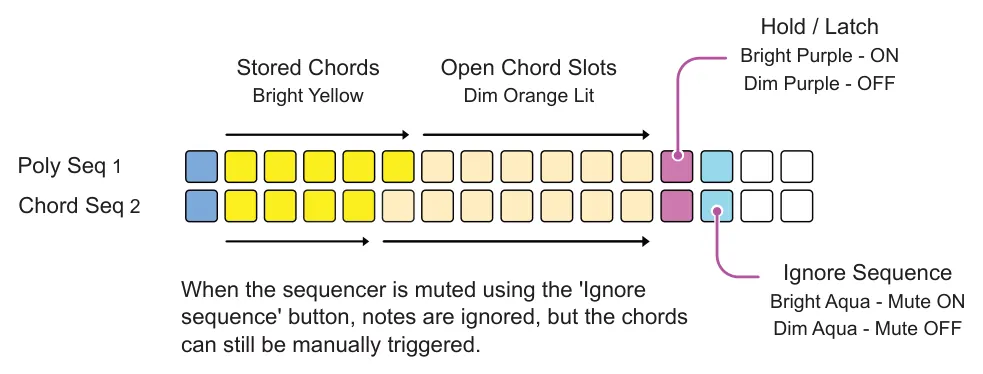
To play a chord in place of the existing pattern steps, hold the pad on the sequencer row for the stored chord to play. Only one chord can be played. If the hold mode is set to on, the chord will be latched on once pressed and the pad lit white. The chord is released if the pad is pressed again or hold is turned off.
Quick Reference - Sequencer Mode Performance Rows
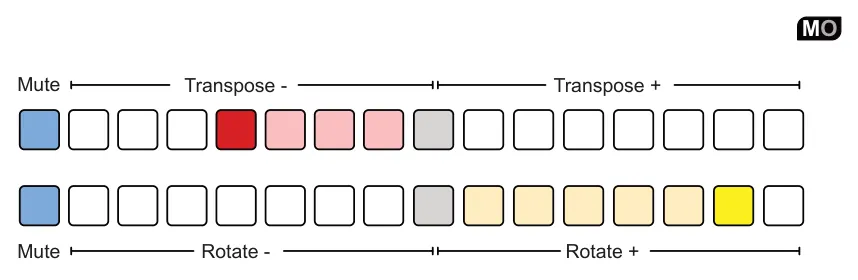
Mono Mode
Default
Shift +
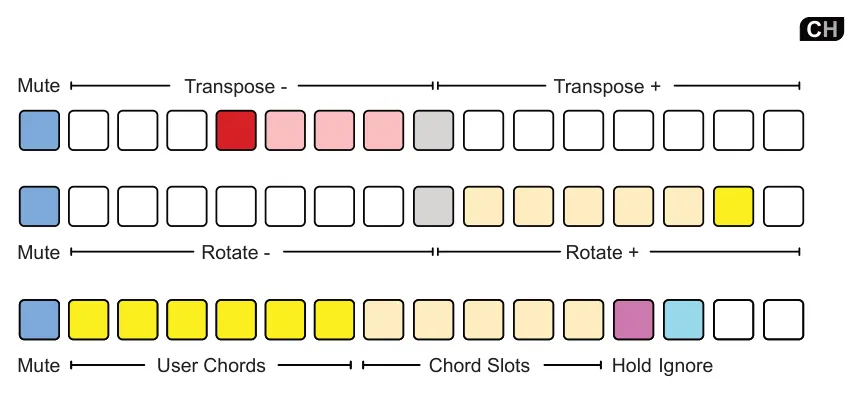
Chord Mode
Default
Shift +
Perf + Seq Perf + Seq
Poly Mode
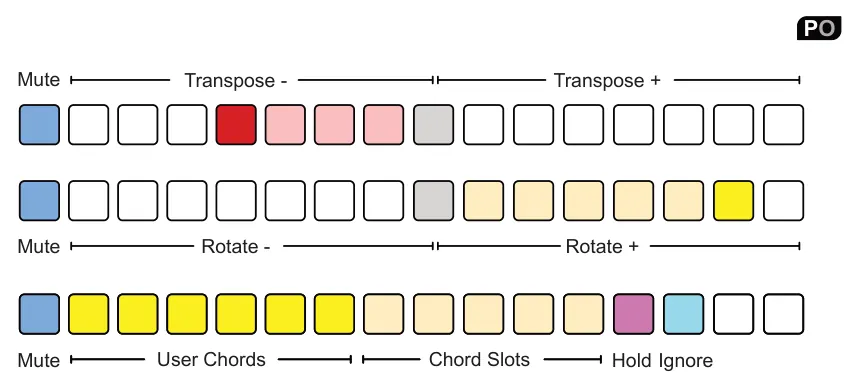
Default
Shift +
Perf + Seq Perf + Seq


Quick Reference - Sequencer Mode Performance Rows
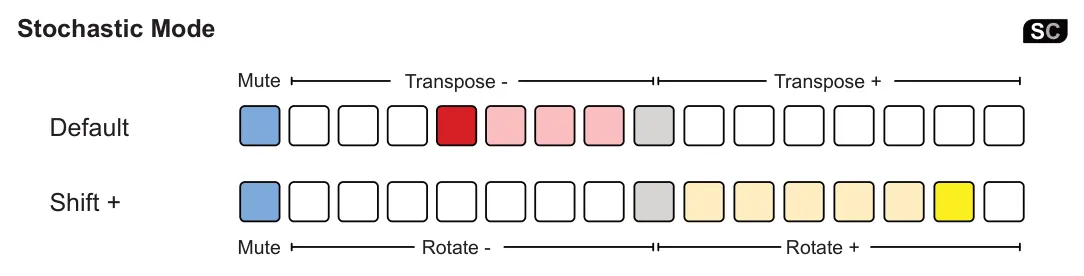
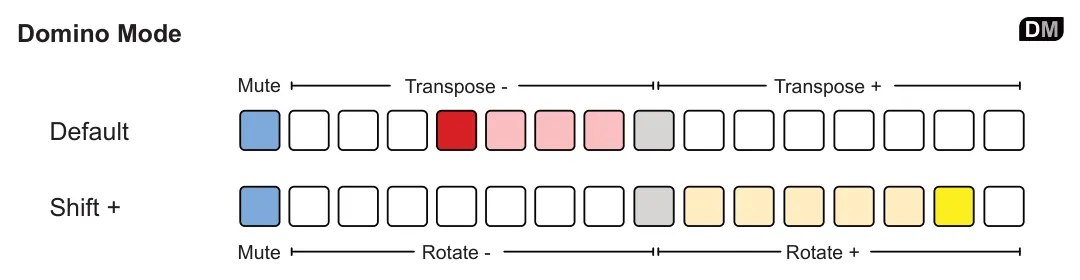

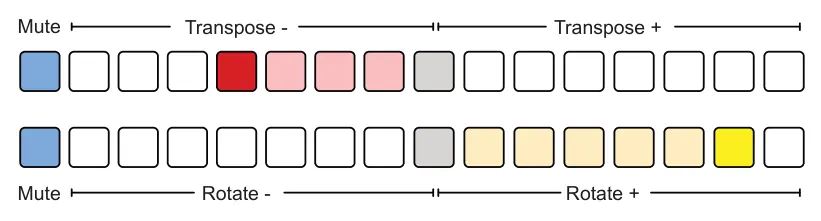
Default
Shift +

5.8 Snapshots
A snapshot is a tool which capture the state of all of the sequencers at a point in time and temporarily saves the sequencer settings, notes, mutes and modulation. This can then be recalled to restore the previous states of all of the sequencers. This is particularly useful in a live performance after making improvised or ad-lib changes and song deviations in order to return to the known, original state.

Hold [Load] + press [Save] to capture a snapshot. Temporarily saves all sequencers, current states.
![5.8 Snapshots diagram: Snapshot active Main Display The display will indicate when a snapshot is active. The [Load] & [Undo] buttons flash to indicate a snapshot is actively saved. VEL GATE OCT REPT](../../img/oxi-one-mkii/performance-tools/performance-tools-097.webp)
MONO 105.0
50% INT F
Pattern 3
1/16 CHROMATIC - C2
Performing with the sequencers may continue. Edits and adjustments to parameters to add life and energy to live performances, create drops or breakdowns or deviate from the routing pattern arrangement. Restoring the original state is then quick and easy. Sequencer can also be saved in snapshot active, although the current pattern will not be set to that of the snapshot pattern.

Tap [Load] or tap [Undo] to release the snapshot. The original, pre-edit state of all sequencers is recalled.
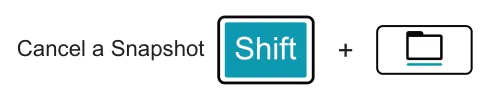
Hold [Shift] and tap [Load] or tap [Undo] to cancel and clear the active snapshot.
Arming Mutes in a Snapshot
It is possible to prepare the mute states within an active snapshot prior to releasing. This will allow the continuation of the performance with the original states applied but with the additional benefit of having the individual sequencers or multitrack tracks muted or unmuted on snapshot release.
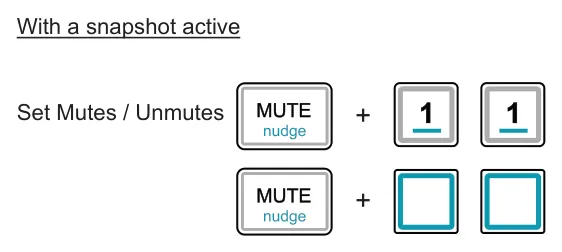
Hold [Mute] + double tap Seq [1] - [8] or in a multitrack sequencer, double tap track [Pad] column 1, row 1-8 representing each track.
On snapshot release the original or edited mute states will be applied. These can then be muted or unmuted in the [Perf], performer page. Multitracks can also be changed in the normal main grid, but the other mode sequencers will need changing in the performer page as the perf and sequencer mode mutes are handled differently.
5.9 Other Tools
A few other tools are available in ONE that can be setup and used for more niche applications.
Monome Grid
OXI ONE can be set to monome view, an 128 grid device. This is configured when powered up so start this process with ONE powered off.
![Monome Grid diagram: + Monome Grid Hold [Shift] + Power on ONE. Restart by turning off and on to reset to normal state.](../../img/oxi-one-mkii/performance-tools/performance-tools-102.webp)
