



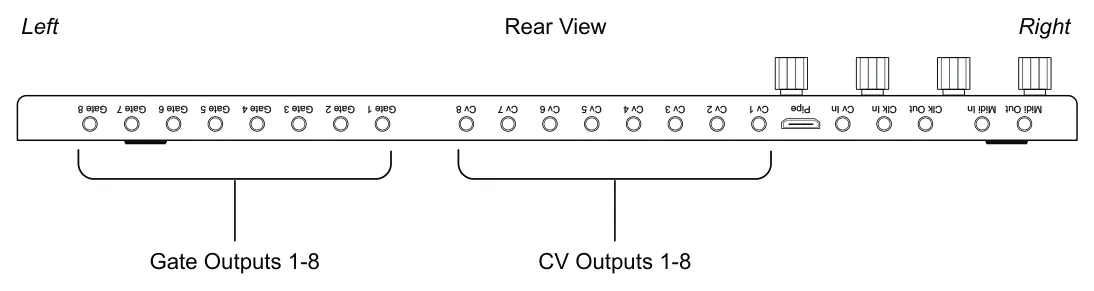
The connectivity options for OXI ONE are what makes it the perfect device as a centre piece in the studio, for a live rig, or anywhere that inspiration strikes. Firstly, ONE has 8 CV inputs and 8 Gate outputs which can be easily configured to connect with analog gear such as Eurorack modules or desktop devices. It is equally comfortable controlling monophonic modules and polyphonic voices or simply modulating an external control. The CV and Gates can be configured or set on/off on the fly, allowing the grid to act as a performance interface. An analog clock, reset and 2 CV inputs are also available. MIDI inputs and outputs are also supported including CC, but not NRPN. CC mappings are shown in the LFO Modulation section.This can be set up using the TRS connectors directly with a stereo cable or the TRS to MIDI DIN Type-A adapter. In addition, MIDI is available over the USB-C connection as well as the BLE - Bluetooth Low-Energy wireless interface. The interface options are, therefore, comprehensive and versatile. But there’s more! The MIDI ports can be expanded further using OXI Split, and the OXI Pipe interface connects seamlessly to a Eurorack system using the HDMI pipe connection. This creates a powerful and flexible sequencer ecosystem, bringing together many devices and creating almost infinite configurations.
9.1 CV & Gate Output Configuration
OXI ONE has 8 CV and 8 Gate outputs which can be configured for each of the sequencers. The CV output range is limited by the hardware to -3V to 5V. The CV Gate configuration can be setup using the grid pad configurator and as this configuration covers all sequencers it is saved with the project.
![9.1 CV & Gate Output Configuration diagram: Open the CV Gate configuration menu. Hold [Shift] + press [Gen]. + CV Gate](../../img/oxi-one-mkii/connectivity/connectivity-002.webp)
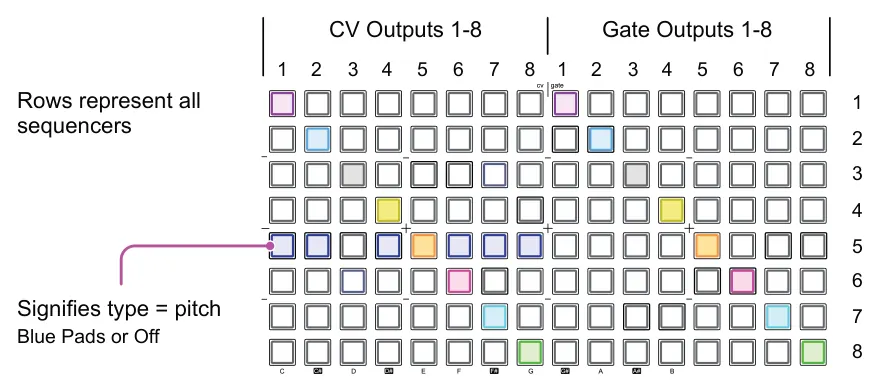
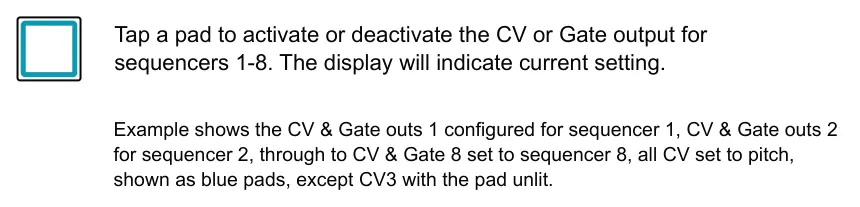
While playing a pattern the pad columns representing the outputs will indicate any real-time activity.
Each of the outputs can be configured using the available parameter options for the CV and the Gate. The output edited is selected using the pad columns. Press a pad for the selected sequencer to edit either CV or Gate out.

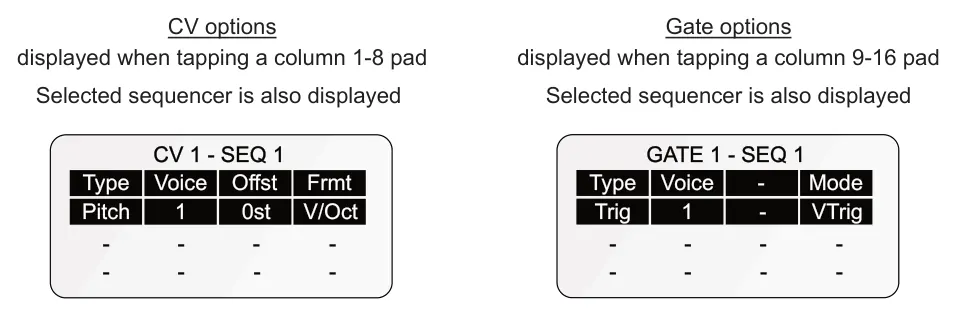
Selecting a pad will turn the output for the sequencer on or off. The output behaviour will also need to be set up. This starts by setting a ‘Type’ for the CV output which will also determine what additional parameters are available to setup. The CV options that are available are Pitch, Velocity, Trig Envelope, LFO 1, LFO 2, MOD 1 to MOD 8. The physical output voltage range for the CV outputs is -3V to +5V. This is adjusted depending on the configured output and setup needs considering based on the destination device. The Gate options that are available are Trig, Clock, Accent and Threshold.
Configuring the CV & Gate Output
- Open the CV Gate configuration. Hold [Shift] + tap [Gen]. The grid represents all
sequencers by row and the CV and Gate in the columns.
- Tap a pad to select the output, indicated by the lit pad. The first 8 columns represent
CV 1-8 and the next 9-16 columns represent the Gate outputs. Tapping the pad therefore links the output from the sequencer to the selected CV or Gate output.
- Hold a pad to configure the CV or Gate output behaviour. The settings will be
displayed, labelled for the selected CV or Gate and the sequencer.
- Adjust the parameters using the knobs for each function.
- Also consider the CV / Gate Voicing allocation settings found in the ‘Config > Analog’
options. Sets the behavior of how the outputs are allocated polyphonically.
- Save the project in order to save the configuration.
Quick save by holding [Shift] + press [Save].
9.2 CV Output Options
The output behaviour needs to be set u. This starts by setting a ‘Type’ for the CV output which will also determine what additional parameters are available to setup. The CV options that are available are Pitch, Velocity, Trig Envelope, LFO 1, LFO 2, MOD 1 to MOD 8. The physical output voltage range for the CV outputs is -3V to +5V. This is adjusted depending on the configured output and setup needs considering based on the destination device.
CV Output Types
Refers to the type of output that the CV will be used for. The options that are available are Pitch, Velocity, Trig Envelope, LFO 1, LFO 2, MOD 1, MOD 2, MOD 3, MOD 4. The configuration of each will offer a set of parameters exclusive to the type selected. Type is selected with Knob 1.
Voices
Think of a voice as representing a track or note output from a sequencer and is the parameter that controls how polyphonic notes are played alone or together. For example a mono mode sequencer only uses one note while a chord mode sequencer can use up to 8. The voice options are therefore sequencer mode dependant. For analog outputs, each voice will require an allocated physical CV / Gate output. So a triad chord will require 3 x CV Outputs. But chords are not only triads and more voices may be needed.

Voice Allocation Rules - Config
OXI ONE also has to take care of the behavior of the voice allocation under various scenarios. For example, how are voices allocated if four notes are played when only 3 x CV/Gates are assigned? Which notes take precedence when changing the chords? Which notes to steal to re-allocate a new note? The rules applied for voice allocation are defined in the Config menu, under the Analog sub-menu. The parameter to edit is ‘CV & Gate voice allocation’.
| Config > Analog - ‘CV & Gate voice allocation’ | ||
|---|---|---|
| Option | Notes stolen | Description |
| LRU | Least Recently Used | If a new note is played while others in a chord are still active, the output voices needed may exceed the available CV/Gate voices allocated. With a setting of LRU, the oldest note will be cancelled, also called ‘stolen’ and replaced with the newest note played. This behavior continues as notes are added to existing chords. |
| LOW | Lowest note | If a new note is played while others in a chord are still active, the output voices needed may exceed the available CV/Gate voices allocated. With a setting of LOW, the lowest active note value will be cancelled or ‘stolen’ and replaced with the newest note played. This behavior continues as notes are added to existing chords. |
| Unison | Sort by Last played | All available CV and Gates voices configured for the sequencer play in unison for single notes. Further notes are divided among the voices to maximize the use of the assigned CVs and Gates. If there are more notes than the available CVs or Gates, the voices will still be sorted by the last played. |
Type - Pitch
Sets the CV output to control pitch of an external device. The output requires the voltage to be calibrated to the pitch. This ensures that the sequenced notes in ONE play on the external device as the correct note. The calibration varies depending on the device being controlled.

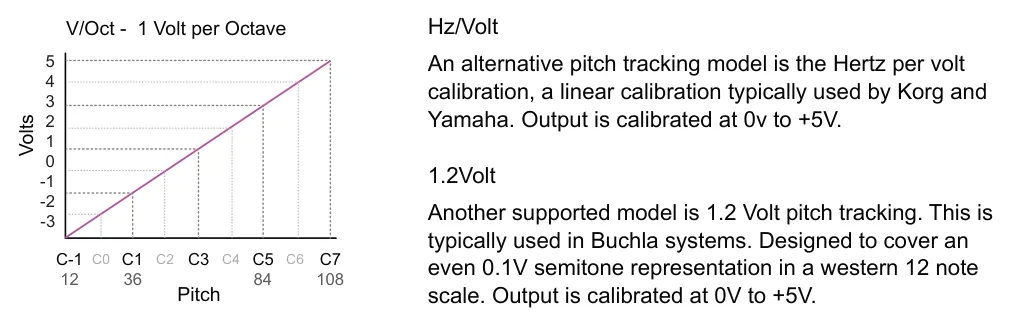
V/Oct is typically used by modular, semi-modular, Eurorack, Moog devices. OXI ONE CV outputs are calibrated to the -3V to +5V range across C-1 to C7. A re-calibration can be performed but this is not recommended for normal operation as ONE is already pre-calibrated. The diagram above is shown with the MIDI note values for reference and simplified for illustration purposes as frequency perception of pitch in reality is logarithmic.
| Pitch Settings | |||
|---|---|---|---|
| Type | Voice | Offst Note Offset | Format Voltage format |
| Pitch | Voice Index | ||
| Pitch is the configured output to control as defined by the available parameter settings. | Voice index based on sequencer mode. For example, Mono has 1 voice, chord up to 8. | Adjust the pitch by applying an offset in semitones. Range is -48 to + 48 semitones. | Format set to match the receiving device. Eurorack V/Oct, Korg Hz/Volt, Buchla 1.2V. |
Type - Velocity
The velocity value of the steps can be transmitted out through CV. This is a directly accessible feature when working with the CV Gate options. This is useful for adding some expression or modulation to an analog device for example controlling note attack or release or decay.
Configuring a CV output for velocity is similar to setting up pitch. The grid is used to assign outputs to sequencers in CV Gate view. Each velocity output requires 1 voice and hence 1 CV output.

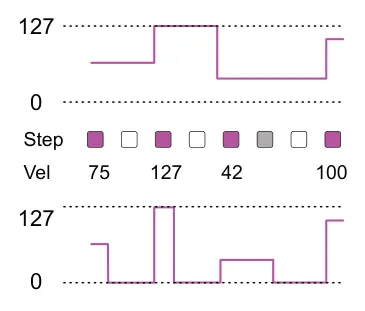
Gated - OFF Default
The velocity CV output will be retained at the value set by the last note. Any change to the velocity value will only be triggered when a new note plus velocity value is recognised.
Gated ON
Velocity will be output only for the duration of the individual or tied note. When the note ends the velocity will be set to 0. Any new notes will update the velocity.
| Velocity Settings | |||
|---|---|---|---|
| Type | Voice | Gated Gated Velocity On/Off | |
| Velocity | Voice Index | ||
| Velocity is the output to control as defined by the available parameter settings. | Voice index based on sequencer mode. Velocity needs 1 voice. | Retains velocity between any played notes or resets to zero each time a note ends. | |
Type - T.Env
The trigger envelope acts as an ADSR - Attack / Decay / Sustain / Release style CV output envelope. The attack and sustain can be edited. This is useful for adding some modulation or control to an analog device for example controlling a voltage controlled amplifier, low pass gate or filter cutoff. The envelope is triggered by a step note and its amplitude is proportional to the velocity meaning 127 for note velocity will output the maximum 5V.
Configuring a CV output for T.Env is similar to setting up velocity. The grid is used to assign outputs to sequencers in CV Gate view. Each envelope output requires 1 voice and hence 1 CV output.
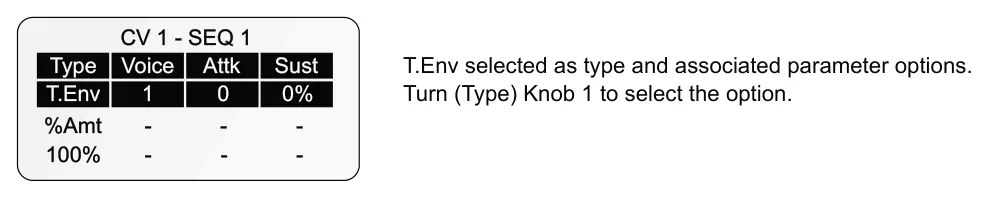
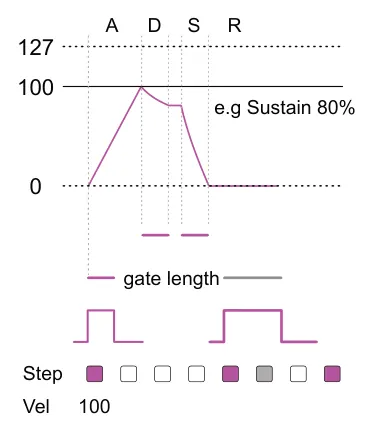
Attack - time 0-100
Attack time can be set manually in the settings or as an LFO or Mod lane destination. Time to reach maximum.
Sustain - level 0-100%
Set as a percentage of the max amplitude of the envelope. Amplitude is set by the default velocity or the actual, altered velocity value for example after modulation. The decay curve is determined between max and the sustain level.
Decay / Release - time
Both decay and release are automatically derived from the gate length for the triggering step. When a note is tied, the release value is based on the last note triggered by a tie..
| T.Env Settings | |||
|---|---|---|---|
| Type T.Env | Voice Voice Index | Attk Attack time | Sust Sustain level |
| Envelope is the output to control as defined by the available parameter settings. | Voice index based on sequencer mode. The envelope needs 1 voice. | Time for the envelope to reach full value. Full value determined by the triggered note velocity. | Level that the envelope is held while the note is active. Set as a % of the amplitude. |
| %Amt Envelope Amount | |||
| Sets the amount of envelope applies to the trigger output. | |||
Modulating gate and velocity will also affect the decay and amplitude. This could be by using modulation lanes. LFO’s or by also using randomization.
Type - LFO & MOD
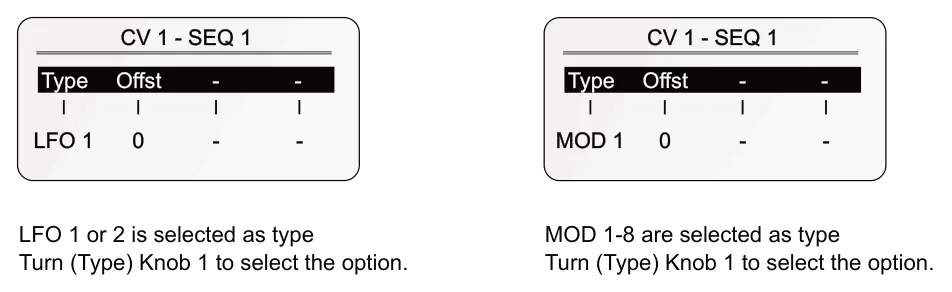
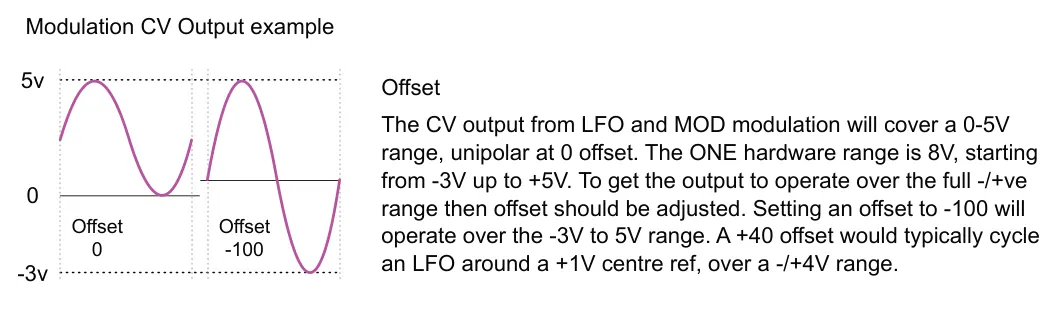
The modulation functions of LFO and MOD operate in the CV outputs in a similar way. There are 2 LFOs and the 8 modulation lanes per sequencer mode which can be used to send modulation to CV outputs. Each would be selected individually. The grid is used to assign outputs to sequencers in CV Gate view.
| T.Env Settings | |||
|---|---|---|---|
| Type | Offst | ||
| LFO or MOD | Offset | ||
| Selects an LFO or Modulation lan source to output to the CV port. | Adjust the voltage range of the modulation output. | ||
The LFO settings can be edited in the LFO pages. The parameters will affect the behaviour of the CV output although the LFO parameter destination is independent and therefore is not affected by the CV routing set up in the CV Gate page.
9.3 Gate Output Options
Gates are typically used to trigger an event. For example to trigger a note on signal. So for a mono mode sequencer 1 note can trigger 1 gate and 1 CV to activate the note. For chord mode, say triggering a 3 note triad, the chord would need 1 gate to trigger all of the notes and 3 x CVs to set the value of each note in the chord. Having said that gates can also be set to multiple voices if desired, limited by the sequencer mode.
As well as note triggers, the gates in ONE can be configured as a clock, accent or as an LFO threshold using the gate 'type' parameter.
The setup process for gates is the same as for CVs where the grid is used to activate and deactivate the outputs and the parameters can be set with the knobs.
![9.3 Gate Output Options diagram: Open the CV Gate configuration menu. Hold [Shift] + press [Gen]. + CV Gate](../../img/oxi-one-mkii/connectivity/connectivity-016.webp)

The gate voltage output is typically at 0-5V. default This can also be set to 0-10V. The option to set this globally for all gate outputs is found in the configuration settings. Config > Analog > Gate V Out.
The voice can be selected on many of the options. For multitrack mode sequencers a track can be selected as the alternative option to voice.
Type - Trig
Sets the gate output behavior when controlling a trigger. The trigger will remain active while a note is held. Gates can be configured to operate at 5V or 10V and has two operating formats which allows the output to be matched to one of the two main standards.
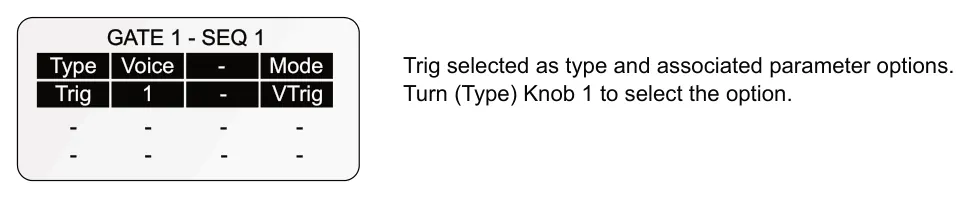
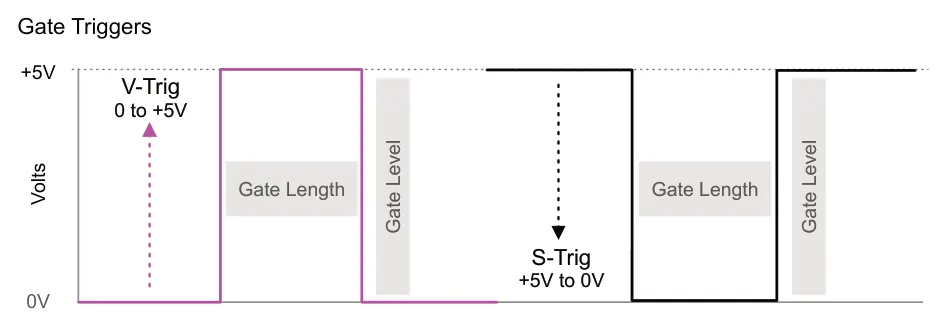
V-Trig. The output is high when triggering. The range is typically 0V to 5V. When a trigger is off the voltage will remain low.
S-Trig. The output is low when triggering. The range is typically 5V to 0V. When a trigger is off the voltage will be high. Can also be used as an inverted gate.
| Trig Settings | |||
|---|---|---|---|
| Type | Voice or Track | Mode Voltage format | |
| Trig | Seq Voice / Track | ||
| Sets the output to operate as a trigger. Typically used for notes. | Depends on sequencer mode. Selects a voice or track to monitor. | Format set V-Trig, high represents a trigger. This is default. S-Trig when low is a trigger. | |
Type - Clock
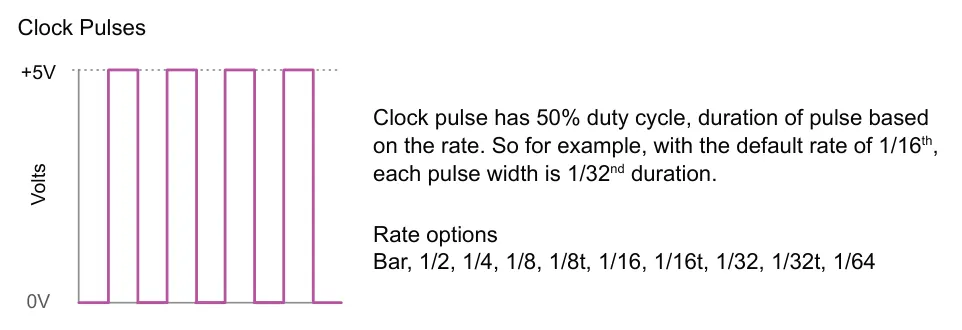
Sets the gate output to operate as a clock. A pulse is output based on the defined rate configured in the settings. The rate value is independent from other sequencer rates.

| Clock Settings | |||
|---|---|---|---|
| Type | Rate Clock speed | ||
| Clock | |||
| Sets the output to operate as a clock pulse. | Independent rate from sequencer, but set in time divisions. | ||
The sequencer must be running for the clock output to be active.
Type - Accent
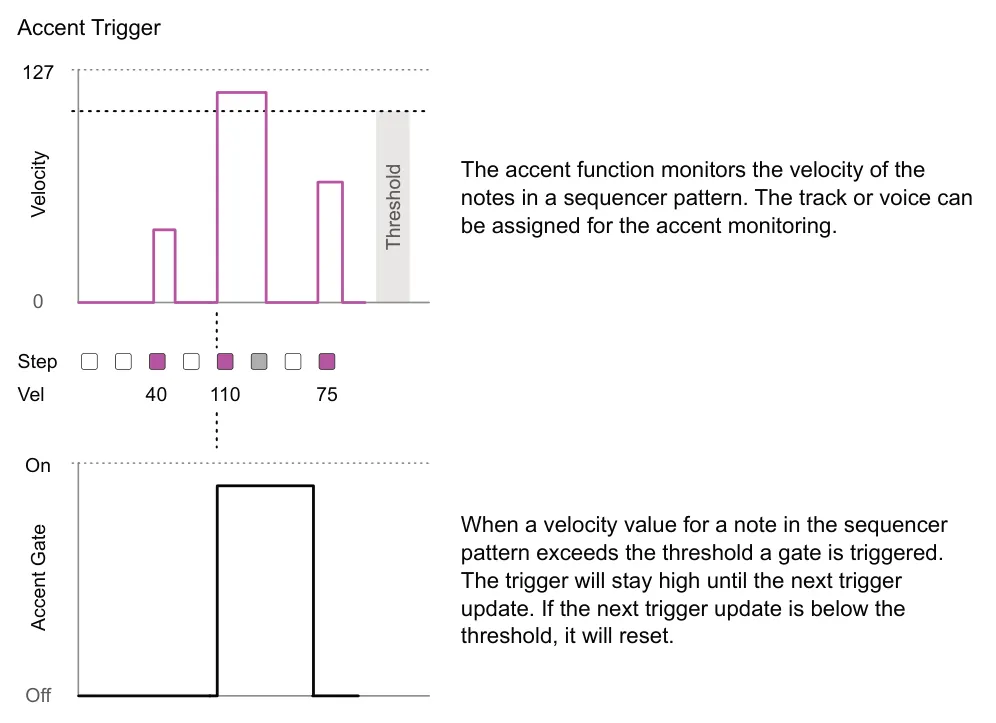
Accents allows a gate output to be configured to trigger when the velocity value exceeds a defined value. This allows destination parameters such as triggering hat or rim sound, sub bass or affecting a parameter. The output will only be triggered when the threshold of the velocity of a note in the current pattern is exceeded. This can be set per voice or aligned to a track in multi track mode.

| Accent Settings | |||
|---|---|---|---|
| Type | Voice / Track | Trshld Threshold | |
| Trig | Seq Voice / Tracks | ||
| Sets the output to operate as a trigger. Typically used for notes. | Selects a voice or track to monitor. The velocity value is checked against threshold value. | Sets the threshold value for the velocity check. When exceeded the gate will be triggered. | |
Type - Threshold
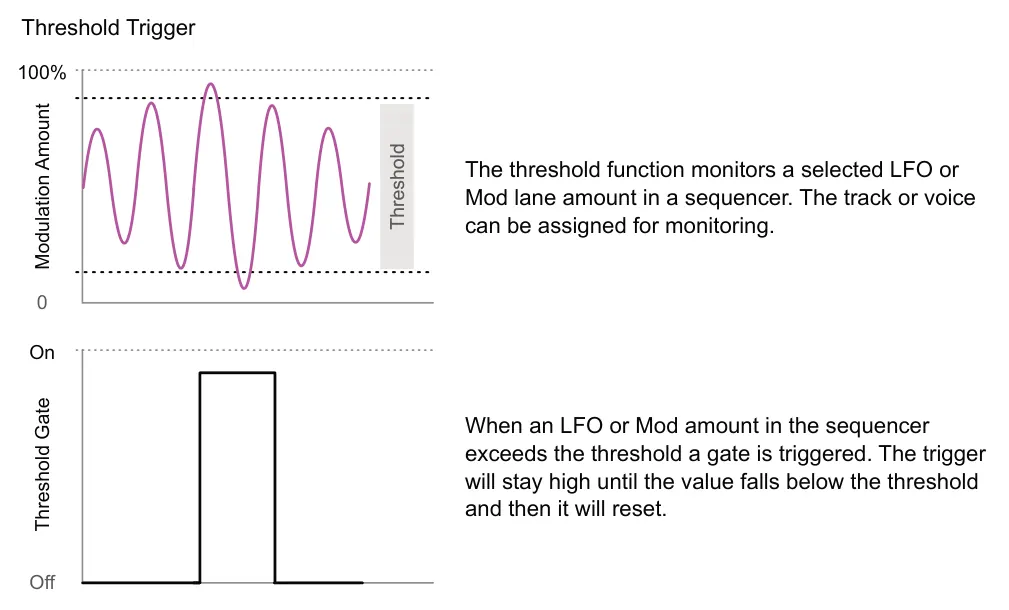
Threshold allows a gate output to be configured to trigger when the value of an LFO or Mod lane source exceeds a defined value. This allows destination functions to be triggered based on the modulation value, for example turning on a filter if modulation is above a certain level. The output will only be triggered when the threshold of the modulation in the pattern is exceeded. This can be set per voice or aligned to a track in multi track mode.

| Threshold Settings | |||
|---|---|---|---|
| Type | Src | Trhld Threshold | |
| Thrsh | Modulation Source | ||
| Sets the output to operate as a trigger. Typically used for notes. | Selects an LFO or Mod lane as the modulation source to monitor the amount. | Sets the threshold amount for the modulation check. When exceeded the gate will be triggered. | |
9.4 Analog Drum Application
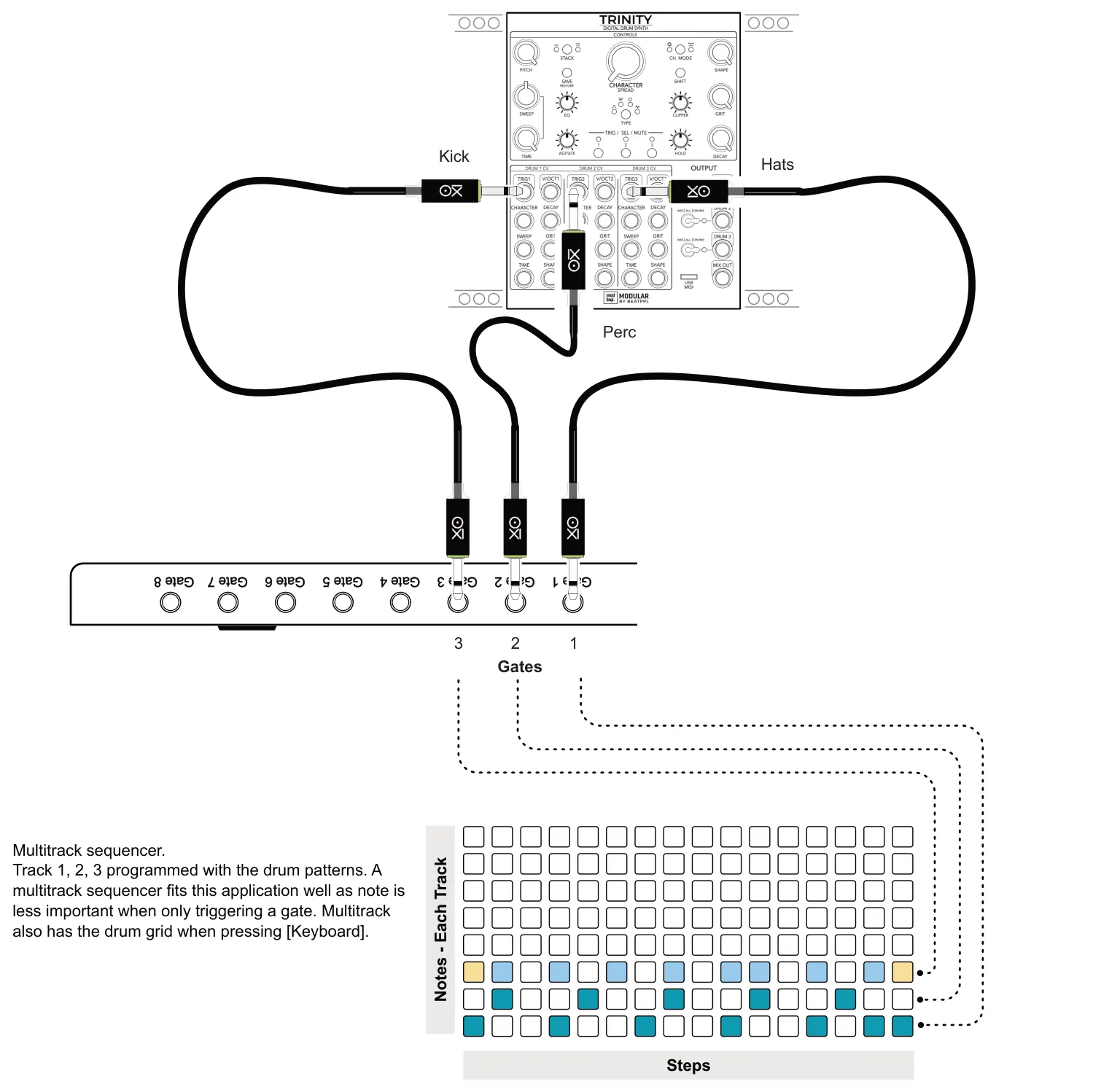
This example application demonstrates a single voice using individual gate outputs. A simple example is to illustrate gate outputs to control a drum module. OXI ONE is coupled with a Eurorack drum module, Trinity from Modbap Modular.
9.5 Analog Synth Voice
This example application demonstrates a mono synth voice application using a CV and gate output. A simple example is to illustrate gate outputs to control OXI Coral in a Eurorack setup. If a polyphonic voice is required, multiple CVs can be configured and one gate based on the rack setup to control. Coral has the unique ability to play polyphonically from one CV based on note values so one CV & Gate works well with Coral. Multiple oscillators or modules may be needed when using other setups for polyphonic voices. This example can be followed for mono setups (or Poly with Coral).
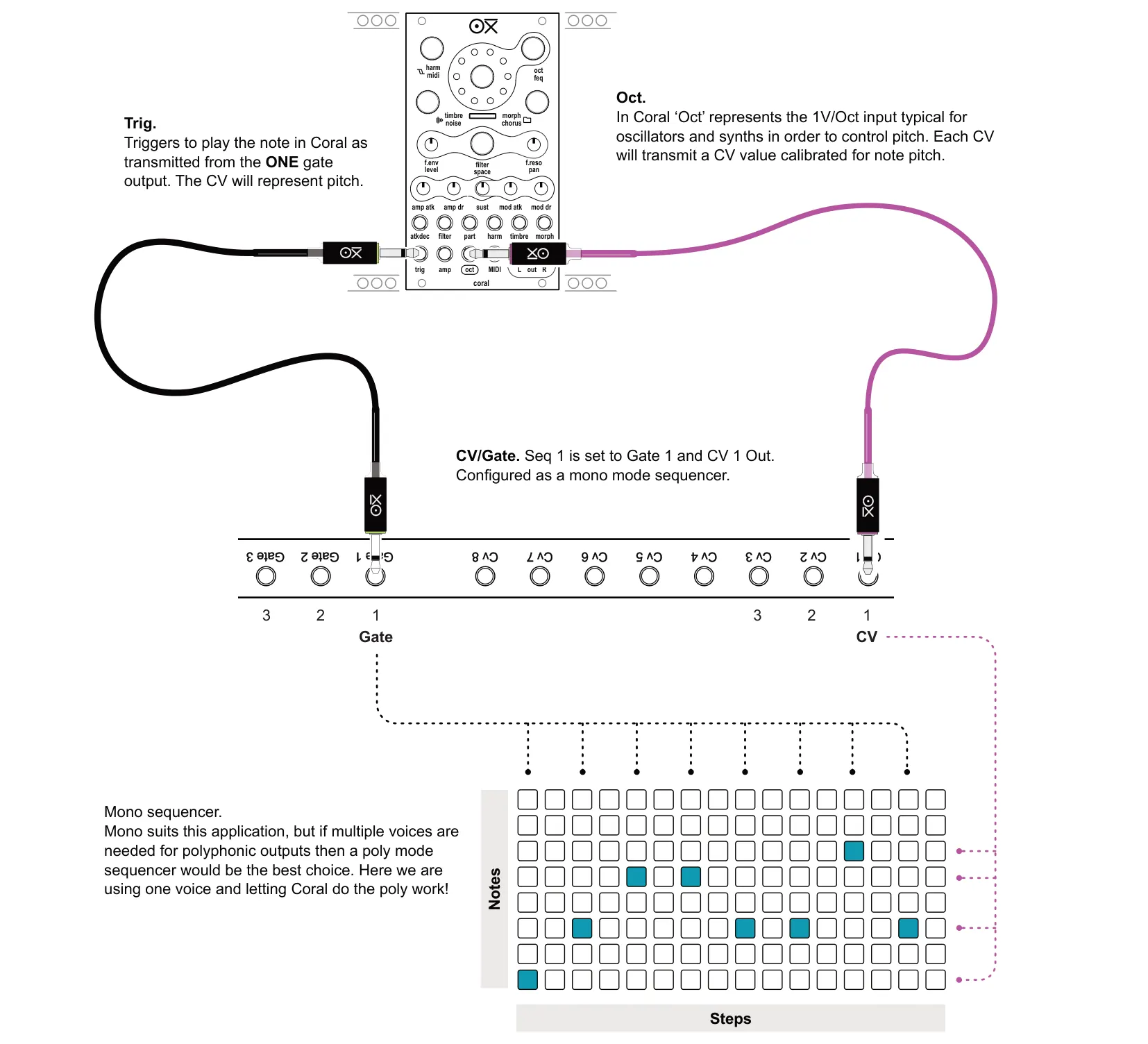
9.6 Analog Clock I/O
OXI ONE has both a clock input, for synchronising ONE to external gear, and a clock output where ONE can be the primary clock lead for other external gear. These I/O options follow the classic analog clock models, but ONE can also operate by using a MIDI clock. Clk In is also available from CV Input 2 which is used as a Reset / Stop-Start input by using a TRS to TR-TR splitter and can be routed using the mod matrix. It is important to ensure that the CV In 2 is not used for modulation if it is used for synchronisation. The clock timing in PPQN can be set in the config > analog settings. This must be matched up between devices.
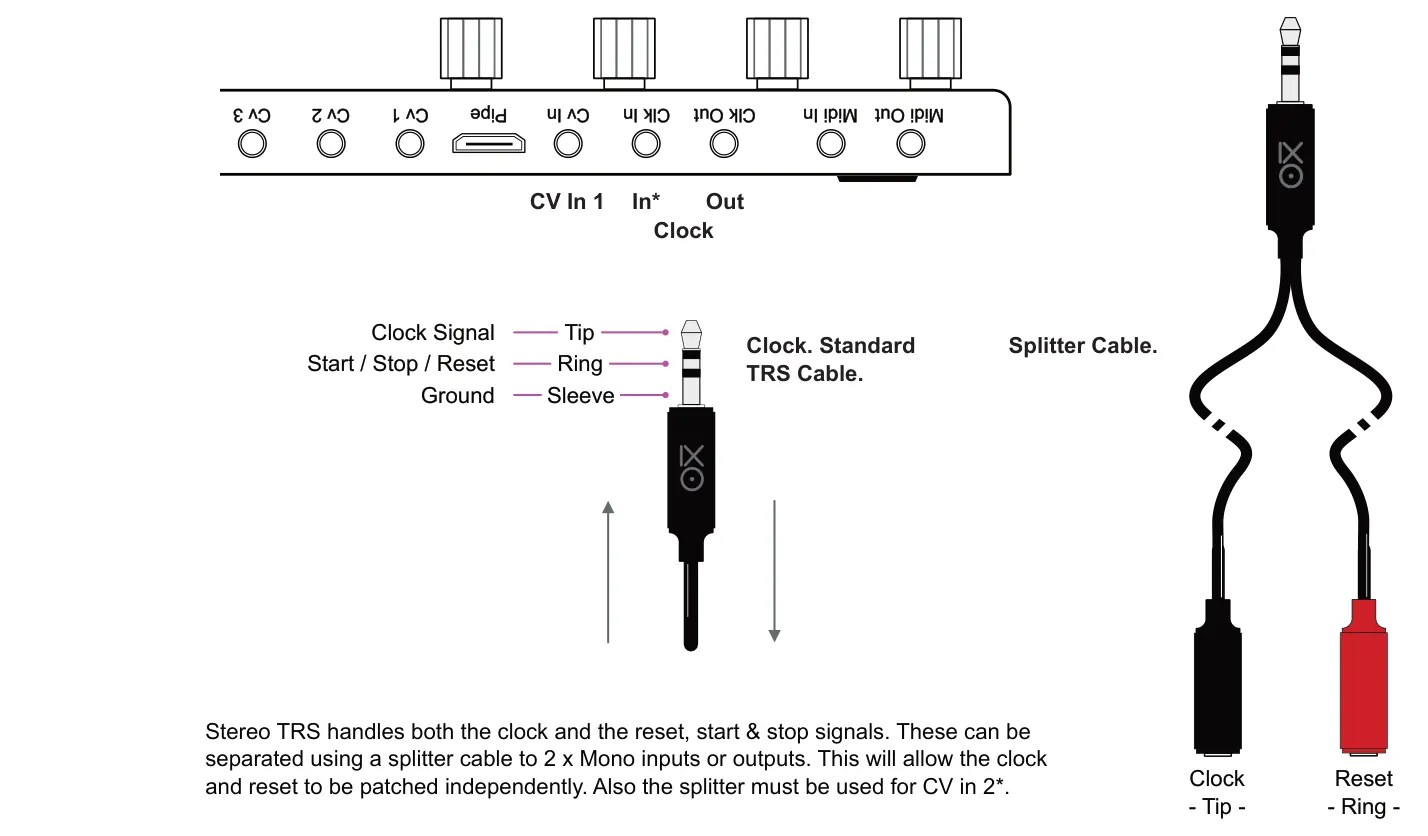
Clock Start / Stop / Reset
The behavior of the clock input and output can be configured in the config > Analog > Reset / Start - Stop (IN & OUT) Settings. Ensure this setting for is ‘OFF’ if using the Clk input, CV In 2 for modulation*.
| Confgi > Analog setting | Input | Output |
|---|---|---|
| Off | Reset is ignored. With OXI ONE ‘Sync’ set to Clk, the sequencer will start as soon as a clock signal is received. Does not use Start/Stop/Reset, typically mono TR patch cabled. | Reset signals deactivated. With OXI ONE ‘Sync’ set to Clk, the sequencer will start as soon as a clock signal is received. Does not use Start/Stop/Reset, typically mono TR patch cabled. |
| Pulse Reset | Input behaves as a reset signal. When OXI ONE ‘Sync’ is set to Clk and a reset pulse is received at the reset input, ONE will reset. Seq playheads are reset. | Output behaves as a reset signal. Short 4ms pulse is sent out as the reset signal just before the first clock signal when ONE starts or continues playing. |
| Run - Stop | When OXI ONE ‘Sync’ is set to Clk, ONE will only play is run-stop or start-stop is high. Otherwise, of low the sequencer is stopped. Some synths and gear expect this alternate reset operating model. | Run-stop or start-stop output signal is high when the sequencers are playing and low when stopped. Some synths and gear expect this alternate reset operating model. |
9.7 OXI Pipe MKII Connections
OXI Pipe MKII is a Eurorack module which works exclusively with ONE MKII. Pipe replicates all 8 CV and Gate outputs from those on the rear of ONE onto the Pipe module front panel. Pipe connects to ONE using a supplied, single mini HDMI to standard HDMI cable. Pipe also splits the clock and reset inputs making these also available as individual inputs. Pipe can also be used to link two racks using a full size 2.0 HDMI or 4K cable.
Pipe is 6HP size modules and is a passive device, needing no power.
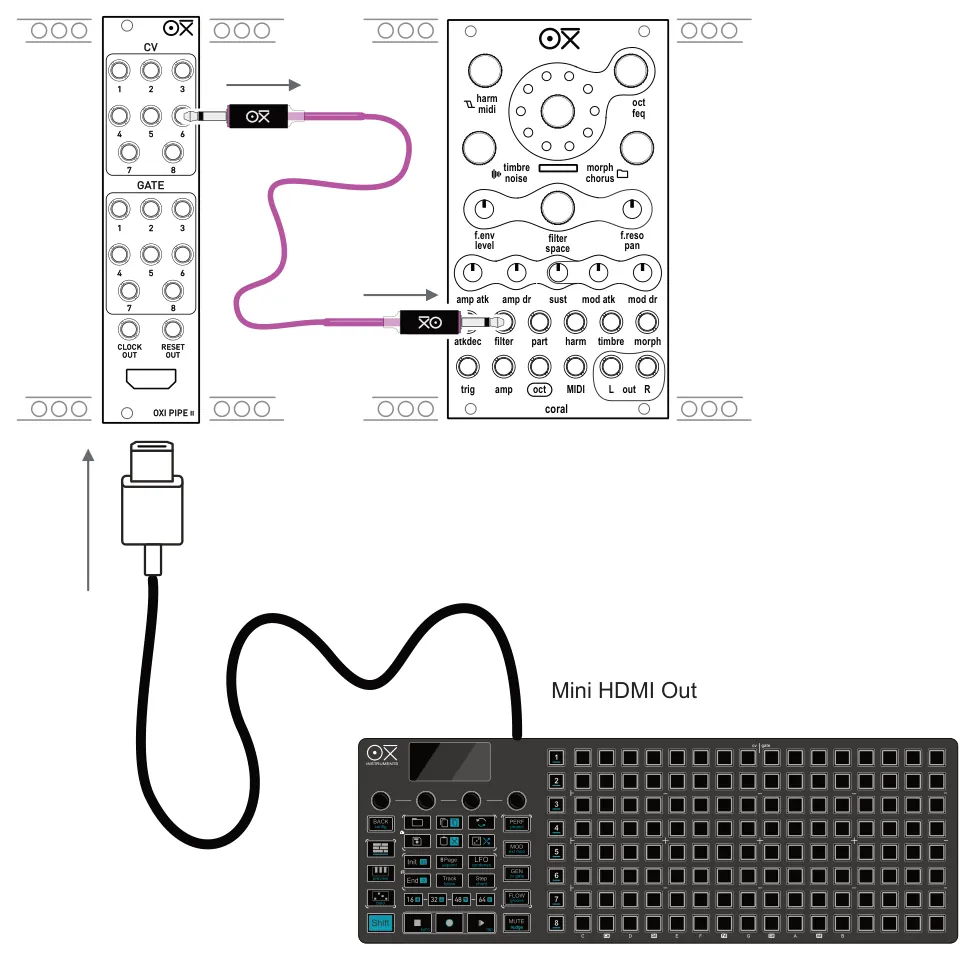

It is recommended to keep the HDMI cable between ONE and the Pipe module or between two Pipe modules as short as possible in order to retain a high quality and reliable communication link. Also ensure the cable is 2.0 standard. Pipe is not compatible with other Eurorack devices or modules and is exclusively used with ONE.
9.8 MIDI Connectivity
OXI ONE can be used to control MIDI devices, both through note messages and by using CC and PC messages. MIDI can be connected using 3 methods. Firstly by using a TRS MIDI connection in and out. This can also connect to the classic MIDI 5 Pin Din style connections with a type ‘A’ adapter. Secondly MIDI over USB using the type C connector is possible. Finally, MIDI over bluetooth low energy, also called BLE, is possible for wireless communications.
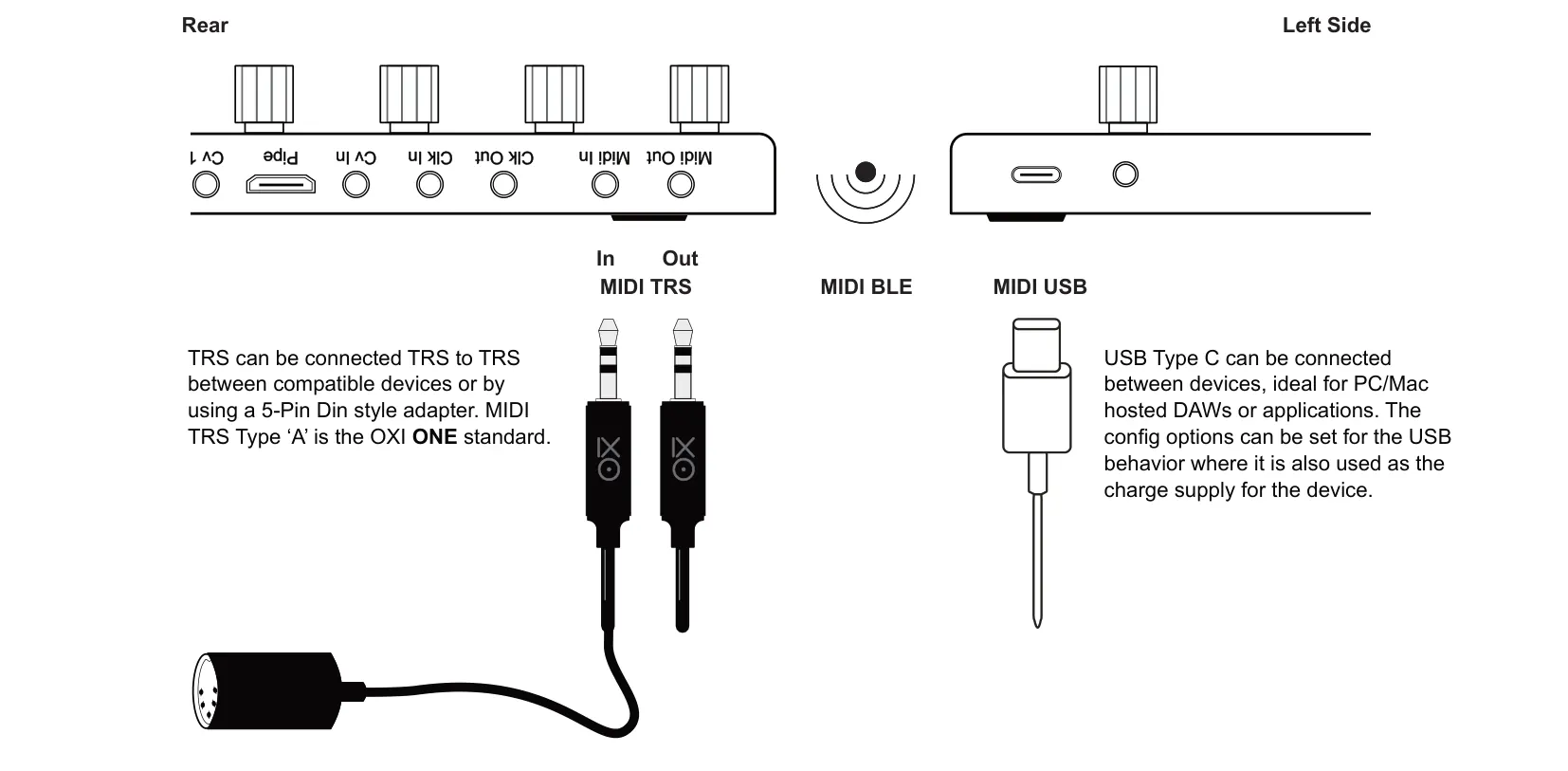
MIDI In / Out / Thru
MIDI Thru can be set in the config > MIDI settings for TRS, USB or BLE. If set to On, MIDI messages from this input will be echoed to the other MIDI outputs. If set to off MIDI will not be automatically be passed through the device to an output.
MIDI USB
When working with USB MIDI the system setting ‘USB Mode’ must be set appropriately for the application. The most common option is device mode but others are also available.

Host + Power: OXI Acts as a USB MIDI Host, supplying power through the USB interface to other devices. This may affect OXI ONE battery charge life due to the additional power consumption. Some devices supported include: Roli Seaboard, Arturia Keystep, Akai LPK25 & MPD218, Korg NanoKONTROL2, ASM Hydrasynth, OXI ONE, Miditech Minicontrol32, TE TX-6, TE OP-1 Field, Roland MC101 & MC707, Moog One, 16 & 5, Waldorf Streichfett & Blofeld, Novation 25 SL MkII, Launch Control XL, Launchpad Pro Mk3 & S, QuNexus, Conductive Labs NDLR, Elektron Syntakt.
Host No Power: OXI Acts as a USB MIDI Host, but without supplying power to other devices. Some USB adapters require this configuration to operate.
Device mode normally acts like a peripheral device where another item governs and controls the MIDI activity. Think of a device like a keyboard or mouse taking their lead from a PC which acts as the host. A host is the primary MIDI control where MIDI messages are interpreted and governs any other connected MIDI devices.
Example: MIDI USB OXI ONE to Mac / PC DAW
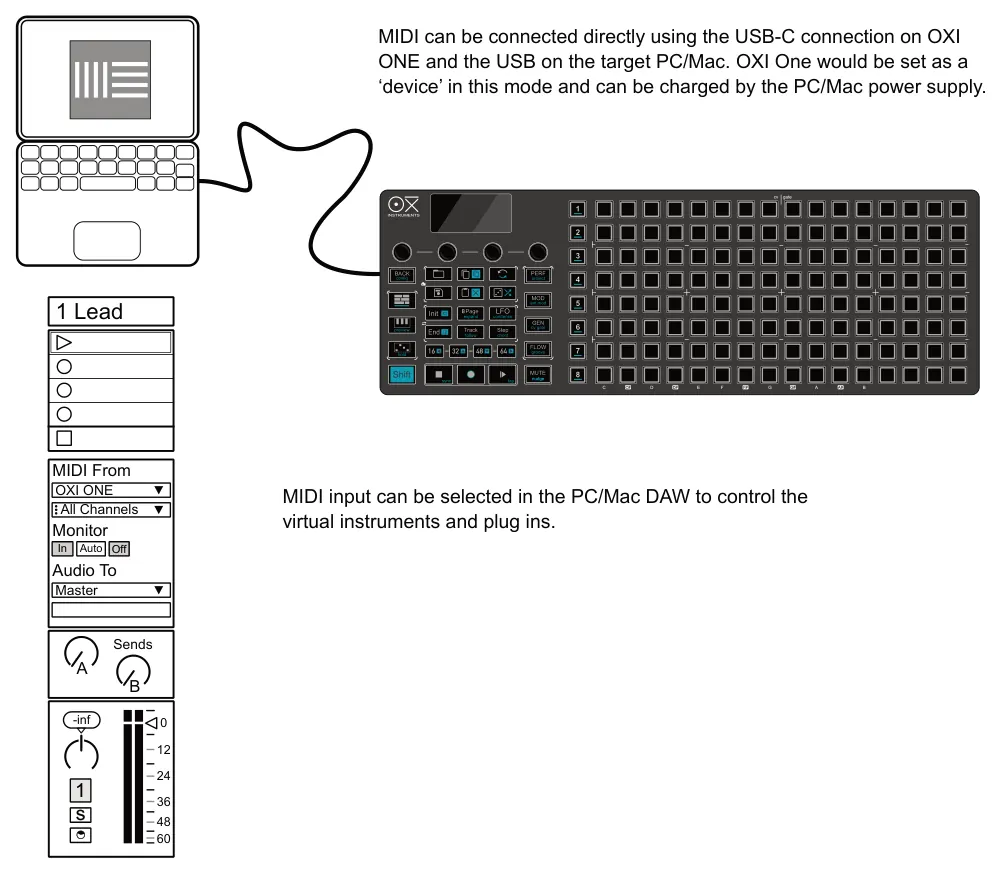
USB Performance Solutions
USB can be used to charge / power as well as carry digital data in and out of the devices. It is essential to use a compatible cable for MIDI. Some USB cables are designed for power only and can be problematic. Ensure the cable is fully data compliant. A few other tips are provided which may help improve performance or overcome issues with USB communications.
OXI ONE in Device Mode
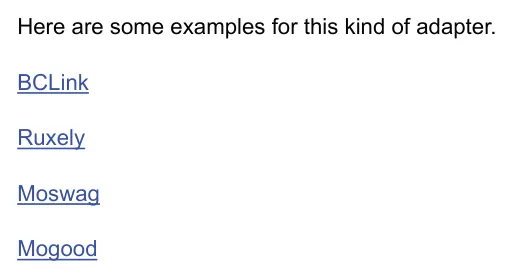
Use a USB Isolator with external supply input to avoid supply/ground loop noises. The isolator requires an external power source, such as a wall charger. Without this, the power supplied to the OXI One will be insufficient, resulting in a gradual depletion of its charge. An example can be found here.
Alternatively to avoid grounding noise you can set the OXI One in “Device Self Powered” mode. This may not work with some hosts.
OXI ONE in Host Mode
Tested setups:
- Some devices like the Roli Seaboard work with a USB C to C cable. No need for any adaptor.
- A simple USB C to A adaptor is another great solution to use the OXI One as a USB Host and power supply. The OXI One has to be set in “Host + Power” in this case. Note the power and battery limitations in this case when connecting “hungry” devices. Examples can be found here.
- USB C Power splitter. Use this kind of adaptor when you want to power the OXI One and have a USB MIDI device connected at the same time. The OXI One should be set to “Host No Power”. The USB C male port should be connected to the OXI One which is the Host, the MIDI device should be connected to the USB A female plug (it can be a USB C in some splitters and should be identified with a “data” (instead of power) symbol) and the USB C female plug is the power input.
MIDI Bluetooth
OXI ONE uses BLE MIDi or Bluetooth Low Energy for wireless communications. BLE can be sometimes technically challenging to set up on some devices so it is advised to use a MIDI dongle such as WIDI Master, WIDI Jack or WIDI uHost when using devices like iPads. Android can be more robust for MIDI BLE.
OXI ONE is a dual role device and can operate with BLE as:-
- Central Role. OXI ONE acts as a central hub for bluetooth MIDI when connecting peripherals such as keyboards (e.g. ROLI Seaboard, CME Xkey Air etc), BLE Dongles (e.g. CME WIDI BUD), BLE MIDI adapters (e.g. WIDI Jack), controllers (e.g. Korg Nanokey, Akai LPD8) or devices like the Teenage Engineering OP-Z. ONE will automatically look for a peripheral device to pair with directly. Only one device connection is supported.
- Peripheral Role. Connects to a central device such as an iOS or Android device, PC, Mac, and devices like CME WIDI Master.
Ensure the external device has bluetooth turned on in order to pair. The pairing process will be determined by the device itself and may be different between devices.

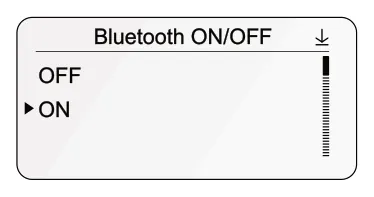
Once the option is selected, tap knob to confirm section and make the bluetooth connection active or inactive.
Example: MIDI Bluetooth OXI ONE to iPad AUM App.
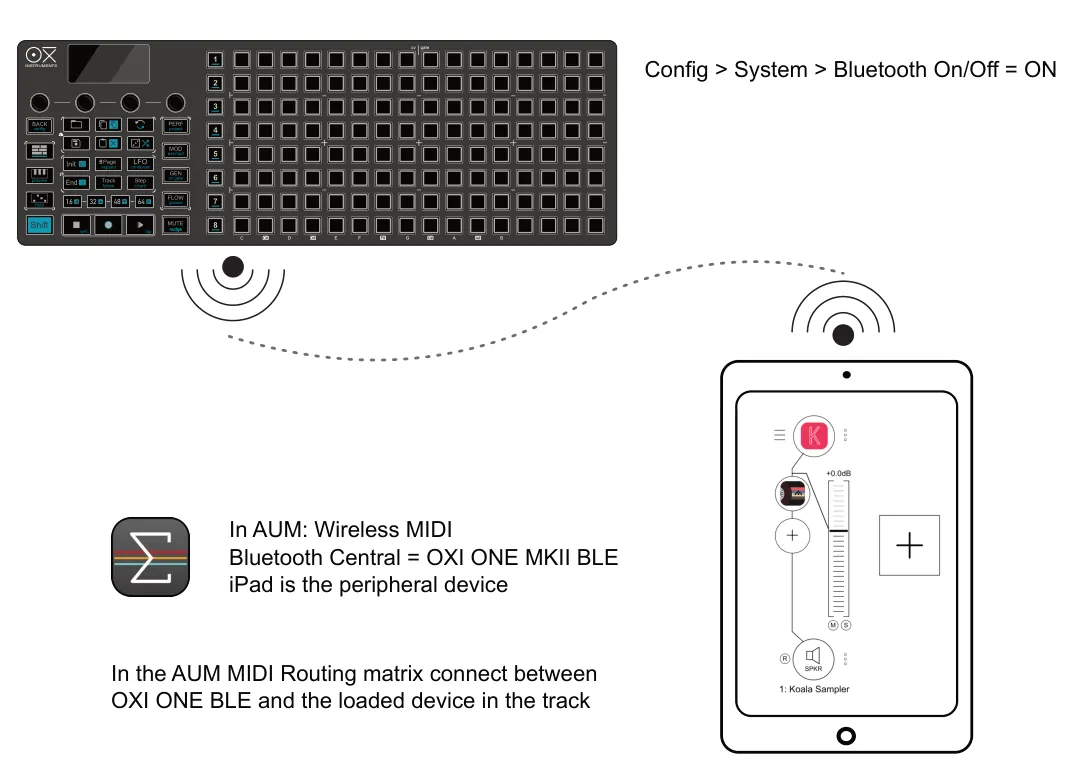
9.9 MIDI Ports & Channels
OXI ONE has the ability to interface with multiple MIDI ports, each with 16 MIDI channels. Port A and B are the default port integral to the ONE device. These may be identified as 1 and 2 on some external DAWs and devices. The 16 channels in ONE are assigned per sequencer, using the [Shift] + Seq [1] - [8] settings menu. The first page allows channels to be assigned by sequencer or by track for a multitrack sequencer.

OXI Split 2
The ports can be expanded from the defaults by using OXI Split. This is a low cost option that increases the channel count to 96 by expanding the ports. Split is designed exclusively for expanding OXI ONE and is not generically compatible with other MIDI devices. Incoming MIDI to ONE can be passed thru to the other MIDI output channels using split.
In order to work, set OXI Split II must be configured in: Config > MIDI > OXI Split selection. This can be selected to the original OXI Split V1 which had 3 outs or to OXI Split V2 with 6 outs. This choice will depend on the OXI Split version connected. If Split is removed, the setting must be restored to ‘OFF’ to use the standard MIDI ports.
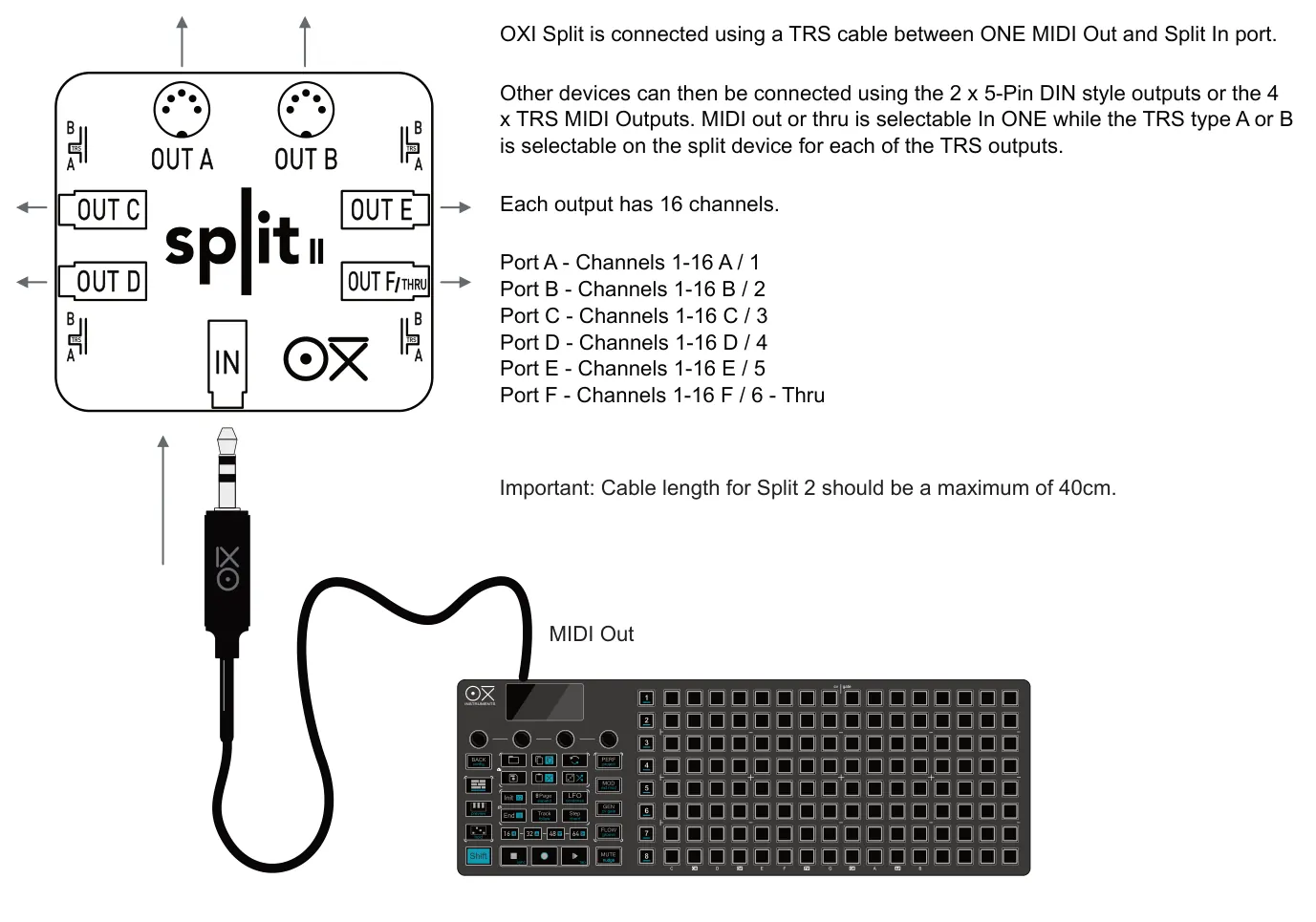
OUT A A
OUT B
OUT C
OUT E
OUT D
9.10 Synchronization
Synchronization refers to the alignment of transport control and especially the clock timing between devices. The assignment of a device as a master clock would set the tempo as a primary lead for other secondary devices to follow.
The default on start up is for sequencer 1 to be selected and the OXI ONE synchronization set to ‘Internal’. This can be changed depending on the application and setup required.
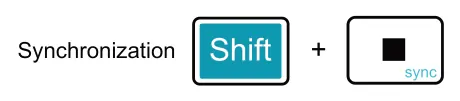
Hold [Shift] + tap [Stop] to alter the sync setting while the sequencer is in a stopped state.
MIDI clock timing is sent and recognised as 24 ppqn - pulses per quarter note in OXI ONE. This is standard for MIDI Clocks and will synchronize easily with most MIDI devices. Analog clock timing can be adjusted in the OXI ONE config menu.
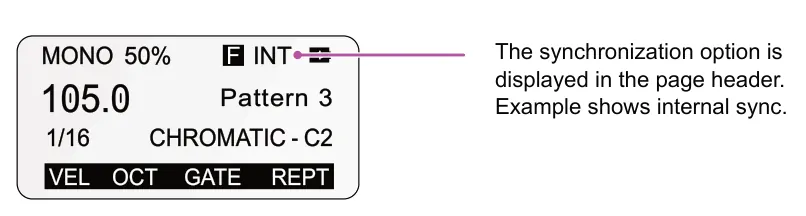
MONO 105.0
Sync Options
Using [Shift] + [Stop] while the sequencer is stopped, the following sync options are available:-
- INT. OXI ONE uses its own internal clock. ONE can act as a primary lead in this situation, sending its clock for other devices to follow and the Tempo BPM is controlled in ONE.
- USB. OXI ONE uses an external clock, but only the clock received on the USB MIDI port. ONE can act as a secondary follower in this situation, following the clock from another device. Tempo BPM is controlled externally and cannot be adjusted in ONE.
- MIDI. OXI ONE uses an external clock, but only the clock received on the TRS MIDI input port or by MIDI Bluetooth. ONE can act as a secondary follower in this situation, following the clock from another device. Tempo BPM is controlled externally and cannot be adjusted in ONE.
- CLK. OXI ONE uses an external clock, but only the clock received on the analog CLK input port. ONE can act as a secondary follower in this situation, following the clock from another device. Tempo BPM is controlled externally and cannot be adjusted in ONE.
- BLE. OXI ONE uses an external clock, but only the clock received on the bluetooth input port. ONE can act as a secondary follower in this situation, following the clock from another device. Tempo BPM is controlled externally and cannot be adjusted in ONE. Ensure bluetooth is enabled in the system settings. The bluetooth symbol is displayed on ONE when connected.
Latency & DAWs
Latency is the delay which can occur when communicating between connected devices. This is not normally a noticeable issue with hardware devices but with PC/Mac based DAW’s it can be problem. For this reason most DAWs have a compensation option for clocks. If ONE or the DAW acts as a master clock it is worth checking latency and adjusting the delay compensation. In Ableton live this is called ‘MIDI Clock Sync Delay’ and is found in the DAWs MIDI settings.
Auto Sync
Auto sync allows ONE to respond to incoming transport messages. Auto sync is set in the config > performance menu and options are:-
- ON. Auto sync is enabled. When ONE is stopped it will respond to a MIDI Start message received from an external device by automatically playing. This applies to incoming messages via the MIDI TRS, MIDI USB, or MIDI Bluetooth. The Analog clk input can also trigger a start. The external clock will control tempo.
- OFF. Auto sync is disabled. ONE will not respond to any incoming transport start message.
Internal Clock Fallback
If a MIDI stop message is received or the external synchronization source is lost, ONE will revert to internal synchronization. This only applies to the MIDI clock and not to the analog clk input.

OXI ONE has two analog clock ports, one input and one output. Typically these are used with modular gear. The behavior of these is controlled with the Start-Stop/Reset options found in the config menu.
9.11 MIDI Input Monitor
MIDI Monitor is a utility used for checking incoming MIDI activity within OXI ONE from all routes and channels. It is a simple, yet highly useful tool available when needed from the config menu or directly on the user panel.
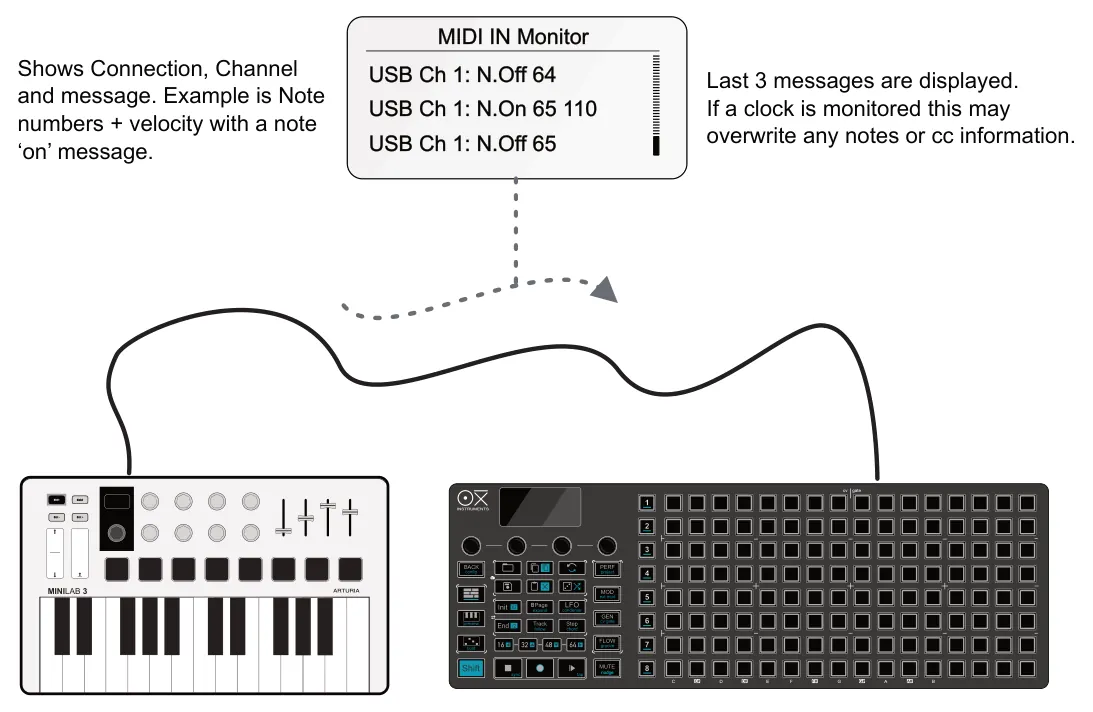

![9.11 MIDI Input Monitor diagram: Hold [Shift] + hold [Back] > 2 seconds to open the MIDI Monitor. Alternatively it can be accessed in the config menu. MIDI IN Monitor +](../../img/oxi-one-mkii/connectivity/connectivity-045.webp)
9.12 Instrument Definitions
An instrument definition is a predefined configuration for MIDI CC mapping to external devices. Instead of manually setting up each CC to control an external device parameter, the instrument definition for that selected equipment will map the parameters automatically and apply their names. This saves time and is an efficient way to work with MIDI continuous control messages for external gear.
OXI ONE Instrument definition is selected in the sequencer settings. This examples show Audiothingies MicroMonsta2 connected by MIDI and CC control can be performed from ONE without manual configuration.
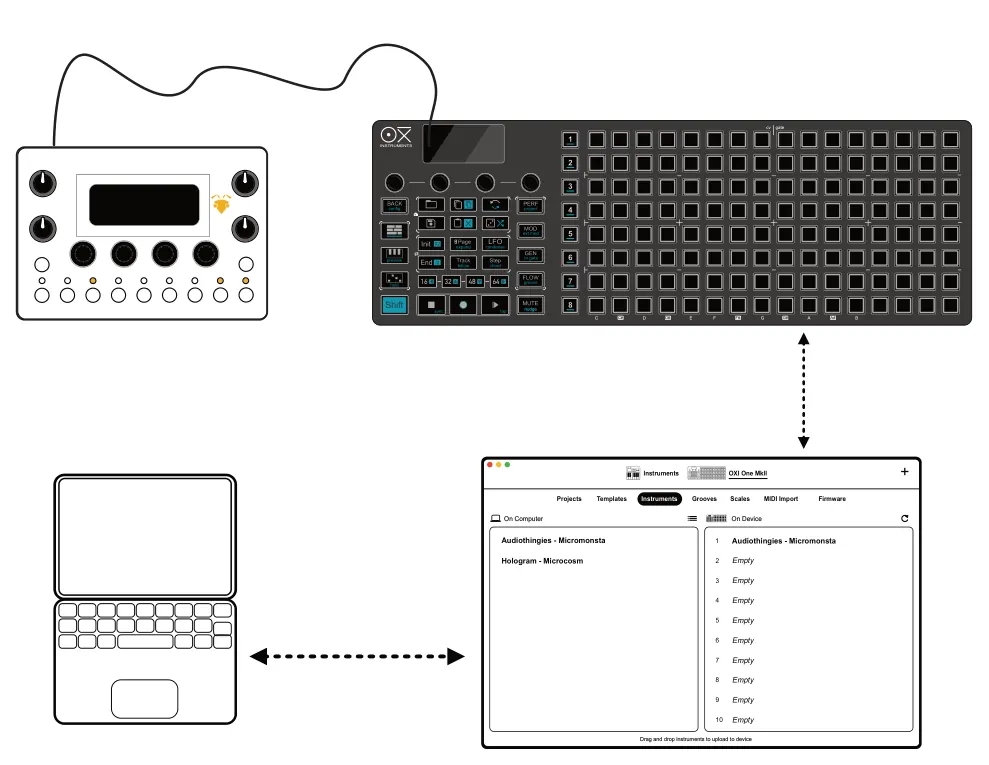
The OXI App can be used to transfer instrument definition files between OXI ONE and a PC.Mac.
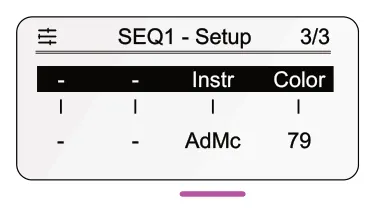
The instrument definition for a device is selected in the main sequencer settings, page 3, parameter ‘Instr’ for the sequencer.
Note Instrument definitions are not user configurable on the device but can be created in the OXI App. These can be created individually and then loaded to OXI ONE using the app. If the manufacturer changes the CC mapping of the device the instrument definition may not work as originally configured. Instrument definitions are saved with the pattern and can be backed up with the app.
The currently available instrument definitions to download via the App are listed. The list captures most definitions available but is always likely to change at any time :-
| Manufacturer | Device |
| ASM | Hydrasynth |
| Abildgaard | Droid-3 |
| Access | Virus A |
| Access | Virus TI |
| Arturia | Microfreak |
| Arturia | Minifreak |
| Arturia | Polybrute |
| Audiothingies | Doctor A |
| Audiothingies | Micromonsta |
| Behringer | Deepmind 12 |
| Behringer | Neutron |
| Behringer | Pro 800 |
| Behringer | TD-3-MO |
| Black Corporation | Deckard’s Dream |
| Black Corporation | Deckard’s Dream Mk2 |
| Conductive Labs | NDLR |
| Dave Smith Instruments | Evolver |
| Dave Smith Instruments | OB-6 |
| Dave Smith Instruments | Prophet ‘08 |
| Dave Smith Instruments | Prophet 12 |
| Dave Smith Instruments | Prophet Rev 2 |
| Dave Smith Instruments | Prophet X (XL) |
| Dreadbox | Nymphes |
| Dreadbox | Typhon |
| Elektron | Analog 4 MKII |
| Elektron | Analog Heat |
| Elektron | Analog Heat +FX |
| Elektron | Analog Rtm MKII |
| Elektron | Digitakt |
| Elektron | Digitakt II |
| Elektron | Digitone |
| Elektron | MachineDrum |
| Elektron | Model Cycles |
| Elektron | MonoMachine |
| Elektron | Octatrack |
| Elektron | Syntakt |
| Elektron | Model Samples |
| Empress | Echosystem |
| Empress | Reverb |
| Ensoniq | ASR-X Pro |
| Erica Synths | LXR-02 |
| Expert Sleepers | FH-2 |
| Flame | Curve |
| Flame | Maander |
| Fred’s Lab | Buzzzy! |
| GEM | rp-x |
| GSmusic | E7 |
| Gotharman | Spazedrum Black |
| Manufacturer | Device |
| Hologram | Microcosm |
| IK Multimedia | Uno Synth Pro X |
| IK Multimedia | Uno Drum |
| IK Multimedia | Uno Synth |
| Intellijel | uMidi |
| Jomox | Airbase 99 |
| Korg | Arp 2600 M |
| Korg | Electribe ER-1 |
| Korg | MS2000 |
| Korg | NTS-1 |
| Korg | Opsix |
| Korg | Wavestate |
| Korg | Minilogue |
| Korg | Minilogue XD |
| Korg | Monologue |
| Korg | Volca Bass |
| Korg | Volca Beats |
| Korg | Volca Drum |
| Korg | Volca FM |
| Korg | Volca Keys |
| Korg | Volca Kick |
| Korg | Volca Nubass |
| Korg | Volca Sample |
| Korg | Prologue |
| Kodamo | Essence FM |
| Kurzweil | K2661 |
| LPZW | Tram 8 |
| MFB | Synth II |
| MFB | Tanzbar 1 |
| MFB | TanzbarLite |
| MFB | Tanzmous |
| Make Noise | O-Coast |
| MeeBlip | Geode |
| MeeBlip | Triode |
| Melbourne Instruments | Nina |
| Meris | LVX |
| Meris | Ottobit Jr |
| Meris | Polymoon |
| Modal Electronics | ARGON8M |
| Modal Electronics | COBALT5S |
| Modal Electronics | CRAFTsynth2 |
| Modal Electronics | Craft |
| Modal Electronics | Skulpt |
| Modor | NF-1 |
| Moog | Grandmother |
| Moog | Matriarch |
| Moog | Minitaur |
| Moog | Mother 32 |
| Manufacturer | Device |
| Moog | Sirin |
| Moog | Sub-Phatty |
| Moog | Subsequent 25 |
| Moog | Subsequent 37 |
| Moog | Voyager |
| Mutable Instruments | Shruthi |
| Norand | Mono |
| Nord | Drum 2 |
| Nord | Drum 3P |
| Nord | Lead (Rack) |
| Nord | Lead (Rack) 2x |
| Nord | Wave 2 |
| Novation | Bass Station II |
| Novation | Bass Station Rack |
| Novation | Circuit |
| Novation | Nova |
| Novation | Summit |
| Novation | Peak |
| OTO Machines FX | BAM |
| OTO Machines FX | BIM |
| OTO Machines FX | BOUM |
| OXI Instruments | Coral |
| Oberheim | OB-6 |
| Oberheim | OB-X8 |
| Pioneer | Toraiz AS-1 |
| Polyend | Tracker |
| Red Panda | Particle |
| Red Panda | Raster |
| Roland | D-05 |
| Roland | GAIA SH-01 |
| Roland | JD-XA |
| Roland | JD-XI |
| Roland | JP-08 |
| Roland | JU-06 |
| Roland | JU-06A |
| Roland | JV1010 |
| Roland | JX-03 |
| Roland | JX-08 |
| Roland | Juno 60 Minerva |
| Roland | Jupiter X (xM) |
| Roland | MC-101 |
| Roland | MC-2oh2 |
| Roland | MKS-50 |
| Roland | MX-1 |
| Roland | S-1 |
| Roland | SE-02 |
| Roland | SH-01A |
| Roland | SH-4d |
| Roland | System 1 (1M) |
| Roland | System 8 |
| Manufacturer | Device |
| Roland | TB-03 |
| Roland | TB-3 |
| Roland | TR-06 |
| Roland | TR-08 |
| Roland | TR-09 |
| Roland | TR-6S |
| Roland | TR-8 |
| Roland | TR-8S |
| Roland | VP-03 |
| Roland | XV-5050 |
| Sequential | Pro 3 |
| Sequential | Prophet-6 |
| Sequential | TAKE 5 |
| Sherman | Filterbank |
| Sonicware | Liven Lofi 12 |
| Sonicware | Liven XFM |
| Sonicware | Smpltrek |
| Strymon | Nightsky |
| Strymon | Volante |
| Studio Electronics | ATC-1 |
| Studio Electronics | SE-1X |
| Studiologic | Sledge |
| TC Electronic | D-Two |
| Tasty Chips | Gr-1 |
| Teenage Engineering | OP-1 |
| Teenage Engineering | OP-Z |
| Twisted Electronics | MEGAfm |
| Twisted Electronics | TherapSID |
| UDO Audio | Super 6 |
| Waldorf | Blofeld |
| Waldorf | Iridium |
| Waldorf | M |
| Waldorf | Pulse 2 |
| Waldorf | Rocket |
| Waldorf | Streichfett |
| Yamaha | Reface CP |
| Yamaha | Reface CS |
| Yamaha | Reface DX |
| Yamaha | Reface YC |