



The arranger is used to create, manage, and perform songs. A song is a complete production of multiple patterns representing the instruments assigned to sequencers and organized in a musical format. For example, assembling an intro, verse, chorus, and outro type of arrangement is a familiar song structure. The arranger has two primary uses. The first is creating a whole song sequence from start to finish, letting it play automatically through the patterns you’ve programmed. It is ideal for exporting a full production and making complete tracks. The other scenario is for live performances, ad-libs, and improvisations where patterns can be set up that loop indefinitely, and control of the progression is handled manually. Maybe a middle ground between total manual control and full song mode is another user case. It is worth exploring to see which approach fits your workflow best. The arranger is here to help structure, organize, and play full song arrangements. It’s a tool that lets you stay focused on the music while OXI ONE takes care of the transitions in the background. It is essential to recognize that a prerequisite to using the arranger is to have a set of patterns saved first. The arranger will draw from a selection of existing patterns to build the composition, so good housekeeping and discipline in saving patterns earlier in the workflow is recommended. Up to 4 songs are available per project and these can be saved and loaded or will be saved when saving a project.
8.1 Arranger Terminology
The arranger is a tool the manages the complete process of assembling patterns into songs. Some new terminology is introduced and it will speed up your workflow to understand these topics early in this section.
Song
A song is a state of an arrangement that can be saved as a complete composition created by assembling saved patterns into a musical structure. The song would therefore cover multiple instrument sections, controlled by each sequencer and laid out over time in relevant sections, for example intro, verse, build up, drop, breakdown etc. 4 Songs per project are available.
Arranger
The OXI ONE tool used to build, manage and play a collection of patterns into the full arrangement. Often, this is called song mode. The arranger can be considered both a composition and a performance tool.
Pattern
Pattern isn't a new term but is an important element of the arranger. A pattern is the core building block for musical passages and phrases. Its contains the information that plays the instruments notes, parameters, timing etc.
Slot
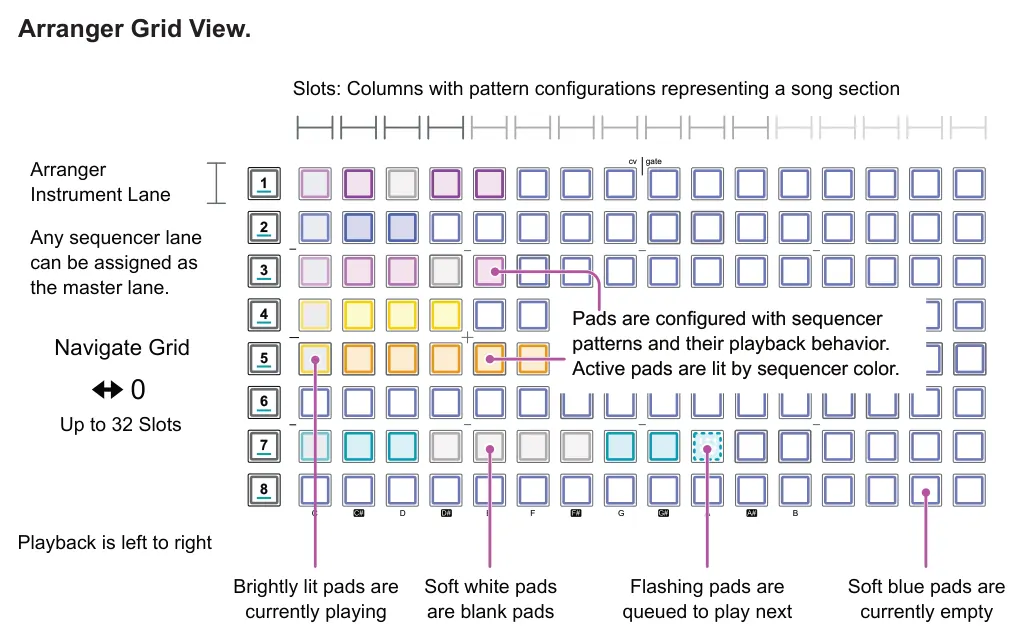
A slot is represented in the arranger by a column of pads which manages a specific section of patterns in a complete song composition. Each pad slot controls the pattern playback and transitions for each sequencer and its instrument.
Clip Launch
Each pattern can be manually triggered and played in a slot or can be set to play automatically and repeat. The process of playing manually the patterns within the arranger slots is called clip launch. Great for improvisations or jamming sessions.
Launch Quantization
Launch quantization applies only when the arranger is ‘ON’. It is responsible for managing transitions between slots ensuring timing and sync is managed.
Master Lane
The master lane is a single sequencer lane used as the primary controller for the other lanes. A lane is essentially the musical sections for an individual instrument represented by one of the eight sequencers over the duration of the song.
8.2 Songs & Arrangement Structure
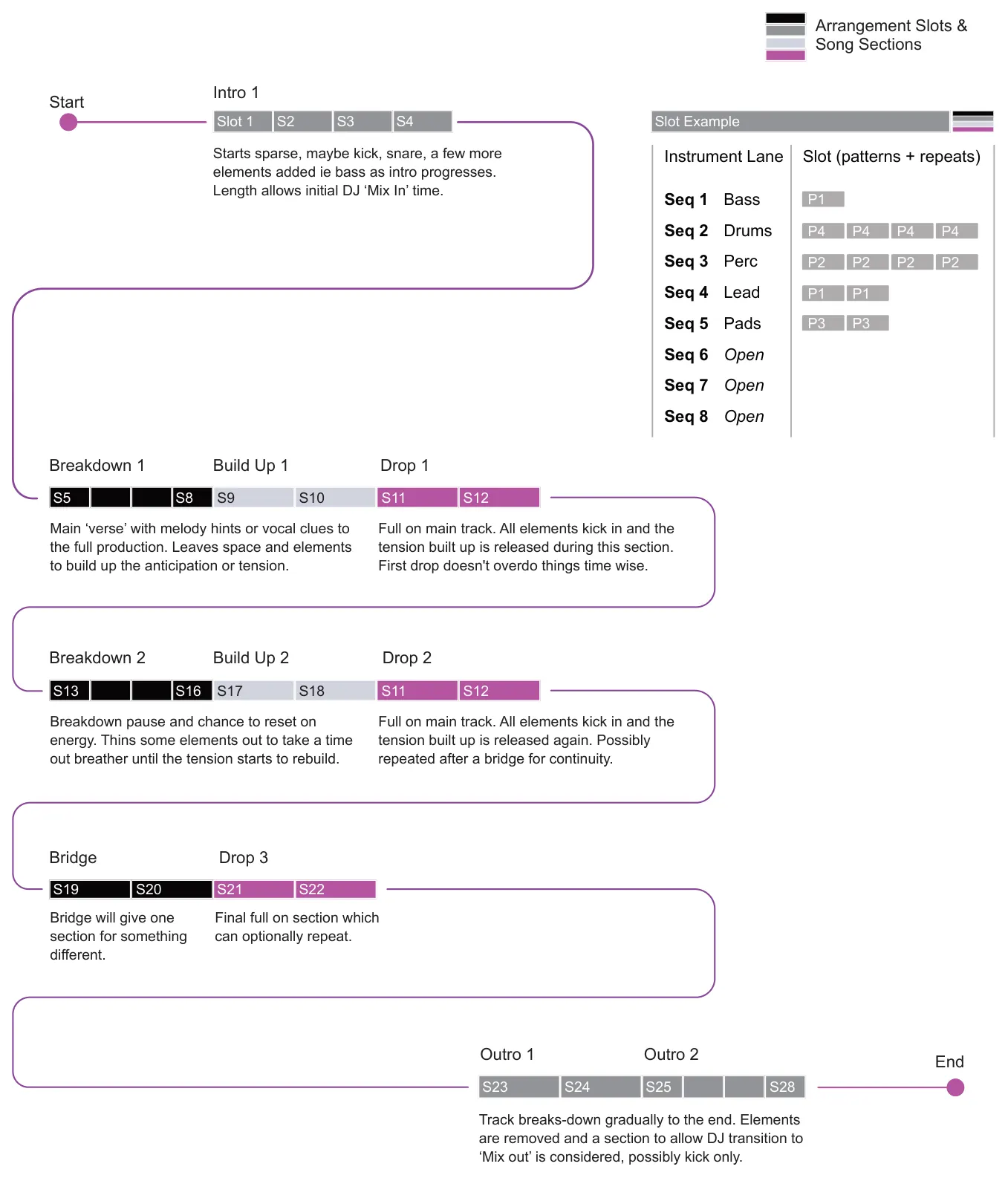
Songs are created in the arranger. The arranger is used to build the compositions but also to playback an arranged song. The arranger must be ‘ON’ to play a song as opposed to playing an individual pattern. Each pattern and slot section can then be manually or automatically controlled with repeat count settings.
Example: Typical EDM Song Arrangement.
8.3 Arranger View
The arranger is a tool for managing songs. This is accessed using the dedicated [Arranger] button. Selecting the arranger does not turn the song arranger playback on but only opens the tool. This is a separate step in the process and the arranger is turned ‘ON’ by holding [Shift] + [Arranger].

Selects the arranger tool, pages and grid view in order to build and edit songs. Button will be lit white.
Select Arranger

Global Arranger Pages

Button will flash when multiple pages exist. Press [Page] to navigate pages.
Navigate Pages
8.4 Creating and Editing a Song
The main arranger page is the place to select and structure patterns into full compositions or songs as well as clustering patterns into smaller groups for ad-libs and to use in live performances. A state of an arrangement is called a song. Songs can be saved and loaded individually and up to 4 can be saved with patterns and projects.
To edit a slot in the arranger, hold a pad to change the pattern, repeats, program change and bank settings. Press [Arranger] to set up the generic options and hold [Pad] for a pattern slot / instrument lane to edit the specific parameters.

Creating or Selecting a Song
The currently loaded song will be the one edited when working in the arranger. This is shown in the header of the display. Songs cannot be renamed. Saving songs will save the project.
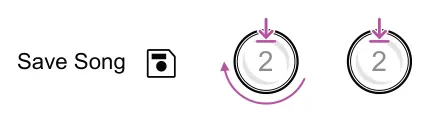
In the arranger, tap (Save) knob 2 then turn knob 2 to select a song slot. Press (Save) knob 2 again to save the song to the selected slot.
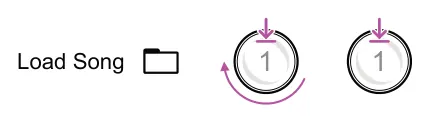
In the arranger, tap (Load) knob 1 then turn knob 1 to select a song slot to load. Press (Load) knob 1 again to load the selected song.
![Creating or Selecting a Song diagram: In the arranger, Hold [Shift] + [Paste] to clear the current song to a blank state. Undo is available. +](../../img/oxi-one-mkii/arranger/arranger-010.webp)
Clear Song
Slot / Pattern Page
While the global arrangement settings are available in arranger view, holding a slot pad will also give access to its pattern specific options. These are set specifically for each pattern slot when building the full song arrangement. Hold [Pad] to access these individual settings.

![Slot / Pattern Page diagram: Hold [Pad] to edit pattern options Current Slot & Pattern Repeats Number of pattern cycles to play before progressing. Program Change Options to trigger a MIDI PC message output. Slot 1 "Pattern 1" PrCh Bank Patt...](../../img/oxi-one-mkii/arranger/arranger-012.webp)
Constructing a Song with Patterns
There are several ways to add patterns to a song. The approach that is used will depend on your personal preference and workflow. It is of course a prerequisite that patterns have already been created and that you have a documented or mental view of what patterns to select. These can be edited later if needed.
Remember, each row represents a sequencer arrangement lane 1-8. Each column represents the 1-8 pattern slots for each sequencer. Hold an arrangement slot to view the pattern assigned.

Assign Patterns
In the arranger view, open the pattern grid selection page by pressing [Page].
By grid pattern

Press any pad to add it to the arranger. Patterns are added to the arranger in the order selected from its sequencer lane. Tap a pattern several times to continuously add. Multiple patterns can be iteratively selected.

To open the pattern grid, hold the arranger [Pad] + tap [Page] to open the pattern selection grid.

The current pattern will be lit red. Press any pad in the selected sequencer lane to choose a pattern for the selected arranger slot.

Change Pattern
Select a pattern by its pattern slot number from the current project and sequencer pattern list.
By slot number
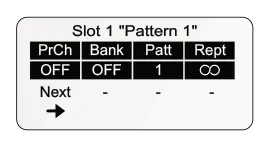
Current Slot and Pattern is displayed in the arranger slot display.

In the arranger view, create an entire slot column by holding [Arranger] + Tap any column [Pad].
Create Slot Column
The slots are created using the current default settings. So, for example, set the repeats prior to creating a slot column. Muted sequencers will create empty slots.
Configuring How the Arrangement Slots Play
Once patterns have been placed into the slots for each of the sequencer lanes, their individual behavior should be set to determine how each pattern will play. This process requires the parameters to be set for each slot. These include the repeat cycle and direction of progression. This activity is performed in the Arrangement view. Settings can be set prior or after creating pattern slots.

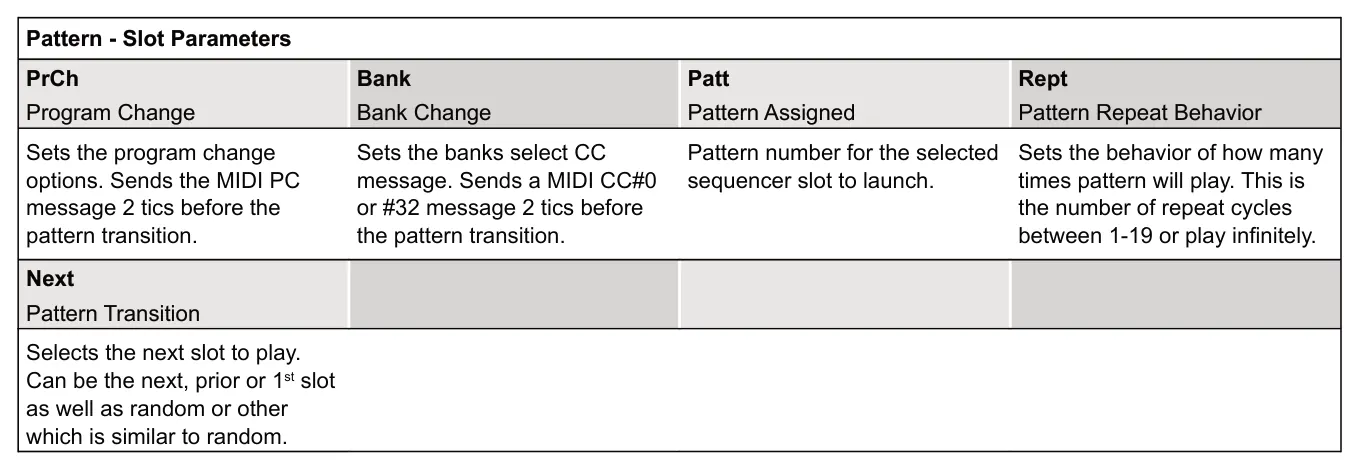
While holding an arranger slot pad the parameters for the pattern assigned to the slot are displayed and made available to edit.
Hold Slot Pad
Repeat
Repeat sets how the pattern plays before it moves to the next pattern slot. Setting repeat to ‘Infinite’ which will constantly repeat without progressing. This is symbolised by the infinity icon. Another option is to set to ‘Off’ which sets the pattern as empty and a such the slot will be skipped when playing the arrangement. The number of playback cycles can also be set between 1-19. This can be set for slots with a pattern or slots with no pattern assigned which then become blank slots and are lit white. Blank slots will still be activated for 1 bar of 16 step duration (1/16th) and the set number of repeats but without playing an actual pattern notes or modulation. The difference between blank slots and empty slots is that empty slots are skipped while blank slots are useful to hold the arranger position playback silently at the selected slot for a defined period or infinitely until manually progressed.
![Repeat diagram: Hold [Pad] + Tap (Rept) Knob 4 to quickly toggle between 1 and Infinite setting. Hold [Pad] + Turn (Rept) Knob 4 to select an specific option. + 4](../../img/oxi-one-mkii/arranger/arranger-022.webp)
Repeats
Infinite

Plays indefinitely with no repeat countdown. Progression is performed by manually tapping another slot pad. Can be used for blank slots which are lit white.
Countdown

Plays and counts down the number of repeats. Can be progressed earlier by manually tapping another slot pad. Can be used with blank slots, lit white.
Off
OFF

Off sets the pad slot to ‘empty’ meaning that arrangement playback will skip this step in the song progression.
Next
Next sets the transition behavior of the slot and determines which slot is played next in the song sequence. Once the pattern and its repeats are completed the song will progress to the next slot.
![Next diagram: Hold [Pad] + Tap (Next) Knob 1 to toggle between PrCh and Next options. With ‘Next’ selected turn (Next) Knob 1. Hold knob to reset. + 1](../../img/oxi-one-mkii/arranger/arranger-026.webp)
Next
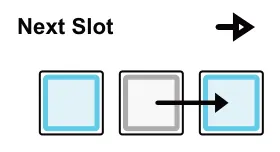
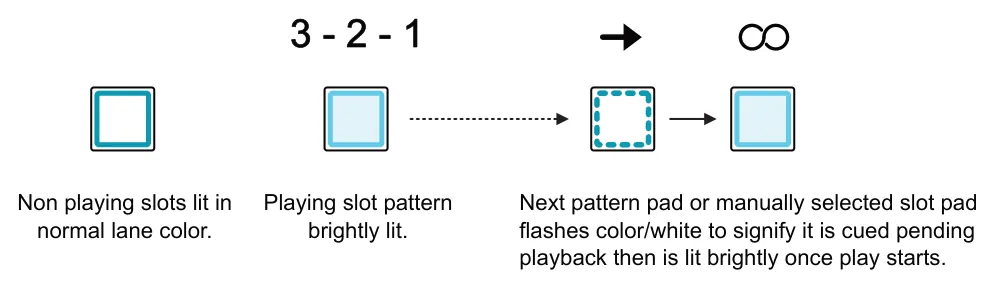
During the slots last repeat cycle, the next slot will flash signifying that it is cued. When the repeats and pattern are complete, the next slot available in the song sequence will play next.
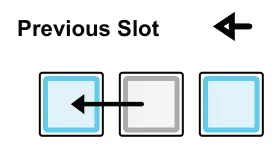
During the slots last repeat cycle, the prior slot will flash signifying that it is cued. When the repeats and pattern are complete, the previous slot in the song sequence will play next.
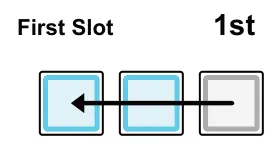
1st
During the slots last repeat cycle, the first slot will flash signifying that it is cued. When the repeats and pattern are complete, the first slot in the song sequence will play next.
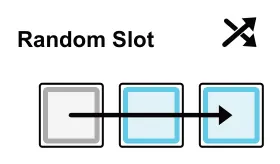
During the slots last repeat cycle, a random slot will flash signifying that it is cued next. When the repeats and pattern are complete, the cued slot will play next. Randomly plays any pattern.
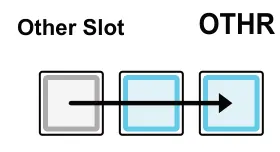
OTHR
During the slots last repeat cycle, a random slot will flash signifying that it is cued next. When the repeats and pattern are complete, the cued slot will play next. Does not repeat its own pattern.
8.5 Playing and Controlling a Song
Press [Arranger] to open the arranger options. However to play a song arrangement, the arranger must be turned on / armed. The arranger will automatically disarm when stopped. Saved patterns are loaded when playing songs. As such it is important to save ant edited patterns to avoid loss.
![8.5 Playing and Controlling a Song diagram: Press [Shift] + [Arranger] to turn on. Arranger button is lit blue when armed. Arranger on or off [Shift] + [Arranger] +](../../img/oxi-one-mkii/arranger/arranger-032.webp)
To play a song the arranger must be turned ‘ON’ to arm it before pressing play. The arranger will automatically turn off and reset to unarmed when it is stopped.
Play the Song Tap [Play]
Press [Play] to play the selected song. The arranger must be set to On/Armed in order to play a song as opposed to only the patterns.
Stop the Song Tap [Stop]
Press [Stop] to stop and reset the selected song. The arranger will automatically turn to Off/Disarmed.
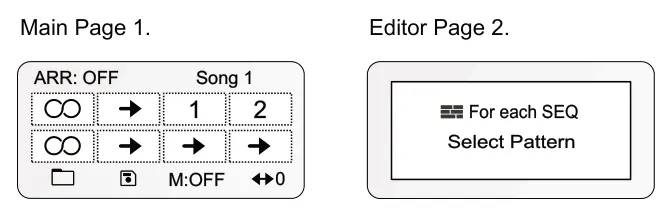
Arranger: Main Page 1
![8.5 Playing and Controlling a Song diagram: Arranger On/Off. [Shift] + [Arranger]. Currently loaded song being edited. ARR: OFF Song 1 Playback status 1 2 Lanes 1-8. Load song option. Navigate grid view. M:OFF 0 Knob 1. Knob 4. Save song option. Master lane...](../../img/oxi-one-mkii/arranger/arranger-035.webp)
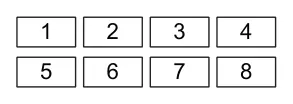
Lanes represented by the sequencer row. The display shows lanes ordered as below.
Page Lane Symbols
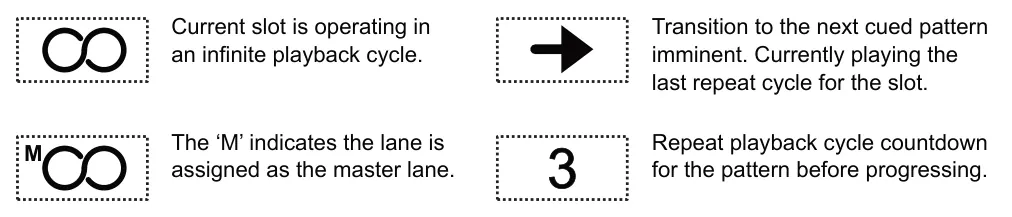

Pattern playback behavior can be controlled individually. Remember each pad represents a pattern for the arranger instrument lane assigned to play or can be setup to play a set number of times before progressing, infinitely or not at all. Patterns are played in the slot columns left to right or as manually selected.
While playing, tap the pad for the slot and instrument lane to play. Playback will start based on the launch quantization. ONE manages the pattern synchronisation and timing in the background.
Play slot. Tap [Pad]

![8.5 Playing and Controlling a Song diagram: While playing, hold [Shift] + tap the pad to cue and play full column. Play slot column. Tap [Pad] +](../../img/oxi-one-mkii/arranger/arranger-040.webp)
Launch Quantization
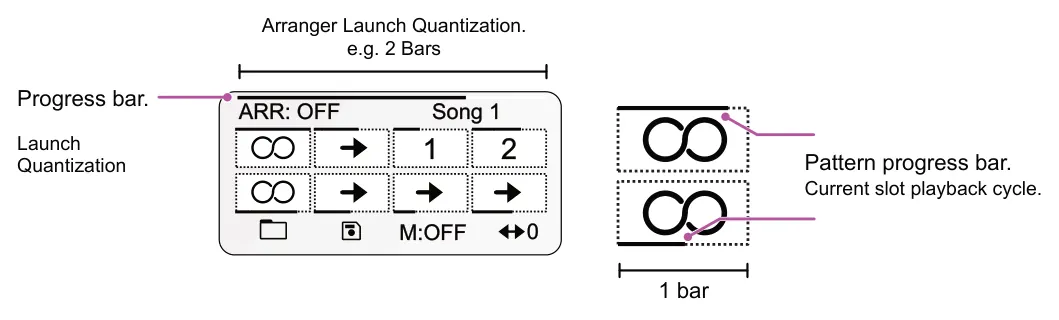
OXI ONE Arranger manages the synchronization and transition of patterns throughout the song in the background, simplifying the user experience when playing and creating songs. The function that manages this is arranger launch quantization, and the arranger must be set to On/Armed for it to be active.
The arranger launch quantization setting is found in the ‘Project’ configuration, accessed with [Shift] + [Perf]. Options are P.End - Pattern End, ½ Bar, 1 Bar, 2 Bars, 4 Bars, 8 Bars, 16 Bars, 32 Bars.
Launch quantization sets the number of bars, based on the internal clock, to complete one pattern repetition cycle. The launch quantization is displayed as a progress bar on the arrangement main page. This function controls the transition timing between patterns in a song.
Note that an alternate version exists called global or load quantization, which is applied when the arranger is off for things such as pattern loading behavior.
8.6 Master Lane & Clip Launch
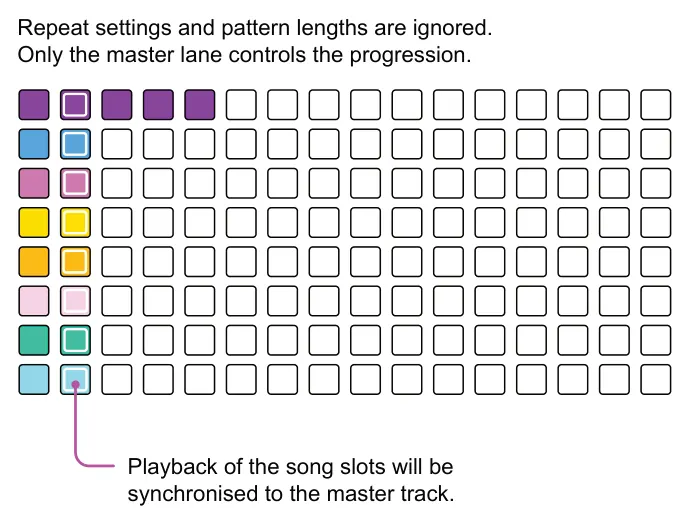
A master lane is available for each song and can be assigned to any one of the sequencer lanes. A master lane operates as the primary controller for all other lanes. The master will dictate the progression of all slots ignoring repetition and pattern length settings of other lanes. For example, selecting a slot to play on the master lane will also select the equivalent slots on other lanes.

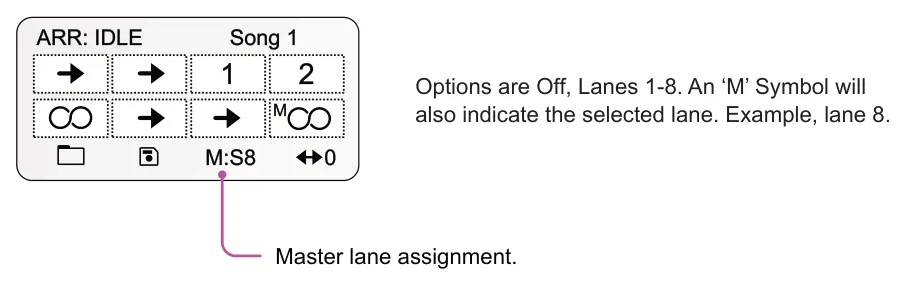
Master lane 8
Tap any arrangement slot [Pad]s to launch pattern playback manually. Transition is governed by the launch quantization. Tapping a slot pad on the master lane will trigger its playback and the slot on all other lanes.

Clip Launch
![8.6 Master Lane & Clip Launch diagram: While the arranger is on and a song is playing, Hold [Load] + [Pad] for the pattern to change. + Pattern Override](../../img/oxi-one-mkii/arranger/arranger-047.webp)
8.7 Program Change & Bank Change
As well as controlling pattern playback, each slot also has the option of being set to trigger a MIDI Program Change or PC message. Program changes are used to change presents, patches or sounds in a destination device.
Most presets are organised in banks. A bank change message can also be configured for each slot. The MIDI standard protocol uses Control Change CC#0 MSB or CC#32 LSB to initiate a bank change.
PrCh
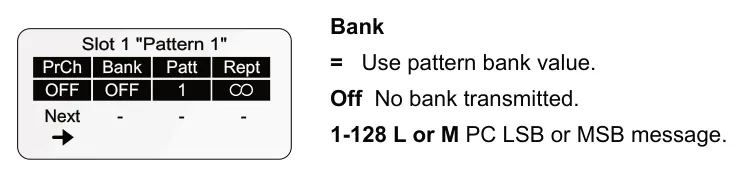
= Use pattern PC value.
Off No PC transmitted.
1-128 PC Message value.
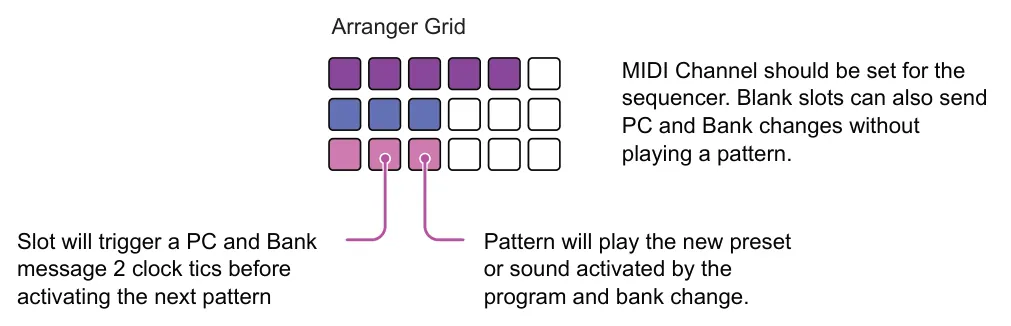
Program Change and Bank options are also available for each sequencer pattern. Default is ‘=’ to use the pattern settings. These are set with [Shift] + Seq [1] + [8] and the PC and Bank options found in settings pages 1 and 2 respectively.
Incoming Program Change
The pattern column slots, displayed on the grid in page 2 of the arranger, can be selected using incoming MIDI PC messages. The columns are numbered from left to right so the first column is selected with PC 1, second column PC 2 and so forth.
As a prerequisite, set the MIDI Channel used for incoming program change in the configuration settings: Config > MIDI > PC (Program Change) receive global Channel

It may need some experimentation and testing with the external device in order to match the program change and bank change messaging. Some preset structures start at 0, some at 1 and some may not count to 128. Try variations in order to find the right alignment between ONE and the device.
8.8 Editing Slots
The pads on the grid represent the patterns in the song slot. Each slot can be shifted left or right on the grid, copied, pasted and cleared. The sequencer lane color matches the sequencer color and can be changed in the main sequencer view. The following edits are performed in the arranger.
![8.8 Editing Slots diagram: Hold [Copy] + [Pad] to copy the pattern slot. Only Individual pattern slots can be copied. +](../../img/oxi-one-mkii/arranger/arranger-051.webp)
Copy Slot
![8.8 Editing Slots diagram: Hold [Paste] + [Pad] to paste the previously copied pattern slot into the same lane. +](../../img/oxi-one-mkii/arranger/arranger-052.webp)
Paste Slot
![8.8 Editing Slots diagram: + Hold [Shift] + [Paste] to clear the entire song.](../../img/oxi-one-mkii/arranger/arranger-053.webp)
Clear Song
![8.8 Editing Slots diagram: Hold [Pad] + Page [64] to move the pattern right. Also moves or rearranges blanks and empty slots. +](../../img/oxi-one-mkii/arranger/arranger-054.webp)
Shift Slot Right
![8.8 Editing Slots diagram: Hold [Pad] + Page [16] to move the pattern left. Also moves or rearranges blanks and empty slots. +](../../img/oxi-one-mkii/arranger/arranger-055.webp)
Shift Slot Left