



As we draw to the final chapter of the manual supporting OXI ONE MKII, we hope the journey has been interesting, creative, and fun. This section may fit into the housekeeping category and be less interesting when the urge to make music quickly arises. Here, the firmware updates are covered along with the OXI App and a complete overview of the configuration options. There are some useful elements that will be important to know, if not now, then certainly in the future. It is recommended that you at least familiarise yourself with the content and features covered here for future reference and awareness. For people interested in the OXI remote control and scripting information, please visit this OXI Remote Control Reference link. The shortcut summary for control commands is also included as a reference, useful to print. To finish, OXI Instruments would like to issue a heartfelt and big thank you for buying OXI ONE and following our journey from the original ONE to the ONE MkII and its associated ecosystem of gear. Good luck with your musical adventures; hopefully, OXI ONE will play a part in them. Remember, things don't end here; only the manual does. The real journey is only just starting. Have fun!
10.1 OXI App
Most device management activities when working with the OXI gear is handled using the OXI App. This is a stand alone utility that, when connected to an OXI device will help update, backup and transfer data between the device and a PC or Mac. The app can be downloaded from the OXI site.

Click Here to Download the App
The OXI ONE App can manage operations between a PC / Mac and ONE:-
- Manage and backup projects.
- Transfer templates between the PC/Mac and ONE.
- Create and transfer grooves between the PC/Mac and ONE.
- Manage instrument CC definition files between devices.
- Transfer scale files between the PC/Mac and ONE.
- Import MIDI files to ONE.
- Check the available firmware in comparison with the OS installed on the connected ONE and perform an update to the firmware on the device.
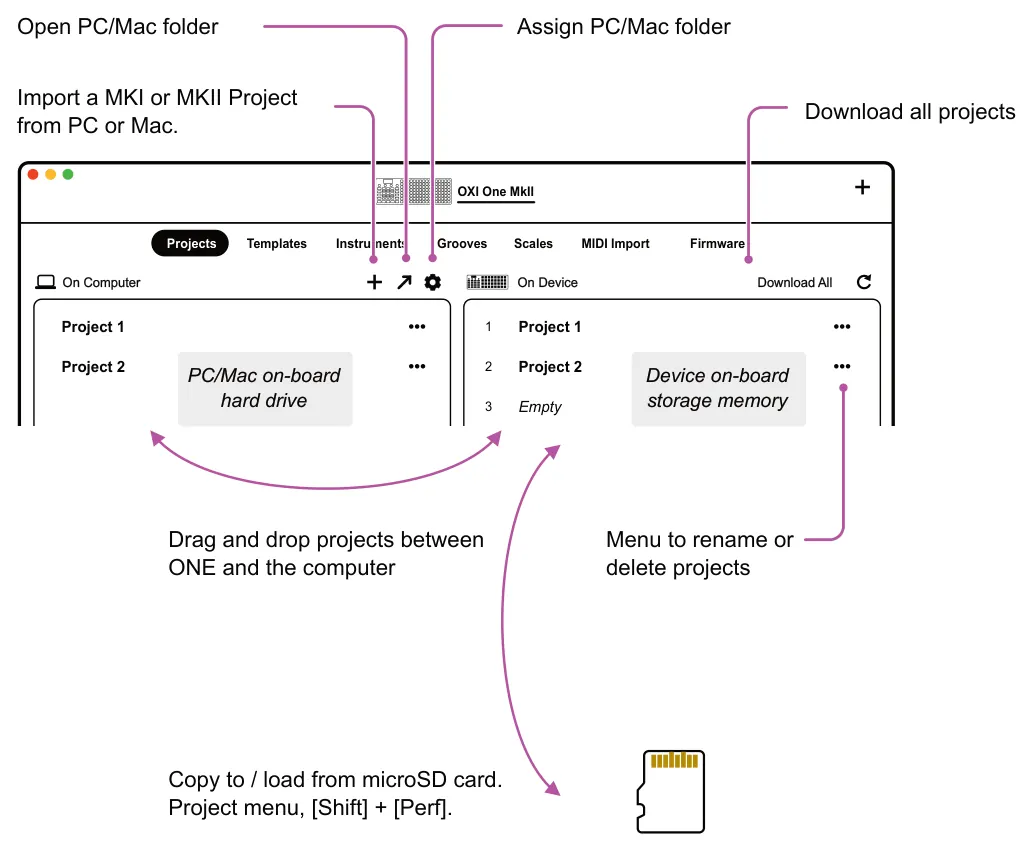
Project Backup & Transfer Projects can be downloaded from the OXI App and stored in a location assigned in the App. The option to set a storage directory is available which assigned a folder on the PC/Mac as the storage location for ONE files and data
Projects can be downloaded as a full collection or individually by dragging from the device across to the computer within the app. Projects can in addition be copied from ONE to the microSD Card using the options in the ‘Project’ menu accessed using [Shift] + [Perf].
Projects Tab
MIDI Import
It is possible to import MIDI files into OXI ONE using the App. When importing files they will need to reside on the PC or Mac. An example is a MIDI file exported from Ableton Live: File > Export MIDI Clip and stored ready to import to ONE. The following considerations are important when creating external MIDI files for importing.
- Files can be imported to a mono or poly pattern in ONE. Consider the dynamics and scope of these sequencer when creating external MIDI.
- Patterns will be imported to the currently selected sequencer and pattern in OXI ONE.
- Maximum length is 8 bars.
- Note polyphony. Must have 1 track with maximum note polyphony of 7 notes.
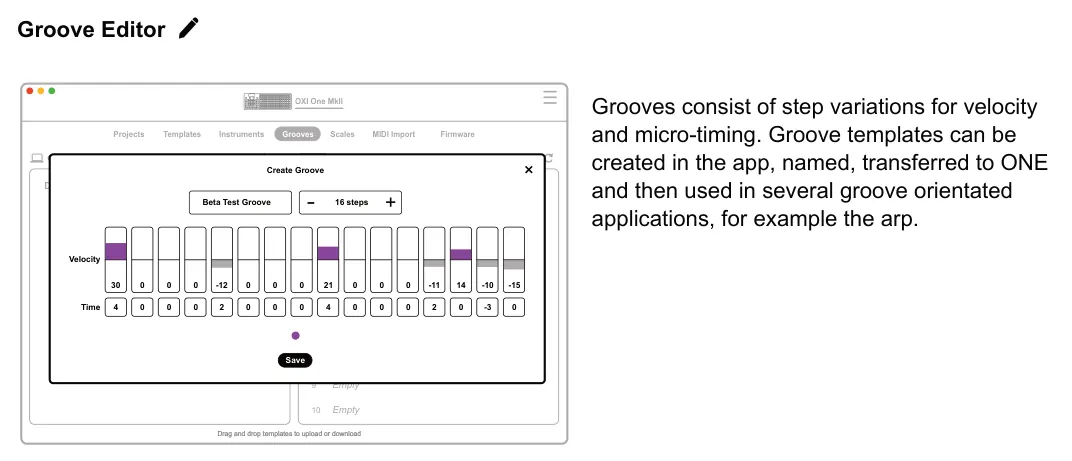
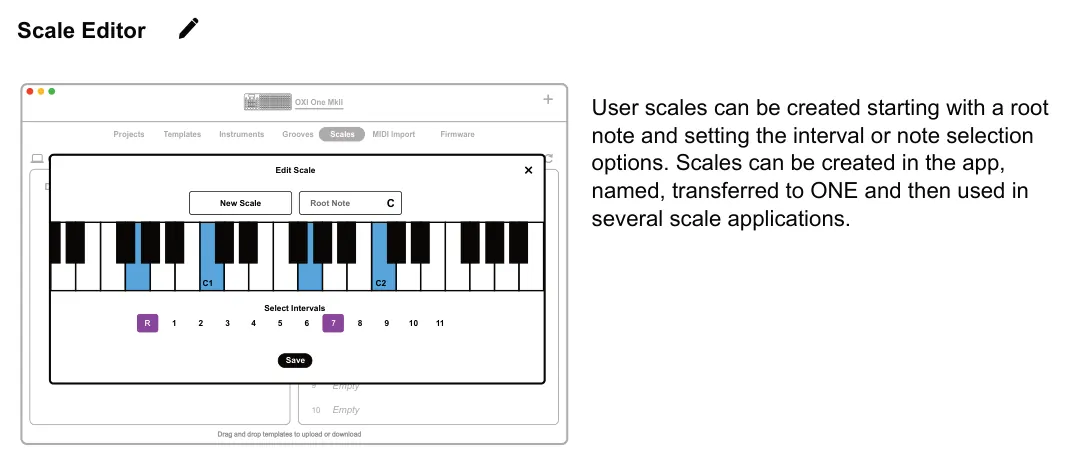
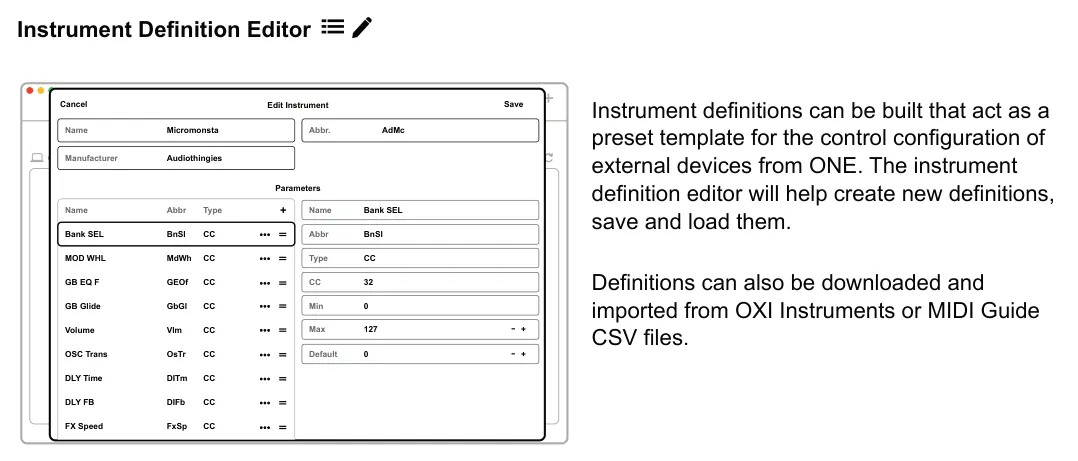
Grooves, Instruments & Scales Templates as well as grooves, instruments and scales can also be dragged and dropped in the app. In addition the groove, instrument and scale functions have built in utilities for creating new grooves, user scales and definitions. Look for the ‘Pencil’ icon to signify access to the editors or ‘+’ to create new from their main pages.
10.2 SD Card
The OXI ONE microSD Card socket is located on the left side of the device. Only microSD Cards should be used, inserted with pins facing up. Upon start up ONE will create or check the configuration of the microSD Card folder structure.
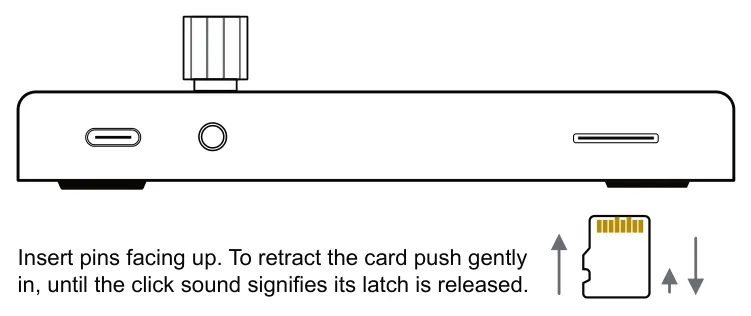
The microSD should be formatted to FAT32 or exFAT standard.
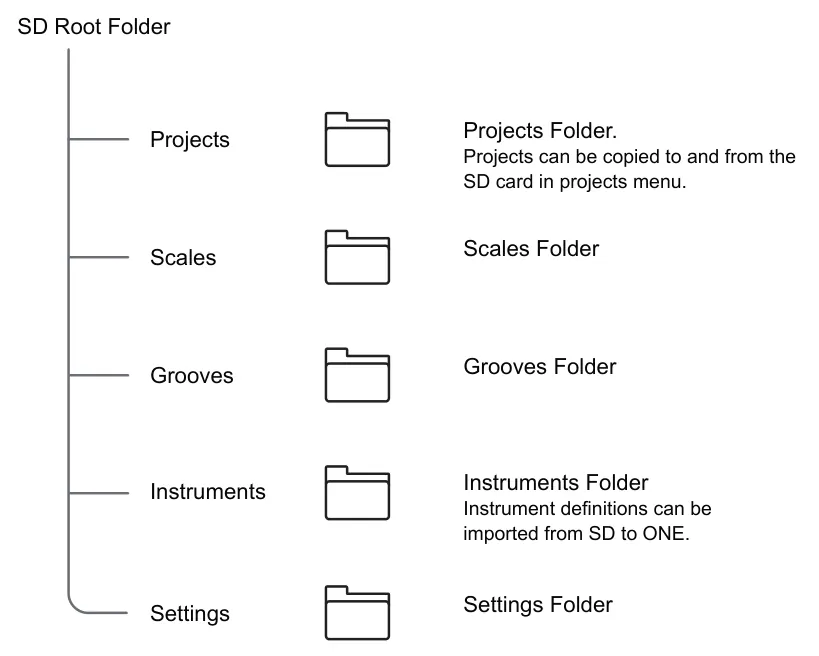
The microSD folder format is setup when powering up OXI ONE. If the folder structure already exists it will be checked and verified during start up.
10.3 Firmware Update
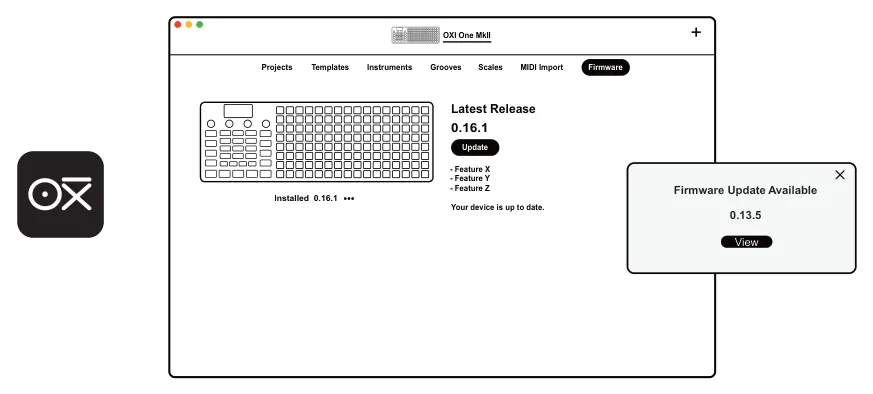
Updates to OXI ONE firmware are released from time to time to add new features, improve performance and fix bugs. The update process is automated within the OXI App. Simply connect the PC/Mac to OXI ONE and open the ‘Firmware’ page. The current status of the device and any available firmware versions will be displayed.

Click Here to Download the App
The currently installed firmware version and hardware version can be viewed in the Config > System > FW & HW Option menu.

Update Firmware
- Connect OXI ONE to the PC or Mac which hosts the OXI App using the USB
connection. Also ensure the PC / Mac is connected to the internet and ONE is in USB device mode, set in the config > system > USB mode settings.
- Open the OXI App.
- In the ‘Firmware’ page the currently installed firmware will be displayed as well as
the latest available firmware. It is possible to update from this page.
- Any newly available updates will be displayed in the pop-up message. Click ‘View’ to
see more information and to proceed to perform the update.
- While updating the update progress bar will be displayed on ONE. Do not disconnect
the devices while updating.
- Once complete, ONE will reboot. Update takes between 15 - 60 seconds.
- Note that the option to update a specific firmware version from a update file is also
possible. Click the 3 dots under the ONE image and the options to update the firmware or bluetooth driver from a file will be available. The file must have been previously downloaded to a location on the PC/Mac.
10.4 Troubleshooting Updates
It is unusual for the OXI ONE to freeze or to get locked into a ‘bricked’ condition while updating. Should this situation occur the following steps should be followed.
Failed Update
- Connect OXI ONE to the PC or Mac which hosts the OXI App using the USB
connection. Also ensure the PC / Mac is connected to the internet.
- Push and hold the power button of OXI ONE to force it to off.
- Power up in update mode. Hold [Mute] while pressing the power on button. ONE
should power up in update mode.
- Try updating again using the App but use a downloaded OS version. This could be an
older revision or the latest version.
- Try powering off / on. Repeat the procedure.

10.5 Sequencer Interface LEDs & Colors
The grid pad LED colors can be changed for the sequencers. This is changed in in the main sequencer settings, page 3. Also the sequencer button colors can operate as turquoise scheme or colored. This is set in the config > workflow.
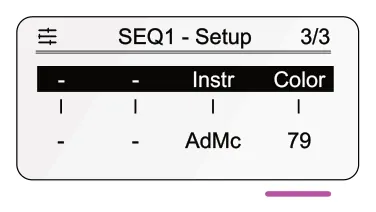
The color setting can be adjusted with knob 4 (color). Colors are defined by a number which can be changed to a recognized color or tweaked to suit personal taste.
Defined Grid Colors
The table indicates the defined colors for OXI ONE scheme. Other values can also be set.
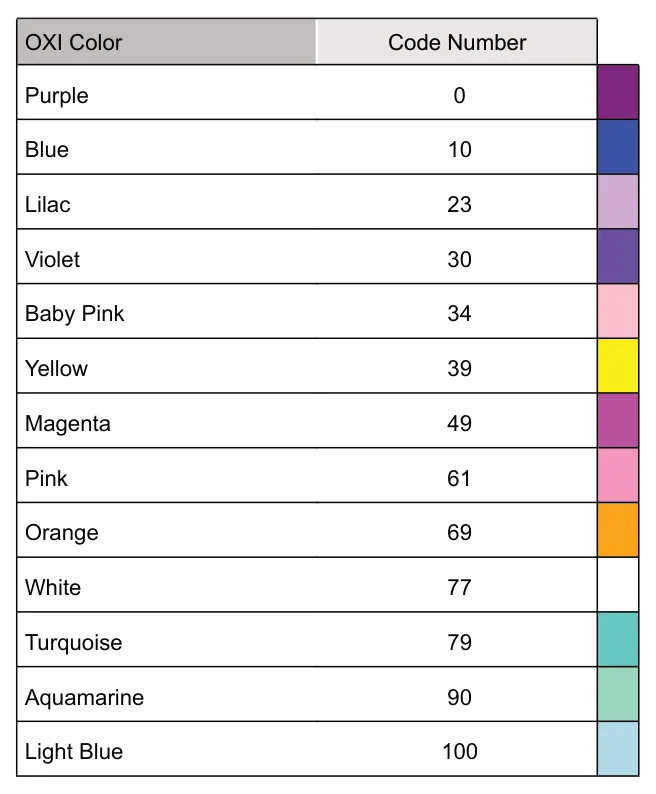
In addition to the colors the following grid interface presentation can also be edited as follows:
LEDs Animations: High, Low, Off.
LEDs Brightness: Low, High, Very High.
LEDs Backlight: OFF, Low, High.
All of these settings are options found in Config > System.
Sequencer Button Colors
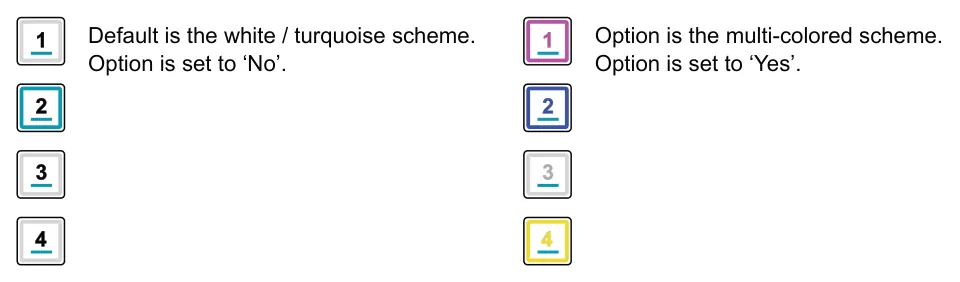
There are two scheme options for the grid buttons, multi-colored when set to ‘Yes’ or white / turquoise for the default when the setting is ‘No’. The option is found in: Config > Workflow > LEDs Colored SEQuencer Buttons. This only affects the 8 sequencer buttons.
10.6 Analog Calibration
The OXI One comes factory calibrated when supplied. The calibration has been made using high precision equipment. If for any reason the calibration procedure has to be repeated, please follow these instructions. Make sure to use a good reference like a 5 digit multimeter or a well tuned VCO (with V/Oct CV input) along with a Tuner. Only perform a calibration if it is absolutely necessary.
Enter calibration mode, hold [Shift] + [Gen] for until OXI ONE switches to calibration mode as indicated on the display screen.
![10.6 Analog Calibration diagram: Hold [Shift] + hold [Gen] > 2 seconds until the calibration menu page is displayed. Calibration +](../../img/oxi-one-mkii/system/system-016.webp)
The OXI ONE’s CV’s have a range from -3V to +5V which represent the octaves from note C-1 to C7 in the V/Oct format. The MIDI note 12 represents C-1 in OXI ONE.
Calibration Table The values that OXI ONE should output for each octave are presented in the following table. This applies to each of the eight CV outputs.
| Note | Expected Voltage |
| C-1 (12) | -3V |
| C-0 (24) | -2V |
| C 1 (36) | -1V |
| C 2 (48) | 0V |
| C 3 (60) | 1V |
| C 4 (72) | 2V |
| C 5 (84) | 3V |
| C 6 (96) | 4V |
| C 7 (108) | 5V |
Every point in the range must be calibrated and checked for each CV.
Follow the process below in order to perform a full calibration. Calibrate every point in the table for every CV output. Note that the note value played on a keyboard will generate a voltage level that represents the note played. Higher notes send a higher CV, It is this voltage level with respect to the note that is being calibrated.
CV Calibration Process
- Configure the CV outputs to a track in order to play notes that send a CV to the
output which is being calibrated. For example a mono sequencer 1 set to CV 1.
- Set up a measurement device ideally a precise multimeter with 3 decimal places to
measure the voltage at the CV output.
- Every CV listens to a different MIDI channel, CV1 listens to MIDI Channel 1 and CV2,
to the MIDI channel 2 and so on, until CV8 in channel 8. You can do it with any keyboard connected to the MIDI IN port, but we recommend doing it in your DAW to better see the octave range. If you are an Ableton user, you can download the project linked below.
- Calibration mode is selected by holding [Shift] + [Gen] for 2 seconds. Hold until the
calibration page appears.
- Check calibration, play C2. The output voltage should be 0V. Any values above or
beyond this, for example if it measures 0.123V, demonstrates an uncalibrated output
- To adjust it down you should press the immediate key below C2 which is B1. The
output voltage would decrease around -0.002V (+2mV).
- To adjust it up, you should press the immediate key above C2 which is C#2. The
output voltage would increase around +0.002V (-2mV).
- If your meter does not have many decimal places, you will need to press several
times until you start to see the voltage change.
- If you press A#1(instead of B1) or D2 (instead of C#2) the jump is bigger (20mV
instead of 2mV) to speed up the process.
- Press it repeatedly until the voltage offset is within +-0.003V (+-3mV) off the expected
value.
- Continue through all points of the calibration curve, then press C8
- Repeat the process with all the CV outputs.
Ableton Live Calibration Project - Download Here.
10.7 System Settings & Config Summary
A collective set of parameters provided here. These are accessed using [Shift] + [Config]. The usage details are explained in the relevant sections of the manual.
When in the config menu, hold [Shift] + [Back] to save the configuration settings.
MIDI
| MIDI | ||
|---|---|---|
| Option | Topic | Description |
| OXI Split selection | OXI Split | On sets the MIDI TRS to be compatible with Split and Bluetooth bandwidth. |
| MIDI Transport Msgs Send | Transport Out | On sends clock, start, stop, continue messages out through TRS, USB and Bluetooth. |
| Start Stop Msgs Ignore | Transport In | Set to ‘Yes’ to ignore any incoming start and stop commands. Set to ‘No’ for external transport control. |
| MIDI TRS Thru | Thru | On allows incoming TRS MIDI messages to be echoed back out. |
| MIDI USB Thru | Thru | On allows incoming USB MIDI messages to be echoed back out. |
| MIDI BLE Thru | Thru | On allows incoming bluetooth MIDI messages to be echoed back out. |
| MIDI In channel filter | Channel | Sets the behaviour of how the MIDI channel operates. Options are Off, MIDI Channel or Channel & Note. |
| MIDI In Port (A-F) Merge | OXI Split / Channels | On will replicate data from all MIDI inputs to port A - F, for the same channels. |
| Keyb Scale note quantize | Quantize | On will quantize incoming notes to the scale set for the receiving sequencer. |
| Send CC of MULTI muted tracks | Multitrack Mode | Set to ‘Yes’ to send CC modulation information out even from muted tracks. |
| MOD default Smooth Factor | Mod Lanes | Smooth amount for the automation values between step columns for the modulation curve. Range 1-30. |
| CC Transport Msgs transmit channel | Transport Out | Set to off or select the channel 1-16 to send the transport CC start, stop, continue, rec out. |
| PC (Program Change) receive global channel | Program Change | Sets the channel to allow incoming PC messages to change the sequencer patterns. Can be set to off. |
Analog
| Analog | ||
|---|---|---|
| Option | Topic | Description |
| PPQ Out | Analog Out | Configures the pulses per quarter note setting for the analog clock output. 24PPQN, 1PP16, 2PPQ, 1PPQ. |
| PPQ In | Analog In | Configures the pulses per quarter note setting for the analog clock input. 24PPQN, 1PP16, 2PPQ, 1PPQ. |
| Reset / Start-Stop (IN & OUT) | Analog Transport | Sets the behavior of the reset / stop-start input and outputs. Off, pulse reset, run-stop options. |
| Gate V Out | Gate Output Range | Sets the gate voltage output range to either 5V or 10V. Use will depend on the connected gear. |
| Remember Params when On/Off individual outs | Outputs | Set to ‘Yes’ to remember the output values when turning an output off / on. Otherwise outputs are reset. |
| CV & Gate voice allocation | Voicing | Select the voicing mode between LRU - Least Recently Used, LOW and Unison - Play together. |
| Pitch Bend Range | Pitch bend | Sets the semitone range of the CV pitch bend value. |
| Gate ALL retrigger | Analog Out | Sets whether the output gates can retrigger on or off. |
Performance
| Option | Topic | Description |
| Play/Pause behavior | Transport | Behavior of the play button while playing. Off - doesn't pause, On - play will pause, Reset seqs play head. |
| Mute behavior | Mute | Sets the mute button behavior to toggle instantly or on release of the button. Also keeps seq running or not. |
| Keep Mutes in Multi mode when loading pattern | Mute - Multi track | Set ‘Yes’ to preserve current mute state when patterns are loaded. Empty patterns always reset mute. |
| Keyboard Layout | Grid Keyboard | Sets the grid keyboard to be presented in Classic, Isomorphic 5ths or Isomorphic 4ths layout. |
| Auto Sync | Transport | On enables auto sync meaning ONE will respond to incoming start messages over MIDI or CV. |
| Taps count for tempo | Tempo | Sets the number of taps to establish a tempo change 2-5. Infinite allows for smoother, visible transition. |
| Keyb Arp Velocity | Arp | Uses the global velocity value for the arp notes or uses note velocity as played in - per played note. |
| Latch notes when Keyboard Hold is active (by default) | Arp | Sets the default for the arp shift + keybd hold. On will add new notes and off will only apply new notes. |
| Arp patt Reset on note change (by default) | Arp | Set to ‘Yes’ to reset the arp to the start when the arp notes are changed. |
| Loop Sync release | Loop | The loop when released will either continue from the release point - no sync, from the next beat or bar. |
| Harmonized seq Octave Max | Harmonizer | Sets the maximum octave range 1,2 or 3 that the follower sequencer can make when harmonized. |
| Harmonized seq stays in base octave | Harmonizer | Set to ‘Yes’ for the follower sequencer to ignore octave pitch offsets. All notes play in base octave. |
| Load Project BPM update during playback | Tempo | Set to ‘Yes’ to update the BPM from a newly loaded project or otherwise retain existing project BPM. |
Workflow
| Option | Optimal Range | Description |
| Lock root and scale during playback | Playback | Set on to lock the root and scale to prevent changes. |
| Confirm scale change and quantize notes | Scale Quantize | On to apply scale quantization directly while editing or needs to be confirmed to become active. |
| Lock sequencer steps with previous ON | Steps | When on, prevents steps being edited when ‘preview’ is set on, otherwise steps can be edited anytime. |
| Latch SHIFT with double tap | Shift | When set to ‘Yes’ the shift button will stay on when double tapped. Otherwise will need to be held. |
| Track select priority in multitrack | Multi track | When ‘On’ the first pad tap will select the track, then steps can be set otherwise tapping a pad sets a step. |
| Reset step parameters when clearing | Steps | Set to ‘No’ to avoid resetting to default a step when applying new notes or chords. Yes retains existing values. Applies to mono, chord and multitrack modes. |
| Default Velocity value | Velocity | Default velocity value for notes and keyboard. |
| Default Gate value | Gate | Default gate value for notes and keyboard arp. |
| Selected track indicator in Multitrack | Multi track | Set to ‘Yes’ to display the yellow track selection indicators in multi track mode. |
| LEDs Colored SEQuencer Buttons | Sequencers | Set to ‘Yes’ to set the sequencer buttons to a multi-color scheme. No retains the turquoise buttons. |
| LEDs Transport bar keyboard | Sequencers | Set to ‘On’ to show the transport playhead in the grid keyboard view. Otherwise the playhead is not shown. |
| Inverted TIE gesture for Fills or Randomizing | Steps | Sets the behavior of the hold last + first pad command. Off, Fills to add repeats or Randomize to apply random notes between the two pads, same row. |
| Disable pick and place | Various | Pick and place option can be disabled by setting to off |
System
| System | ||
|---|---|---|
| Option | Topic | Description |
| MIDI IN Monitor | Utility | Display monitors incoming real-time MIDI messages. |
| LEDs Animations | Utility | Sets the amount of fade and animation of pads. |
| LEDs Brightness | Utility | Low, High, Very high Pad LED brightness setting. |
| LEDs Backlight | Utility | Sets backlight level of command button LEDs. |
| Screensaver Animation | Utility | Enable or disable the screen saver animation. |
| Inactivity Power-Off Time | Utility | Sets the device time duration before power off when not in use. 1 hr, 2 hr, 4 hr, 8 hrs, 12hrs. |
| Bluetooth ON/OFF | Utility | Sets the bluetooth on or off. |
| Battery charge enabled | Utility | On - charges via USB. Otherwise USB is data only. |
| USB Mode | Utility | Selects how the USB operates. Device or host options. |
| FW & HW Version | Utility | Displays hardware, firmware and bluetooth versions. |
| RESET (All but calibration) | Utility | Resets the OXI ONE to factory settings. Retains calibration settings. |
10.8 Quick Reference Shortcuts
A selection of key commands is available here. This is a useful resource to keep alongside ONE as a reference and perhaps even print separately and add your own notes to make it even more complete.
| Global Commands | ||
|---|---|---|
| Shortcut | Command | Description |
| [On/Off] | Power up ONE | Push the left side power on/off button to turn ONE on / off. |
| [Mute] + [On/Off] | Update mode | Power up ONE in update mode. This is an alternate process for performing a firmware update. |
| [Shift] + …. | Secondary Command | Access to a secondary command, typically colored options. Access while holding ‘shift and selecting the commands. |
| [Shift] x 2 | Latch shift on | Double tap to latch the shift button on. Needs to be setup first in the config menu. |
| [Back] | Back up | In menus and functions press ‘back’ to navigate back. |
| [Load] | Load a project | Press ‘load’ then turn knob 1 to browse the projects to load. Press knob to load the highlighted project. |
| [Save] | Save a project | Press ‘save’ then turn knob 1 to browse. Press knob to save. The project rename option is also in the save menu. |
| [Shift] + [Save] | Quick save the project | Saves and overwrites the previously saved project with the current version. |
| [Shift] + [Load] | Quick reload the pattern | Reload and overwrite the current pattern with the previously saved version. |
| [Load] | Load menu | Knob 1 navigates projects and knob 2 patterns. Grid represents pattern slots 1-16 per sequencer. |
| [Save] | Save menu | Knob 1 navigates projects and knob 2 patterns. Grid represents pattern slots 1-16 per sequencer. |
| [Copy] + [Pad] | Copy Pattern | In the load or save menu. Copies a pattern from the slot represented by the selected pad. |
| [Paste] + [Pad] | Paste Pattern | In the load or save menu. Pastes a pattern to a slot represented by the selected pad. Project is updated. |
| [Mute] x 2 | Latch mute on | Double tap to latch the mute button on. Useful when working with multiple mute orientated options. |
| [Shift] + [Keyboard] | Audio preview | Auditions the audio on the external device while playing notes in sequencer view. |
| [Page] | Change page | The page button will flash when multiple pages exist. Tapping the button will navigate through, selecting the next page. |
| [Load] + [Save] | Capture Snapshot | Temporarily saves the sequencer settings and state. Allows edits and performance ad libs to be reset. |
| [Load] or [Undo] | Release Snapshot | Restores original state, pre snapshot. |
| [Load] + [Save] | Cancel a snapshot | Cancels and clears an active snapshot. Also can be cancelled with [Shift] + [Undo]. |
| [Shift] + [Back] | MIDI Monitor | Opens the MIDI input monitoring utility. Displays last 3 incoming MIDI messages. |
| Generic Sequencer Commands | ||
|---|---|---|
| Shortcut | Command | Description |
| [Play] | Play sequencers | Start playing all sequencers from step 1. Button flashes green to indicate play is active. |
| [Stop] | Stop sequencers. | Stop playing the sequencers and reset the playhead to the first step. |
| [Rec] | Arm recording | Select recording. Sets the sequencer ready to start recording once [Play] is pressed. |
| [Rec] + [Stop] | Arm recording | Arm recording. Will recording start when a note from the keyboard or MIDI input is received. |
| Generic Sequencer Commands - continued | ||
|---|---|---|
| Shortcut | Command | Description |
| [Rec] + [Play] | Step recording | Selects step recording. SH101 style step by step sequencing of notes. |
| [Shift] + [Play] | Tap tempo | Tap the tempo beats per minute value. Number of taps can be set in the config > performance menu. |
| [Shift] + (Knob 1) | Tempo BPM | Turn to adjust the global beats per minute to a value between 20-300 BPM. Available sequencer main page. |
| Seq [1] - [8] | Select sequencer | Select a sequencer to edit. |
| [Mute] + Seq [1] - [8] | Sequencer On/Off | Activate or deactivate the selected sequencer for playback. Unlit = deactivated. |
| [Shift] + Seq [1] - [8] | Sequencer On/Off | When mute mode is latched on using double tap, select a sequencer using shift. |
| [Mute] + Column 1 | Sequencer On/Off | Activate or deactivate the playback for the selected track when in a multitrack sequencer. Unlit = deactivated. |
| [Shift] + [Stop] - stopped | Sync mode | Play must be stopped. Synchronisation mode. Internal, External MIDI TRS & BLE, USB MIDI or Analog Clk. |
| [Shift] + [Stop] - playing | Sequencer reset | Only when playing. Resets the sequencer on the punch in quantization interval. |
| [Shift] + (Knob 3) | Set Scale | Choose a scale from the library of options. Scale can be copied with copy + tap knob 3. Hold paste + knob 3 to paste. |
| [Shift] + (Knob 4) | Set Root Note | Choose a root note. Root can be copied with copy + tap knob 4. Hold paste + knob 4 to paste. |
| [Page] | Select step range page | Tap page to show step range. Pages 16, 32, 48 and 64 lit white Tap again for 80, 96, 112, 128 lit turquoise. |
| Seq [1] - [8] + [Page] | Select step range page | Selects Pages 80, 96, 112, 128 lit turquoise. |
| [Shift] + [Track] | Follow mode on/off | Selects the visual tracking to keep the playhead across each page in view while playing. |
| Tap & Turn (Oct) | Adjust grid note range | Knob 2 changes the grid octave range by scrolling up/down. Note pitch remains the same but the grid view is changed. |
| [Track] + (Knob 1) | Adjust grid note range | Knob 1 changes the grid octave range by scrolling up/down. Note pitch remains the same but the grid view is changed. |
| [Init] + [Page] | Set start page | Sets the start point to a page for steps 16, 32, 48, 64. Example [Init] + [32] starts at step 17 on page ‘32’. |
| [Init] + [Pad] | Set start step | Sets the step start point within the page. Example, [End] + Col 2 [Pad] on page ‘16’ sets start to step 2. |
| [End] + [Page] | Set length/end page | Sets the end point and hence the length to a page for steps 16, 32, 48, 64 etc. Example [End] + [32]. |
| [End] + [Pad] | Set length/end step | Sets the end point hence the length in steps within the page. Example, [End] + Col 8 [Pad]. |
| [Init] or [End] + (Knob 2) | Set the start step | Select the precise start point step. |
| [Init] or [End] + (Knob 3) | Set the end step | Select the precise end point step. |
| [Init] + [End] | Loop mode | Loop on/off. Hold start [Pad] + end [Pad] of each column to set the loop range. Use same pad columns to loop 1 step. |
| Seq [1] - [8] + [Copy] | Copy sequencer | Copy the selected sequencer to the clipboard. |
| Seq [1] - [8] + [Paste] | Paste sequencer | Paste the previously copied sequencer from the clipboard into the selected sequencer. Depends on seq mode. |
| [Shift] + [Paste] | Clear sequencer | Hold and quick press to clear of the sequencer pattern. |
| [Shift] + [Paste] > 2 sec | Fully clear the sequencer | Hold for > 2 seconds to perform a full clear of the sequencer pattern and all settings. |
| [Shift] + [Play] > 2 sec | Try it and see ! | |
![10.8 Quick Reference Shortcuts diagram: Step & Grid Commands Shortcut Command Description [Keyboard] Keyboard layout Switches the grid pads to a keyboard, piano style layout of drum pad layout for multitrack mode.. [Pad] Place a step event Tap a grid pad...](../../img/oxi-one-mkii/system/system-017.webp)
| Arranger Commands | ||
|---|---|---|
| Shortcut | Command | Description |
| [Arranger] | Open arranger | Opens the arranger too to edit and create songs. Does not activate the arranger on or off. |
| [Shift] + [Arranger] | Arranger On/Off | Turns the arranger on or off. When on, the song can be played. When stopped this is automatically set to off. |
| Tap (Load) | Load Song | Press knob 1 to open the browser. Navigate and load a song. |
| [Load] + [Pad] | Pattern override | Hold [Load] button + tap a pad in order to change its pattern while the arranger is on and song is playing. |
| Tap (Save) | Save Song | Press knob 2 to open the browser. Navigate and save a song. |
| (M) | Set the master lane | Turn knob 3 to set the master lane for a song. |
| (↔) | Navigate grid | Turn knob 4 to move through the grid columns left / right |
| [Pad] | Change or edit pattern | Hold a pad to open the edit menu. The pattern can be changed and configured from the grid or menu. |
| [Play] | Play song | Plays a song, not a pattern, when in arranger view. Tap a pad while playing to manually clip launch a pattern. [Stop] to stop. |
| [Copy] + [Pad] | Copy pattern slot | Copies and individual slot when in arranger view. |
| [Paste] + [Pad] | Paste pattern slot | Pastes the copied pattern slot to the selected pad. Must be in in arranger view. |
| [Shift] + (Clear) | Clear song | Clears the current song. |
| [Pad] + [64] | Shift pattern right | Move the pattern to the right on the grid. |
| [Pad] + [16] | Shift pattern left | Move the pattern to the left on the grid. |