



Patterns are the building blocks for any sequenced song or arrangement and this section focuses on the holistic creation, management and playback of patterns. This is a high level view of patterns in general Focusing on workflow and does not aim to cover intricate details of individual steps. Step level edits and topics are covered in more detail in other sections. A number of common editing options and functions that apply across an entire pattern are included some of which may also be applicable globally. The starting point is configuring patterns, setting the length, time division and the general editing of existing groups of steps. Some generic features that apply across the pattern such as grooves are also covered. In addition some interesting generative and pattern options are also included especially Focusing on the pattern ‘GEN’ generator function and the process of recording patterns. This chapter builds from the viewpoint of manual sequencing of steps, recording and widens the workflow across a complete pattern generation and creation.
4.1 Pattern Length
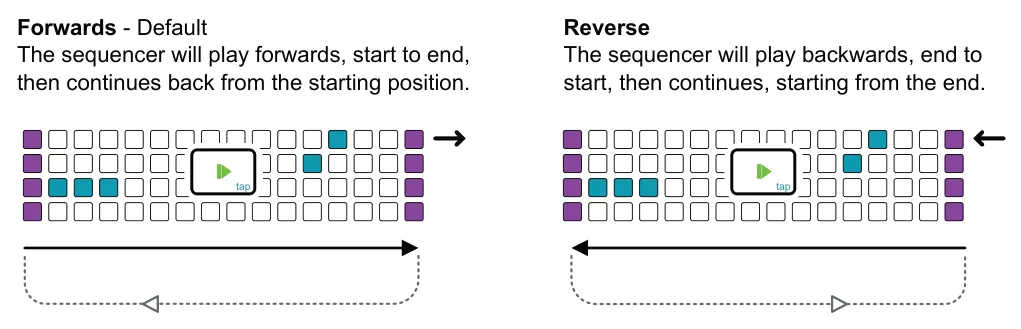
A pattern can be up to 128 steps in length, configured across 8 pages, each consisting of a maximum of 16 steps. These steps are viewed and editing across the 8 x 16 pad grid. Default is 16 steps. The pattern will play from its initial start position to the end, then restart and continue in this forwards cycle. Play direction is set in the [Track] menu options.
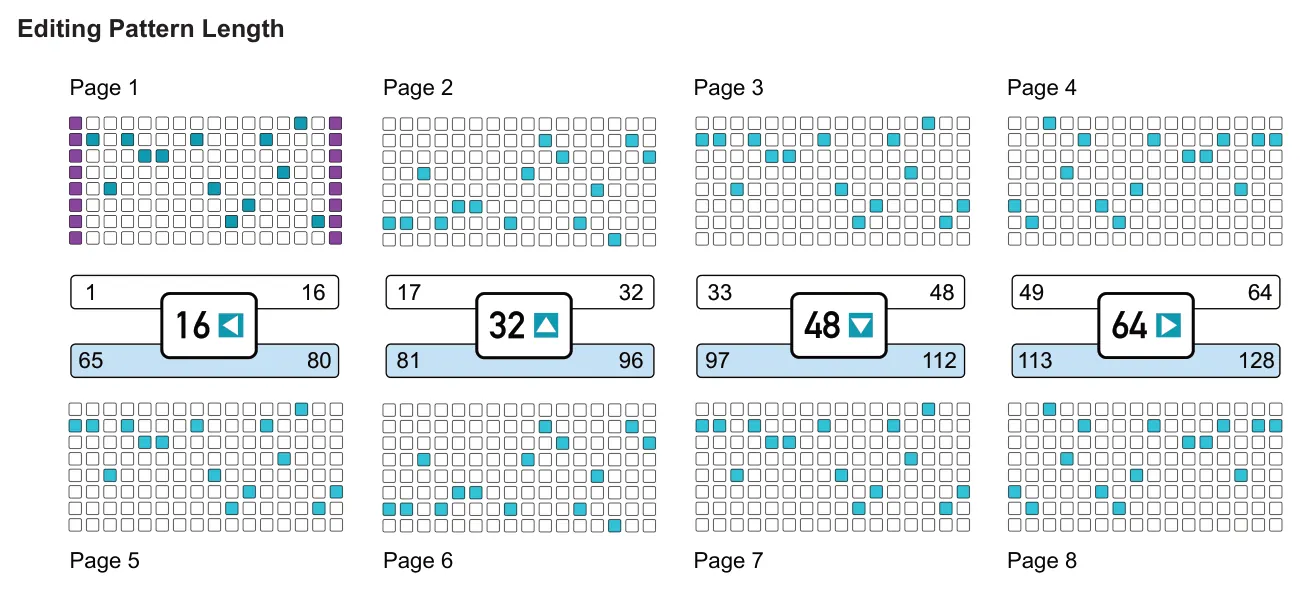
Tap a page [16] - [64] button to navigate pages 1-4, page button is lit white. Tap x2 or hold seq [1] - [8] + [16] - [64] to access pages 5-8, page button is lit blue.
![4.1 Pattern Length diagram: Initial Start Step Hold [Init] + [Pad] End / Last Step Hold [End] + [Pad] Start / End can be placed on another page. Example Step 1 Example Step 16 Example: Step 29 Page 1 Page 2 Start & End position are shown with...](../../img/oxi-one-mkii/creating-patterns/creating-patterns-002.webp)
Length can be set individually per sequencer. Also each track in multitrack mode can be set to an independent length.
Setting the Pattern Start / End
![Setting the Pattern Start / End diagram: Select the initial first step in the pattern using [Init] + [Pad] for the column that represents the start position. Start and end column positions are lit soft purple while holding Init. + or + Hold [Init] or [End]...](../../img/oxi-one-mkii/creating-patterns/creating-patterns-003.webp)
![Setting the Pattern Start / End diagram: Select the last step in the pattern using [End] + [Pad] for the column that represents the end step position. Start and end column positions are lit soft purple while holding Init. + or Hold [Init] or [End] + turn...](../../img/oxi-one-mkii/creating-patterns/creating-patterns-004.webp)
Setting the initial first step beyond the end position will move both the start and end positions relatively. So if a length of 1-8 steps is set up, selecting step 17 for the init start, will move the start to step 17 and also move the end from the original step 8 and locate it at step 24.
Shifting the Pattern Start & End



Double tapping the page buttons switches the range that the button covers. Example: Default 1-16, button lit white, tap again for 65-80, button lit turquoise.
4.2 Time Division
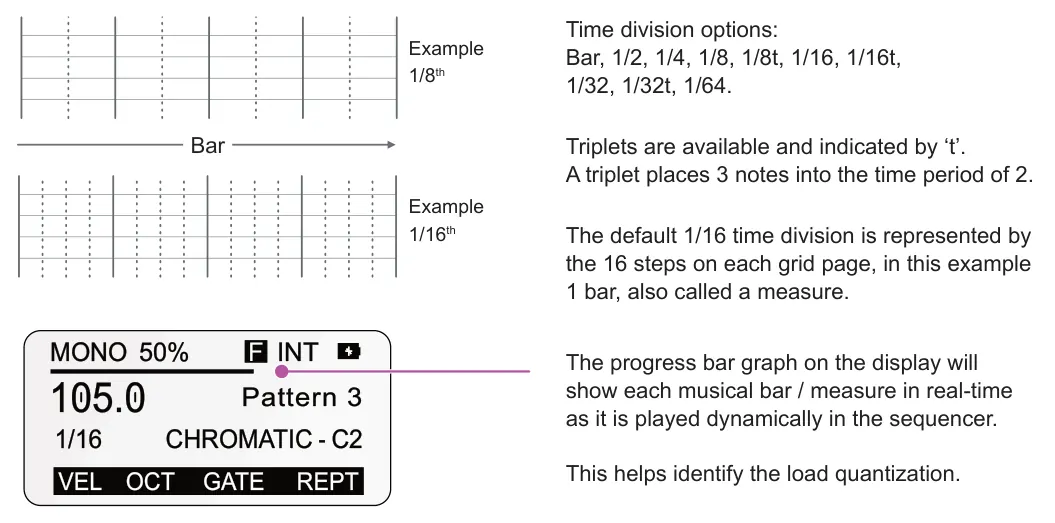
The time division sets the musical resolution of a pattern. These are set in note value intervals such as 1/16th, 1/8th etc and the current value is shown on the ONE main sequencer display. Time division can be set independently for each sequencer or track in the case of multitrack and matriceal modes.
Time signature is more around the musical structure of a pattern. This assigns the number of beats per measure / bar, designated by the signature upper number, and the note value for each beat represented by the lower number. So time signatures can be written as common time 4/4, 3/4, 2/4, etc.
Changing the Time Division
The time division is set per sequencer within the track menu. Other sequencer specific parameters also can be found in the menu such as navigating the octave range, playback direction and random time division option.

Tap [Track] to open the track menu. Hold to temporarily view.
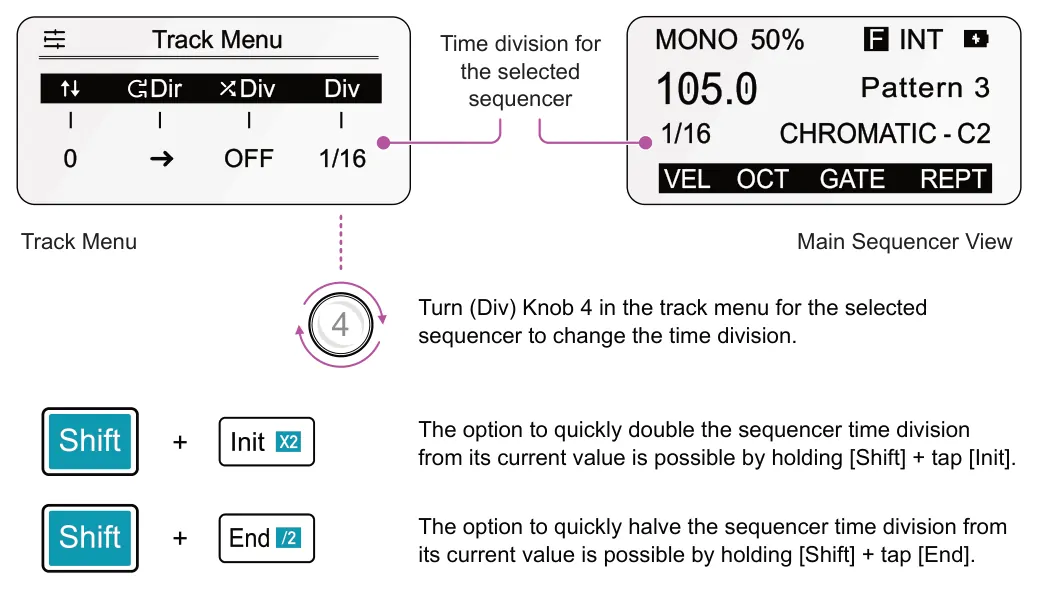
MONO 105.0
50% INT F
Pattern 3
1/16 CHROMATIC - C2
MONO 105.0
Pattern 3
While time division can be set precisely in the track menu for each sequencer, a couple of quick edit options are also available directly from the function buttons to expand or condense the sequencer time division.
Expand or Condense
Expand Length. Hold [Shift] + tap [Page] to zoom the pattern by doubling the length while halving the time division, increasing its note resolution.
Condense Length. Hold [Shift] + tap [LFO] to contract the pattern by halving the length while doubling the time division, reducing its note resolution.
Examples
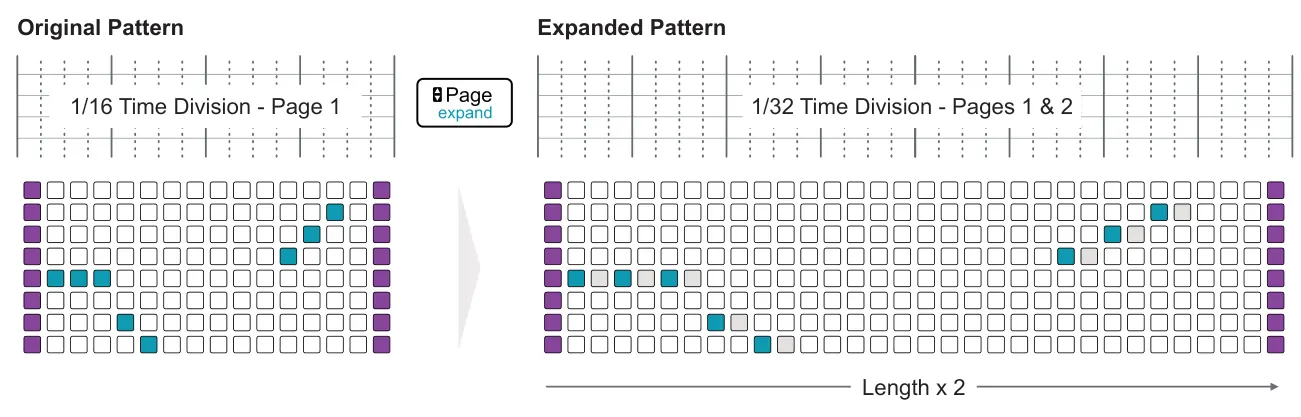
| 1 | /16 Ti | m | e D | iv | isio | n - P | age | 1 |
| 1/ | 32 | Ti | me | D | ivi | si | on | - P | a | ge | s 1 | & | 2 |
Pattern expands over 2 pages, 32 steps with a time division moving from 1/16 to 1/32. The end position is automatically relocated and the note timing is maintained. Notes, along with ties, shift relative to the original relative position. Expand is limited by the maximum number of 128 steps.
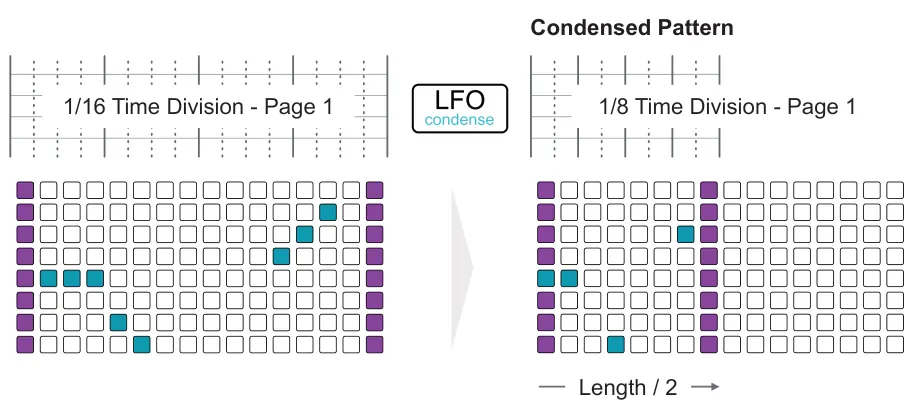
| 1 | /16 Ti | m | e D | iv | isio | n - P | age | 1 |
| ision - Page 1 | |||||||
|---|---|---|---|---|---|---|---|
| 1/8 | Ti | m | e | Div | |||
Some notes are lost. The expand and condense functions can be undone / redone.
Pattern is condensed in the same page, to 8 steps with a time division moving from 1/16 to 1/8. The end position is automatically relocated and the notes retain their relative timing but are re-positioned, in order to represent the original position. This is a destructive process in that some notes may be removed when condensing the pattern.
Randomizing the Time Division
The time division is normally fixed per sequencer. However to add more unpredictability and expand the creative options, the track menu has a time division randomization feature. This can be set to a value between Off, 1% - 100% to apply an amount of variation to the time division value while the sequencer pattern is playing. Default is Off. In multitrack mode each track can be randomized individually using the track ‘Div’ randomization.

Tap [Track] to open the track menu. Hold to temporarily view.
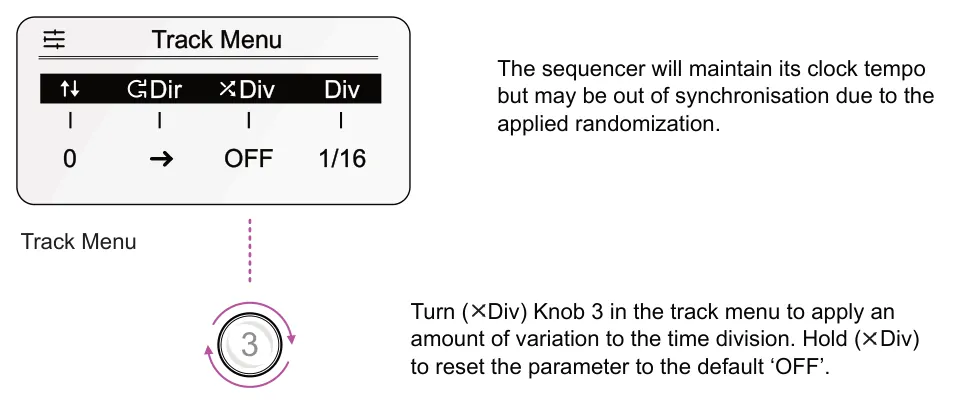

The arp time division can be set independently from the sequencer division. This is set in the Arp settings. The time division for the sequencer is important for multiple functions other than the standard note timing. For example repeats.
4.3 Playback Direction
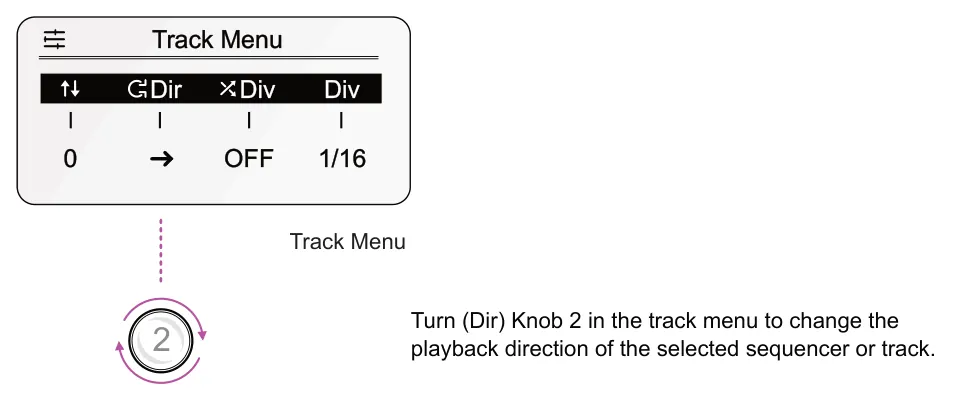
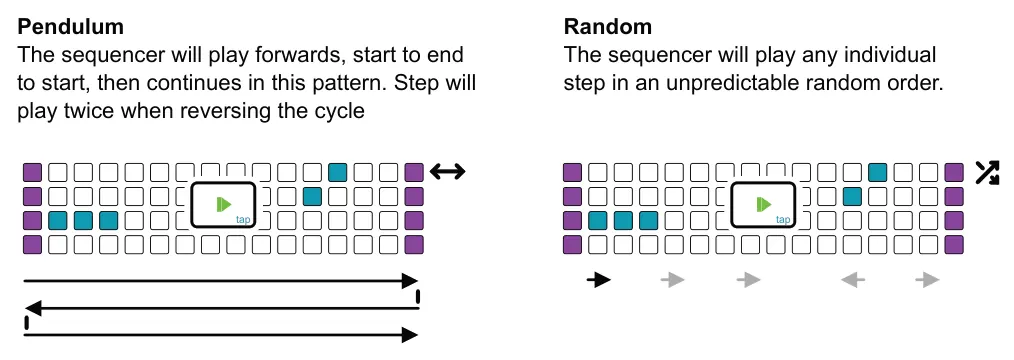
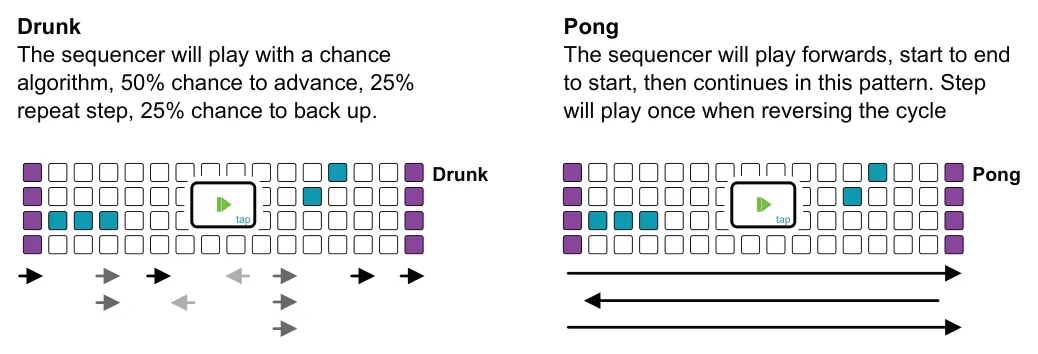
The direction of playback for each individual sequencer can be controlled from the track menu. This also applies each track in multitrack mode.

Tap [Track] to open the track menu. Hold to temporarily view.
4.4 Shifting & Copying Steps
The fundamental process for creating patterns is to add individual steps at appropriate locations in the sequencer in order to create melodies or beats. Once a pattern is created, steps can be edited, shifted or moved collectively on the grid.
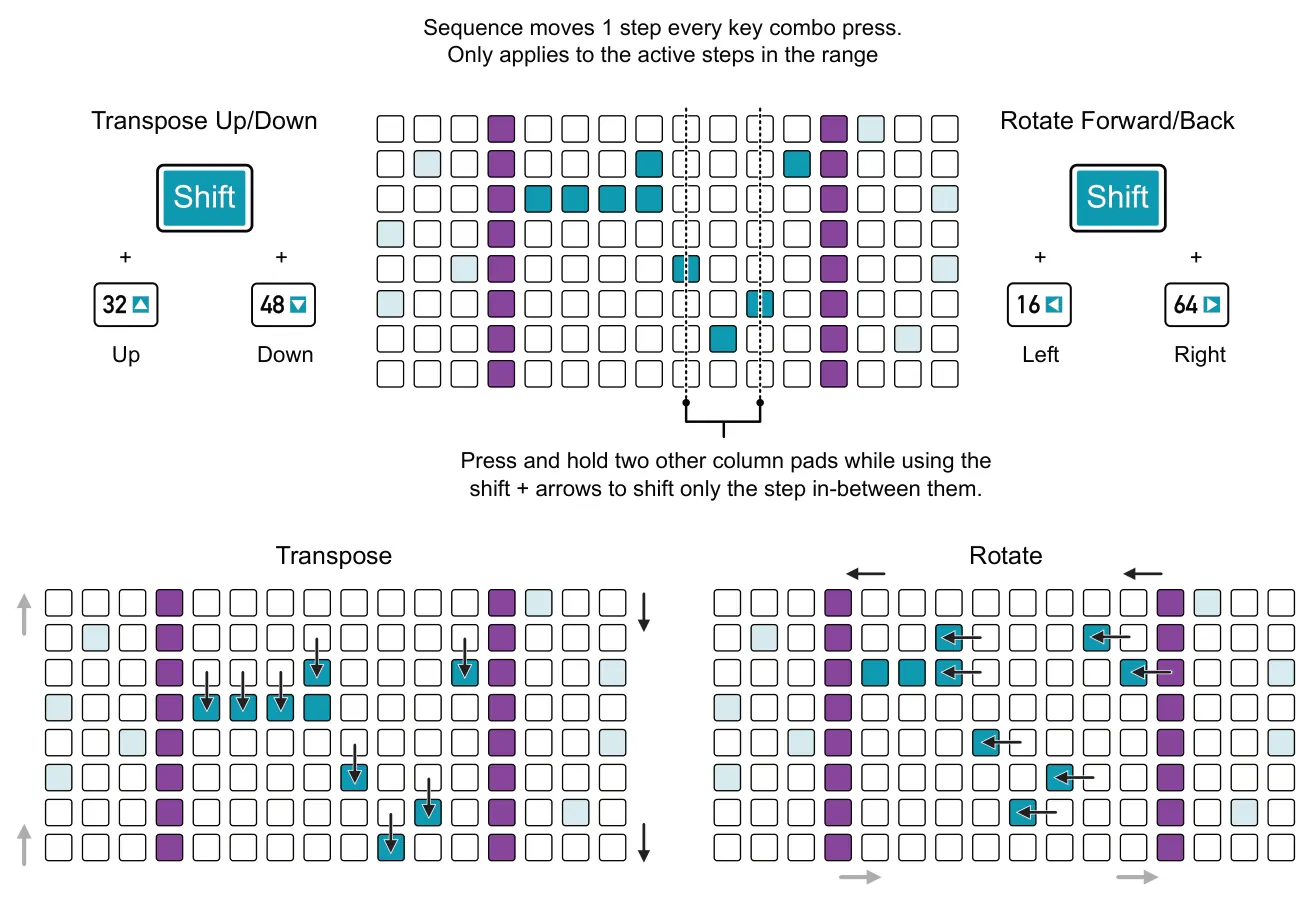
Moving the Step Sequence
Moves the entire sequence forwards, backwards, up or down over the grid. This moves the entire sequence located within the start and end points and will wrap the sequence across the edges. Steps will be relocated affecting the step timing when moved forwards or back and note pitch values up and down.
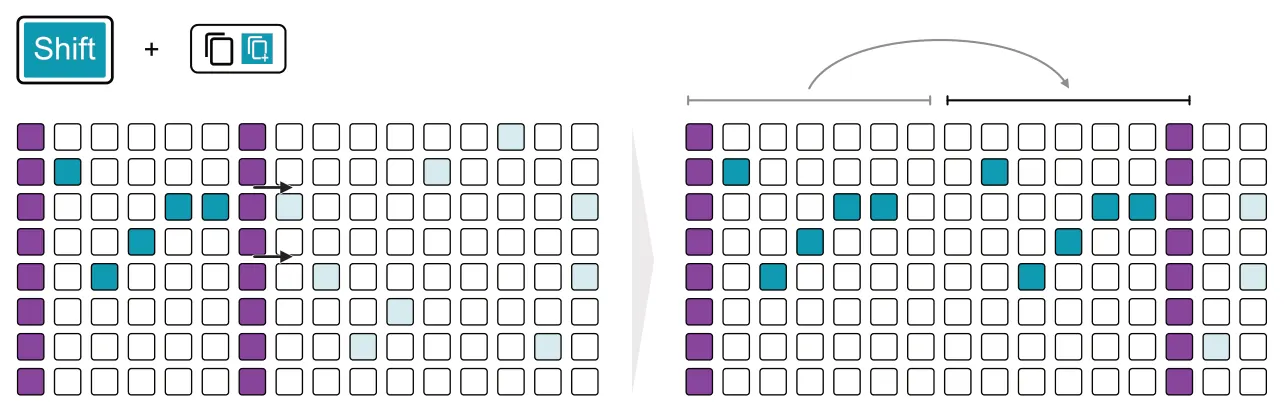
Duplicating Steps
It is possible to duplicate steps from the current sequence, between the start and end, into the range directly following. This will automatically reset the end locator to the new, extended position. Any existing notes in the destination inactive range will be overwritten. If duplication exceeds the available step count then the number of steps will be duplicated up to the limit of 128.
Shift the sequence earlier / left or later / right on the grid by 1 step for each press of the button combo. Only steps within active start / end range are affected.
Shift the sequence up or down on the grid by 1 note step for each press of the button combo. Only steps within active start / end range are affected.
Holding two pads spanning a range column-to-column and using the [Shift] + [16], [32], [48], or [64] commands above will shift only the sequence elements between the two selected columns.

![Duplicating Steps diagram: Duplicating the Sequence Duplicate the sequence section between the start and end points. Hold [Shift] + [Copy]. Doubles the sequence. Existing out of range notes are overwritten and the end point is repositioned. +](../../img/oxi-one-mkii/creating-patterns/creating-patterns-028.webp)
Copying / Pasting Patterns
![Copying / Pasting Patterns diagram: Copy a pattern. In the load or save menu copy and paste using the pattern grid. Hold [Copy] + hold [Pad] for the source pattern to copy, any sequencer. Message will confirm completion. + Paste a pattern. In the load...](../../img/oxi-one-mkii/creating-patterns/creating-patterns-029.webp)
Copying / Pasting Steps
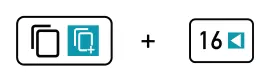
Copy a pattern page. Hold [Copy] + hold [16], [32], [48] or [64] for the source page to copy. Message will indicate when copying is complete.
Paste a pattern page. Hold [Paste] + hold [16], [32], [48] or [64] for the destination page to paste into. Message will indicate when pasting is complete.
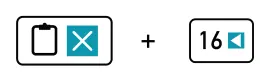
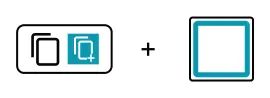
Copy a step. Hold [Copy] + hold [Pad] for the source step pad and its parameters to copy. Also covers copying tied and multiple steps. Message will confirm completion.
Paste a step. Hold [Paste] + hold [Pad] for the destination step pad to paste into. Also pastes tied and multiple steps. Pastes any new values relative to original value ie pitch. Message will confirm.

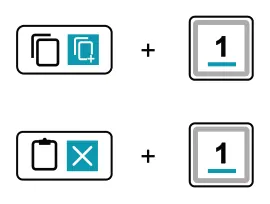
Copy a sequencer, all steps. Hold [Copy] + hold [1] - [8] for the source sequence to copy. Message will indicate when copying is complete.
Paste a sequencer, all steps. Hold [Paste] + hold [1] - [8] for the destination to copy into. Message will confirm completion.
4.5 Clearing Steps
Erasing all steps is possible from a sequencer as well as clearing the complete sequencer including its settings such as time division, length etc. Removing an individual step is as simple as tapping the pad, although the config can be set to reassign the step with its previous parameters. Full projects and patterns can also be cleared in the save menu which is more encompassing by clearing settings such as MIDI channel and MOD destinations.
Clearing the Sequence
To clear the selected sequencer’s note events. Hold [Shift] + tap [Clear]. A ‘CLEAR’ message is displayed. This clear command can be undone with the [Undo] button.
To fully clear the selected sequencer’s note events and resets settings to their default values. Hold [Shift] + hold [Clear]. A ‘FULL CLEAR’ message is displayed.
These functions can also be used to clear each selected track in a multitrack sequencer.
4.6 Nudge Sequencer Timing
The timing of all sequencers can be adjusted. Changes can be made in milliseconds which will affect all steps, nudging the sequencer backwards / right and forwards / left. This is controlled from the nudge page accessed using [Shift] + [Mute]. This nudges all sequencers between -100 to +100 milliseconds.
Nudge
Hold [Shift] + tap [Mute] to open the global nudge menu covering each of the 8 sequencers.
![Nudge diagram: Nudge Menu Time Offset [ms] SQ 1 SQ 3 SQ 2 SQ 4 SQ 6 SQ 8 +11 -25 +0 +0 SQ 5 SQ 7 +0 +0 +0 +0 Turn the respective knob to edit the timing offset for the chosen sequencer, labelled SQ. Tap knob to switch between an...](../../img/oxi-one-mkii/creating-patterns/creating-patterns-038.webp)
In this menu, hold [Shift] + turn any knob to edit the timing offset for all of the sequencers simultaneously.
As a point of reference an 120 BPM track will have 0.5 sec per beat. So at 1/16th note intervals each step is 0.125ms. Meaning the maximum + or - nudge range will be within this note interval of 1 step. The grid steps will not display any visual movement when editing nudge in this example but the micro timing of the sequencer is still affected.
4.7 Time Bend Sequencer Speed
The playback speed can be adjusted for all sequencers using the time bend function accessed using [Shift] + double tap [Mute]. This adjusts the speed up or down by a percentage with respect to global tempo. The percentage adjustment is in the range -12% to +12%.
Time Bend
Hold [Shift] + double tap [Mute] to open the global time bend menu covering each of the 8 sequencers.
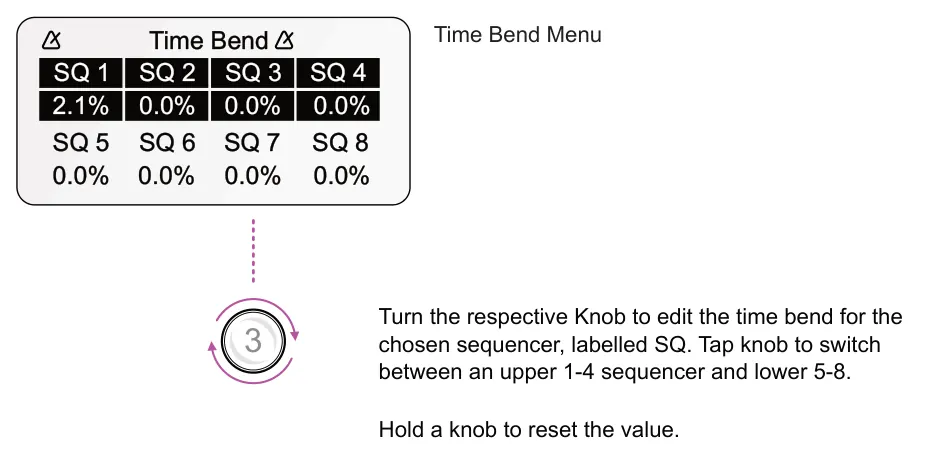
In this menu, hold [Shift] + turn any knob to edit the time bend for all of the sequencers simultaneously.
4.8 Swing
Patterns can be created to a rigid grid where timing is perfect and repetition predictable. But this may lack interest and be too robotic. In music, especially with digitally produced productions it is important to consider a human feel for the pattern. Swing adds some natural timing. Swing can be adjusted per sequencer and saved with the pattern.
Swing
Swing adds some natural offset into certain notes in a pattern. This adds a natural less rigid feel to the rhythm and beat of a pattern. Swing is readily available from the main sequencer view in the secondary parameter options and can easily be edited for the selected pattern. Swing is set between 10-90% with 50% the default meaning no swing is applied.
![Swing diagram: Swing setting 50% INT F 1/16 CHROMATIC - C2 BPM SCAL SWNG ROOT Secondary options Turn (Swng) to edit swing for the selected sequencer. Swing is saved with the pattern. Hold [Shift] + hold [Swng] to reset value. +...](../../img/oxi-one-mkii/creating-patterns/creating-patterns-043.webp)
MONO 105.0
Pattern 3
4.9 Groove
Another feature that adds a more natural feel to a pattern is the groove. A groove is a preset template that applies a predefined timing shift to specific steps as well as applying a groove velocity profile to steps. Groove velocity accents are also applied to repeats but groove timing is only applied to the original note. This introduces a more natural, but predictable rhythmic feel. Groove has a subtle effect on the timing and velocity structure of a pattern, adding character and personality.
A groove can be edited and adjusted for the sequencer and groove templates can be loaded to the OXI MkII from the OXI App. The OXI App also has an integrated groove builder. Grooves can also be created in Ableton Live or other 3rd party tools and imported to ONE.

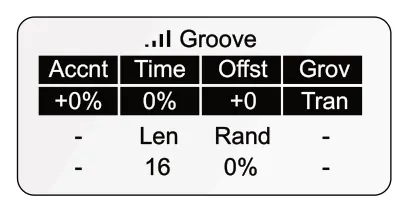
Turn a knob to edit the respective parameter. Hold knob to reset the value to the default setting.
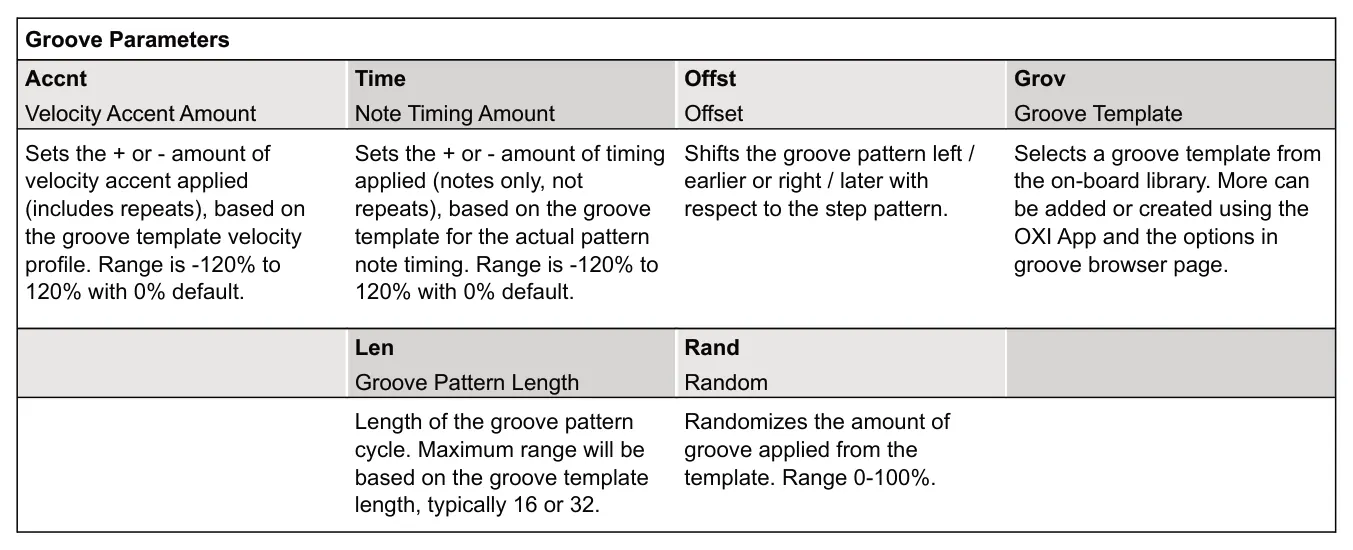
Grov. Groove Templates. The factory on-board groove templates are listed below. Any grooves transferred into OXI ONE using the OXI App will appear starting at number 15 in the groove library list. The groove parameters will apply the template profile in the amounts set by the global groove page parameters
| Number | Name |
| 1 | Trancey Groove 16th |
| 2 | Disco Light Swing 16th |
| 3 | Tambourin 16th |
| 4 | Bomba Acc 16th |
| 5 | Shaker ChaCha 16th |
| 6 | Loosely Flow 16th |
| 7 | Claves Accent 16th |
| Number | Name |
| 8 | Caixa Accent 16th |
| 9 | Charanga Shaker 16th |
| 10 | Dancehall 16th |
| 11 | Disco Indie 16th |
| 12 | Fusion Tight 16th |
| 13 | African Timbales 16th |
| 14 | Quinta Loca 16th |
OXI App Groove Templates
Groove templates can be created in the OXI App. These, as well as other templates, for example from Ableton Live can also be dragged and dropped from the PC / Mac folder and into the microSD Card groove folder. The templates will then be accessible in the groove ‘Grov’ template library. Further details on working with the app are covered in another section. Grooves can be imported and exported using the OXI App.
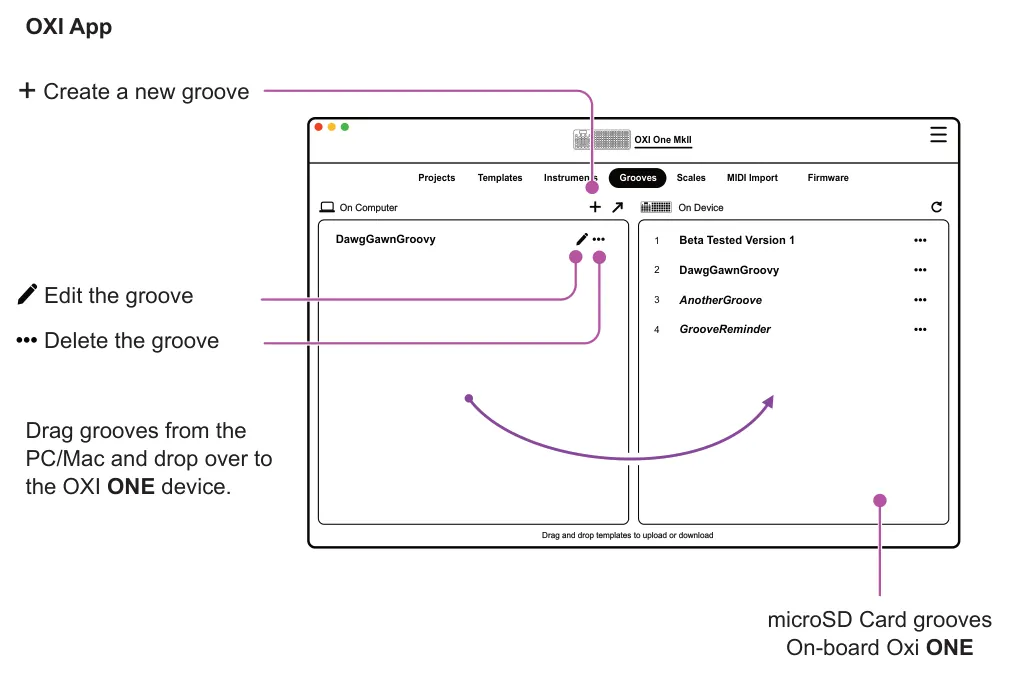
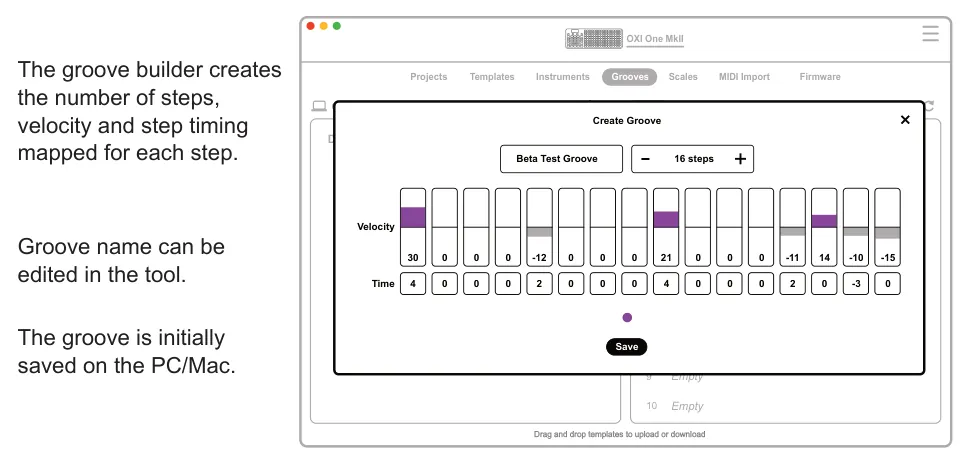
The template, once copied to the device, can be loaded to the sequencer. The groove settings will then apply the amounts and set the behavior of how the template operates.
It is recommended to create a PC/Mac master location folder when first using the OXI ONE App. This is performed from the project tab, ‘select a storage directory’ option using the cog icon.
Use external grooves with caution. The use of external grooves should be handled with care due to the variety of third party options and formats that can be used to create grooves. Externally created grooves cannot be predicted or guaranteed when used in OXI ONE. !
| Generator Parameters Page 1/2 | |||
|---|---|---|---|
| eLen Euclidean Length - Layer 1 | ePuls Euclidean Pulses - Layer 1 | eRot Euclidean Rotation - Layer 1 | Dens Density |
| Length in steps of the Euclidean pattern layer 1. Pulses will be applied across this range. | Number of layer 1 Euclidean pulses to generate across the length of the pattern, spread evenly. | Rotation of the Euclidean pattern. All layer 1 steps are shifted forward or back. | The density and population of more / less steps in the pattern. Set as a percentage -100% to +100%. |
| NteR Note Randomization | Nte% Probability | OctR Octave Range | eInv Euclidean Inversion |
| Range in scale note intervals of additional randomized notes. Range 0 to +24st or +/-24st. | Sets the probability of randomization. Range is 0-100%. | Octave range which allows notes in other octaves to be added to the generated pattern. Range is 0 to +3 or -/+ 3 oct. | Inverts the entire later 1 and 2 pattern. Active steps become inactive. Inactive steps become active. |
| Generator Parameters Page 2/2 | |||
|---|---|---|---|
| Tie% Tie Probability | eLen2 Euclidean Pulses - Layer 2 | eRot2 Euclidean Rotation - Layer 2 | NtOrd Note Order |
| The probability percentage that notes in layer 1 and 2 are tied together. | Length in steps of the Euclidean pattern layer 2. Pulses will be applied across this range. | Rotation of the Euclidean pattern. All layer 2 steps are shifted forward or back. | The method of applying notes to steps. Linear is the traditional method, evenly laying notes. Random, PingPong and Shuffle are other options. |
| Lock Lock Protection | ePuls2% Euclidean Pulses - Layer 2 | Logic Output logic - combined layers | Vel% Velocity Variation |
| Off or set to lock the note pitch, rhythmic position or both. Prevents any further edits and is applied to layer 1 and 2. | Number of layer 2 Euclidean pulses to generate across the length of the pattern, spread evenly. | The logic applied to how both layer 1 and layer 2 combine to create a final, actual pattern. | Percentage amount of variation applied to the velocity of generated notes. |
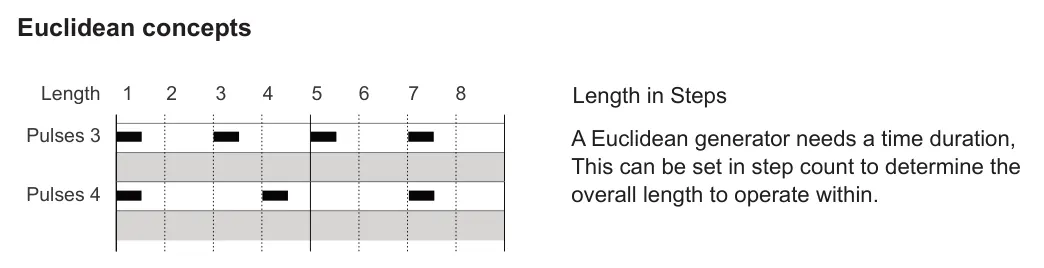
Pulses
Pulses are the actual triggers within the time period that generate notes. A Euclidean generator takes the selected number of pulses and distributed them as evenly as possible across the time period. This is the default 'Linear' behavior in ONE. Other options are available to randomly apply notes, shuffle or page to page. Pulses can also be rotated earlier or later in the pattern.
Layer 1 and 2
The OXI ONE Euclidean generator operates with the unique feature of dual layers. Think of this as 2 Euclidean generators. The outputs are then combined using the logical rules set with the 'Logic' parameter. The overall result creates the final pulse output.
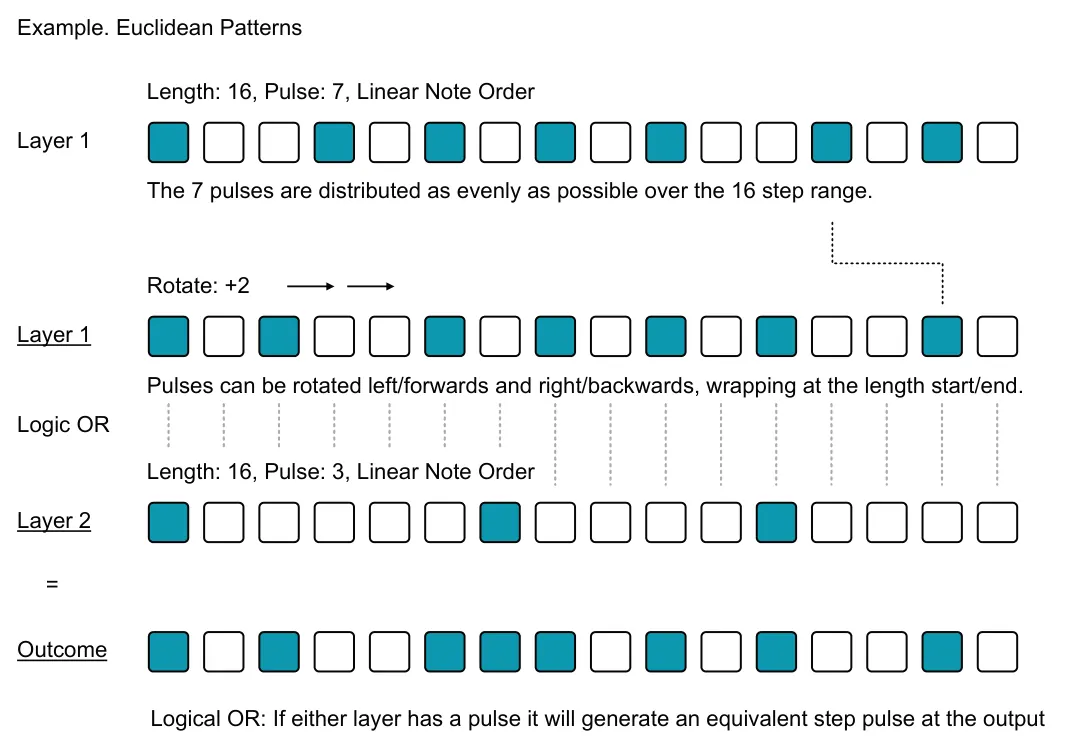
Logical AND: Both layers must have a pulse on the same step to generate an equivalent step pulse at the output
Logical XOR: If both layers have a pulse on the same step, there is no equivalent step pulse at the output
Accnt: Layer 1 determines the rhythmic step placement. If a layer 2 pulse step matches a pulse on layer 1, then the step is accented.

4.11 Random Generator

OXI ONE can generate random patterns for mono, poly, multi and chord modes using the randomizer. Random pattern generation is a destructive process, overwriting any previous data. The random generator function is the secondary option in the randomizer, accessed using [Shift] + [Randomizer]. The random perform option is explained in a later section.
Random Pattern Generator
The principle of the random pattern generator is to create a random rhythmic and melodic pattern within the boundaries of the set parameters. The pattern can then be further tuned and tweaked manually to shape the composition. The starting point is therefore to setup the randomizer parameters in which to work.
Hold [Shift] + Tap [Randomizer] to open the random generator options and menu.
Random generator menu
Alternatively, Tap [Randomizer] to cycle through the random perform & generator pages.
Each tap of (Den), Knob 4 will generate a new pattern in the current sequencer.
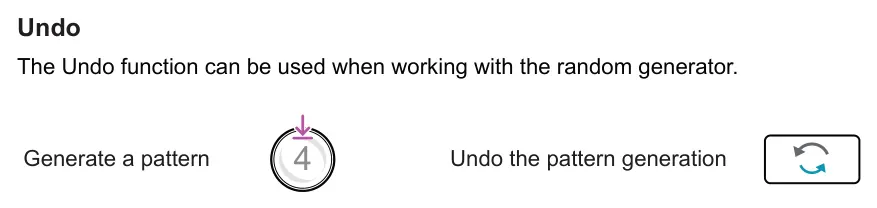
Generate a pattern
The pattern generated will be created within the boundaries of the parameters set in the random generator page. These can be edited for each pattern generated or simply tap (Den) several times to see what patterns are generated. The pattern can be edited manually once created.
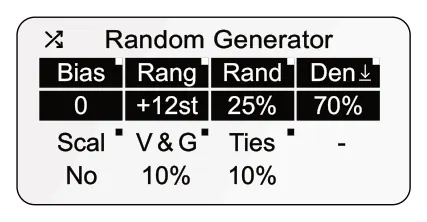
Randomizer - Pattern Generator
Parameters can be set prior to generating a pattern in order to establish the framework from which to create the melodic and rhythmic pattern. Tap a knob to switch between the upper and lower parameter. Hold a knob to reset its value.
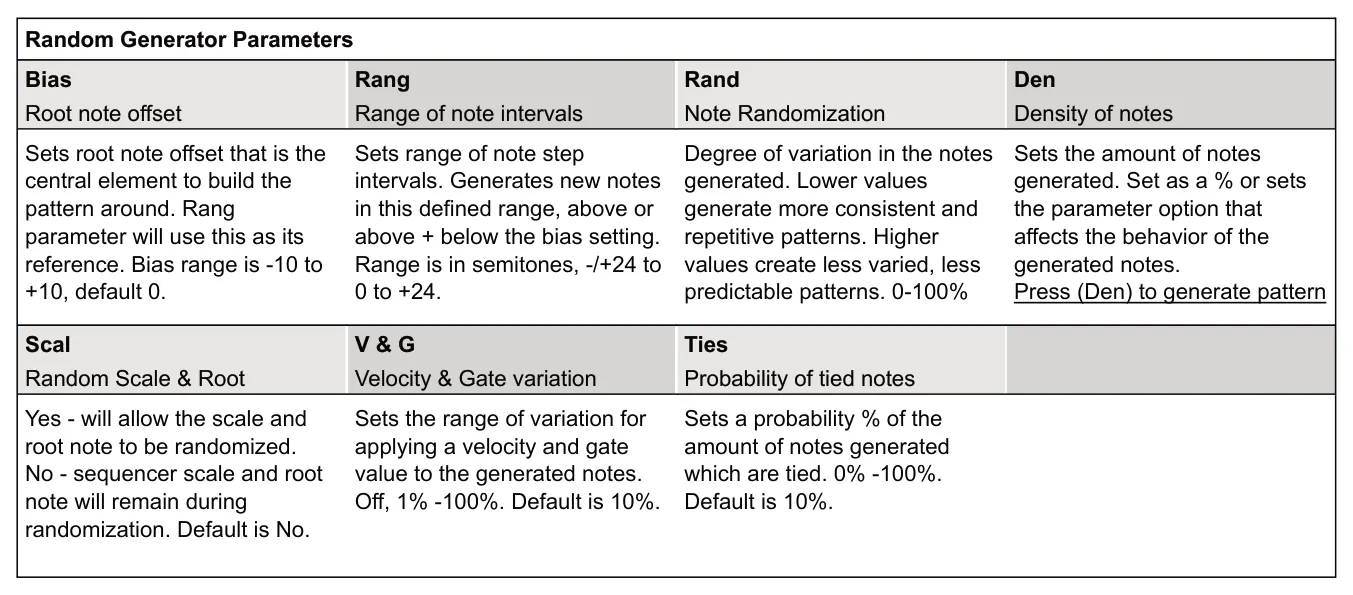
Density
The density control in the randomizer is very important as pressing this knob generates the randomized pattern. Parameter changes do not affect the pattern until (Den) is pressed. Density is a parameter setting that has multiple options. These include, % amount of notes when generating a new pattern. In addition the modifiers work on the behavioural options that affect the existing pattern when (Den) is pressed.
1-100% - Turn knob right. Sets the amount of notes generated when (Den) is pressed. New notes are generated. At 100% all steps are populated and at 1% only a small few if any at all.
Human - Turn knob left, earlier than 1% value. Applies a level of humanization to the existing pattern notes. Doesn't add any new notes. Affects gate and micro timing.
Order - Turn knob left. Re-orders the existing notes into a new sequence. The note values are retained but the order is shuffled. Creates a variation of the existing sequence. Any tied notes are not retained.
Pitch - Turn knob left. Changes the pitch of the existing notes in the sequence. The note values are changed but the order is retained. Creates a variation of the existing sequence. Any tied notes are not retained.
Flip - Turn knob left. Inverts the order of notes. Reverses the entire sequence steps in the order from start to end. This is the same sequence of notes but plays now reversed.
Example workflow of generating random patterns
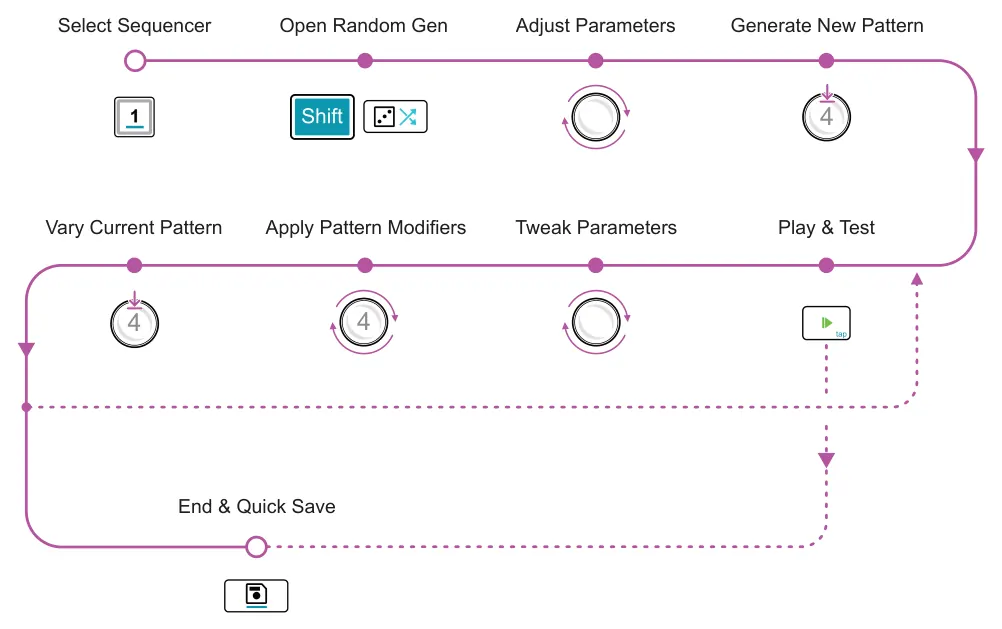

Select the random generator [Randomizer]. In this view, switch between the random generator and random perform pages by tapping [Randomizer] or using [Shift] + [Randomizer].
4.12 Recording Patterns
Patterns can be created by recording notes from the internal keyboard or by using an external MIDI controller. Live recording will follow the same process when using either device, but some configuration differences may apply when using incoming MIDI.
There are two methods used to record; live recording will play the sequencer in real-time while notes can be played and recorded. Step recording is used either while the sequencer is playing or stopped, but either way recording follows a step by step process, programming individual notes, rests etc incrementally.
Live Recording
Live recording can be started with or without a record count in. This allows preparation for playing once recording starts. Also recording can be punched-in while a sequencer is already playing. Use the internal keyboard or MIDI controller to record notes.
With the sequencer stopped, press [Rec], then tap [Play] to start recording. If configured, a count is displayed before recording automatically starts. Rec button is lit red.
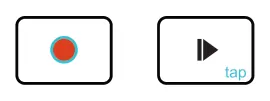
Live Record

With the sequencer playing, press [Rec] to immediately start recording. Rec button is lit red, play flashes.
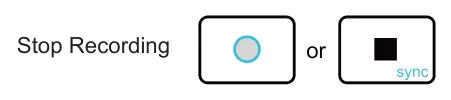
Press [Rec] to stop a recording but continue playing. Press [Stop] to stop the recording and stop playback.
Step recording not possible in Stochastic, Matriceal, Domino, Saga, MIDI Player modes.
Step Recording
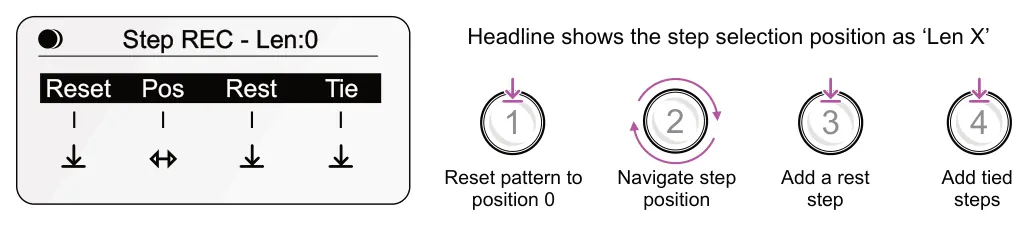
Step recording allows individual steps to be ‘programmed’ with note data incrementally while manoeuvring through the steps. Each step is programmed in series. The recording process may be familiar to users of the classic SH101 synth. Step recording is more precise but can be a slower process. Step recording not possible in Stochastic, Matriceal, Domino, Saga, MIDI Player modes.
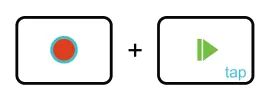
With the sequencer stopped or playing, hold [Rec] + tap [Play] to switch to step recording. Rec button flashes red and the step recording controls are displayed.
Step Record
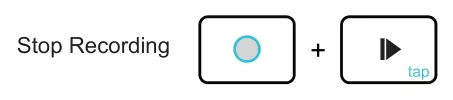
With the sequencer recording, hold [Rec] + tap [Play] to stop and exit step recording.
Tap [Keyboard] prior to selecting step recording or use an external MIDI Keyboard. Each note press will advance the step selection, applying the played note into the active step. Tap a control for recording commands.
MIDI Capture
The sequencers have an in-built MIDI note recording buffer. When [Keyboard] is selected or an external MIDI controller is used, the notes played will be captured into a recording buffer in the background. Recording is performed while a sequencer is playing or stopped. While playing the quantize sync status bar is displayed which helps with the buffer recording timing. The buffer can be cleared and reset or converted to notes, populated into the active sequencer. Chords will convert to the lowest note if placing into a Mono sequencer.
MIDI Capture will record: Notes, Chords, Multi-track tracks, tied notes, arp notes, the last events. Will automatically re-enable after step recording or the 'wait for input' mode.
![MIDI Capture diagram: Select Keyboard view. Tap [Keyboard]. Also captures external MIDI notes.](../../img/oxi-one-mkii/creating-patterns/creating-patterns-068.webp)
![MIDI Capture diagram: Indicates notes are stored in the buffer Any notes or chord played are stored in the buffer. Hold 50% INT F Clear Reset Buffer. Hold [Rec] to cancel the buffer in any view. Pattern 3 x2 1/16 CHROMATIC - C2 Convert...](../../img/oxi-one-mkii/creating-patterns/creating-patterns-069.webp)
MONO 105.0
Recording Settings
A set of specific recording parameters are available. These are accessed using [Shift] + [Rec]. The behavior of recordings will depend on the sequencer mode selected.
![Recording Settings diagram: Hold [Shift] + Tap [Rec] to open the settings options. Rec settings +](../../img/oxi-one-mkii/creating-patterns/creating-patterns-070.webp)

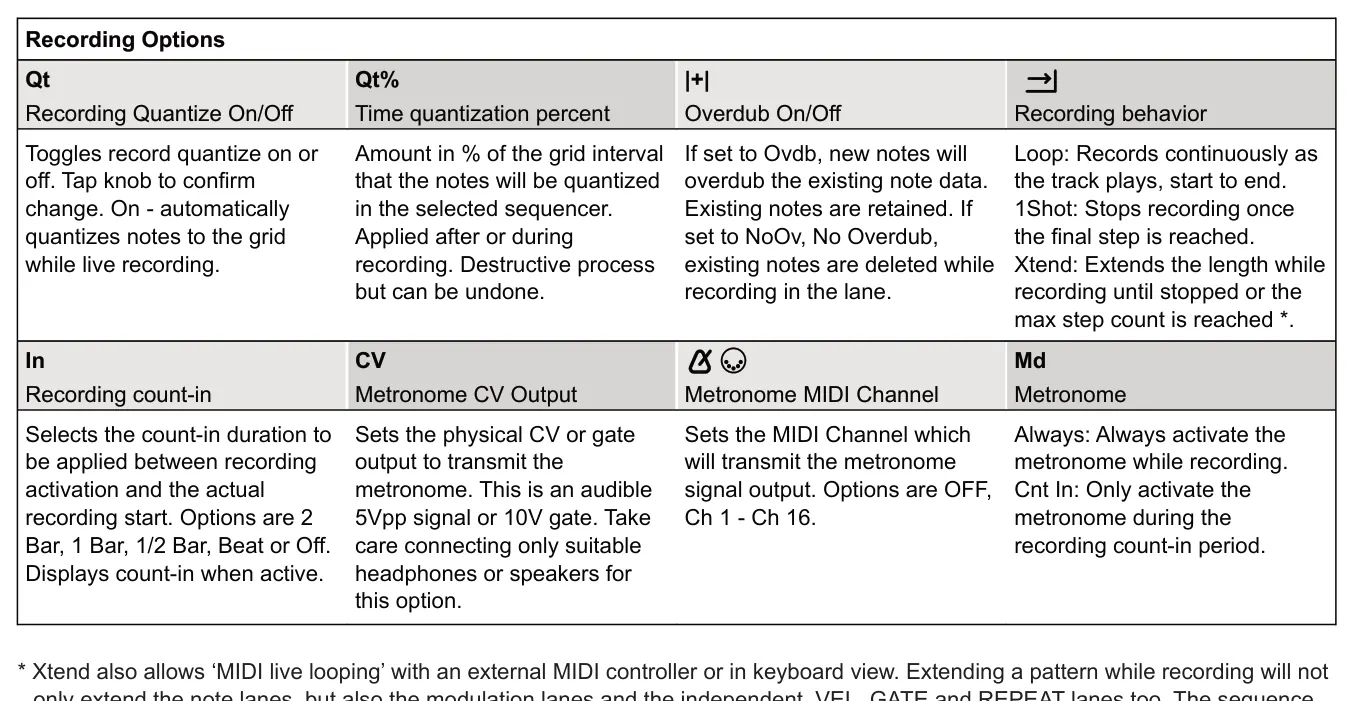
only extend the note lanes, but also the modulation lanes and the independent VEL, GATE and REPEAT lanes too. The sequence is extended 1 step at a time up to the device maximum and then at the end wraps to the start.
Note The metronome CV or Gate output is 5V Peak to Peak, but can be set to 10V for gate signals. This is an audible signal. As such it is important not to damage speakers or headphones. Check for compatibility and suitability to work with your gear over this voltage range.
Record Quantization
Record quantization ensures that notes recorded using the internal keyboard or an external MIDI controller are recorded to accurate ‘on grid’ timing. This will create a precise rigid structure. With quantize off, more natural, ‘as played’ recordings will be made. This may be desirable.
In addition, quantization can be adjusted post recording to correct or improve the timing offsets of note events. The time quantization is set as a percentage. This sets the amount that notes off grid are moved nearer to the precise grid intervals. This allows notes to be partially quantized to improve the timing but still retain an amount of natural offset. Setting this to 100% will fully close any offsets moving notes onto the grid. This is a destructive process, but the undo button can restore the previous state and remove any manually set timing offsets.
Recording from incoming MIDI
MIDI Input Channel Filtering
The MIDI Input channel filtering is an option in the Config > MIDI settings which will affect the behavior of how incoming MIDI data is handled during recording. When recording is active the MIDI input is handled based on this setting. Options are:
- OFF: The selected sequencer will listen to any MIDI note from any MIDI channel.
- MIDI Channel: Each sequencer will only listen to MIDI note messages from its own defined MIDI channel. For multitrack sequencers, each track will determine the MIDI channel. When a multitrack sequencer has a global channel set for the sequencer, ie, all tracks have the same channel, only track 1 will receive the MIDI note messages.
- CH & Note: All sequencers will listen to their own channel. In multitrack mode, track filtering for channels applies, plus only MIDI messages that have a note matching the root note of a track are taken into account. So, the note and its channel must match the track channel and its root note.
MIDI In Port (A-F) Merge with Split 2
The MIDI In Port (A-F) Merge supports a connected Split 2 device. Set up is in the Config > MIDI settings, which will affect the behavior of how incoming MIDI data is handled during recording. This can be set to OFF or ON.
- ON: Incoming MIDI data is channeled to the MIDI port A as normal and is also channelled to MIDI ports B & C too. All data is therefore received on the equivalent matching MIDI channel for each port. This applies to MIDI USB and TRS data. OXI Split uses these ports and is a useful feature when connecting this device to OXI ONE.
- OFF: Incoming MIDI data is channeled only to the port set for communication, i.e. MIDI port A.
Multitrack specific considerations
- Multitrack sequencers can have each track independently configured to its own MIDI Channel. Ensure any incoming MIDI to be recorded matches to the track channel to record into. Tracks with the same channel will only recognise the MIDI input for recording on the lowest numbered track. Track 1 is the lowest on the grid layout, Track 8 is the upper row.
- With MIDI filtering enabled, any external MIDI controller set for the tracks channel can send data to this track as long as the track is selected.
- Each track can be reset independently to start from the beginning when recording.
4.13 Managing Patterns
Patterns can be saved and loaded and the convention in these menus is that knob 1 navigates projects and knob 2 patterns. Each sequencer will operate with one pattern at a time, and the previously active project will be loaded automatically when powered up. In these menus, pressing [Back] anytime will backup, cancel, or exit.
Opening a Pattern in the Current Project
- Open the load browser menu. Tap [Load] button. Hold to view temporarily.
- The display will show the 16 available pattern slots for the currently selected
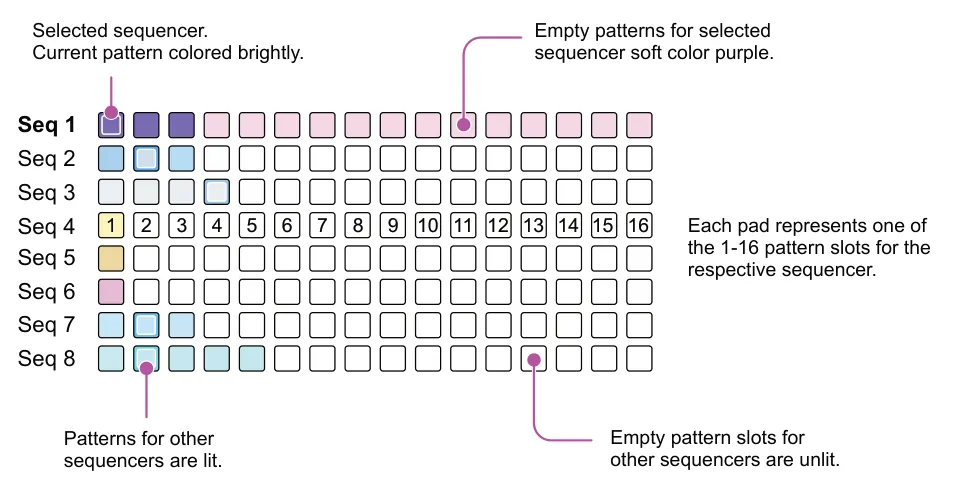
sequencer and will label the currently active pattern as ‘Loaded’. The grid will display 1-16 patterns across the columns. Rows represent each sequencers patterns.
- Scroll to navigate the list. Turn (Knob 2). A ► symbol on the left of the list indicates
the selected slot currently in focus. Knob 2 represents patterns, knob 1 projects.
- Load from the selected slot. Press (Knob 2). The sub-menu ‘Load Pattern’ is
displayed. Press (Knob 2) again to confirm and to load the project.
- Alternatively, select a pattern directly using the grid. Tap a [Pad] for the sequencer to
select. The 16 patterns pre sequencer are represented by pad rows. Brightly lit pads represent existing patterns for each sequencer. Tap a pad to load a pattern, this is instant if the sequencer is stopped. If running the change is made in line with pattern quantization. A ‘PATTERN LOADED’ message is displayed. Double tap a pad to open the sequencer view.
- You can also quickly reload the current pattern from its previously saved state. Hold
[Shift] + [Load] to reload the pattern.
Load / Save Grid View
In either the load or save menu, the grid represents the pattern slots per sequencer for the selected project. The load and save will timeout and revert to the default view after a short period. Diagram shows sequencer 1 selected, pattern 1 loaded.

Opening All Patterns for the Sequencers in a Pad Column
- Open the load browser menu. Tap [Load] button. Hold to view temporarily.
- Using the grid pads, Hold [Shift] + Tap a [Pad] for the sequencer pattern to select
along with all other sequencer patterns in the same column.
- All pads will be brightly lit to indicate the patterns are selected for the respective
sequencer.
Opening a Pattern from Another Project
- Open the load browser menu. Press [Load] button. Hold to view temporarily.
- The display will show the 16 available pattern slots for the currently selected
sequencer and will label the currently active pattern as ‘Loaded’. The grid will display the patterns per row in line with each sequencer.
- Scroll to navigate the project list. Turn (Knob 1) to select the source project.
A ► symbol on the left of the list indicates the slot currently in focus. Knob 1 represents projects.
- Scroll to navigate the pattern list for the previously highlighted project. Turn (Knob 2).
A ► symbol on the left of the list indicates the selected slot currently in focus. Knob 2 represents patterns while knob 1 will only select projects.
- Load from the selected slot. Press (Knob 2). The sub-menu ‘Load Pattern’ is
displayed. Press (Knob 2) again to confirm and to load the pattern.
- Alternatively, select a pattern directly using the grid. The grid will always show the
project highlighted in the project load menu.
![Opening a Pattern from Another Project diagram: Load Knob 2 Knob 1 Projects [load] Project 3 Seq 1 2. Project 2 - Loaded 1. Pattern 1 - Loaded 3. Project 3 2. Pattern - 4. Project 4 3. Pattern -](../../img/oxi-one-mkii/creating-patterns/creating-patterns-075.webp)
Turn to navigate a slot and tap to select load.
Saving a Pattern
- Open the save browser menu. Press [Save] button. Hold to view temporarily.
- The display will show the 16 available pattern slots and will label the currently active
project as ‘Loaded’. The grid will also reflect the available patterns.
- Scroll to navigate the list. Turn (Knob 2). A ► symbol on the left of the list indicates
the selected slot currently in focus.
- Save to the selected slot. Press (Knob 2). The sub-menu ‘Save Pattern’ is displayed
along with the alternate options to rename, save as template or to clear. Ensure ‘Save pattern’ is selected. Press (Knob 2) again to save the pattern.
- Alternatively, to save a pattern directly using the grid. Quickly double tap the [Pad] for
the sequencer to save. Each of the 16 patterns is represented by a pad column. Brightly lit pads represent existing patterns for each sequencer. A ‘PATTERN SAVED / PROJ UPDATED’ message is displayed.
![Saving a Pattern diagram: Load Knob 2 Save Projects [load] Projects [save] 2. Project 2 - Loaded 1. Project 1 3. Project 3 2. Project 2 - Loaded 4. Project 4 3. Project 3 Turn to navigate a slot and tap to select load/save.](../../img/oxi-one-mkii/creating-patterns/creating-patterns-076.webp)
Saving a Copy of the Current Pattern
- Open the save browser. Press [Save] button.
- The display will show the available pattern slots and will label the currently active
pattern as ‘Loaded’. The grid will also reflect the available patterns.
- Scroll to navigate the list. Turn (Knob 2). A ► symbol on the left of the list indicates
the selected slot currently in focus. Select a destination pattern slot to copy the current pattern to. This must be a different slot to the currently active pattern.
- Save to the selected slot. Press (Knob 2). The sub-menu ‘Save patt here as copy’ is
displayed. Select this option and press (Knob 2) again to save the pattern. A ‘PATTERN SAVED / PROJECT UPDATED’ message is displayed.

To increase the performance and speed of saving patterns, any unchanged or empty patterns at the time of a save command are skipped. Only patterns that have been changed are saved.
Erasing a Pattern
- Open the save browser menu. Press [Save] button.
- The display will show the 16 available pattern slots and will label the currently active
pattern as ‘Loaded’.
- Scroll to navigate to the pattern to clear. Turn (Knob 2). A ► symbol on the left of the
list indicates the selected slot.
- Open the sub-menu for the selected pattern. Press (Knob 2). Ensure ‘Clear pattern’
is selected by turning (Knob 2). Press (Knob 2) again to clear the selected pattern.
- Alternatively, hold [Shift] + [Clear] + Pad for pattern to delete.
- A ‘PROJ UPDATED’ message will appear when clear is complete. The pattern is
completely removed from the project.

Loading and saving does not interrupt a playing pattern. Some functions however do create a short milliseconds delay when in use and can affect playback performance. These commands are indicated by the symbol found in several menus

The save menu also offers options to rename or clear a current pattern. These options are found in the save confirmation sub-menu.
Renaming a Pattern
- Open the save browser menu. Press [Save] button.
- The display will show the 16 available pattern slots and will label the currently active
pattern as ‘Loaded’.
- Scroll to navigate to the active pattern. Turn (Knob 2). A ► symbol on the left of the
list indicates the selected slot. Set to the ‘Loaded’ slot or any desired slot name to edit.
- Open the sub-menu for the currently loaded pattern. Press (Knob 2). Ensure
‘Rename’ is selected by turning (Knob 2). Press (Knob 2) again to open the naming editor.
- In the editor:
- Knob 1 - Turn to scroll the selection of the alpha-numeric options. Tap to change the character.
- Knob 2 - Turn to move the edit cursor in the text body being edited. Tap to backspace and clear the previous character.
- Knob 3 - Press to cancel and return to the sub-menu.
- Knob 4 - Press to confirm editing and complete the renaming.
- Press [Back] at anytime to backup, cancel or exit.
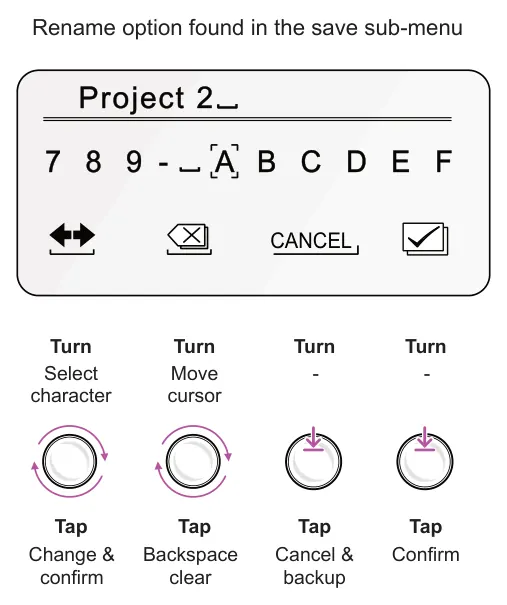
Project 2
7 8 9 - A B C D E F
4.14 Pattern Templates
Pattern templates can be created from existing patterns and will save settings such as MIDI Channel, CC, Scale etc. This allows templates to be created for different gear setups and then loaded as a starting point to a sequencer to get started. Any of the eight existing sequencer patterns can be saved as a template.
Opening a Template
- Select the destination sequencer, Press [1] - [8].
- Open the load browser menu. Press [Load] button.
- The display will show the 20 available project slots followed by the ‘TEMPLATES’
sub-menu. Scroll to navigate the list. Turn (Knob 1) to the templates option.
- Open the templates list. Press (Knob 1). The templates sub-menu opens and a list of
32 template slots is presented.
- Turn (Knob 1) to select the template to open. Press (Knob 1) to confirm selection.
The ‘Load template’ menu option is displayed. Ensure this is highlighted,
- Press (Knob 1) to select the template highlighted. A ‘TEMPLATE LOADED’
message is displayed and the display returns to the main project menu. The selected sequencer will now be prepared with the pattern and settings as a starting point.
Saving the Current Pattern as a Template
- Ensure the sequencer and pattern is selected that will form the basis of the saved
template.
- Open the save browser menu. Press [Save] button. Hold to view temporarily.
- When scrolling with (Knob 1), the display will show the 20 available project slots
followed by the ‘TEMPLATES’ sub-menu.
- Scroll to navigate the list. Turn (Knob 1). A ► symbol on the left of the list indicates
the selected project slot currently in focus to save. Choose ‘TEMPLATES’.
- Press (Knob 1) when highlighting ’TEMPLATES’.
- Navigate to a template slot by turning (Knob 1). Press (Knob 1) to select.
- The sub-menu ‘Save as a template’ is displayed along with the alternate rename
option. Ensure ‘Save as a template’ is chosen.
- Press (Knob 1) again to save the pattern template. A ‘TEMPLATES UPDATED’
message is displayed.
► Saving Pattern as a Template (alternate option)
- Open the save browser menu. Press [Save] button. Hold to view temporarily.
- Turing (Knob 2), the display will show the 16 available pattern slots and will label the
currently active pattern as ‘Loaded’.
- Scroll to navigate the list. Turn (Knob 2). A ► symbol on the left of the list indicates
the selected slot currently in focus to save. Select the existing ‘Loaded’ pattern to save as a template.
- Press (Knob 2). The sub-menu opens, Turn (Knob 2) to select ‘Save as template’.
- Press (Knob 2) to save to a template slot. Navigate to the slot to save to by turning
(Knob 2).
- Once highlighted with the cursor, Press (Knob 2). Confirm Yes or No. Select ‘Yes’ and
press (Knob 2) again. Alternatively select no to cancel. A ‘TEMPLATES UPDATED’ message is displayed.
Renaming a Template
- Open the save browser menu. Press [Save] button.
- Turn (Knob 1) to display will show the 20 available project slots. Navigate to the
‘TEMPLATES’ option and press (Knob 1).
- Scroll to navigate to the template to rename. Turn (Knob 1). A ► symbol on the left of
the list indicates the selected slot. Press (Knob 1) to confirm.
- The ‘Rename template’ menu option should be selected. Turn (Knob 1) to choose.
Press (Knob 1) again to open the naming editor.
- In the editor:
- Knob 1 - Turn to scroll the selection of the alpha-numeric options. Tap to change the character.
- Knob 2 - Turn to move the edit cursor in the text body being edited. Tap to backspace and clear the previous character.
- Knob 3 - Press to cancel and return to the sub-menu.
- Knob 4 - Press to confirm editing and complete the renaming.
- Press [Back] at anytime to backup, cancel or exit.