6.5 Multitrack Sequencer Mode
So far we have seen mono and poly modes operate one track over a piano roll style grid. Multitrack is different in that it controls 8 independent, monophonic tracks. The default working view presents each grid row as a representation of each of the tracks, numbered bottom to top 1-8. Each track can have its own individual start and end, length and time division. If desired, a groove template can be applied to each individual track. Multitrack is a versatile and flexible mode, ideal for creating drum kits or developing multi-instrument melodic sequences.
Each track lane is independent and can be set with its own start / end range as can the 8 modulation lanes and the primary parameters, velocity, gate and repeat modulation lanes.
Viewing the Multi Sequencer
![Viewing the Multi Sequencer diagram: Grid View: Tracks structured 1-8, bottom to top. Hold the first column [Pad] button to select or deselect a track to edit. cv gate Track 8 When [Mute] is held: Column 1 is track mutes. Column 16 is track solo. Track...](../../img/oxi-one-mkii/multitrack-mode/multitrack-mode-001.webp)
Selecting a Track

Before selecting any tracks, select a multitrack mode sequencer. Tap sequencer pad [1] - [8]. The first column in the 16 x 8 pad grid serves as track selection as well as a note step in a pattern.
Select the Sequencer. Quickly tap [Pad].

Select a Track. Tap [Pad] - 1st Column.
Tap column 1 [Pad] to select the track. Pad will be lit yellow when no trigger is present. First tap of a new row will always select the track first not the note. Tap the pad again to place a note trigger on the step.
![Selecting a Track diagram: Select a Track. Hold [Seq] + [Pad] - 1st Column. +](../../img/oxi-one-mkii/multitrack-mode/multitrack-mode-004.webp)
An alternate method for track selection is with the sequencer button. Hold the multi sequencer [1] - [8] + tap first column [Pad] to select the track. Pad will be lit yellow unless a note exists.

The ‘track select priority in multitrack’ option found in the config > workflow settings will enable that tapping any pad will automatically select the track for the pad row chosen. Default is on.
Editing a multitrack sequencer is typically performed on a track by track basis. Using the functions as normal will affect the selected track only. Some functions can however be edited for all tracks simultaneously. When changing an applicable setting for all tracks, hold the sequencer button then apply the command for the function.

Change a parameter. Hold [Seq] + [Function]
To edit a function for all tracks, hold seq [1] - [8] for the multitrack seq while also holding the selected function button, e.g. Init.
Example 1. Hold [1] + [End] + [Pad]

Change end position for all tracks in the multi sequencer 1.
![Selecting a Track diagram: Example 2. Hold [1] + [Shift] + Tap [Paste] + + Clear all track steps.](../../img/oxi-one-mkii/multitrack-mode/multitrack-mode-009.webp)
To clear all tracks notes, time division, length, offsets etc, hold [Shift] + Hold [Paste] > 2 seconds for its secondary, clear function. MIDI Channel remains intact.
Reset all Tracks. Hold [Shift] + Hold [Paste]

Track parameters. Many settings can be configured on a per track basis, for example the start and end can be adjusted for each track independently. The default mode is to edit the selected track when using the functions. Other track orientated parameters include MIDI channel and output port, note offset, time division, playback direction can be set per track in the [Track] menu.

Step parameters. Primary parameters like notes, velocity, gate and trig probability can be set to a value for each step. Edit steps by holding [Pad] + turn (Knob) for the parameter to adjusting for the step.
Global Parameters. Adjusting the parameter directly, i.e. turn (Vel) knob 1 will change the all of the parameter values for the selected track only. To change these for all tracks, hold sequencer button [1] - [8] + turn (Knob) for the primary parameter to edit.

Steps can be copied following the normal convention of [Copy] + [Pad]. Steps can also be copied and pasted across tracks. Also an individual track can be cleared of all steps. With the track selected, hold [Shift] + tap [Paste].
Muting & Soloing Multitracks
The entire sequencer can be muted using [Mute] + sequencer [1] - [8]. Also each of the 8 tracks can also be muted individually or can be soloed. The option to keep mutes in multi mode when loading patterns can also be set in the config > performance menu.
![Muting & Soloing Multitracks diagram: Mute a track. Hold [Mute] + [Pad] Column 1 Hold [Mute] + Column 1 [Pad] of a multi track sequencer will act as the mute command for each track. Tracks are numbered 1-8 bottom to top. While holding mute, unmuted...](../../img/oxi-one-mkii/multitrack-mode/multitrack-mode-014.webp)
![Muting & Soloing Multitracks diagram: Soloing tracks. Hold [Mute] + [Pad] Column 16 Hold [Mute] + Column 16 [Pad] of a multi track sequencer will act as the solo command for one or more tracks. Tracks are numbered 1-8 bottom to top. While holding mute,...](../../img/oxi-one-mkii/multitrack-mode/multitrack-mode-015.webp)
Hold [Mute] + [Pad] on any other column will also be used to mute an individual step notes or notes.
Muting and soloing the multi-tracks is also possible in performance mode using the first 8 pad columns of the multi-track. Hold [Shift] in performance mode to switch between mute or solo controls.
Activating Multitracks for Randomization and LFO Modulation
Randomization and the LFO can be applied to each individual track in a multi track sequencer. Each track can be activated or deactivated to allow these functions to affect the tracks.
![Activating Multitracks for Randomization and LFO Modulation diagram: LFO Track Control. Hold [LFO] + [Pad] Column 1 Hold [LFO] + Column 1 [Pad] of a multi track sequencer to activate or deactivate access to the track by the LFO function. Tracks lit orange are affected by the LFO,...](../../img/oxi-one-mkii/multitrack-mode/multitrack-mode-016.webp)
![Activating Multitracks for Randomization and LFO Modulation diagram: Randomize Track Control. Hold [Randomizer] + [Pad] Column 1 Hold [Randomize] + Column 1 [Pad] of a multi track sequencer to activate or deactivate access to the track by the randomization function. Tracks lit yellow...](../../img/oxi-one-mkii/multitrack-mode/multitrack-mode-017.webp)
Multi Sequencer Parameters
Multi follows the same principles for the sequencer setup, track and step options which have been covered elsewhere in this manual. However many of the multi mode options apply to each of the eight tracks rather than just an overall single sequencer. The [Page] button will flash to signify that multiple pages exist. Press [Page] to to cycle through the available pages.
Sequencer Setup Options
The sequencer setup is accessed by holding [Shift] + [1] - [8]. The header in each page displays the selected sequencer 1-8 and also the selected track T1 - T8. Tap [Pad] in column 1 to select a track.
![Sequencer Setup Options diagram: SEQ 5 - Setup [T:1] 1/3 SEQ 5 - Setup [T:1] 3/3 SEQ 5 - Setup [T:1] 2/3 Ch T.Out T.PC Mode T.Swg - Instr Color In Reset Bnk Trnsp 5 A ALL OFF MULT Same - None 42 Glob OFF OFF OFF](../../img/oxi-one-mkii/multitrack-mode/multitrack-mode-019.webp)
The sequencer setup ‘T’ parameters, i.e. T.Out, T.PC, and T.Swg plus Bank refer to a track specific setting. These can be set for each individual track. Other parameters are global and any changes in these pages will affect all tracks in the sequencer. Some parameter edits need confirming by pressing the knob.
T.Swg. Sets the swing value per track. This can be set between 10-90% or to the ‘Same’ option which will match the global swing value set with [Shift] + (Swng) Knob 2 in the main sequencer view.
Track Menu Options
Multi mode has a 8 tracks where specific settings can be configured for each by using the track menu options. Each collection of parameter settings in these pages is relevant only for the selected track.

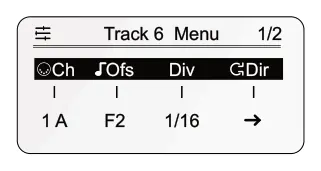
Ch. MIDI Channel out. Track specific. Knob 1.
Ofs. Base note offset for all notes in the track. Knob 2.
Div. Randomisation of time division. Knob 3.
Dir. Playback direction for the selected track. Knob 4.
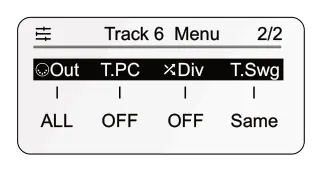
Out. MIDI output port for the track, USB, TRS, BLE, ALL.
T.PC. MIDI Program Change output.
Div. Randomisation of time division.
T.Swg. Track swing amount or ‘Same’ to match global setting.
T.Swng also appears on the sequencer settings page 3.
To reset a parameter back to its default setting, press and hold the respective knob for >2 seconds.
Step Options
Some step parameters can be edited per track, covering all steps for the selected track, or can be edited at an individual step level. Multiple steps can also be edited collectively.
![Step Options diagram: Track Specific - Press [Step] Tap (Knob) for the selected parameter to edit by switching between the upper and lower options in a dual row display. Step Track 5 Rept Durat CVGld - ... ... ... ... Offst - CVGld....](../../img/oxi-one-mkii/multitrack-mode/multitrack-mode-023.webp)
![Step Options diagram: Individual Step - Hold step [Pad] Submenu 2/2 T5-2 D2 1/2 T5-2 Rept Durat Vel Note Gate Trig 0% +- +- CVGld Rpt% No x 1 0% Offst Rng 75 D2 50 100% 0% 0% 0st 100%](../../img/oxi-one-mkii/multitrack-mode/multitrack-mode-024.webp)
Header shows the track number and the step plus the note on page 1.
Note. Edit notes of one or more steps while the [Pad] is held and by turning (Note) knob 2. The available note options will depend on the current scale. Press knob to reset the note value to the base note of the selected track.
Alternate Multitrack views
As well as the 8 track lane view the option to switch the pad grid to an alternate view is possible. This includes a drum pad style layout, more suitable for working with drum and percussion instruments as well as a keyboard style. The parameter column view editor can also be accessed when tapping the parameter knob in sequencer view.
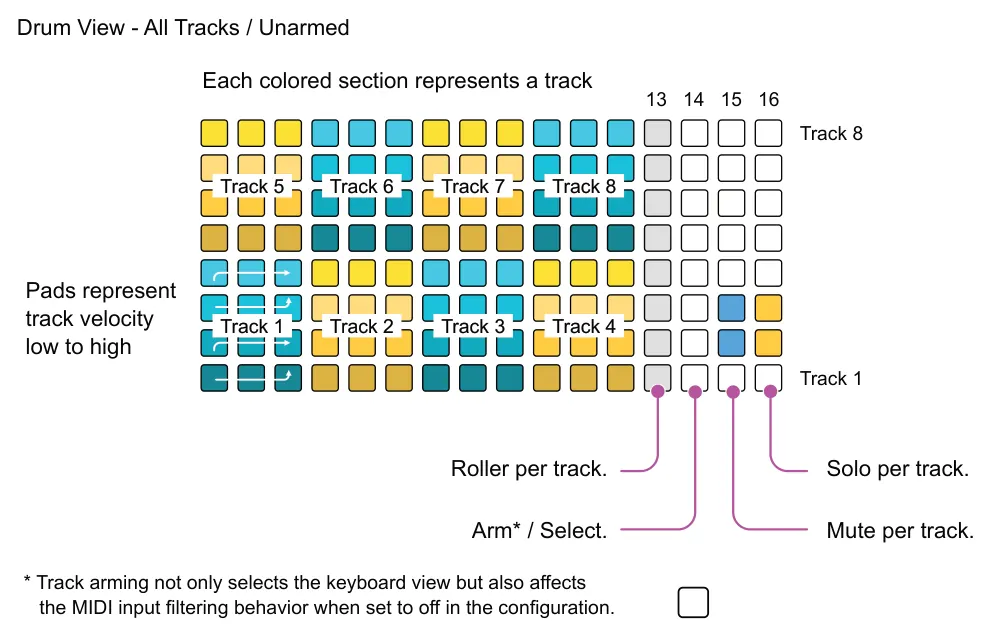
Drum View
When all tracks are unarmed the drum view is the default option when selecting the keyboard. If a track is armed the view changes to regular keyboard view. This view is ideal when working with percussive and drum style instruments, although it is also possible to use with any instrument.
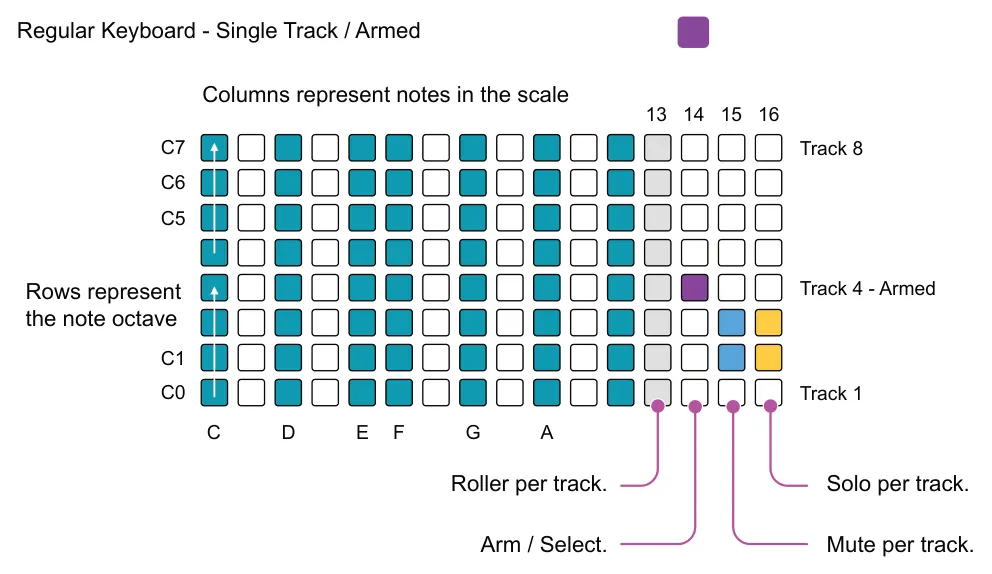
Regular Keyboard
When a track is armed the grid switches from the default drum view to the regular keyboard representing only the one armed track. Playing or recording with the keyboard will only affect the armed track. Notes are laid out based on the current scale and root. Illustration shows a chromatic scale with root c.
Piano Roll View
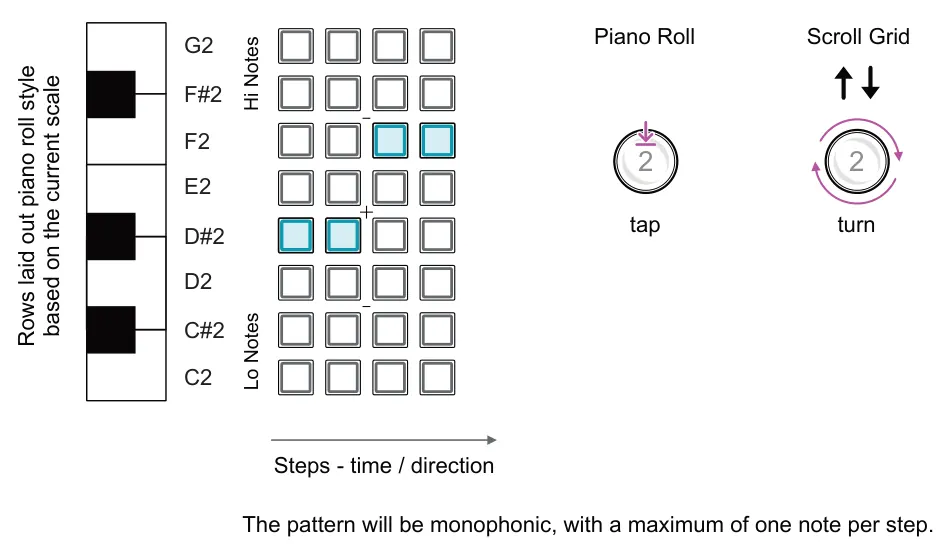
It is possible to also view one track in the classic ONE piano roll view where each row represents a note in the scale and columns represent steps. Access to the piano roll view is made by tapping or holding knob 2 (Oct) in a multitrack mode sequencer view. The currently selected track will be displayed.
Grid View: Example: Chromatic Scale, Root C2
Column Editor View
The column editor is also an alternative to using the knobs for the velocity, gate and repeat parameter changes when in the sequencer main view. This lays out the pad grid in columns representing the parameter value for each step for the selected parameter and for the selected track. For example, to adjust a velocity profile for track 1.
These parameter modulation lanes for velocity, gate and repeats are also independent with their own start and end but they do follow the note tracks 'Dir' direction control.
Column View per Track: Example: Velocity profile
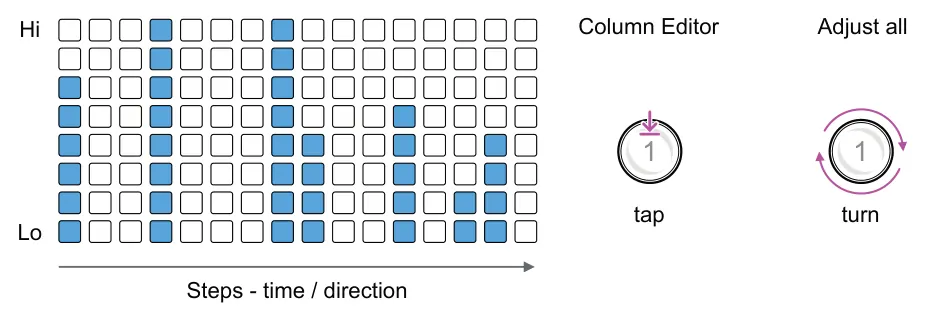
Tap the parameter knob to switch to column editor view. The columns can be edited representing the velocity, gate and repeat parameter value e.g. 0-127, 0-100% etc across the pattern range.

The preview option is useful to audition any sounds played / assigned into the grid in these views. Hold [Shift] + Tap [Keyboard] to select preview mode. Keyboard button is lit blue in keyboard mode.
MIDI Input Note Filtering
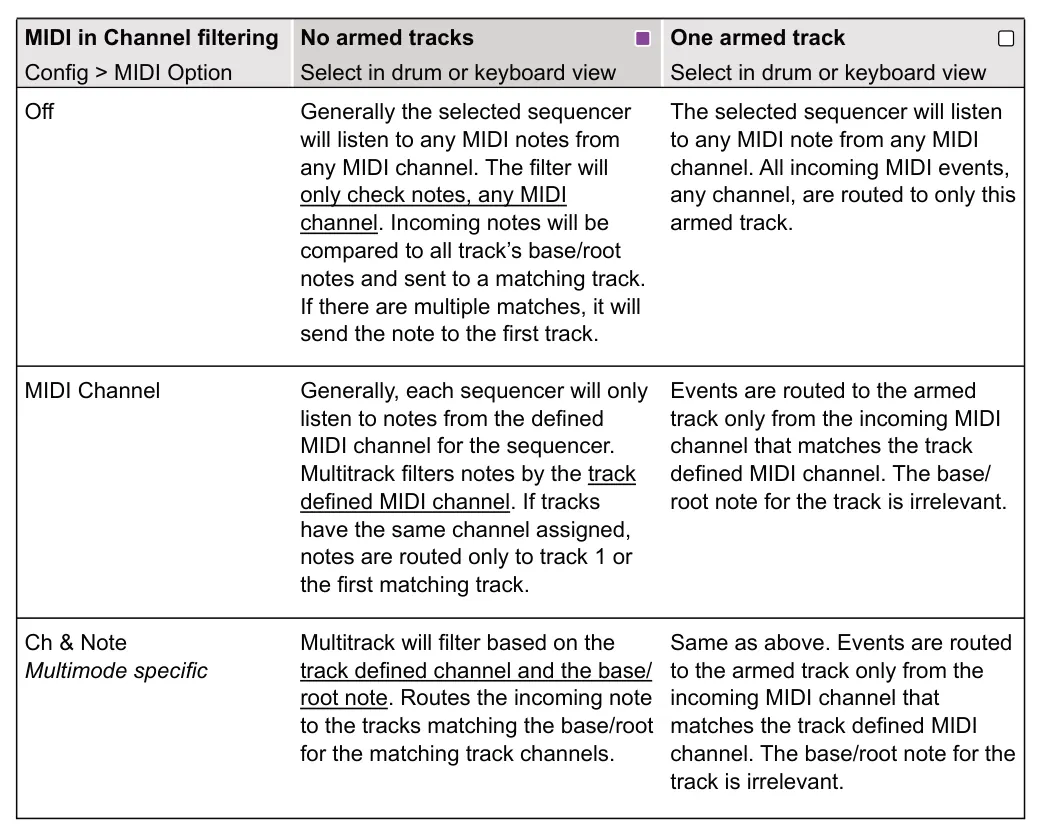
MIDI filtering setting defines how the incoming MIDI messages are routed to the specific sequencers or in the case of a multitrack, specific tracks. Note filtering allows control of the incoming MIDI message routing and is a setting found in the config > MIDI settings. MIDI filtering is covered in detail later.
While this is a generic option, but it does need specific consideration when used with a multitrack sequencer where the 8 tracks have to be managed. Multitrack arm status also affects the filtering behavior and the filter pays particular attention to root / base notes.