



Modulation is the manipulation of parameters in order to add interest and movement in sound design, music production or to experiment with audio. In simple terms modulation is the control of one parameter from the changes made by another. An example is to use a hand to manually move the volume knob of an amplifier up and down or to use a device such as an oscillator to manipulate volume to create a tremolo-style effect. In OXI ONE MkII, there is a powerful array of modulation options that can be used to affect external devices and DAWs to increase creativity. Modulation in OXI ONE MkII would typically drive the MIDI output messages, for example, with CC or control change values, pitch bend, or aftertouch. It can also be used for CV or control voltage variations. Modulation can also be applied to internal parameters configured with the mod matrix. The destination parameters can then be controlled or modulated from OXI ONE MkII’s patterns or from the four rotary encoders for MIDI output. Each sequencer has eight independent modulation lanes, which can be used to set up and program parameter variations over time. The same way that pitch-based patterns affect notes. The modulation lanes allow the automation of parameters, meaning that the destination parameter values can be automatically changed and shaped over time in sync with the sequencer and its steps. Modulation unlocks a lot of creative options and adds more dynamics and movement to tracks and songs.
7.1 Modulation Overview
Each sequencer has 8 independent modulation lanes, each of which is configurable and has up to 2 MIDI and 2 Internal destinations available to control. A lane has up to 128 steps accessed using the step page 16, 32, 48, 64, buttons and its step length controlled by Init and End buttons. Multitrack mode has 1 mod lane per track.
Modulation Lane Source
A modulation lane will map the trend of parameter change over time using the sequencer lane steps. This then will control destination parameters.
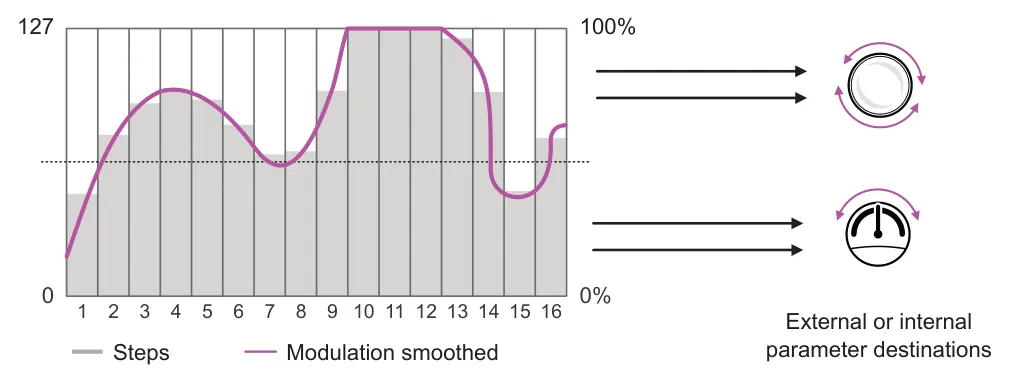
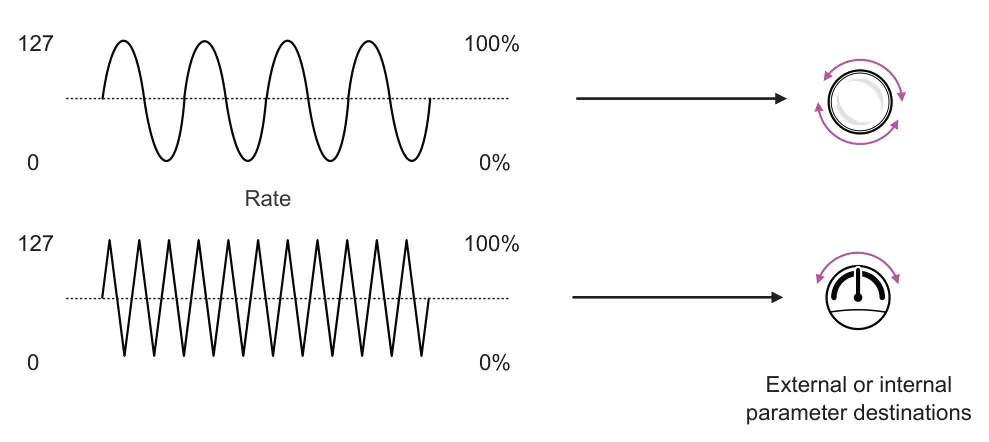
In addition to the modulation lanes, ONE also has two LFO’s per sequencer. An LFO or Low Frequency Oscillator is a function that can cycle the value of a destination parameter based on its wave shape and speed. For example a parameter value can be changed in a triangular shape cycle. An LFO runs at a speed typically below the range of an audio oscillator and is used to modulate rather than generate sound.
LFO Source
An LFO will generate a wave shape cycle at a defined speed in order to control and modulate a destination parameter value.
7.2 Modulation Lane Controls
Each independent modulation lane can operate with up to 128 steps. Up to 2 external and 2 internal destinations can be assigned to each lane. A modulation lane will output MIDI messages such as CC, Pitch Bend, Aftertouch and even PC messages as well as parameters such as velocity, pitch and even randomization to internal parameters.
Modulation can be applied with a linear 0-100% range or bi-polar -100% to 100%
![7.2 Modulation Lane Controls diagram: Modulation Lanes Tap [Mod] to open the main modulation page to setup or edit the lanes. This represents and displays the status of all 8 lanes](../../img/oxi-one-mkii/modulation/modulation-003.webp)
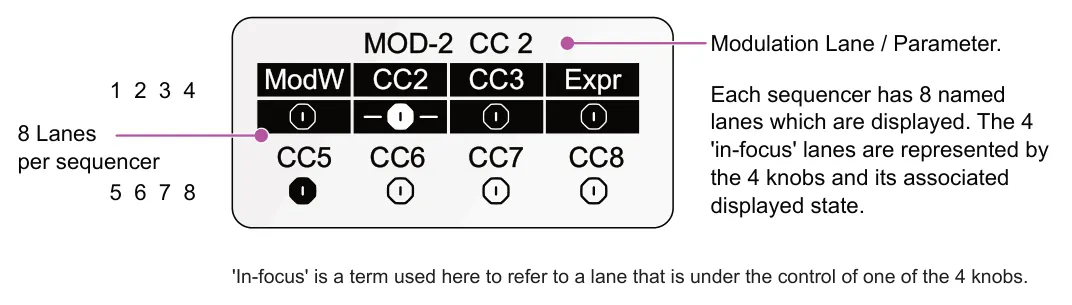
MOD-2 CC 2 ModW CC3
CC2 Expr
CC5 CC7
CC6 CC8

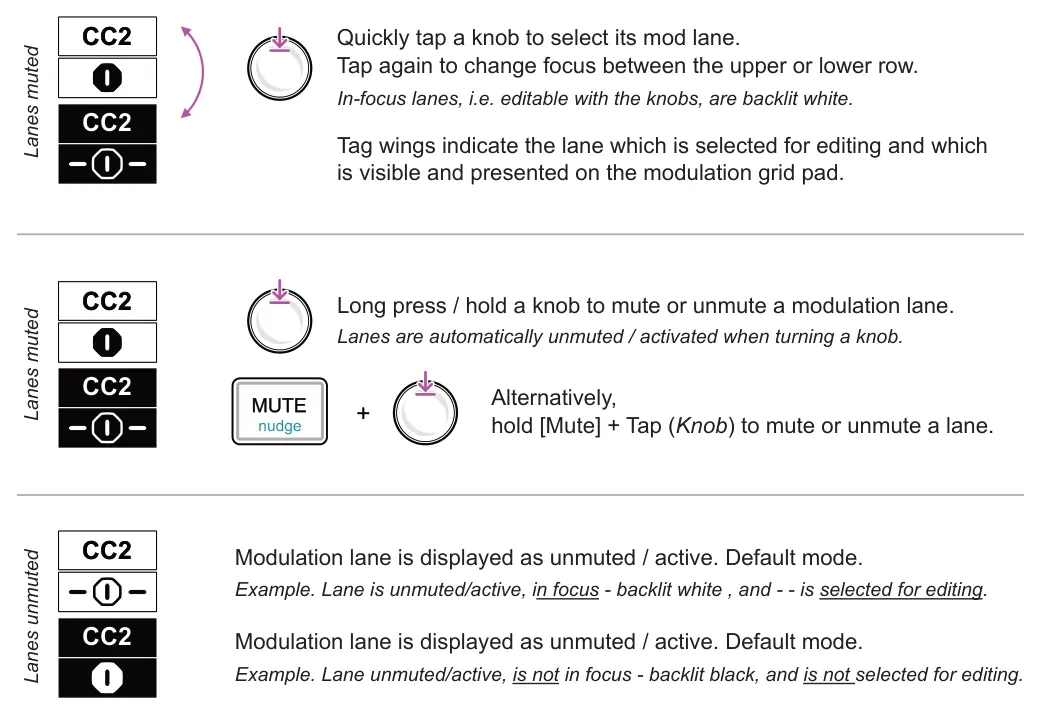

Global Parameter Edits - Page 1
Turning one of the 4 knobs in Mod view, page 1, will change the global value of the in-focus, primary parameter for the respective knob. This means all step values are edited relative to their current value by the single knob adjustment.
A flashing [Page] button signifies multiple pages are available. Tap [Page] to cycle through pages.
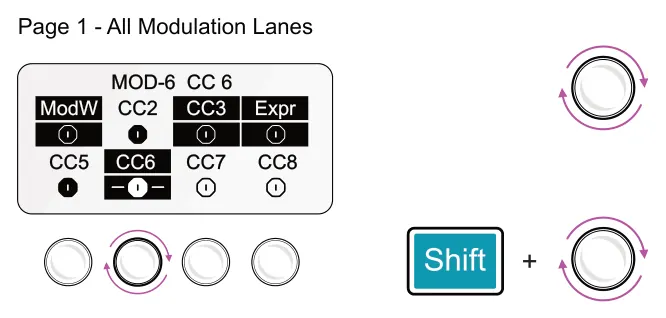
Global Value. Turn knob 1-4 representing the 4 highlighted, in-focus modulation lanes. The value will change for all steps in the lane and the global value range will be displayed while being changed. Positive values, bottom up in the mode color and negative in red, top down.
Global offset. Hold [Shift] + Turn knob 1-4 to edit the global offset value across all steps in the lane. Value range will be displayed while being changed. Reset using [Shift] + Hold (Knob). Grid pad colors indicate offsets with white for positive or pink for negative values.
Creating Modulation Lanes
The grid represents the modulation source value for each step in the modulation lane sequence. Swipe to draw or tap to set the modulation values and create the shape. Maximum and minimum values can be set in the modulation lane settings. The length of steps is independent to the sequencer note steps but the process for managing length is the same. Use page [16], [32], [48], and [64] to change the step range page. Apply modulation using the grid in the [Mod] page.
![Creating Modulation Lanes diagram: Typical Modulation Workflow 1 Modulation lanes are available on all sequencers. Select and setup a sequencer where modulation will be applied. 2 Setting up and editing modulation is performed in the [Mod] function. 3...](../../img/oxi-one-mkii/modulation/modulation-010.webp)
Select a Sequencer
MOD Mode
Choose a lane to edit
Set the lanes parameters
Create modulation shape
Basic Command Summary
![Basic Command Summary diagram: Tap a [Pad] to assign a positive modulation value to the step in the mode color. This is represented as bottom to top in the column, based on settings Min to the Max range. Edit the Modulation Positive steps](../../img/oxi-one-mkii/modulation/modulation-011.webp)
![Basic Command Summary diagram: Hold [Shift] + Tap a [Pad] to assign a negative modulation value to the step set in red. This is represented as top to bottom in the column. The Min value must be less than 0. Pitch Bend and CV pitchbend destinations...](../../img/oxi-one-mkii/modulation/modulation-012.webp)
![Basic Command Summary diagram: Hold [Shift] + Tap [Randomizer] to generate a random modulation pattern. Random Mod + Generate Mod lanes](../../img/oxi-one-mkii/modulation/modulation-013.webp)
![Basic Command Summary diagram: Double tap the bottom [Pad] to clear the selected column modulation values. Clear Mod Step Reset to 0 Value](../../img/oxi-one-mkii/modulation/modulation-014.webp)
![Basic Command Summary diagram: Hold [Shift] + Tap [Clear] while in the [Mod] page to clear the current modulation lane. This will clear only the current modulation lane. Note data is unaffected. Clear Mod Lane + Current Lane](../../img/oxi-one-mkii/modulation/modulation-015.webp)
Modulation grid layout
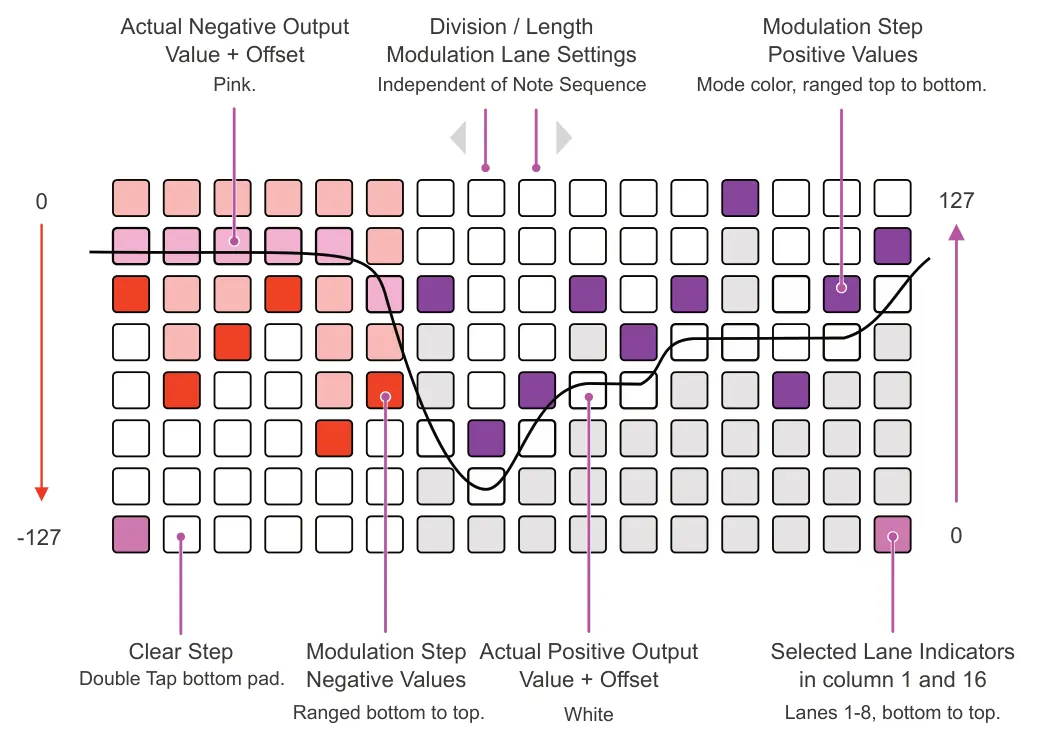
The actual modulation output is based on the step value plus the offset, indicated by the white / pink offset pad. A modulation curve or shape can be 'drawn' across the pads steps. The row represents the value for each step, based on its polarization dimension. These can be positive or negative. The column position represents each of the steps in the modulation pattern.

The first and last column's purple pads are a visual representation of the selected lane, 1 bottom to 8 top for the sequencer.
Lane Settings - Page 2
In the [Mod] page 1, select a lane by quickly tapping the associated knob. It will display wing tags on the lane state displayed when selected for editing. Press [Page] to select page 2 for the lane settings. These settings configure the lane behaviour and enables assignment of the four modulation destinations. The priority is MIDI / CC 1 then followed by MIDI / CC 2, Internal 1, Internal 2 then Off.
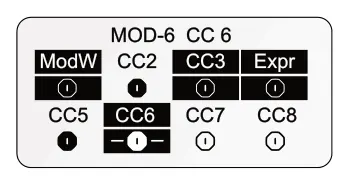
When viewing Page 2 settings list, the 4 knobs will still represent the mod lanes currently in-focus for editing on page 1. For example, in this illustration, knob 1, 2, 3, 4 will represent lanes 1, 3, 4, 6. Lane 6 selected.
Black/white inverted from actual display for illustration clarity.

Select Lane Parameters. In the Mod function, Tap [Page] to open the modulation lane settings edit the lane setting for the currently selected lane.
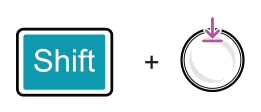
Alternatively, Hold [Shift] + Tap a knob in the mod lane page to edit the lane settings for the selected knob.
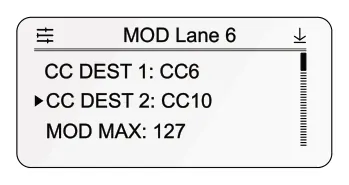
Lane In-Focus described in header
Lane Settings Page 2
In the lane settings page:-
![Lane Settings - Page 2 diagram: Turn knob 1-4. Each knob represents 1 of the 4 highlighted modulation lanes in [Mod] page 1. The display header will indicated the lane in focus. The options will scroll and the chosen parameter will be tagged ►....](../../img/oxi-one-mkii/modulation/modulation-022.webp)
Tap knob 1-4 to select the tagged parameter and open the sub-menu options. Turn to browse and tag ► the desired option. Tap knob to select. Use [Back] if needed to backup the menu.
Edit
Reset
Keep hold knob 1-4 to reset the tagged ► option to its default value.
Instrument Definitions
Instrument definitions are a quick way to map the OXI ONE MkII to the parameters of an external device such as a synth or effect pedal. Using instrument definitions is also useful when working with modulation destinations to speed up and apply an accurate mapping to defined external gear.
Lane Setting Menu
| Modulation, per Lane Setting Options | ||
|---|---|---|
| Name | Setting | Option |
| CC Dest 1 | CC destination 1 | Destination 1 options for the MIDI output messaging; CC (see table), Pitch Bend, Aftertouch, PC or Off. |
| CC Dest 2 | CC destination 2 | Destination 2 options for the MIDI output messaging; CC (see table), Pitch Bend, Aftertouch, PC or Off. |
| Mod Max | Modulation upper limit | Sets the maximum value for the modulation range. Default is 127. Range is 7 to127. |
| Mod Min | Modulation lower limit | Sets the minimum value for the modulation range. Default is 0. Range is -127 to 120. Flips automatically to -127 for PB/CV pitch bend. |
| Mod Offset | MIDI value offset | Applies a constant offset added or subtracted to the overall output value within the max / min range. Range -/+127. Reset to 0 with [Shift] + [Offset] encoder. |
| Mod Random | Randomisation | Amount of bi-polar randomization applied, per step, to the output. Range is -/+100%. |
| Int Dest 1 | Internal destination 1 | Destination 1 option for the internal modulation or set to off. See internal destination table. |
| Int Amt 1 | Internal amount 1 | Amount of modulation applied. Used to fine tune the range and value. Range is -/+ 100%, default 100% |
| Int Off 1 | Internal offset 1 | Applies an offset added or subtracted to the overall value within the max / min range. Range -/+127. |
| Int Dest 2 | Internal Destination 2 | Destination 2 option for the internal modulation or set to off. See internal destination table. |
| Int Amt 2 | Internal amount 2 | Amount of modulation applied. Used to fine tune the range and value. Range is -/+ 100%, default 100% |
| Int Off 2 | Internal offset 2 | Applies an offset added or subtracted to the overall value within the max / min range. Range -/+127. |
| Division | Time Division | Time division for the modulation lane advancement. Bar, ½, ¼, 1/8, 1/8t, 1/16, 1/16t, 1/32, 1/32t, 1/64. The x2 & /2 options also work in mod lanes. |
| Smooth | Slew time | Smooths by using interpolation between steps. A value of ‘0’ is off and is therefore a stepped transition. Also affects CV outputs when modulation lane is assigned. |
| Linked | Linked sequencers | Mod lanes are by default linked to a sequencer. Sequencer edits such as Init, end etc apply to the mod lane. Mod lane edits do not affect the sequencer track. The link can be disabled by selecting ‘No’. |
| Init | Mod lane start step | Starting step of the independent modulation lane. Same parameter as set by the [Init] button. |
| End | Mod lane end step | Ending step of the modulation lane to determine length. Same parameter as set by the [End] button. |
| Rename * | Rename tool | Allows the modulation lane name to be changed, max 4 characters. |
| Copy | Copy settings | Copies the settings and values from this mod lane in order to later paste to another mod lane. |
| Paste | Paste settings | Pastes the settings and values from to this mod lane from those previously copied from another mod lane. |
| Clear | Clear settings | Clear values and settings for this mod lane. |
* Modulation lane names can be edited to a four character label. If an instrument definition is assigned
the name set for the parameters with CC’s will be used.
7.3 Modulation Steps
When holding an individual modulation lane step pad in the grid columns, the current value for the modulation lane step will be displayed. This can be adjusted with the respective knob while the pad is held, enabling more precise step editing. The column pad position will reflect the current value. While a pad is held, all modulation lane values for the same step column will also be displayed on the screen. Editing any other lane with the knobs will automatically change the grid view to represent the adjusted lane.
Editing Modulation Values on the Grid

Hold a column pad in the modulation grid view. Each column represents a step and the vertical position the parameter value. The purple first / last pads on the grid indicate the selected modulation lane.
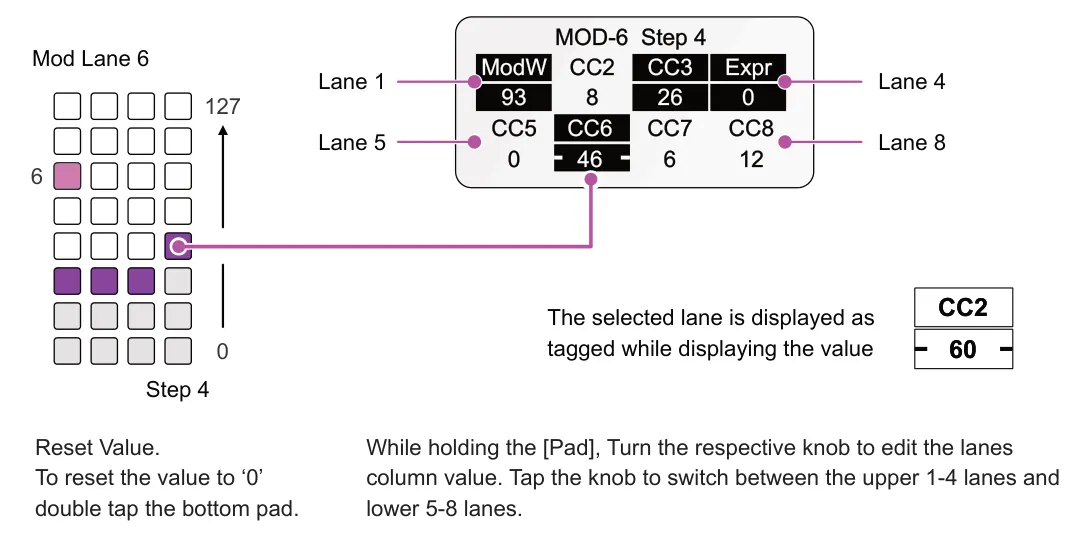
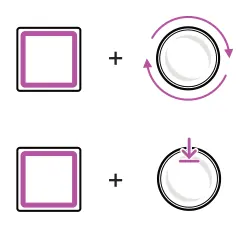
Edit Column Value Hold [Pad] + turn respective (Knob)
Reset Column Value Hold [Pad] + tap respective (Knob). Resets to the value but retains the global offset value
Randomizing the Modulation Grid Values
![Randomizing the Modulation Grid Values diagram: In the [Mod] page, Hold [Shift] + Press [Randomize]. A random value will be applied to each modulation step column. +](../../img/oxi-one-mkii/modulation/modulation-028.webp)
A new modulation profile is applied based on random values and within the Min/Max range in the settings for each combo press of shift + randomize.

7.4 Recording Modulation
It is possible to record automation values in real-time while the sequencer plays by using the modulation rotary knobs or by sending MIDI CC or Pitch Bend in from an external controller on the relevant channel. Recordings can be made for the sequence duration and as the sequencer loops the automation can be recorded continuously.
Guide to recording a modulation curve.
Tap [Mod] to open the main modulation page and select a modulation lane to record into. For example Tap Knob 2.
Modulation Mode
Tap [Play] to start the sequencer playing.
Tap [Rec] to start recording into the modulation lanes. This will continue and overwrite existing data while recording.
Start recording
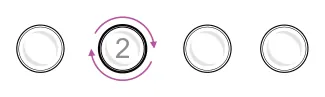
Turn a knob for the parameter lane to record. Any edits to any lanes will be recorded.
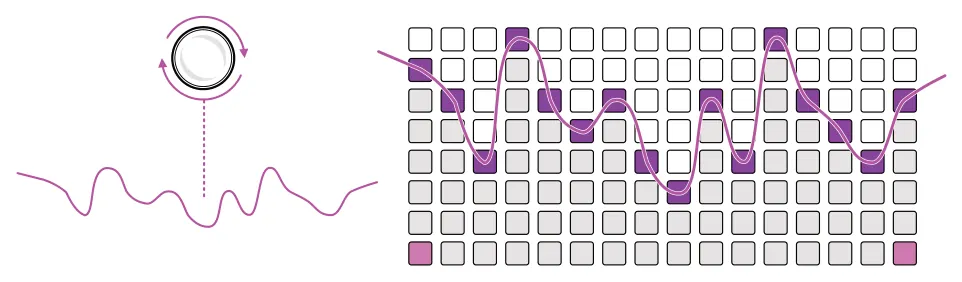
Mod Recording Behavior: The standard recording setting for a sequencer does not apply in full to the recordings made in MOD mode. Mod recording behavior is a combination of latch and touch. Recording will also continue for a fixed latch period after modulation ends for example stop tuning a knob. Values are overwritten while ever manual or latched recording is in progress. The latched recording time will end when the displayed ‘Recording’ message for the parameter is no longer visible.
Be aware that automation can be overwritten as the modulation sequence loops during recording. It is important to be aware of the recording length required while recording and avoid overwriting data already captured.
![7.4 Recording Modulation diagram: Tap [Stop] to conclude modulation recording. Stop recording](../../img/oxi-one-mkii/modulation/modulation-035.webp)
External MIDI Recording
External MIDI devices can also be used to record automation into ONE. Ensure the MIDI settings on ONE and the external device are set appropriately, including the MIDI channel. Follow the same steps to record as with internal modulation recording.
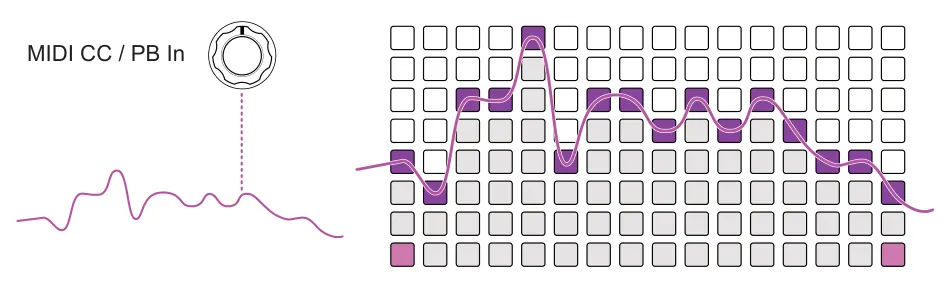
External MIDI Latch
While strictly speaking, MIDI latch is not a recording tool, it does take priority over existing modulation. Any incoming MIDI CC (or PB, Aftertouch) message will temporarily override the currently active modulation values. The musical window is scaled using BPM and the lane division. This means that the incoming MIDI will control the destination and the existing modulation will automatically take back control when the MIDI CC/PB input message ceases.
The pre-requisites for External MIDI latch to operate are:
1. The incoming MIDI must be on the same channel as the modulation output.
2. The MIDI Thru parameter is set to ON for the specific MIDI input connection.
3. MOD Recording is not active.
7.5 Modulation Matrix
The modulation matrix allows routing of external MIDI and CV inputs to ONE's internal destinations in or to pass through to external gear. This can use the MIDI TRS, USB, Bluetooth ports or the CV connections and allows re-routing of devices in and out or to connect external devices in order to modulate ONE’s parameters. Each sequencer has its own mod matrix.
Project Map
Maps internal functions and external MIDI and defines the routing. The modulation mapped and applied in a project map will apply to all patterns in the project. Use the mapping slot for the current project, for example GLB1 for Project slot 1, in order to create or edit the mapping. Changing patterns in the defined project will still use the same project mapping but changing projects will not. Mapping is used for MIDI and Internal destinations.
Pattern Map
Maps internal functions and external MIDI and defines the routing. The modulation mapped and applied in a pattern map will apply to only the selected pattern in the project. Use the mapping slot for the current pattern, for example PAT2 for Pattern slot 2, in order to create or edit the mapping. Changing patterns within the project will switch to the respective map for the new pattern. Mapping is used for MIDI and Internal destinations.
CV Inputs
This is used to map incoming CV values to internal parameters or to external MIDI or CV.
Access the mappings in the 'Ext Mod' matrix.
![CV Inputs diagram: Open the modulation matrix, Hold [Shift] + Press [Mod]. Access to the project and pattern mappings and CV. Mod Matrix +](../../img/oxi-one-mkii/modulation/modulation-037.webp)
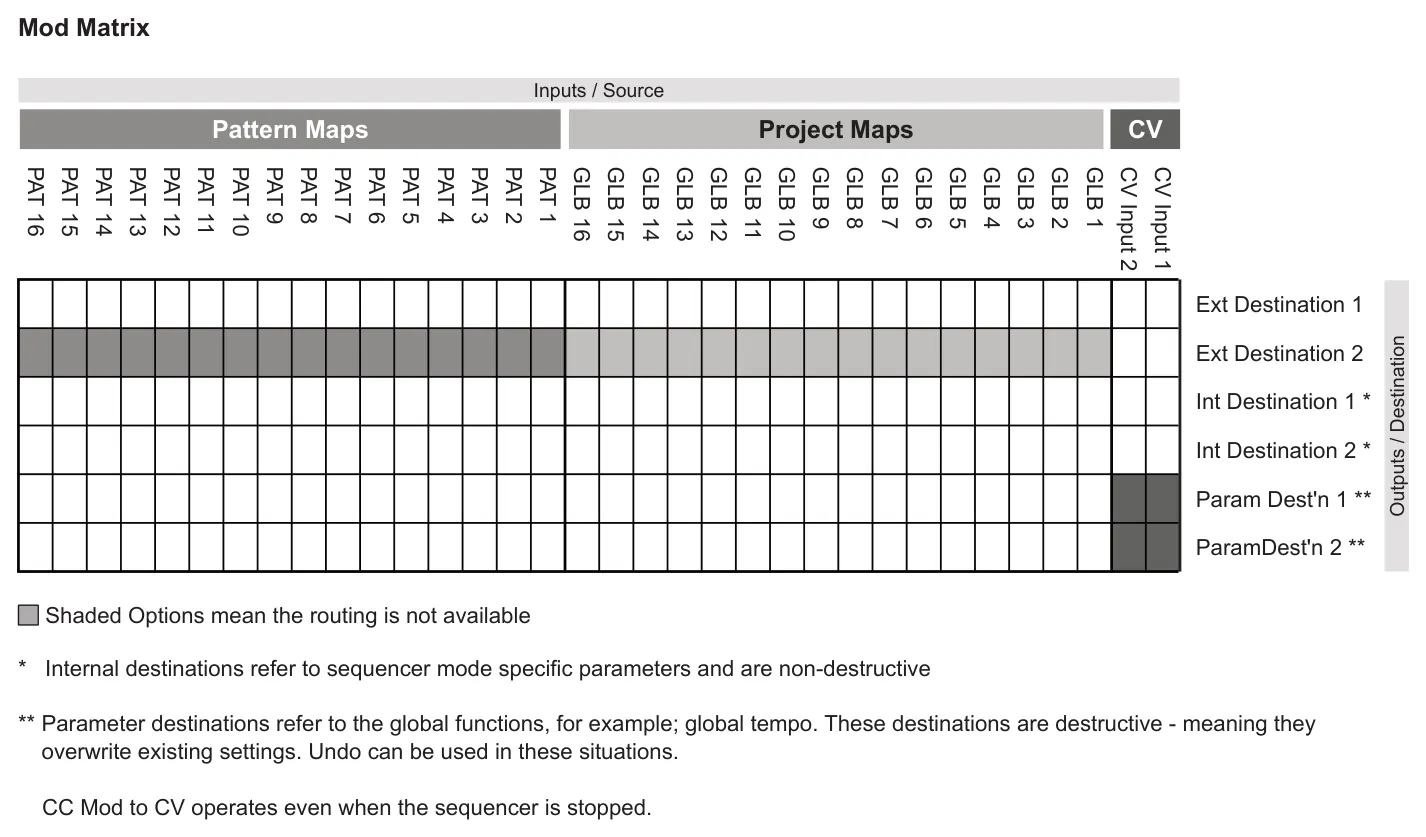
GLB1 - GLB16 Global project mapping for each respective project 1-16 PAT1 - PAT16 Per project pattern mapping, represents patterns 1-16 in the active project
Examples
Seq 1: MIDI Input to control an internal parameter Seq 1: MIDI Input to control an external CC parameter
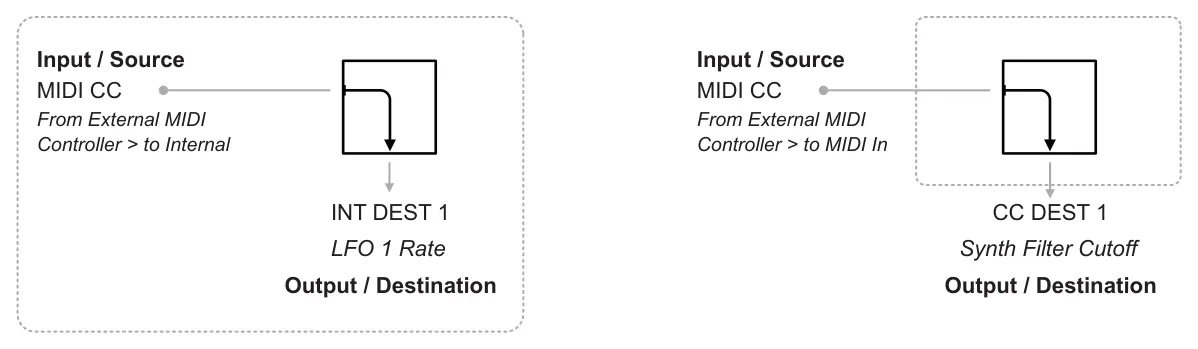
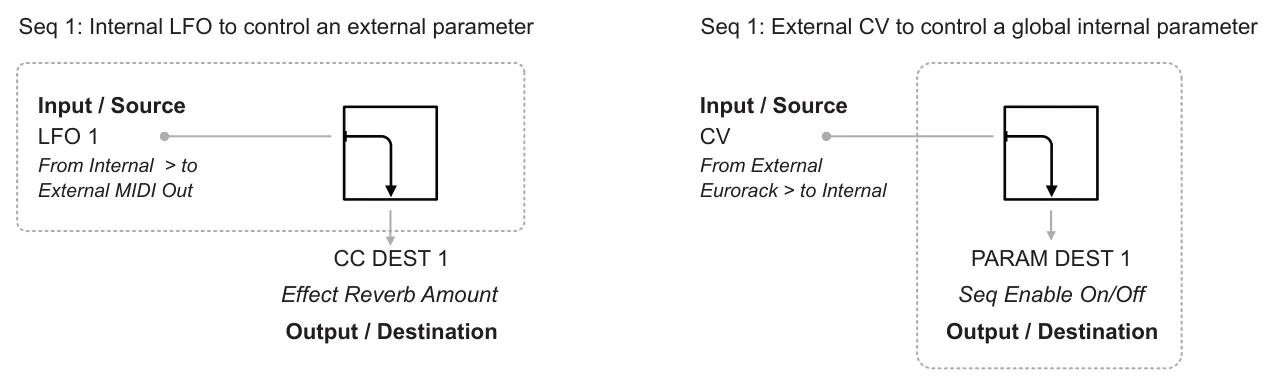

Project & Pattern MIDI Modulation Mapping - 1-16
| Project & Pattern MIDI Modulation Mapping - 1-16 | ||
|---|---|---|
| Setting | Options | Description |
| Type | Off, CC, Note, LFO1, LFO2, Note - On Toggle, Random, Mod Lane | The type of input message for it to be recognised and processed in the mapping. Off means it is not used. |
| Number | CC or Note Number. | The CC value or the MIDI standard note number that must be recognised for the mapping. |
| MIDI In Chan | Same, All, 1-16 | Same listens to the same MIDI channel as the sequencer (not the track). All, listens to all channels for inf CC or note matches otherwise set a specific channel number 1-16. |
| Learn | Utility | Sets ONE to listen to the incoming MIDI messages in order to auto map to the input message recognised. |
| Track | Matriceal & Multi Tracks only | Select the track affected by the incoming signal. |
| CC Out | CC Number | Sets the CC number or message that is externally forwarded to the same MIDI channel assigned to the sequencer or a multitrack's 1st track or a matriceal track. |
| CC - Int Amt 1 | -100 to +100% | Amount of modulation applied to the CC forwarded message or Internal destination 1 depending on which is active. |
| CC - Int Ofst 1 | -100 to +100% | Applies an offset to the CC forwarded message or Internal destination 1 depending on which is active. |
| Int Dest 1 | Internal destinations | Internal destination 1. Sets the target for the non-destructive modulation from the list of internal destinations. |
| Int Dest 2 | Internal destinations | Internal destination 2. Sets the target for the non-destructive modulation from the list of internal destinations. |
| Int Amt 2 | -100 to +100% | Amount of modulation applied to the Internal destination 2. |
| Int Ofst 2 | -100 to +100% | Applies an offset to the Internal destination 2. |
| Para Dest 1 | Global destinations | Internal global destination 1. Target for the destructive modulation from the list of global sequencer destinations. |
| Para Amt 1 | -100 to +100% | Amount of modulation applied to the global destination 1. |
| Para Ofst 1 | -100 to +100% | Applies an offset to the Internal global destination 1. |
| Para Dest 2 | Global destinations | Internal global destination 2. Target for the destructive modulation from the list of global sequencer destinations |
| Para Amt 2 | -100 to +100% | Amount of modulation applied to the global destination 2. |
| Para Ofst 2 | -100 to +100% | Applies an offset to the Internal global destination 2. |
| Consume | Yes / No | Yes will consume MIDI meaning it is not passed on to other MIDI mappings or outputs. Set to no to pass MIDI onwards. |
| Copy Map | Utility. Current or All | Copies the settings for the currently selected mapping or all mappings for the sequencer. Allows coping to another mapping in the project or pattern. |
| Paste Map | Utility. Current or All | Pastes the copied settings for the currently selected mapping or all mappings for the sequencer. |
| Clear Map | Utility. | Resets the currently selected mapping to the defaults. |
| Last Value | Utility. | Displays the last value that was received for the mapping. This must be a recognisable MIDI message. CC - actual value, Note On value 127 and Note Off value is 0. |
7.6 CV Input Modulation
There are two CV inputs on the OXI ONE that are connected through the single 3.5mm CV input port. A standard TR patch cable will give access to CV In 1 while a stereo TRS input split to two TR Mono inputs will access both CV In 1 and 2. The hardware CV Input range of ONE is -3v to + 5v. This is covered in the connectivity section.
CV input can be used to modulate an internal parameter, either in the sequencer mode parameters or can be routed to modulate the MIDI CC output by configuring in the modulation matrix.
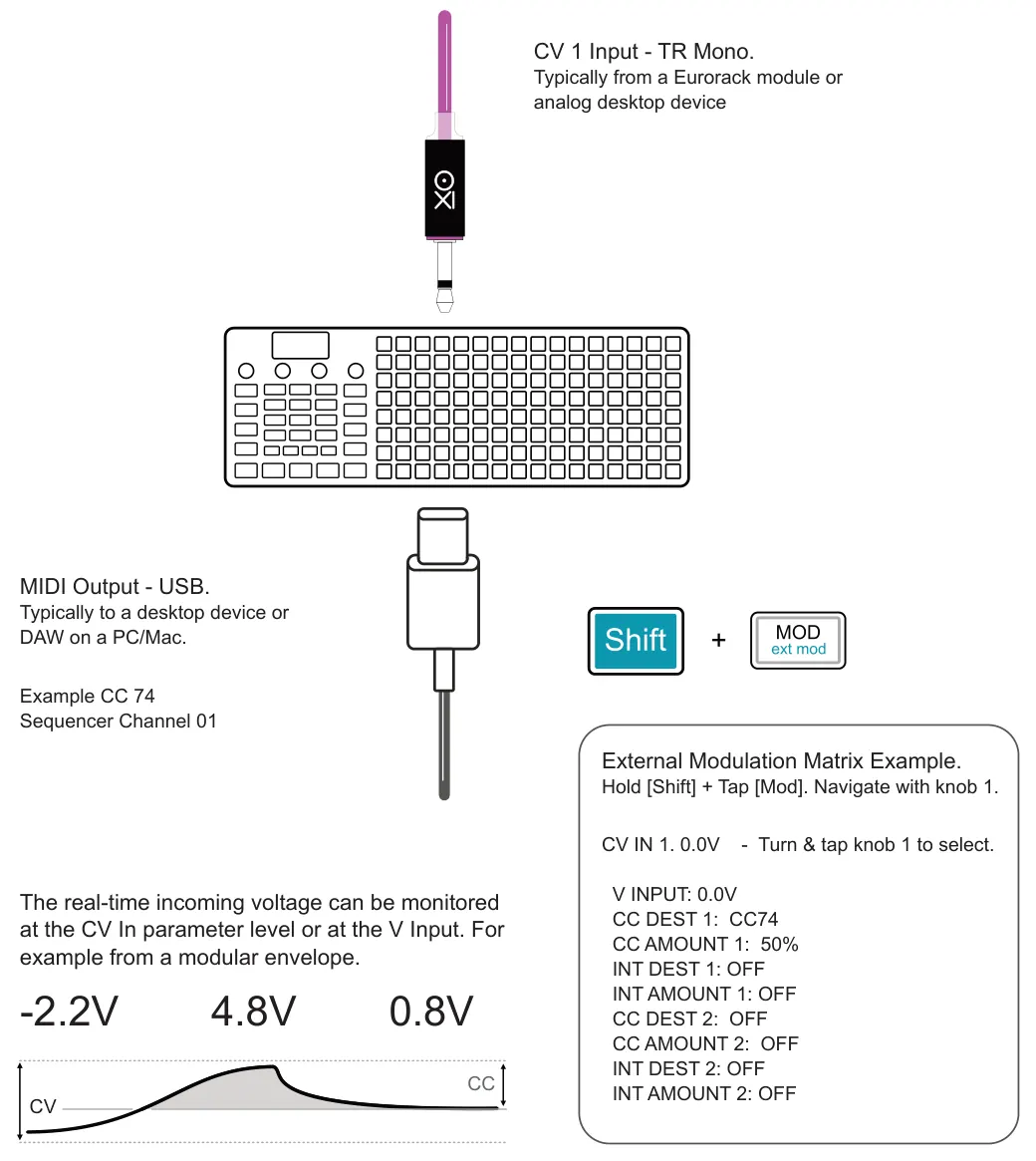
-2.2V 4.8V 0.8V
When using incoming CV as the modulation source, internal parameters can be assigned as the destination, but not the global sequencer parameter destinations. Also external CC can also be set as a modulation destination where the CV is effectively converted to MIDI CC. There are 2 internal and 2 MIDI destination options available. The MIDI channel is assigned per sequencer or track.
Only positive values are converted to MIDI so any negative CV values will be clipped at 0V. Pitch bend is the exception which will send bipolar MIDI output.
7.7 MIDI Modulation
MIDI CC can also be used as a modulation source. This is configurable in the modulation matrix where up to 16 incoming MIDI signals. MIDI inputs can be accessed from USB, TRS or Bluetooth.
MIDI input can be used to modulate an internal parameter, either in the sequencer mode parameters or can be routed to modulate MIDI CC output by using the modulation matrix. Unlike CV, MIDI can also control the global sequencer parameters.
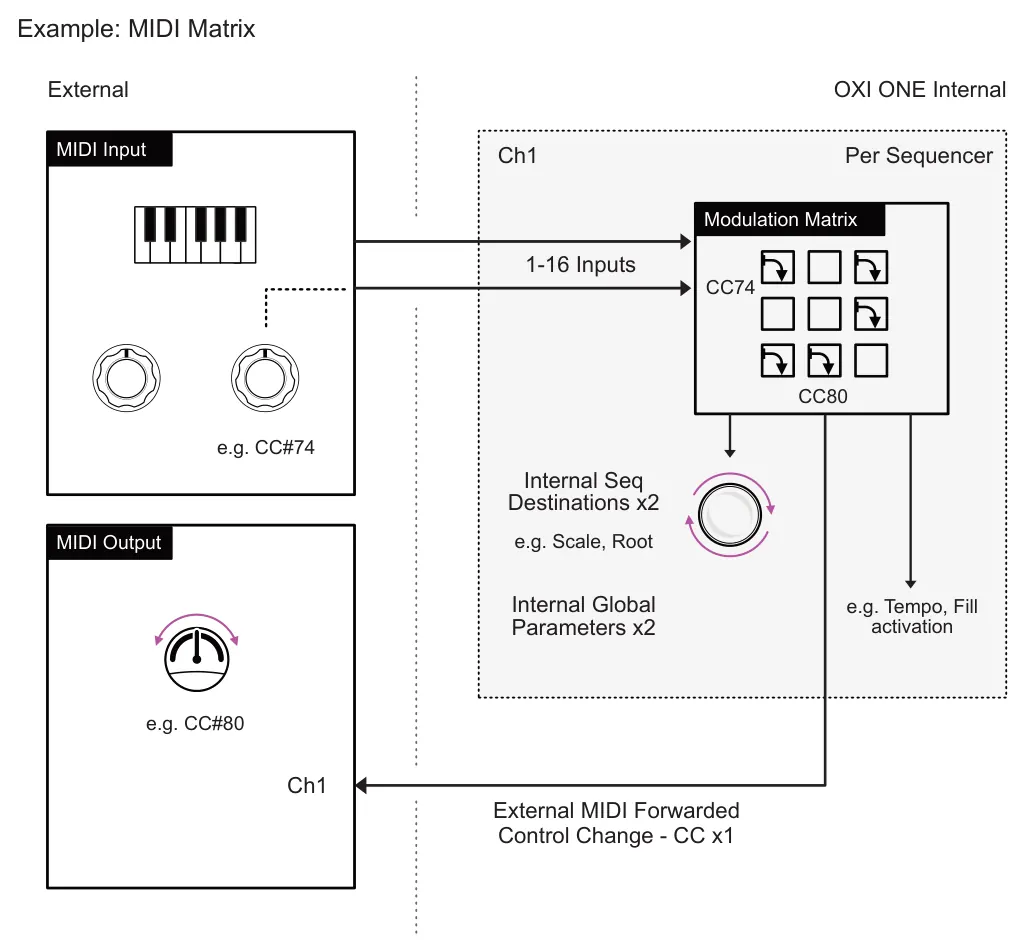

The data over a MIDI ports can be merged across all ports A, B and C. This will ensure all messages are transmitted through each port on the equivalent channel. This is configured in the Config > MIDI > MIDI Port Merge setting.
7.8 LFO Modulation
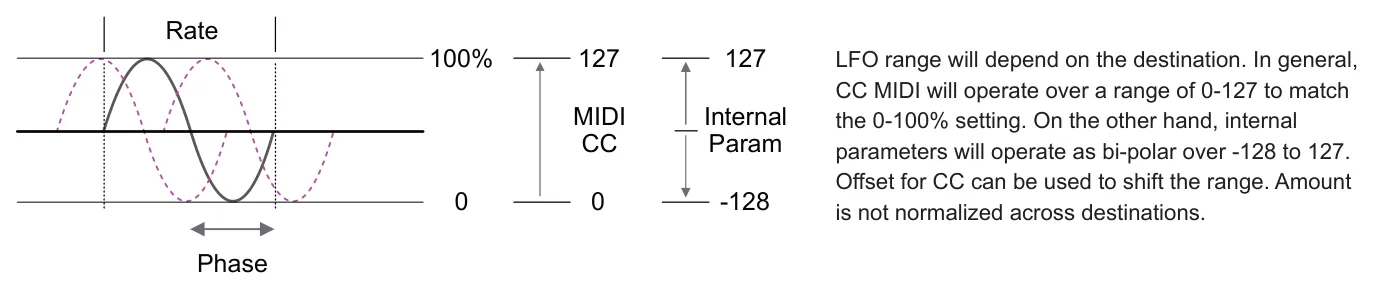
OXI ONE has 2 LFOs per sequencer each of which can be used as the modulation source. An LFO is a Low Frequency Oscillator, which generates a slow cycle waveform used to modulate or change a parameter value across the LFO wave shape at a defined speed. Each LFO can be configured in the LFO page to modulate one internal and one external MIDI parameter. CV can also be set as a destination in the CV Gate routing.

Press [LFO] to access the low frequency oscillator pages 1 and 2. Press [Page] to cycle through LFO 1 and 2 pages.
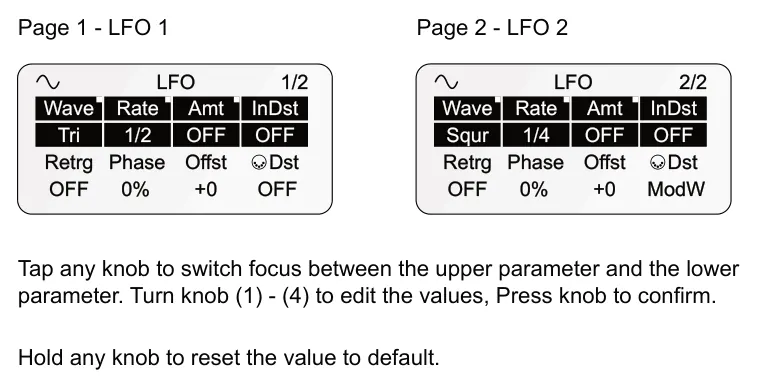
| LFO Settings Page 1 & 2 | |||
|---|---|---|---|
| Wave Wave shape | Rate Speed | Amt Amount of modulation * | InDst Internal Destination |
| Selects the wave shape for the oscillator. | Speed of the LFO. Free running clockwise, counter clockwise is clocked to tempo. | Amount of modulation range applied to both external and internal destinations. | Sets the internal destination parameter for the LFO to modulate based on seq mode. |
| Retrig Oscillator retrigger | Phase Oscillation phase | Offst Offset | Dst MIDI Out Destination |
| On - Retrigger the osc on each sequence note. Off - runs free, no retrig. | Sets the +/- phase position of the LFO cycles. | Sets an offset amount to the LFO value. Useful for unipolar applications. Not applied to CV. | Sets the external MIDI message destination for the LFO to modulate. CC, PC, Pitch bend etc. |
* The amount of modulation is adjusted for both internal and external destinations when turning knob 3
(Amt). Hold Shift + Turn (Amt) Knob 3 to set the MIDI External amount individually.
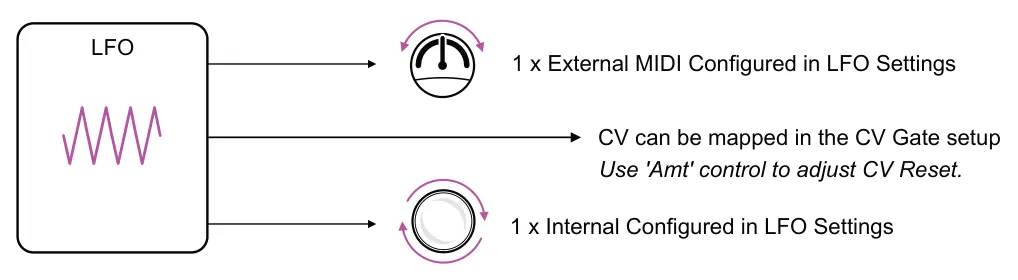

The LFOs only operate while the sequencers are running. If the sequencers are stopped, the LFO will not run. Press play to experience the LFO output results.
Wave Shapes




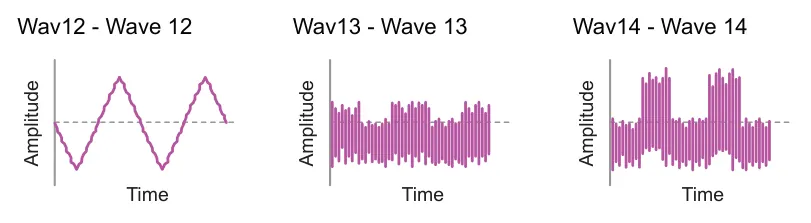
* Randomly generated
7.9 Modulation Destination Reference
CC & MIDI Destinations - External MIDI
The MIDI destinations are based on the MIDI standard assignments plus the ONE MIDI destination options as a reference. Refer to the MIDI mappings in the manual for the connected device in order to target the destination specific to the device. Many devices will be mapped differently to the assigned functions in the MIDI standard - especially in the higher CC range. MIDI Instrument definitions are useful for quick and accurate assignment.
| MIDI Standard | CC # |
| Aftertouch | |
| Program Change | |
| Channel Pressure | |
| Pitch Bend | |
| Off | |
| Bank Select MSB | CC 0 |
| Mod Wheel | CC 1 |
| Breath Control | CC 2 |
| Controller 3 | CC 3 |
| Foot Control | CC 4 |
| Portamento Time | CC 5 |
| Data Entry | CC 6 |
| Channel Volume | CC 7 |
| Balance | CC 8 |
| Controller 9 | CC 9 |
| Pan | CC 10 |
| Expression | CC 11 |
| FX Control 1 | CC 12 |
| FX Control 2 | CC 13 |
| Controller 14 | CC 14 |
| Controller 15 | CC 15 |
| Gen Purpose 1 | CC 16 |
| MIDI Standard | CC # |
| Gen Purpose 2 | CC 17 |
| Gen Purpose 3 | CC 18 |
| Gen Purpose 4 | CC 19 |
| Controller 20 | CC 20 |
| Controller 21 | CC 21 |
| Controller 22 | CC 22 |
| Controller 23 | CC 23 |
| Controller 24 | CC 24 |
| Controller 25 | CC 25 |
| Controller 26 | CC 26 |
| Controller 27 | CC 27 |
| Controller 28 | CC 28 |
| Controller 29 | CC 29 |
| Controller 30 | CC 30 |
| Controller 31 | CC 31 |
| Bank Select LSB | CC 32 |
| Mod Wheel LSB | CC 33 |
| Breath Control LSB | CC 34 |
| Controller 35 | CC 35 |
| Foot Control LSB | CC 36 |
| Portamento LSB | CC 37 |
| Data Entry LSB | CC 38 |
| MIDI Standard | CC # |
| Chan Vol LSB | CC 39 |
| Balance LSB | CC 40 |
| Controller 9 LSB | CC 41 |
| Pan LSB | CC 42 |
| Exp controller LSB | CC 43 |
| FX Control 1 LSB | CC 44 |
| FX Control 2 LSB | CC 45 |
| Controller 14 LSB | CC 46 |
| Controller 15 LSB | CC 47 |
| Gen Purp Ctrl 1 LSB | CC 48 |
| Gen Purp Ctrl 2 LSB | CC 49 |
| Gen Purp Ctrl 3 LSB | CC 50 |
| Gen Purp Ctrl 4 LSB | CC 51 |
| Controller 20 LSB | CC 52 |
| Controller 21 LSB | CC 53 |
| Controller 22 LSB | CC 54 |
| Controller 23 LSB | CC 55 |
| Controller 24 LSB | CC 56 |
| Controller 25 LSB | CC 57 |
| Controller 26 LSB | CC 58 |
| Controller 27 LSB | CC 59 |
| Controller 28 LSB | CC 60 |
Controller options are effectively undefined in the MIDI 1.0 standard. Other generic, non-specific CC are called general purpose. Values are MSB orientated which are typically used with MIDI gear. Any LSB values are stated as such.
| MIDI Standard | CC # |
| Controller 29 LSB | CC 61 |
| Controller 30 LSB | CC 62 |
| Controller 31 LSB | CC 63 |
| Damp/Sustain Pedal | CC 64 |
| Portamento On/Off | CC 66 |
| Sostenuto On/Off | CC 66 |
| Soft Pedal On/Off | CC 67 |
| Legato foot switch | CC 68 |
| Hold 2 | CC 69 |
| Sound Controller 1 | CC 70 |
| Sound Controller 2 | CC 71 |
| Sound Controller 3 | CC 72 |
| Sound Controller 4 | CC 73 |
| Sound Controller 5 | CC 74 |
| Sound Controller 6 | CC 75 |
| Sound Controller 7 | CC 76 |
| Sound Controller 8 | CC 77 |
| Sound Controller 9 | CC 78 |
| Sound Controller 10 | CC 79 |
| Gen Purpose 5 | CC 80 |
| Gen Purpose 6 | CC 81 |
| Gen Purpose 7 | CC 82 |
| MIDI Standard | CC # |
| Gen Purpose 8 | CC 83 |
| Portamento ctrl | CC 84 |
| Undefined | CC 85 |
| Undefined | CC 86 |
| Undefined | CC 87 |
| Hi res velocity prefix | CC 88 |
| Undefined | CC 89 |
| Undefined | CC 90 |
| FX 1 Depth | CC 91 |
| FX 2 Depth | CC 92 |
| FX 3 Depth | CC 93 |
| FX 4 Depth | CC 94 |
| FX 5 Depth | CC 95 |
| Data Increment +1 | CC 96 |
| Data Decrement -1 | CC 97 |
| NRPN LSB | CC 98 |
| NRPN MSB | CC 99 |
| RPN LSB | CC 100 |
| RPN MSB | CC 101 |
| Undefined | CC 102 |
| Undefined | CC 103 |
| Undefined | CC 104 |
| MIDI Standard | CC # |
| Undefined | CC 105 |
| Undefined | CC 106 |
| Undefined | CC 107 |
| Undefined | CC 108 |
| Undefined | CC 109 |
| Undefined | CC 110 |
| Undefined | CC 111 |
| Undefined | CC 112 |
| Undefined | CC 113 |
| Undefined | CC 114 |
| Undefined | CC 115 |
| Undefined | CC 116 |
| Undefined | CC 117 |
| Undefined | CC 118 |
| Undefined | CC 119 |
| All Sound off | CC 120 |
| Reset All Ctrls | CC 121 |
| Local Ctrl On/Off | CC 122 |
| All notes off | CC 123 |
| Omni mode off | CC 124 |
| Omni mode on | CC 125 |
| Mono mode on | CC 126 |
| Poly mode on | CC 127 |
CC120 - CC127 are reserved for channel mode messages which affect operating mode and not the sound.
Internal Sequencer Destinations
Internal destinations are parameters which exist in the currently selected sequencer that hosts the modulator being edited. As such the available parameters will be based on the Mode of the specific sequencer. Mod lanes, LFO and Ext CV are bi-polar.
All Modes
| All Modes | |||||
|---|---|---|---|---|---|
| Parameter | LFO | Mod Lane | Mod Matrix Project MIDI | Mod Matrix Pattern MIDI | Mod Matrix CV |
| Off | |||||
| Velocity | Available | Available | Available | Available | Available |
| Pitch (scale quantized) | Available | Available | Available | Available | Available |
| Octave | Available | Available | Available | Available | Available |
| Gate | Available | Available | Available | Available | Available |
| CV Pitchbend | Available | Available | Available | Available | Available |
| Division Modulation | Available | Available | Available | Available | Available |
| Repeat Pulse Count | Available | Available | Available | Available | Available |
| Repeat Pulse Length | Available | Available | Available | Available | Available |
| Repeat Velocity Groove | Available | Available | Available | Available | Available |
| Repeat Time Groove | Available | Available | Available | Available | Available |
| Trig Probability | Available | Available | Available | Available | Available |
| CV Glide Time | Available | Available | Available | Available | Available |
| Keyboard Arp Division | Available | Available | Available | Available | Available |
| Keyboard Arp Voices | Available | Available | Available | Available | Available |
| Keyboard Arp Octave Type | Available | Available | Available | Available | Available |
| Keyboard Arp Gate Time | Available | Available | Available | Available | Available |
| Keyboard Arp Accent | Available | Available | Available | Available | Available |
| Keyboard Arp Euclidean Length | Available | Available | Available | Available | Available |
| Keyboard Arp Euclidean Pulses | Available | Available | Available | Available | Available |
| Keyboard Arp Repeat | Available | Available | Available | Available | Available |
| LFO 1 Wave | Available | Available | Available | Available | Available |
| LFO 1 Rate | Available | Available | Available | Available | Available |
| LFO 1 Amount | Available | Available | Available | Available | Available |
| LFO 2 Wave | Available | Available | Available | Available | Available |
| LFO 2 Rate | Available | Available | Available | Available | Available |
| LFO 2 Amount | Available | Available | Available | Available | Available |

| Parameter | LFO | Mod Lane | MOD Matrix Project MIDI | MOD Matrix Pattern MIDI | Mod Matrix CV |
| Generator Pulse Length | Available | Available | Available | Available | Available |
| Generator Pulse Count | Available | Available | Available | Available | Available |
| Generator Rotation | Available | Available | Available | Available | Available |
| Generator Density | Available | Available | Available | Available | Available |
| Generator Invert | Available | Available | Available | Available | Available |
| Generator Note Range | Available | Available | Available | Available | Available |
| Generator Octave Range | Available | Available | Available | Available | Available |
| Groove Velocity Amount | Available | Available | Available | Available | Available |
| Groove Time Amount | Available | Available | Available | Available | Available |
| Random Perform Velocity | Available | Available | Available | Available | Available |
| Random Perform Octave | Available | Available | Available | Available | Available |
| Random Perform Gate | Available | Available | Available | Available | Available |
| Random Perform Repeat | Available | Available | Available | Available | Available |
| Random Perform Retrig | Available | Available | Available | Available | Available |
| Random Perform Trig | Available | Available | Available | Available | Available |
| Random Perform Note | Available | Available | Available | Available | Available |
Mono Mode - Additional options
| Mono Mode - Additional options | |||||
|---|---|---|---|---|---|
| Parameter | LFO | Mod Lane | Mod Matrix Project MIDI | Mod Matrix Pattern MIDI | Mod Matrix CV |
| Accumulator Amount | Available | Available | Available | Available | Available |
| Accumulator Positive Limit | Available | Available | Available | Available | Available |
| Accumulator Negative Limit | Available | Available | Available | Available | Available |
Domino - Additional options
| Domino - Additional options | |||||
|---|---|---|---|---|---|
| Parameter | LFO | Mod Lane | Mod Matrix Project MIDI | Mod Matrix Pattern MIDI | Mod Matrix CV |
| Accumulator Amount | Available | Available | Available | Available | Available |
| Accumulator Positive Limit | Available | Available | Available | Available | Available |
| Accumulator Negative Limit | Available | Available | Available | Available | Available |
Poly Mode - Additional options
| Poly Mode - Additional options | |||||
|---|---|---|---|---|---|
| Parameter | LFO | Mod Lane | Mod Matrix Project MIDI | Mod Matrix Pattern MIDI | Mod Matrix CV |
| Poly Arp Division | Available | Available | Available | Available | Available |
| Poly Arp Octave | Available | Available | Available | Available | Available |
| Poly Arp Type | Available | Available | Available | Available | Available |
| Poly Arp Accent | Available | Available | Available | Available | Available |
| Poly Arp Euclidean Length | Available | Available | Available | Available | Available |
| Poly Arp Euclidean Pulses | Available | Available | Available | Available | Available |
| Poly Arp Euclidean Repeats | Available | Available | Available | Available | Available |
| Poly Arp Euclidean Rotation | Available | Available | Available | Available | Available |
Chord Mode - Additional options
| Chord Mode - Additional options | |||||
|---|---|---|---|---|---|
| Parameter | LFO | Mod Lane | Mod Matrix Project MIDI | Mod Matrix Pattern MIDI | Mod Matrix CV |
| Chord Root | Available | Available | Available | Available | Available |
| Chord Type | Available | Available | Available | Available | Available |
| Chord Voicing | Available | Available | Available | Available | Available |
| Chord Spread | Available | Available | Available | Available | Available |
| Chord Strum | Available | Available | Available | Available | Available |
| Chord Arp Division | Available | Available | Available | Available | Available |
| Chord Arp Octave | Available | Available | Available | Available | Available |
| Chord Arp Type | Available | Available | Available | Available | Available |
| Chord Arp Accent | Available | Available | Available | Available | Available |
| Chord Arp Euclidean Length | Available | Available | Available | Available | Available |
| Chord Arp Euclidean Pulses | Available | Available | Available | Available | Available |
| Chord Arp Euclidean Repeats | Available | Available | Available | Available | Available |
| Chord Arp Euclidean Rotation | Available | Available | Available | Available | Available |
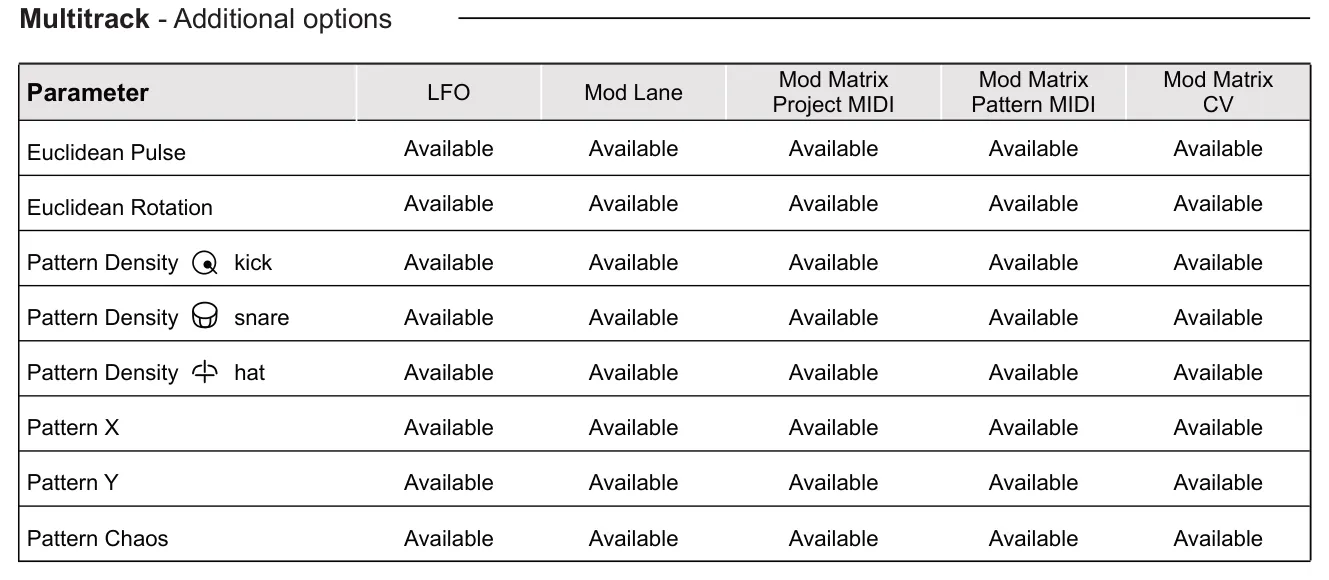
Multitrack - Additional options
Stochastic - Additional options
| Stochastic - Additional options | |||||
|---|---|---|---|---|---|
| Parameter | LFO | Mod Lane | Mod Matrix Project MIDI | Mod Matrix Pattern MIDI | Mod Matrix CV |
| Note Probability | Available | Available | Available | Available | Available |
| Pitch Lock % | Available | Available | Available | Available | Available |
| Rhythm Lock % | Available | Available | Available | Available | Available |
| Positive Div % | Available | Available | Available | Available | Available |
| Negative Div % | Available | Available | Available | Available | Available |
| Higher Octave % | Available | Available | Available | Available | Available |
| Lower Octave % | Available | Available | Available | Available | Available |
Matriceal - Additional options
| Matriceal - Additional options | |||||
|---|---|---|---|---|---|
| Parameter | LFO | Mod Lane | Mod Matrix Project MIDI | Mod Matrix Pattern MIDI | Mod Matrix CV |
| Note Interval | Available | Available | Available | Available | Available |
Saga - Additional options
| Saga - Additional options | |||||
|---|---|---|---|---|---|
| Parameter | LFO | Mod Lane | Mod Matrix Project MIDI | Mod Matrix Pattern MIDI | Mod Matrix CV |
| Accumulator Amount | Available | Available | Available | Available | Available |
| Accumulator Positive Limit | Available | Available | Available | Available | Available |
| Accumulator Negative Limit | Available | Available | Available | Available | Available |
Global Parameters Mod Matrix Options
| Global Parameters Mod Matrix Options | ||||||
|---|---|---|---|---|---|---|
| Parameter | Optimal Range | LFO | Mod Lane | Mod Matrix Project MIDI | Mod Matrix Pattern MIDI | Mod Matrix CV |
| Off | ||||||
| Seq Enable On/Off | 0-127 >Offset = disabled, otherwise enabled | - | - | Available | Available | - |
| Seq Mute | 0-127 >Offset = muted, otherwise unmuted | - | - | Available | Available | - |
| Seq Division | 0-8 1Bar,1/2,1/4,1/8,1/12,1/16,1/24,1/32,1/64 | - | - | Available | Available | - |
| Seq Direction | 0-3 Fwd, Back, Alternate Random | - | - | Available | Available | - |
| Seq Scale | 0-31 Based on scale list | - | - | Available | Available | - |
| Seq Root | 0-11 C, C#, D, D#, E, F#, G, G#, A, A#, B | - | - | Available | Available | - |
| Seq Swing | -40 to +40 | - | - | Available | Available | - |
| Seq Roll | 0-8 Off,1/4,1/6,1/8,1/12,1/16,1/24,1/32,1/64 | - | - | Available | Available | - |
| Seq Loop | 0-127 from start | - | - | Available | Available | - |
| Seq Loop Release | Independent of value | - | - | Available | Available | - |
| Seq Time Stretch | -120 to +120 | - | - | Available | Available | - |
| Seq Time Offset | -100 to +100 | - | - | Available | Available | - |
| Track Init (& Euc Length) | 0-127 | - | - | Available | Available | - |
| Track End (& Euc Length) | 0-127 | - | - | Available | Available | - |
| MOD Lane Enable | 0-1 | - | - | Available | Available | - |
| MOD Lane Offset | -100 to +100 | - | - | Available | Available | - |
| MOD Lane Division | 0-8 1Bar,1/2,1/4,1/8,1/12,1/16,1/24,1/32,1/64 | - | - | Available | Available | - |
| MOD Lane Init | 0-127 | - | - | Available | Available | - |
| MOD Lane End | 0-127 | - | - | Available | Available | - |
| Random Velocity | -100 to +100 | - | - | Available | Available | - |
| Random Oct/Gate | -100 to +100 | - | - | Available | Available | - |
| Random Trig Probability | 0-100 | - | - | Available | Available | - |
| Random Retrigger | -100 to +100 | - | - | Available | Available | - |
| Global Tempo | 0-127 offset set to lowest bpm with CC at 0 | - | - | Available | Available | - |
| Global Fill | 0-1 | - | - | Available | Available | - |
| Global Reset | 0-1 | - | - | Available | Available | - |
| Random Generator | 0-1 | - | - | Available | Available | - |
| Pattern Reload | 0-1 | - | - | Available | Available | - |
| Tap Tempo | 0-1 | - | - | Available | Available | - |
| REC Toggle | 0-1 | - | - | Available | Available | - |
7.10 Quick Assign
Quick assign is a feature which adds an additional layer of configuration for setting up modulation destinations. This speeds up the workflow of connecting a modulation source to a destination as well as giving more life and character to the sequence. Quick assign is available at the destination parameter level for all parameters that are declared as modulatable.
Simply hold [Shift] + long press (Knob) for a destination parameter and the quick assign pop-up page will enable quick configuration of the source modulation. Press [Back] to backup and exit.
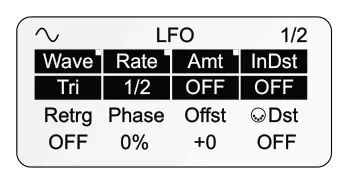
Modulatable Parameters Parameters which can be set as a modulation destination are shown corner tagged on its page.
Example: LFO1 Wave, Rate, Amount are tagged as modulatable.
![7.10 Quick Assign diagram: Quick assign and setup a modulation source. Hold [Shift] + Hold (Knob) > 1s for a modulatable parameter. See modulation destination list as a reference. Quick Assign +](../../img/oxi-one-mkii/modulation/modulation-058.webp)
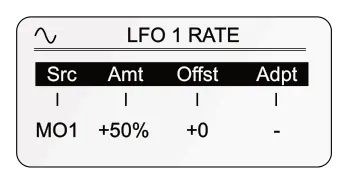
Quick Assign Page The source and modulation settings that will be applied to the selected destination can be configured. The destination selected is displayed in the header.
Example: LFO1 Rate modulated by a patter Modulation lane 1.
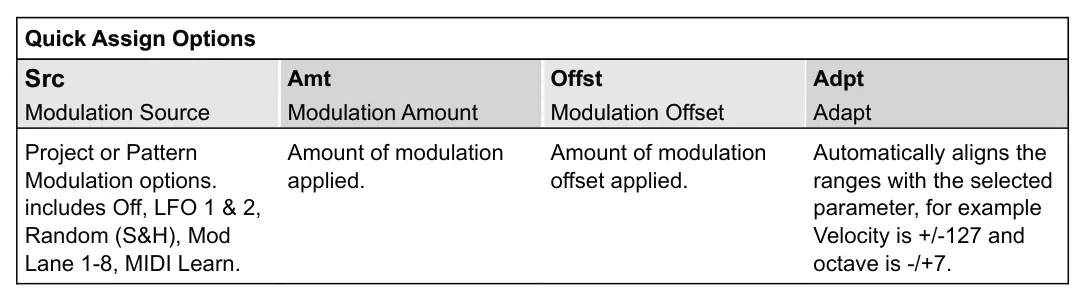
MIDI Learn This is an option useful when quickly assigning external MIDI parameters as the source. With MIDI Learn selected, ONE will listen for incoming MIDI messages. Turn a knob on the external MIDI device and the parameter CC or Note will be recognised and assigned to the 'Src'.

Pattern or Project The source can be applied as a project source, where the source will remain even if a pattern is changed or pattern level which will only operate within the selected project.