



OXI ONE is a battery powered performance orientated sequencer, controller and composition tool. Equally at home on the stage for live performances or in the studio as a tool to help music production and sound design. ONE MKII is an evolution from the original model, Focusing heavily on evolving the sequencers, enhancing the workflow and enhancing with new features. ONE has 8 sequencers, each can be set to one of the unique sequencer modes. Whether creating basic bass lines, intricate melodies or composing drum beats the right tools are in the ONE toolkit. The three most fundamental areas when working with the sequencer are the user interface controls, the pad grid and the display screen. Some controls are dynamic and change based on the context. For example the 4 control rotary knobs will be assigned to parameters based on what function is selected and will display values to reflect these parameters. The grid is an important interface for creating patterns but is also used for editing parameters. The grid is multi purpose and will dynamically change its function to suit the sequencer mode and function selected. This section concentrates the basics of using the ONE sequencers. The content here is Focused on the more generic views and commands than can be applied in most sequencing environments. These are foundation topics that need to be familiarised before moving to more advanced detail later. The unique intricacies or specific details of an individual sequencing mode is covered later.
3.1 What is a Sequencer?
From the perspective of ONE, a sequencer manages, creates, and enables editing of tracks and patterns. The sequencer is the operating environment when building patterns from steps and controls the general sequence playback and performance behavior. Only one sequencer can be selected at a time for editing and building tracks. There are a selection of sequencer operating modes. Each mode offers a set of options and workflow tools that aim to fit the specific creative context. For example, mono mode is ideal for monophonic melodic or bass melodies.
The output created in the sequencer is typically a track. A track is a series of patterns, step events, and parameter settings laid out over a musical timeline that controls the output to an external device. Typically, each sequencer will manage a track, although there are exceptions for multitrack and matriceal mode, where the sequencer modes can manage eight and four tracks respectively. It is helpful to think of a track as an instrument, although technically multiple instruments can be connected to a ONE output. It is a standard practice to have one track represent each external instrument. For example, a poly synth controlled by a poly mode sequencer, a multitrack sequencer with a kick drum, snare and hat using three tracks, and a bass synth in mono mode could be a simple configuration.

3.2 Navigating the Sequencers
The default home location upon start up is the sequencer view. A number of basic commands are generically accessible when working with the sequencers. Note that some controls are unique to the mode selected but typically the following commands are generic.
Sequencer View & Command Options

Selecting a Sequencer
Press to select a sequencer to edit, tap [1] - [8]. Sequencer view allows patterns to be programmed into the grid using the pads to assign steps. The grid pad color will reflect the sequencer selected.
If the [Mute] button is latched on, pressing a sequencer will mute or unmute it. To select a sequencer while mute is latched on, hold [Shift] + tap [1] - [8].

(1) The color scheme of the 1-8 sequencer pads can be selected in the config > workflow menu options. The color of the 1-8 pad when
it is selected will therefore be the based on the multi color or the default turquoise sequencer pad color scheme.
![Sequencer View & Command Options diagram: Activating / Muting a Sequencer + Hold [Mute] + tap [1] - [8]. To mute or unmute one or more sequencers. Transport bar is stopped. When muting, holding [Mute] will delay the mute action for the chosen sequencer until...](../../img/oxi-one-mkii/sequencer-basics/sequencer-basics-004.webp)
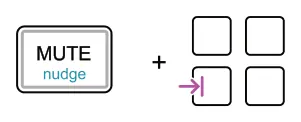
Hold [Mute] + tap any [Pad] in column 1 if the 16 x 8 grid. Muting / unmuting is applied immediately when using this method. Transport playhead continues.
(2) The default behavior is to mute the sequencer upon release of the mute button. The ‘armed’ mute state is indicated by the
sequencer button color. The mute behavior can be changed in the config > performance settings.
Muting a Step

![Muting a Step diagram: + Mute / Unmute a Step. Hold [Mute] + tap [Pad]s.](../../img/oxi-one-mkii/sequencer-basics/sequencer-basics-007.webp)
Operates in mono, poly, chord and multitrack mode.
Tip. Use the alternate method below when muting column 1 steps. Used in conjunction with the [Mute] button, column 1 is reserved for muting the active sequencer, indicated by soft white grid pads.

Alternate option for muting. Use the velocity knob from within the step parameter page which will be displayed while holding a pad.
Hold [Pad] + tap (Vel).

Sequencer view presents the grid as a series of steps formatted to suit the mode selected. For example, mono mode will show each column as a sequential step left to right in time and each row as a note pitch value from within the chosen note scale. Some views of the grid also represent parameter control settings and these are specific to the current operating context. Below are some generic structures and commands when using the grid for sequencers.
Sequencer Grid View & Navigation

Tap knob 2, then turn ↑↓ Alternatively, hold [Track] + turn (Knob 1). Tap [Track] to open track menu, [Shift] + turning (Knob 1) will adjust in octave increments.
Up to 8 octaves can be navigated when scrolling through the grid rows vertically. Rows representing the start and end of an octave will be illuminated when adjusting the octave view.

To adjust the steps in view. Horizontal position
Tap a page button to navigate step ranges 16, 32, 48, 64, button lit white. Double tap to access page ranges 80, 96, 112, 128, button is lit blue. While playing, only the actively playing page will be lit.


Steps are organised across a series of 8 pages covering the total 128 steps per sequencer presented as 16 steps for each page on the pad grid.
![Sequencer Grid View & Navigation diagram: If follower is active, the page viewed will automatically change to track the playhead position dynamically while playing. This can be toggled on or off by, Holding [Shift] + [Track]. When follower is active a ‘F’ is...](../../img/oxi-one-mkii/sequencer-basics/sequencer-basics-014.webp)
3.3 Navigating the Sequencer & Step Parameters
The ONE sequencers have parameters that cover the steps, tracks and the sequencer itself. Some parameters control the global values, affecting say, all steps, while others focus on the individual function for example an individual step. These can be the same parameter but with a change in how it is applied.
In order to understand the overall parameter structure here is an introduction to navigating the available options. Some parameters and pages will be the same across sequencer modes while some are unique to the specific sequencer mode and will be detailed further in the mode description later.
Sequencer Setup
Highest level of configuration for the overall sequencer including the configuration of its operating mode such as mono, poly, chord etc. Generally represents multiple pages of global sequencer settings including MIDI channel, output port, program / bank change, instrument definitions, color and more.

Open the sequencer setup. Hold [Shift] + tap [1] - [8]. These are mode dependant but in general consist of several pages of parameters. Once the menu is open, selection can be changed to another sequencer by pressing its button [1] - [8].

If additional parameter pages exist, the [Page] button will flash. Press [Page] to cycle through available pages. Also use [Shift] + sequencer button to cycle its pages.

Track Setup
General track oriented settings including playback direction, time division and navigation through viewing the grid octave range. Most modes have one track but for modes such as multi the track menu is important to manage the parameters for each of the 8 tracks.

Open the track setup. Tap [Track] button.


Parameters are edited with the respective knob. Some parameters will need to be confirmed by pressing the knob, once editing is complete. These are shown with the down arrow. Parameters that have been edited but the change has not been confirmed as active will be shown with a * symbol.
Step Setup
Step setup typically falls into two sections. Firstly the global settings, applicable to all steps. Secondly the submenu options which apply to individual steps. Some generative modes are not edited on a step by step basis so there may be no step values visible.

Step Global. Access to global step, extended parameters for the selected sequencer, tap [Step] button.


Step Primary Parameters & Step Submenu. Access to the individual parameters only for the selected step, hold [Step] button.
Multistep editing. In some cases multiple steps can be held and edited together. The 'Multipress' header text will be displayed while editing multiple steps.

Cycle through the step primary and step submenu pages for the individual step selected, hold [Step] + tap [Page] button.
The global options for primary parameters are found in the main sequencer view as the default parameters, controlled by knob 1-4. Secondary options, tempo, swing, scale and root are accessible by holding shift button.

The display header carries useful information such as the note, octave, step etc.
Corner tagged parameters indicate a value that can be modulated.
Some parameters can be reset to default. To reset a parameter back to its default setting, press and hold the respective knob for >2 seconds while holding the pad.
3.4 Transport Controls
Transport refers to the three play, stop and record controls. Be aware that these can be operated manually on the panel or may be influenced by external control, for example an external clock. The descriptions here are based on internal synchronization.
Play Button

To play the sequencers, press [Play]. The sequencers will start playing typically from the first step in the pattern unless configured differently. The play button behavior can be reconfigured in the config > performance menu.
| Play / Pause Button Behavior | Access settings by [Shift] + [Config] > Performance | |
| Setting | Command | Description |
| OFF - Default | Play | Button will start playback from the first step. Any other press of play is ignored. Button flashes white and green |
| PAUSE | Play / Pause | Button will start playback. Another press of play will pause playback or restart playback from the paused position. Button flashes green while paused. |
| RESET | Play / Reset | Button will start playback. Another press of the play button will reset playback of the running sequencers to the start position once the punch-in quantization interval is achieved. Punch in quantization is labelled as ‘In’ on page 2/3 of the sequencer setup pages. |
Recording options are based on capturing incoming MIDI data into the sequencers or for selecting step recording on the grid. The process of recording is explained elsewhere and in this section the basic commands are covered

Record. Press [Rec] to activate recording. This is used to record MIDI input or keyboard view data. Press again to exit recording.

Step Recording. To enter or exit step recording, hold [Rec] + press [Play]. The step recording utility will be displayed which offers recording control using the knobs.

Arm Recording. To arm or disarm recording, hold [Rec] + press [Stop]. Arms recording pending a note input. Recording will start when a note is received.

Recording Settings. To enter or exit the recording settings, hold [Shift] + press [Rec]. Also press [Back] to exit the page.

The playback ‘reset’ option controls all sequencers. However, to reset individual sequencers, hold [Shift] + [Mute] + Sequencer [1] - [8] for the sequencer to reset. The reset behavior relies on the punch-in quantization.
The stop button will not only stop the sequencer but can also control the sequencer reset or synchronization. The internal clock haas a 96 PPQN resolution.
To stop the sequencers, press [Stop]. The sequencers playhead will reset to the first step. When play is pressed it will start from this position.
Double tap to clear all MIDI, for example if there are hanging notes.
![Play Button diagram: To reset the sequencers while playing, hold [Shift] + press [Stop]. This follows the same punch-in quantization behavior as described above for the play button, although the play button configuration setting is not...](../../img/oxi-one-mkii/sequencer-basics/sequencer-basics-033.webp)
The sequencer will display the status of the playback with the transport buttons but also with the white play head cursor. This will show the current steps played as it travels in the playback direction. Given that the pattern may extend beyond the 16 step default, follower option can be selected. This will automatically follow the playhead across each page.
Follower Option
Toggle follow function on or off by Holding [Shift] + tap [Track]. When on the grid pages will change to follow the playhead. When off the pages will remain static, as selected. This is useful if editing on the fly. Display will show a ‘F’ symbol in the display header when on.

When ONE is not set as the primary controller and with enabled in the config > MIDI settings, pressing the Play, Stop and Record buttons can output a MIDI CC message on port A. These are Stop = CC 105, Play = CC 106 and Rec = CC 107.
3.5 Mute and Activation Behavior
The sequencer can be active, inactive, muted or unmuted. The behaviour of the mute button for this purpose can be configured in the settings. An active / inactive sequencer refers to the entire sequencer transport. When inactive, transport will be stopped, no steps triggered and hence is also muted as there is no output. Only an active, unmuted sequencer will issue control and note signals over the MIDI channel and physical outputs. Muting an active sequencer will still allow transport control but no control signals or notes are sent to the physical outputs. Also check settings for other muting configurations.
The [Mute] button is used to control muting and activation of sequencers. This is usually held along with the sequencer, step or track pads, however the mute button can be latched. Double tap [Mute] to latch the mute button on or to unlatch it off. Any subsequent commands while latched on, i.e. Tapping Seq [1] - [8] will operate as if the mute button is held.

X 2

![3.5 Mute and Activation Behavior diagram: Toggle on Release (Default Config) Activate / Deactivate + Hold [Mute] + Tap [1] - [8]. To activate or deactivate one or more of the sequencers. The action takes place only when the [Mute] button is released. While...](../../img/oxi-one-mkii/sequencer-basics/sequencer-basics-038.webp)
![3.5 Mute and Activation Behavior diagram: Toggle Instant (Config Option) Activate / Deactivate + Hold [Mute] + Tap [1] - [8]. To activate or deactivate one or more of the sequencers. Transport playhead is stopped. Muting / unmuting is applied immediately...](../../img/oxi-one-mkii/sequencer-basics/sequencer-basics-039.webp)
![3.5 Mute and Activation Behavior diagram: Mute on Release (Config Option) Mute / Unmute + Hold [Mute] + Tap [1] - [8]. To mute or unmute one or more of the sequencers. Transport playhead keeps running. Muting / unmuting takes place only when the [Mute]...](../../img/oxi-one-mkii/sequencer-basics/sequencer-basics-040.webp)
![3.5 Mute and Activation Behavior diagram: Mute Instant (Config Option) Mute / Unmute + Hold [Mute] + Tap [1] - [8]. To mute or unmute one or more of the sequencers. Transport playhead keeps running. Muting / unmuting is applied immediately when pressing this...](../../img/oxi-one-mkii/sequencer-basics/sequencer-basics-041.webp)
![3.5 Mute and Activation Behavior diagram: Alternative Mute Sequencer & Mute Track Options (Default) Hold [Mute] + Tap any [Pad] in column 1 of the 16 x 8 grid. Transport playhead continues as normal. This is an alternate way to mute and unmute a sequencer...](../../img/oxi-one-mkii/sequencer-basics/sequencer-basics-042.webp)
3.6 Sequencing Steps
In most modes the programming of steps in a sequencer is performed by using the 16 x 8 grid pads. In some modes and views the pads may also be used for applying parameter changes, however here we explain the general process of programming steps on the grid. Note that the color scheme in view will depend on the sequencer selected. Ensure the desired sequencer is selected for editing.
![3.6 Sequencing Steps diagram: Creating Steps Grid represents 16 columns of steps and 8 rows of notes. The view can be navigated by the page buttons and scrolling the octave ranges. Activate or deactivate a step. Quickly tap [Pad]. (1) Hold Tap...](../../img/oxi-one-mkii/sequencer-basics/sequencer-basics-043.webp)
(1) When a step is deactivated the parameters that have been applied will be cleared. This is default behavior. This can be changed in
the config > workflow settings to remember the parameter changes for a step when deactivated and to restore them back if the step is reactivated later. This is useful for preparing steps before making them active, especially when performing live.
(2) Steps can also be tied across pages. To tie steps, keep hold [Pad] on the first page, press the [Page] for the end location. While
still holding the first step, press [Pad] for the end of the tie on the new page. Ties must be made on the same row and octave. The tie setting is also available in the gate parameter values. When setting a tie using grid pads, ensure the pads are held / tapped in the correct sequential order as stated in the command. Tapping a pad within a tie will split the tie and create a new step.
(3) When applying the reverse tie, ie. Last + first pad, the steps will be populated between the two pads. The behavior of these steps is
configured in the Config > Workflow > Inverted TIE gesture Fills or Random setting. If set to ‘Random’, notes are populated as random values. If set to ‘Fill’ the equivalent note value is populated as a fill in each step. This option can also be set to ‘Off’.
Editing Step Parameters
Edit an active step’s parameters. Hold active [Pad] + turn (Knob).
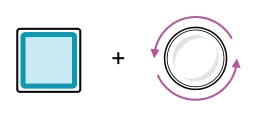
Parameters are displayed in the home sequencer view (4). Includes; velocity, octave, gate & trig, edited with knobs 1-4.

Edit an inactive step’s parameters. Hold inactive [Pad] + turn (Knob).
To change parameters before making a step active. Used when config is set to not remove parameters when clearing steps. (1)

Access to an additional set of sub-menu and more advanced parameters. Also access using [Shift] + [Pad].
Hold [Pad] + [Page].
(4) Steps placed on the grid will adopt the current global parameter settings. Any edits to the global parameters will be automatically
applied to all existing steps, the change applied is relative to its original value and the range of values will be displayed. Steps can be edited individually by holding the step and adjusting the knob for the specific value.
3.7 Global Sequencer View Parameters
In sequencer view, a set of generic parameters that can be edited directly with the rotary encoder knobs. In addition the grid column pads can be used as a parameter editor for each option that is selected. The primary parameters can be adjusted globally for all steps or some can be edited at an individual step level when holding a step pad. Secondary parameters mainly focus on global or sequencer settings.
The primary global setting will:-
- Set the parameter value when subsequently laying down individual steps.
- Adjust the value of any existing step values relative to their current value. If this is a multitrack, then all steps on the selected track are affected. Individual step values can also be edited separately. Some other views and sequencer modes may change the default functions of these controls.
![3.7 Global Sequencer View Parameters diagram: Global Controls Primary Parameter Direct access Velocity Octave Gate Repeat Secondary Parameter Hold [Shift] Tempo Swing Scale Root 1 3 2 4 Turn or Shift + turn to edit a value Adjust Value Adjust Value Adjust Value...](../../img/oxi-one-mkii/sequencer-basics/sequencer-basics-047.webp)
![3.7 Global Sequencer View Parameters diagram: Octave Parameter The octave can be adjusted using the [Oct] knob. This is the base octave on the grid for the selected sequencer and ranges from -2 to +7 based on the root selected. Edit root by holding shift and...](../../img/oxi-one-mkii/sequencer-basics/sequencer-basics-048.webp)
50% INT F
MONO 105.0
Pattern 3
1/16 CHROMATIC - C2
Velocity, Gate & Repeats Parameters

The global values for velocity, gate and repeats are shown as a lower and upper range if multiple steps are selected with different values for editing. The values are based on the lowest and highest value from the steps already placed on the grid. If no steps exist, the default is used. When editing these global values the existing step values will change relative to the adjustment made. The value range will compress when adjusting at the upper and lower limits, also reflected in each step value. For example, the velocity upper limit is 127 and all steps will change to this value if editing the global velocity to the maximum level.
Global Vel:
| Sequencer View Parameters | ||||
|---|---|---|---|---|
| Parameter | Label | Command | Range | Description |
| Velocity | VEL | (Knob 1) | 1 - 127 Default 75 | Controls the trig envelope amplitude for the output affecting the CV level. Global velocity sets a lower - upper range based on existing step values to allow relative changes. Hold a step pad to edit the individual step value. Tap for the step velocity grid column view to edit the active velocity using the grid column pads for each step. |
| Octave | OCT | (Knob 2) | -C2 to +C7 Default C2 | The global octave assigns a base octave range (not the note) for the sequencer grid notes. Individual step value can also be set as a octave value offset up or down from this global base octave. Tap to toggle the knob to control scroll navigation up/down the grid or to reset back to the default view. |
| Gate | GATE | (Knob 3) | 2 - 99, Tie or Legato Default 50% | Sets the duration of the note with respect to the sequencer note division using the envelope decay time. The global option is set as lower - upper percentage range based on any existing step values in order to allow relative changes. Example, a 50% value for a note in a 1/16th division pattern will last for half the time division, giving a 1/32 note length. Tap for step gate view and to edit the active step gate value using the grid column interface. Hold a step pad to edit an individual step. Also applies a tie or legato setting. |
| Repeat | REPT | (Knob 4) | 1 - 15 Default 1 | Turn to adjust the lower - upper values for the repeat option. This will activate a selected number of repeats at the note interval. This can be set between 1-15 repeats. The grid pad column view also gives access to the retrigger option. Retrigger can activate between 1-8 ratchets within the note duration. |
| Tempo | BPM | [Shift] + (Knob 1) | 20 - 300 Default 80 | Sets the global beats per minute for all sequencers. This is used as the internal clock but internal tempo is not used if an external clock is selected. Tap tempo can also be applied. |
| Swing | SWNG | [Shift] + (Knob 2) | 10 - 90 Default 50 | Swing introduces a more natural and slightly off grid feel to bring interest to the rhythmic groove of a sequence. Increasing swing above 50 will push some notes slightly late and lowering the swing below 50 pulls some notes slightly early. Default of 50 means no swing is applied. Each sequencer can have its own unique swing setting. |
| Scale | SCAL | [Shift] + (Knob 3) | Options Default Chromatic | Selects a scale for the sequencer. A library is available from which to choose. The behavior of the scale function is also dependant on the scale quantization setting. |
| Root | ROOT | [Shift] + (Knob 4) | C-2 to B7 Default C2 | Selects a root note for the sequencer. This is typically represented by the bottom row of the grid in most modes. |

3.8 Velocity
Velocity represents how hard an instrument's note is played. Think of the effort applied when playing piano keys. Velocity is therefore considered modulation, and when sequencing, notes can be set to a global value or step value between 1-127. This can be applied to a destination instrument for example with MIDI to a synth or out to CV.
Velocity can be edited globally using the encoder knob 1 or set on a per step basis. The grid pad column editor can also be used to modulate the velocity values. Global velocity is default when turning to edit. For step velocity, hold a step and turn velocity. Tap the knob to open the respective pad column editor. Velocity affects the amplitude of the attack / decay output envelope. Velocity lanes are independent meaning the start and end points can be set differently between velocity and the note lane.
Global Velocity Editing
Changing global velocity will alter the range dynamically across all existing pads relatively or set a value that will be used for placing subsequent steps where the lower velocity value in the range is used.

Step Velocity Editing
Placing new steps will apply the current lower global value for the step velocity. Any changes to the global velocity will adjust all of the existing steps relatively. Editing the velocity for individual steps is also possible while holding the chosen step.
![Step Velocity Editing diagram: 1/3 Stp 2 D2 Vel Oct Gate Trig Hold step [Pad] + turn knob 1 (Vel). 1 + 75 +0 50 100%](../../img/oxi-one-mkii/sequencer-basics/sequencer-basics-052.webp)
Note that holding step and tapping knob 1 (Vel) will also mute or unmute the selected step.

Open the grid column editor: Tap knob 1 (Vel). To temporarily view the editor, Hold knob 1 (Vel).
Tap a pad up or down the column to adjust the respective step’s velocity level. Tapping an empty column, i.e. no step, will add a step at the velocity level selected. Steps can also be removed by tapping the bottom column pad to remove the step.
3.9 Gate
Gate represents the duration that a note is played, controlled on a step basis or extending across multiplr steps by tying a series of steps on the same row together. Legato creates a glide between steps. When sequencing, gate can be set to a global value or step value between 2-99. Consider the destination envelopes too.
Gate can be edited globally using the encoder knob 3 or set on a per step basis. The grid pad column editor can also be used to change the gate modulation values. Global gate is default, hold a step and turn for step gate and tap the knob to open the respective pad column editor. Gate affects the decay of the attack / decay output envelope. Gate lanes are independent meaning the start and end points can be set differently between velocity and the note lane.
Global Gate Editing
Changing global gate will alter the range dynamically across all existing pads relatively or set a value that will be used for placing subsequent steps where the lower value in the gate range is used.

Step Gate Editing
Placing new steps will apply the current lower global value for the step gate. Any changes to the global gate will adjust all of the existing steps relatively. Editing the velocity for individual steps is also possible while holding the chosen step. As well as a gate length and tie, a note can be set to LEG - Legato to create a seamless pitch glide between sequential notes.
![Step Gate Editing diagram: 1/3 Stp 2 D2 Vel Oct Gate Trig Hold step [Pad] + turn knob 3 (Gate) slowly. + 3 75 +0 50 100% [Pad] + Turn knob 3 (Gate) quickly clockwise to set a tie. [Pad] + Turn knob 3 (Gate) quickly counter-clockwise to break...](../../img/oxi-one-mkii/sequencer-basics/sequencer-basics-055.webp)
Tap up or down the column to adjust the respective step’s gate length. Tapping an empty column will add a step at the gate level selected. Steps can also be removed by tapping the bottom column pad to remove the step. Tap a top row pad to select a tied step, the following columns set the tie duration.
3.10 Repeat & Retrigger
The repeating of triggers during playback is a creative behavior option that can be applied in ONE and is controlled in two ways. Repeat can be set at a global and step level. This will replicate the playback of a triggered note at a defined number of iterations across a step duration. Assigning the ‘skip’ option to an individual step will ignore the step timing, shortening the sequence.
Retrigger is a variation on the repeat behavior typically controlled at global level to create a ratcheting effect over a step interval. Retriggers can be transitioned to repeats in the extended step menu.
Global Repeat & Retrigger Editing
Direct adjustment of the repeat knob 4 will affect the number of repeats across all steps. Tapping knob 4 will switch to the retrig / repeat grid column editor. Turning knob 4 directly affects repeats. A setting of 1 means no retrigger or repeats, just playback of the single original step.

Grid Column Repeat Editor
In the pad column editor, turn (Rept) Knob 4 to adjust the retrigger’s or alternatively tap up or down the column to adjust the respective step’s retrigger. To adjust the repeats in the column editor view, hold [Shift] while adjusting Knob 4 or by tapping a column [Pad] for repeats and [Shift] + [Pad] for repeat duration indicated by red pads. The repeat modulation lanes are independent to the note lane.

| R | ||||||
| D | u | ra | t | ion | ||

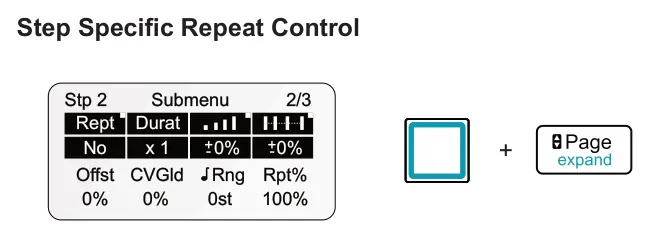
When working with individual steps a set of extended options exist which include more precise step repeat control. This submenu can be found by holding the [Pad] + tapping [Page] to cycle through the extended page options.
![Grid Column Repeat Editor diagram: Tap the respective knob to switch between editing the upper and lower parameters. Keep [Pad] held to edit the parameters using the four knobs.](../../img/oxi-one-mkii/sequencer-basics/sequencer-basics-060.webp)
| Step Repeat Parameters | |||
|---|---|---|---|
| Rept Repeats for the step | Durat Step Duration | Ramp Repeat velocity ramp | Acceleration Repeat acceleration |
| Set the number of step notes in order to create repeats. Set to ‘Off’ or to a defined number of repeats 2-15 or to skip the step. | Sets the number of steps that the repeat is extended over. | Applies a ramp up 0 to +70% or ramp down 0 to -70% of the velocity across the repeats. | Applies acceleration 0 to +28% or deceleration 0 to -28% of the the repeat timing. |
| Offst Timing Offset | CVGld CV Glide | Rng Randomized Note Range | Rpt% Repeat probability |
| Note timing offset -45% to +45%, based on the time division of the grid. | Sets glide amount between repeats to introduce a smooth note transition. Only used for CV as MIDI doesn't support. | Sends a random note with pitch variation. The note generated is within the active, -/+24 to 0 to +24 scale interval range *. | Probability and logic conditions which activate repeat notes events or not. |
* While the range is generally stated as 'st', semitones, the actual interval is based on the relationship between notes in the currently active scale. The +/-
24 therefore is a note interval between notes in the scale and not strictly semitones
Repeats & Duration
The ‘Rept’ parameter sets the amount of repeats that will be applied in the step period. This starts at a maximum of 8 at x1 duration but expands up to 15 when the duration value is increased. The length of the repeat chain can be extended over a duration covering multiple steps. This is set using the ‘Durat’ parameter with options ranging from x1 to x15 steps.


Duration. The same retrigger count can be adjusted using a duration covering a longer step length. Example shows 4 retriggers and x8 duration.
Velocity Ramp, Acceleration and Probability
The option to change the repeat behavior is also possible by ramping up or down the velocity of the repeats, set over a +/-70% range. Here less is more, so try smaller values first. In addition the repeat intervals can be accelerated or decelerated from the initial step and over a +/-28 range.

Probability % & Logic Conditions. A trigger condition parameter can also be set which determines if and when a repeat action is activated along with the step trigger, or not.
3.11 Trigger Probability
Trigger probability, labelled ‘Trig’ in the step parameters, is only available at a per step level. Holding one or more steps will allow the trig parameter to be edited using knob 4 for these steps. One trig condition is set per step. Trig value is evaluated on each cycle of the sequencer, commencing from pressing play and then sets whether the step will be triggered or not. The same model is applied for the repeats engine and any other probability functions.
![3.11 Trigger Probability diagram: 1/3 Stp 2 D2 Vel Oct Gate Trig Hold step [Pad] + turn knob 4 (Trig). 4 + 75 +0 50 100% Hold step [Pad] + Push / hold knob 4 (Trig). Reset the trig value to either 100% or Fixed lock 4 + Knob 4 will set the global...](../../img/oxi-one-mkii/sequencer-basics/sequencer-basics-064.webp)
Probability %
Trig can be assigned a probability % value which sets how likely it is for a step to trigger or not. Default is 100% meaning a step will trigger on each sequence cycle as normal and 0% will never trigger. Anything in-between will trigger in a random style frequency based on the %. For example, 50% doesn't trigger predictably, once every other cycle, but generally it will trigger 50% of the time on average.

A:B Logic Condition
The logical options offer a predictable application variation into a pattern when triggering notes on sequencer count cycles. The A represents the number of the cycle that will trigger the step. The count is reset after sequencer completes cycle number B.
Options: 1:2, 2:2, 1:3, 2:3, 3:3, 1:4, 2:4, 3:4, 4:4, 1:5, 2:5, 3:5, 4:5, 5:5, 1:6, 2:6, 3:6, 4:6, 5:6, 6:6, 1:7, 2:7, 3:7, 4:7, 5:7, 6:7, 7:7, 1:8, 2:8, 3:8, 4:8, 5:8, 6:8, 7:8, 8:8


PRE activates this trig on the chosen step only when the nearest prior step condition is true. This check refers to the previous, most recent trigger condition state and is not based purely on whether the prior step itself is active or not but it depends on its trigger state. This step will not trigger if the prior trigger condition is not met i.e. ‘false’. If set to ‘Not Pre’ i.e. PRE, the step will trigger if the prior trigger condition is ‘false’.

Examples:


1st activates this trigger on the chosen step only on the first sequencer cycle. This step will not trigger the step when playing subsequent consecutive sequencer cycles. If set to ‘Not 1st’ i.e. 1st, the step will trigger on all cycles of the sequencer other than the first cycle where it does not trigger.

Fixed Logic Condition
When set to ‘Fixed’, the step is always triggered but cannot be modulated or affected by a randomization sources such as Euclidean and random generators. The normal behavior will typically be similar to a 100% probability. Hold [Pad] step + Hold Knob 4 (Trig) to toggle between 100% probability and fixed settings.
Locked Logic Condition
When set to ‘Locked’, the step is always triggered but cannot be modulated or affected at all. Sources including Euclidean and random generators do not affect a locked step. The normal behavior will typically be similar to a 100% probability. A lock symbol will be shown in the step display header.

ONE has a dedicated [Flow] button which is used to allow triggering of various actions including selected notes, passages and fills. The basic principle is that any step with the trig parameter set to FLOW will only play in its sequenced order, while the flow button is held. Otherwise the steps will not trigger if the flow button is released. In contrast, when set to ‘No Flow’ FLOW, the steps will play as normally unless the flow button is held, in which case these steps remain silent during the sequence.
![Locked Logic Condition diagram: Examples: Steps assigned with a flow condition will only apply the condition while holding [Flow]. Steps Trig set to FLOW Steps Trig set to FLOW](../../img/oxi-one-mkii/sequencer-basics/sequencer-basics-076.webp)
![Locked Logic Condition diagram: Hold [FLOW] to trigger these steps as the sequencer plays Hold [FLOW] to silence these steps as the sequencer plays](../../img/oxi-one-mkii/sequencer-basics/sequencer-basics-077.webp)

Building patterns with logical conditions can create interesting an almost generative style patterns, especially when combining the logical conditions across multiple steps in a sequence.
3.12 Tempo
Tempo is a global function which sets the speed of playback for all sequencers collectively and is found in the sequencer view secondary parameters. This is set in beats per minute ranging from 20 BPM up to 300 BPM. The default is 80 BPM. Tempo is only used and accessible for internal clock synchronisation and is ignored if an external sync is selected.

To adjust the tempo, hold [Shift] + turn knob 1 (BPM). This will set the global tempo in beats per minute. This value is shown prominently on the display. Adjust quickly for large increments and slowly for smaller, point increments.
To reset the tempo, hold [Shift] + tap knob 1 (BPM). This will reset the global tempo in beats per minute to the default 80BPM.

To tap a tempo value, hold [Shift] + tap [Play] several times. The number of taps to average is selectable in the config > performance menu.
Tempo can be adjusted while playing, but cannot be reset while playing.

To nudge the tempo up in beats per minute, hold [Mute] + hold [Play]. The tempo will increase while the button combo is held. Release the buttons to immediately revert to the original BPM tempo.

To nudge the tempo down in beats per minute, hold [Mute] + hold [Rec]. The tempo will decrease while the button combo is held. Release the buttons to immediately revert to the original BPM tempo.
Nudging the tempo is useful for beat matching when DJ mixing or when synchronising to other instruments.
Tempo is saved with the project. A project can be loaded during playback and as such the tempo will be applied from the loaded version. This may differ from the current tempo. There are two key options to consider for tempo when working with multiple projects:-
- Load Project BPM update during playback. Located in the config > performance options this can be set to ‘Yes’ or ‘No’. If set to ‘Yes’ the BPM will change automatically for the playing project immediately upon loading the new project.
- Global Launch Quantization. Defines the behaviour of various functions during a launch state including project launch. Determines when a new project will load after it is selected during playback of the current project. This is set in the launch settings of the arranger page and can be set to the number of bars for a pattern cycle before the new project is launched.

Tempo is a global parameter than can be modulated from an external MIDI CC controller. This is setup in the OXI ONE using the MIDI mappings configuration found in the ‘ext mod’ options accessed with [Shift] + [Mod], and by using the ‘PARA’ option.
3.13 Swing
Swing is a function which slightly adjusts the notes of a pattern in order to introduce a more natural and subtle rhythmic feel into the notes of pattern. This adds a minor shuffle with a less mechanical and rigid style.
Swing can be adjusted per sequencer or per track and is set to a value between 10-90. The default value is 50 which represents no swing applied. Select the sequencer to edit before applying swing.

To adjust the swing, hold [Shift] + turn knob 2 (Swng). This will set the swing for the selected sequencer between 10-50. This value is shown prominently on the display.

To reset swing, hold [Shift] + tap knob 2 (Swng). This will reset to the default value of 50 - no swing.

Swing behavior is also relative to time division and signature. As a general guide, swing will push some notes slightly back or ahead of the rigid grid.
- Swing > 50. Increasing the swing value will push some notes later in the time line of the grid giving a more lazy, relaxed feel and adds anticipation. Maximum is 90.
- Swing < 50. Decreasing the swing value will pull some notes earlier in the time line of the grid giving a more hurried, quicker feel and adds urgency. Minimum is 10.
3.14 Scale and Root
The sequencer view grid rows typically represent notes in most of the sequencer modes and especially per track. The mono mode for example starts with note C2 on the bottom row up to G2 top row when set to the default scale of Chromatic C2. The scale and root note can be changed for each sequencer and presented on the grid. The currently selected scale is retained when changing sequencer modes.
Scale is selectable from an onboard library of scales or one of 16 user scales, created and loaded from the OXI App. Scale will also be used for scale quantization and the harmonizer function.

To select a scale, hold [Shift] + turn knob 3 (Scal). This will set the scale for the selected sequencer.
To reset scale to the default, hold [Shift] + tap knob 3 (Scal). This will reset to the default CHROMATIC scale.
If the config > workflow option - ‘confirm scale change and quantize notes’ is set to ON, you will need to press Knob 3 after editing the scale to confirm. In this mode, the scale will be shown with an asterisk ‘*’ if it has been changed but is unconfirmed, in which case the original scale remains active.

To select a root, hold [Shift] + turn knob 4 (Root). This will set the root note for the selected sequencer.
To reset root to the default, hold [Shift] + tap knob 4 (Root). This will reset to the default C2 note.


The editing of the scale and root can be locked during playback which protects from accidentally changing the settings when performing with ONE. This is a setting found in the config > workflow options.
| Scale Options | |||
|---|---|---|---|
| Label | Scale | Label | Scale |
| HARMON | Harmonizer Option | PERSIAN | Persian |
| CHROMATIC | Chromatic | DIMINISH | Diminished |
| MAJOR | Major | PHRYGDOM | Phrygian Dominant |
| MINOR | Minor | BYZANTINE | Byzantine |
| DORIAN | Dorian | SpainPHRY | Spanish Phrygian |
| PHRYGIAN | Phrygian | NeapolMIN | Neapolitan Minor |
| LYDIAN | Lydian | NeapolMAJ | Neapolitan Minor |
| MIXOLYDIAN | Mixolydian | UKRANDORI | Ukranian Dorian |
| LOCRIAN | Locrian | USER 1 | User Configurable |
| PENTAMAJ | Major Pentatonic | USER 2 | User Configurable |
| PENTAMIN | Minor Pentatonic | USER 3 | User Configurable |
| HARM MIN | Harmonic Minor | USER 4 | User Configurable |
| MELODIC | Melodic Minor | USER 5 | User Configurable |
| BLUES | Blues | USER 6 | User Configurable |
| ARABIAN | Arabian | USER 7 | User Configurable |
| ROMANIAN | Romanian | USER 8 | User Configurable |
| BALINESE | Balinese | USER 9 | User Configurable |
| HUNGAR 1 | Hungarian 1 | USER 10 | User Configurable |
| HUNGAR 2 | Hungarian 2 | USER 11 | User Configurable |
| ORIENTAL | Oriental | USER 12 | User Configurable |
| RAGATOE | Raga Todi | USER 13 | User Configurable |
| CHINESE | Chinese | USER 14 | User Configurable |
| JAPAN 1 | Japan 1 | USER 15 | User Configurable |
| JAPAN 2 | Japan 2 | USER 16 | User Configurable |
User scales can be created and loaded from the OXI App.
Copying Scale & Root between sequencers
It is possible to copy the scale or root in the current sequencer and paste into another chosen sequencer using the copy and paste commands along with the respective knob.

To copy a scale, hold [Copy] + tap knob 3 (Scal). This will copy the scale for the selected sequencer. This process can also be applied to knob 4 for the root.

To paste a scale, hold [Paste] + tap knob 3 (Scal). This will copy the scale to another selected sequencer. This process can also be applied to knob 4 for the root.
Master Scale & Root
One sequencer can be assigned as the master scale and root reference. All other sequencers will be automatically set to the global scale at the point of the global scale sequencer being assigned. Sequencers can be edited independently afterwards. Exceptions are multitracks in chromatic mode or sequencers set to harmonizer which will retain their original setting. The master sequencer is assigned in the project options.
Set the master sequencer in: Project > 'Scale Master Seq'.
Scale Quantization
The way that scale operates in ONE is dependant on the scale quantization setting. One of two options can be set in the config > workflow which determines the scale behavior.
Set in: Config > workflow option: ‘Confirm scale change and quantize notes’
| Confrim scale change and quantize notes | |
|---|---|
| Setting | Description |
| OFF - Default | Scale changes will be applied immediately when edited with the ‘Scal’ knob 3. No confirmation is required. Existing sequencer steps remain in their original position on the grid. Existing steps may therefore be set to another note in the new scale. Intervals remain the same. No quantization is applied. Good for experimenting and browsing through scales. Pressing [Shift] + (Scal) Knob 3 resets the scale to the chromatic default. |
| ON | Scale changes will only be applied when confirmed by holding [Shift] + pressing (Scal) - knob 3. If a scale is selected but is unconfirmed, an asterisk ‘*’ is displayed, and the original scale remains active. When the scale is confirmed, sequencer steps are quantized to the new notes in the scale. This means existing steps are moved and relocated in the new scale grid to a note as near as possible to those set in the original scale. Better for switching between scales directly and maintaining a musical transition. |

Note Incoming notes from an external MIDI device or the internal ONE keyboard will also be quantized based on the scale quantize setting.
3.15 Sequencer Behavior
The sequencer settings include a number of configuration settings, most of which are covered under the relevant topic in the manual. It is useful to understand some of the fundamental synchronization and transposition behaviours of the sequencers.
These are part of the sequencer settings pages which are accessed using [Shift] + Seq [1] - [8] and tapping [Page] to navigate pages.
Punch-In Quantization
Punch-in quantization is basically the countdown that takes place before a sequencer is made active using mute or starts playing after pressing play. For example unmuting / activating or resetting a sequencer. This countdown synchronizes the sequencers and manages the playback timing to restart the transport bar at step 1. This setting is saved with the project.
The punch-in parameter is called ‘In’ and is set using knob 1. The symbol suggest that playback may be interrupted or delayed slightly if changing this setting on-the-fly.

'In' Parameter Options
- Glob. Global uses the global / load quantization set for the project. Global / load quantization is set in the arranger options and is used for project and pattern loading. Glob is the default ‘In’ setting.
- OFF. Turns punch-in quantization off. Play or reset is performed immediately.
- P.End. Resets or starts playback at the end of the current pattern.
- Beat, ½ Bar, Bar, 2, 4, 8 Bars. Resets or starts playback at the end of the period selected.

MONO 105.0
Pattern 3
Reset
Reset will define if or how the playback of the sequencer is automatically reset during playback. This can be set between Off, 1 - 64 bars and defines how long the pattern will play before reseting to the start. This a useful feature for re-synchronising patterns and especially multitrack tracks when time divisions are adjusted. Reset is adjusted using (Reset), Knob 2. This is related to the internal sequencer and does not relate to the physical analog output.

Sequencer Settings - Page 2
The (Reset) Knob 2 option sets the duration of playback before reseting the sequencers.
Transpose
Enables or disables the note transposition from an external device on the sequencer. Transposition is based on the root/base note of the sequencer or track. When this is in operation the incoming notes do not affect the arp, recording etc. Note off is ignored. Transpose operates even if MIDI channel filtering is off.

Sequencer Settings - Page 2
The (Trnsp) Knob 4 option sets MIDI behavior for transposing the sequencers.
'Trnsp' Parameter Options
- Off. Disabled.
- Same. Evaluates the incoming MIDI note and checks the match of its channel to the equivalent channel sequencer for transposition.
- Ch 1 - Ch 16. All notes are used from the respective channel to transpose the pattern. Sequencers can be set to the same MIDI channel which can then be used for collective transposition when a note on message is received.
Bank
Bank defines the MIDI bank LSB or MSB number that is transmitted on the sequencer MIDI channel and output destination when a pattern is loaded. Also operates in the arranger. The bank setting must be confirmed by tapping the knob after editing.

Sequencer Settings - Page 2
The (Bnk) Knob 3 option sent a MIDI bank message. Tap knob to confirm selection.