This final section if more about configuration and setup of the OXI E16. However don't overlook these topics as there are lots of useful topics that will be valuable and help your workflow. Here, the firmware updates are covered along with the OXI App and a complete overview of the configuration options. There are some useful elements that will be important to know, if not now, then certainly in the future. It is recommended that you at least familiarise yourself with the content and features covered here for future reference and awareness. To finish, OXI Instruments would like to issue a heartfelt and big thank you for buying OXI E16 and following our journey as new devices join the OXI family and its associated ecosystem of gear. Good luck with your musical adventures; hopefully, OXI E16 will join the OXI ONE, Coral, Meta and all the other gear to help your musical journey. Remember, things don't end here; only the manual does. The real journey is only just starting. Have fun!
5.1 OXI App
Most device management activities when working with the OXI gear are handled using the OXI App. This is a stand alone utility that, when connected to an OXI device will help update, backup and transfer data between the device and a PC or Mac. The app also contains some useful tools such as the ability to configure the E16 directly from the App, to create and load instrument definitions and write scripts.
Download the App from the OXI site.
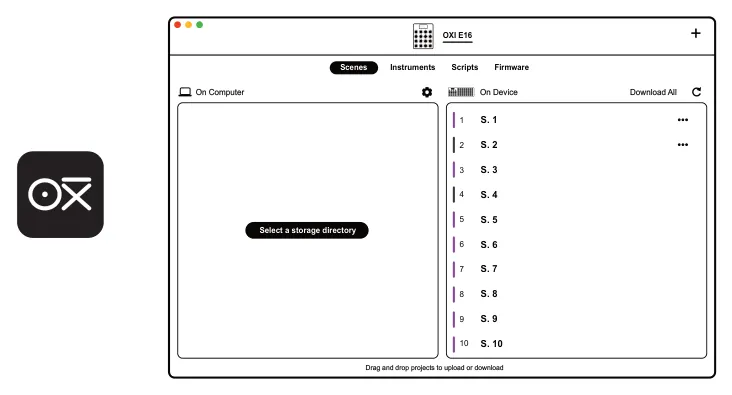

Click Here to Download the App
The OXI App can manage operations between a PC / Mac and E16:-
- Manage and backup scenes.
- Edit and create scenes in the on-board scene editor.
- Manage instrument CC definition files between devices.
- Create and load scripts.
- Check the available firmware in comparison with the OS installed on the connected e16 and perform an update to the firmware on the device.

The OXI App is a tool used for several OXI devices. The devices can be selected with the '+' button top right. For example the OXI ONE and ONE MkII can all be connected to the App. Also instrument definitions and scripts are managed and can be created directly in the App.
Scene Management
The option to set a storage directory is available which assigns a folder on the PC/Mac as the storage location for E16 files and data. Scenes can be copied from E16 to / from a PC/Mac using the drag and drop options in the ‘Scene’ tab menu.
Scenes Tab
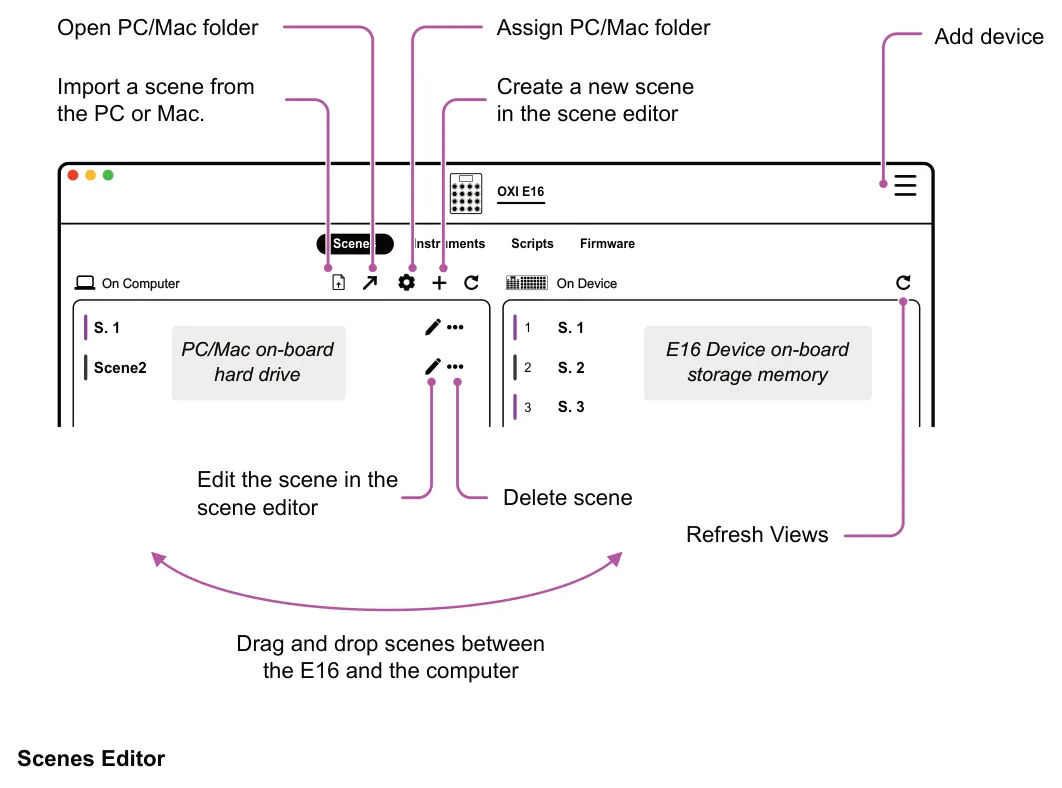
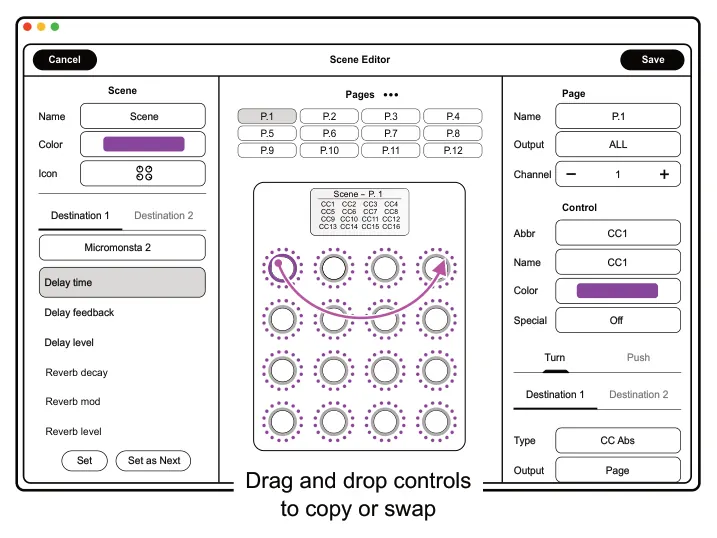
The App scene editor speeds up the E16 configuration and workflow enormously. While editing on the device is quite easy, the App presents all of the setup data in one place and makes it even quicker to get going. It is recommended to use the App for getting the E16 initially configured and then make any required individual changes on the device going forwards.
The scene icon can also be changed from the available symbol library or new icons created when clicking the icon in the app. Controls can be copied or swapped by dragging and dropping the control.
5.2 Instrument Definitions
An instrument definition is a predefined configuration for MIDI CC mapping to external devices. Instead of manually setting up each CC to control an external device parameter, the instrument definition for the specific device will map the parameters automatically and apply their names. This saves time and is an efficient way to work with MIDI continuous control messages for external gear.
OXI E16 Instrument definition is selected in the destination 1, 2 or push destination settings for any of the controls. This examples show Audiothingies MicroMonsta2 connected by MIDI and the CC control can be performed from E16 without manual configuration. Restart the E16 after transferring instrument definitions for them to be visible and accessible in the E16.
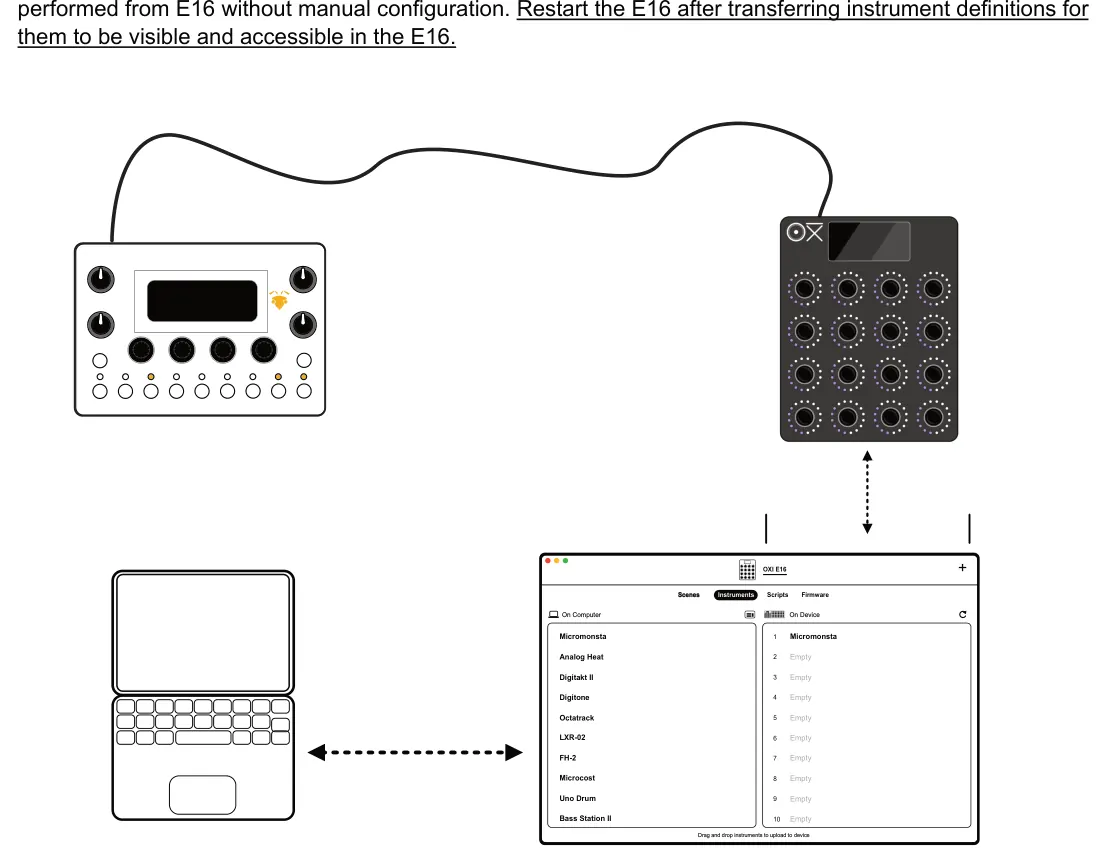
The OXI App can be used to download instrument definitions from the database and transfer the definition files between the OXI E16 and a PC/Mac.
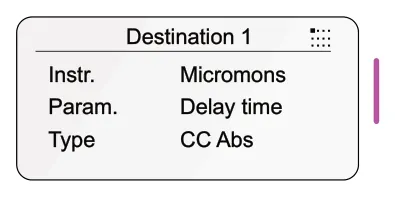
The instrument definition for a device is selected in the destination 'Instrument' option. The mapped parameter for the control is also available under 'Parameter'.
Note Instrument definitions are not user configurable on the device but can be created in the OXI App. These can be created individually and then loaded to OXI OE16 using the app. If the manufacturer changes the CC mapping of the device the instrument definition may not work as originally configured. Instrument definitions are saved with the scene and can be backed up with the app. See the OXI App manual regarding the instrument editor.
Instrument Definitions
The currently available instrument definitions to download via the App are listed. The list captures most definitions available but is always likely to change at any time as more are added :-
| Manufacturer | Device |
| ASM | Hydrasynth |
| Abildgaard | Droid-3 |
| Access | Virus A |
| Access | Virus TI |
| Arturia | Microfreak |
| Arturia | Minifreak |
| Arturia | Polybrute |
| Audiothingies | Doctor A |
| Audiothingies | Micromonsta |
| Behringer | Deepmind 12 |
| Behringer | Neutron |
| Behringer | Pro 800 |
| Behringer | TD-3-MO |
| Black Corporation | Deckard’s Dream |
| Black Corporation | Deckard’s Dream Mk2 |
| Conductive Labs | NDLR |
| Dave Smith Instruments | Evolver |
| Dave Smith Instruments | OB-6 |
| Dave Smith Instruments | Prophet ‘08 |
| Dave Smith Instruments | Prophet 12 |
| Dave Smith Instruments | Prophet Rev 2 |
| Dave Smith Instruments | Prophet X (XL) |
| Dreadbox | Nymphes |
| Dreadbox | Typhon |
| Elektron | Analog 4 MKII |
| Elektron | Analog Heat |
| Elektron | Analog Heat +FX |
| Elektron | Analog Rtm MKII |
| Elektron | Digitakt |
| Elektron | Digitakt II |
| Elektron | Digitone |
| Elektron | MachineDrum |
| Elektron | Model Cycles |
| Elektron | MonoMachine |
| Elektron | Octatrack |
| Elektron | Syntakt |
| Elektron | Model Samples |
| Empress | Echosystem |
| Empress | Reverb |
| Ensoniq | ASR-X Pro |
| Erica Synths | LXR-02 |
| Expert Sleepers | FH-2 |
| Flame | Curve |
| Flame | Maander |
| Fred’s Lab | Buzzzy! |
| GEM | rp-x |
| GSmusic | E7 |
| Gotharman | Spazedrum Black |
| Manufacturer | Device |
| Hologram | Microcosm |
| IK Multimedia | Uno Synth Pro X |
| IK Multimedia | Uno Drum |
| IK Multimedia | Uno Synth |
| Intellijel | uMidi |
| Jomox | Airbase 99 |
| Korg | Arp 2600 M |
| Korg | Electribe ER-1 |
| Korg | MS2000 |
| Korg | NTS-1 |
| Korg | Opsix |
| Korg | Wavestate |
| Korg | Minilogue |
| Korg | Minilogue XD |
| Korg | Monologue |
| Korg | Volca Bass |
| Korg | Volca Beats |
| Korg | Volca Drum |
| Korg | Volca FM |
| Korg | Volca Keys |
| Korg | Volca Kick |
| Korg | Volca Nubass |
| Korg | Volca Sample |
| Korg | Prologue |
| Kodamo | Essence FM |
| Kurzweil | K2661 |
| LPZW | Tram 8 |
| MFB | Synth II |
| MFB | Tanzbar 1 |
| MFB | TanzbarLite |
| MFB | Tanzmous |
| Make Noise | O-Coast |
| MeeBlip | Geode |
| MeeBlip | Triode |
| Melbourne Instruments | Nina |
| Meris | LVX |
| Meris | Ottobit Jr |
| Meris | Polymoon |
| Modal Electronics | ARGON8M |
| Modal Electronics | COBALT5S |
| Modal Electronics | CRAFTsynth2 |
| Modal Electronics | Craft |
| Modal Electronics | Skulpt |
| Modor | NF-1 |
| Moog | Grandmother |
| Moog | Matriarch |
| Moog | Minitaur |
| Moog | Mother 32 |
| Manufacturer | Device |
| Moog | Sirin |
| Moog | Sub-Phatty |
| Moog | Subsequent 25 |
| Moog | Subsequent 37 |
| Moog | Voyager |
| Mutable Instruments | Shruthi |
| Norand | Mono |
| Nord | Drum 2 |
| Nord | Drum 3P |
| Nord | Lead (Rack) |
| Nord | Lead (Rack) 2x |
| Nord | Wave 2 |
| Novation | Bass Station II |
| Novation | Bass Station Rack |
| Novation | Circuit |
| Novation | Nova |
| Novation | Summit |
| Novation | Peak |
| OTO Machines FX | BAM |
| OTO Machines FX | BIM |
| OTO Machines FX | BOUM |
| OXI Instruments | Coral |
| Oberheim | OB-6 |
| Oberheim | OB-X8 |
| Pioneer | Toraiz AS-1 |
| Polyend | Tracker |
| Red Panda | Particle |
| Red Panda | Raster |
| Roland | D-05 |
| Roland | GAIA SH-01 |
| Roland | JD-XA |
| Roland | JD-XI |
| Roland | JP-08 |
| Roland | JU-06 |
| Roland | JU-06A |
| Roland | JV1010 |
| Roland | JX-03 |
| Roland | JX-08 |
| Roland | Juno 60 Minerva |
| Roland | Jupiter X (xM) |
| Roland | MC-101 |
| Roland | MC-2oh2 |
| Roland | MKS-50 |
| Roland | MX-1 |
| Roland | S-1 |
| Roland | SE-02 |
| Roland | SH-01A |
| Roland | SH-4d |
| Roland | System 1 (1M) |
| Roland | System 8 |
| Manufacturer | Device |
| Roland | TB-03 |
| Roland | TB-3 |
| Roland | TR-06 |
| Roland | TR-08 |
| Roland | TR-09 |
| Roland | TR-6S |
| Roland | TR-8 |
| Roland | TR-8S |
| Roland | VP-03 |
| Roland | XV-5050 |
| Sequential | Pro 3 |
| Sequential | Prophet-6 |
| Sequential | TAKE 5 |
| Sherman | Filterbank |
| Sonicware | Liven Lofi 12 |
| Sonicware | Liven XFM |
| Sonicware | Smpltrek |
| Strymon | Nightsky |
| Strymon | Volante |
| Studio Electronics | ATC-1 |
| Studio Electronics | SE-1X |
| Studiologic | Sledge |
| TC Electronic | D-Two |
| Tasty Chips | Gr-1 |
| Teenage Engineering | OP-1 |
| Teenage Engineering | OP-1 Field |
| Teenage Engineering | OP-XY |
| Teenage Engineering | KOII |
| Teenage Engineering | OP-Z |
| Twisted Electronics | MEGAfm |
| Twisted Electronics | TherapSID |
| UDO Audio | Super 6 |
| Waldorf | Blofeld |
| Waldorf | Iridium |
| Waldorf | M |
| Waldorf | Pulse 2 |
| Waldorf | Rocket |
| Waldorf | Streichfett |
| Yamaha | Reface CP |
| Yamaha | Reface CS |
| Yamaha | Reface DX |
| Yamaha | Reface YC |
5.3 System Config Settings
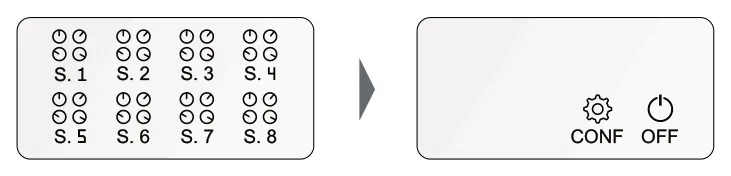
Global configuration settings can be accessed from the main scenes view by tapping [Shift] and then (Knob 15). The user interface settings include: Interface brightness, auto save, screen saver and auto turn off. Also firmware options and a MIDI monitor are available. Other menus include MIDI and Bluetooth settings. These are found in the System sub-menu.
![5.3 System Config Settings diagram: Tap [Shift], then Tap (Knob 15) to open the system config. Turn to navigate and tap to access the sub-menus. Config Settings 15](../../img/oxi-e16/system-and-app/system-and-app-008.webp)
| Workfolw | ||
|---|---|---|
| Setting | Options | Description |
| Auto Transmit | Scene Entry, Page Switch, Preset Load | Sets the E16 behaviour for sending MIDI scene parameter data out. Data can be sent when entering a scene, when switching pages or when loading a preset. |
| Auto Save | All Off, All On, Scenes, Presets | The device will automatically save everything, just scenes or just presets. Can also be set to off. |
| Color Indicator | On/Off | Illuminates the first rotary LED 'digit', always on, for all controls. This demonstrates a zero value rather than no indication being visible at zero position. |
| MIDI | ||
|---|---|---|
| Setting | Options | Description |
| MIDI Monitor | On/Off | MIDI monitor is a tool that will display in real-time any incoming MIDI messages. Used as a diagnostic tool. |
| BLE Thru | On/Off | Sets if the incoming MIDI from the bluetooth interface is passed thru to the MIDI output or is set to off - no thru. |
| TRS Thru | On/Off | Sets if the incoming MIDI from the TRS interface is passed thru to the MIDI output or is set to off - no thru. |
| USB Thru | On/Off | Sets if the incoming MIDI from the USB interface is passed thru to the MIDI output or is set to off - no thru. |
| PC Receive Channel | Off, 1-16 | Sets the MIDI channel that the E16 will listen to for program change messages. Incoming program change messages will switch scenes or pages in the E16. |
| PC Mode | Scene or Page | Determines whether the PC MIDI messaging will change the selected scene or switch between pages. |
| System | ||
|---|---|---|
| Setting | Options | Description |
| Brightness | Low, Med, High | Sets the rotary LED brightness level for the control knobs. |
| Bluetooth | Various | Bluetooth can be set to off. Alternatively bluetooth can be set as a central interface, peripheral interface or both. |
| Auto Turn Off | Off or Timed | Enable or disable the automatic shutdown time. Timer can be set to off or power down after 30 Min or 1,2 or 4 hrs. |
| Screensaver | Off or Timed | Disable by setting to off or enable the screensaver with a timer. Set to 10 MIns, 30 Min or 1 hr. |
| Animations | On/Off | Off, slow or fast. Animations control the morph speed of the LED transitions. |
| Encoder Type | Normal or Detent | Sets the encoder behaviour from a normal non-detent style or a detent style encoder. This must be set to match the hardware encoders for your specific E16. |
| Factory Reset | Initiate reset | Initiate a factory reset to the original defaults. Will erase any existing settings and data. |
| HW/FW Version | View only | Displays the current firmware version as well as the hardware and bluetooth version. Information only, no editable options. |
5.4 Firmware Update
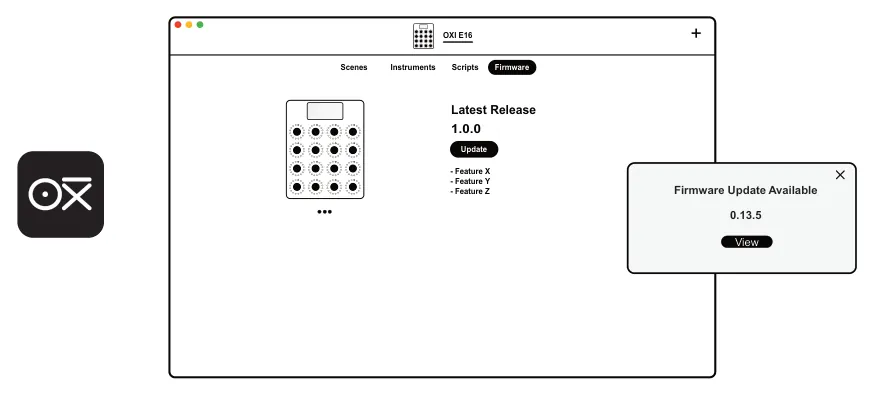
Updates to OXI E16 firmware are released from time to time to add new features, improve performance and fix bugs. The update process is automated within the OXI App. Simply connect the PC/Mac to OXI E16 and open the ‘Firmware’ page. The current status of the device and any available firmware versions will be displayed.

Click Here to Download the App
The currently installed firmware version and hardware version can be viewed in the Sys Settings > System > HW & FW Version.
Update Firmware
- Connect OXI E16 to the PC or Mac which hosts the OXI App using the USB
connection.
- Open the OXI App.
- In the ‘Firmware’ page the currently installed firmware will be displayed as well as
the latest available firmware. It is possible to update from this page.
- Any newly available updates will be displayed in the pop-up message. Click ‘View’ to
see more information and to proceed to perform the update.
- While updating, the progress bar will be displayed on E16. Do not disconnect the
devices while updating.
- Once complete, E16 will reboot. Update takes between 15 - 60 seconds.
- Note that the option to update a specific firmware version from a update file is also
possible. Click the 3 dots under the E16 image and the options to update the firmware from a file will be available. The file must have been previously downloaded to a location on the PC/Mac.
5.5 Troubleshooting Updates
It is unusual for the OXI E16 to freeze or to get locked into a ‘bricked’ condition while updating. Should this situation occur the following steps should be followed.
Update Mode Recovery
- Connect OXI E16 to the PC or Mac which hosts the OXI App using the USB
connection. Also ensure the PC / Mac is connected to the internet.
- Push and hold the power button of OXI E16 to force it to off.
- Power up in update mode. Hold (Knob 15) + (Knob 16) while pressing the power on
button. The E16 should power up in update mode.
- Try updating again using the App but use a downloaded OS version. This could be an
older revision or the latest version.
- Try powering off / on. Repeat the procedure.
A factory reset is also an option to return the E16 to its original state. Be careful in using this function as any configurations and settings will be permanently cleared.
Factory Reset
- In the main home page, hold [Shift], then tap (Knob 15), 'Conf' to access the
configuration settings menu.
- Navigate to 'System' and tap the lit knob to open the sub-menu.
- Navigate to 'Factory Reset' and tap the lit knob to initiate the command.
- Confirm by pressing the green lit (Knob 3) for 'Yes' or tap red lit (Knob 2) for 'No' and
to exit back to the menu.
- A factory reset will be performed if choosing 'Yes' and the unit will restart.

5.6 MIDI Input Monitor
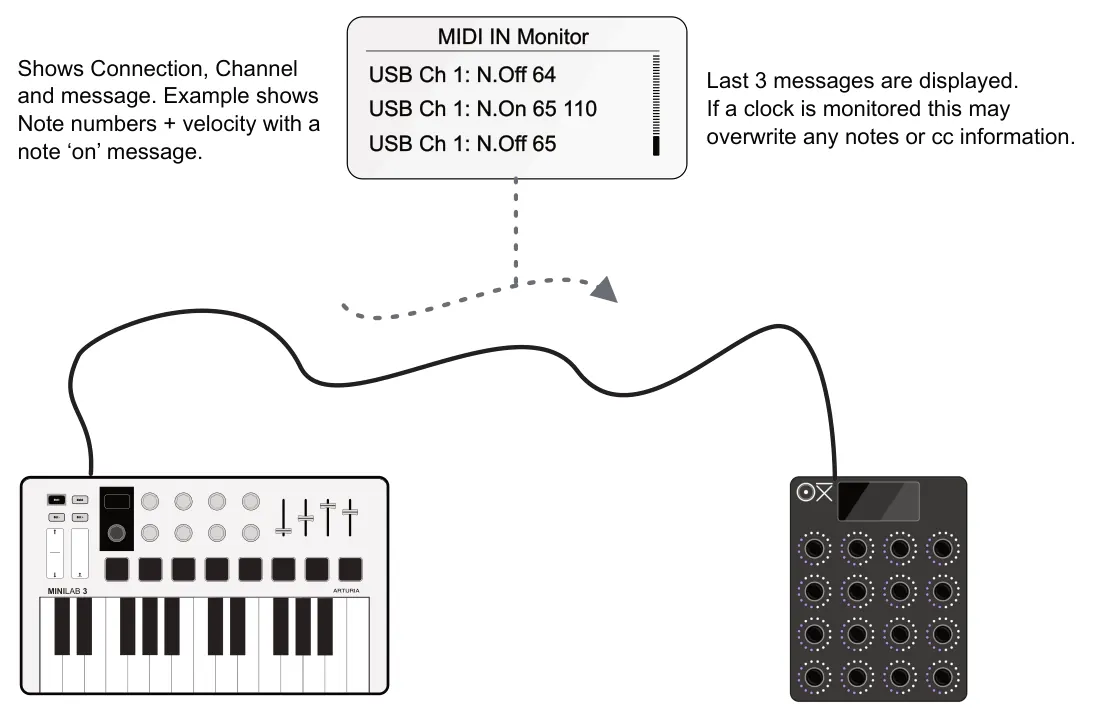
MIDI Monitor is a utility used for checking incoming MIDI activity within OXI E16 from all routes and channels. It is a simple, yet highly useful tool available when needed from the config menu or directly on the user panel.