



Scenes are the highest order of organisation in the E16, each scene can hold 16 pages of parameters. The E16 can hold 16 Scenes in total on the device. The first set of eight scenes are presented for access from the main home page and each can be opened by tapping a lit (Knob) 1-8 from the home page. Tap knob 9-16 to open the selection of the the other 8 scenes. Tap any lit knob to open Scene 9-16. A scene is a structural aid that stores all of the parameter settings and helps to organise the controls collectively. Scene selection is available from the first page presented when powering up the E16 along with the system configuration settings menu. To start, select a scene to work with or to setup. The option to switch scenes from an external device by using PC - Program Change messaging is configurable. The E16 uses a dedicated MIDI channel to listen for incoming PC change messages. Each scene also contains 16 pages, enabling more control over the structure and arrangement of controls. Presets are available which store the current values of all the knobs which can then be recalled. Different configurations are therefore possible in order to match various hardware setups.
Scene Select - Main View Control View
When a scene is opened, the control view is presented. Turning a knob will send a MIDI control message to the assigned CC destination.
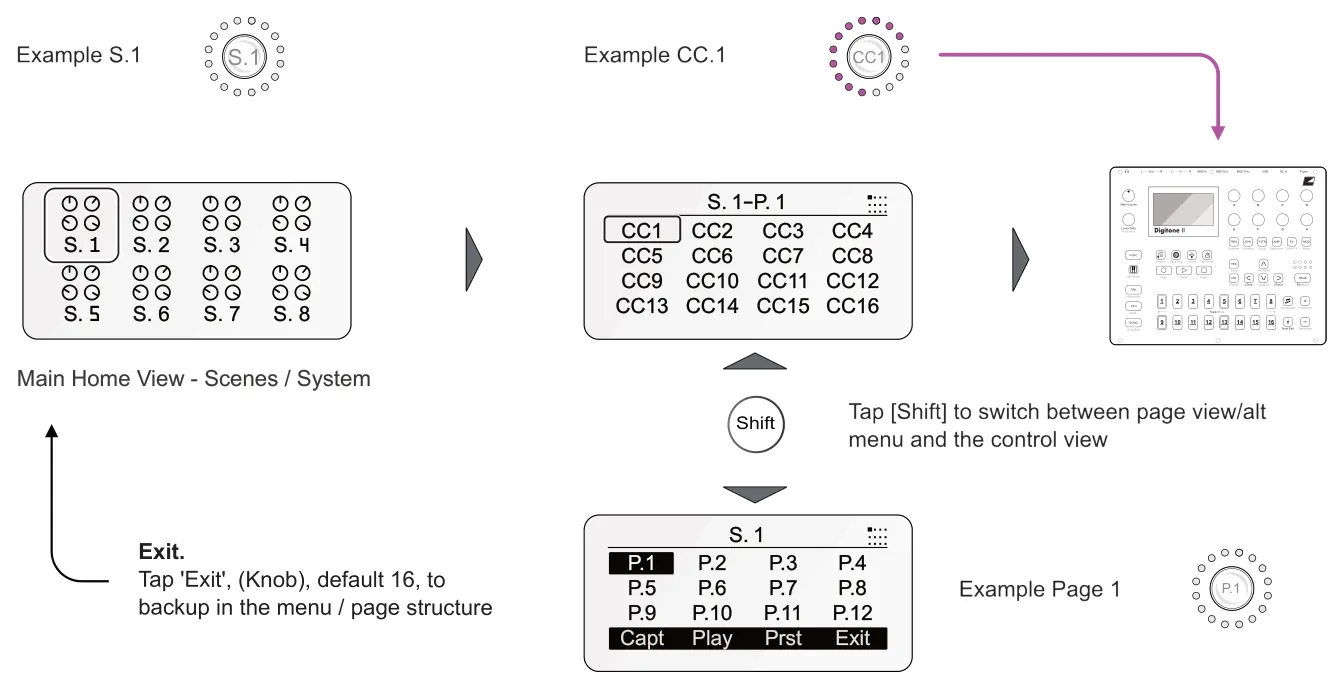
Change Page Number
Tap [Shift] to access the page selection screen along with the options menu. Tap (Knob) 1-12 to change the page or tap the lower 4 knobs to select an alt menu option.
Save on Exit

After editing a scene and backing up to the home screen the option to save the scene or not is presented. Tap the knob to choose the save option.
4.2 Scene Slot Settings
Each scene setting can be edited. This allows the scene slot name, color, MIDI auto transmit and PC on entry to be changed.
Edit a Scene Slot Settings
- Accessing the scene settings is managed from the main scene view.
- From main view, open the editor, hold (Knob) for the scene to edit + tap [Shift].
- To navigate and scroll the options, turn the lit (Knob). To select an option for editing
or choose a menu command press (Knob).
- When editing is complete, tap [Shift] to exit and backup in the menu.
![Edit a Scene Slot Settings diagram: Hold (Knob) + Tap [Shift] Tap [Shift] to exit scene editing. + Scene S.1 Choose Scene S. 1 S. 2 S. 3 S. 4 Color 34 Change Name S. 6 S. 7 S. 8 S. 5](../../img/oxi-e16/scenes/scenes-003.webp)
| Scene Settings | ||
|---|---|---|
| Setting | Function | Description |
| Choose Scene | Command | Navigates through the 16 scenes. Tap to open the currently highlighted scene. The currently loaded scene is tagged. |
| Change Name | Edit | Opens the name editor and enables the renaming of a scene from the current name or the default name S.1, S.2 etc. |
| Color | Edit | Selects the LED ring color for the knob. The numbers refer to the standard color range for the E16 device. |
| Auto Transmit | MIDI Out | Sets the E16 behaviour for sending MIDI scene parameter data out. Data can be sent when entering a scene, when switching pages or when loading a preset. |
| PC on Entry | MIDI Out | Sub menu sets up a PC MIDI message when entering the scene. This enables presets or programs to be changed if required on the destination device. Sets up the MIDI channel, PC number, bank and the physical output port. |
| Copy | Copy Settings | Copies the scene settings. |
| Paste | Paste Settings | Pastes previously copied settings to the selected scene. |
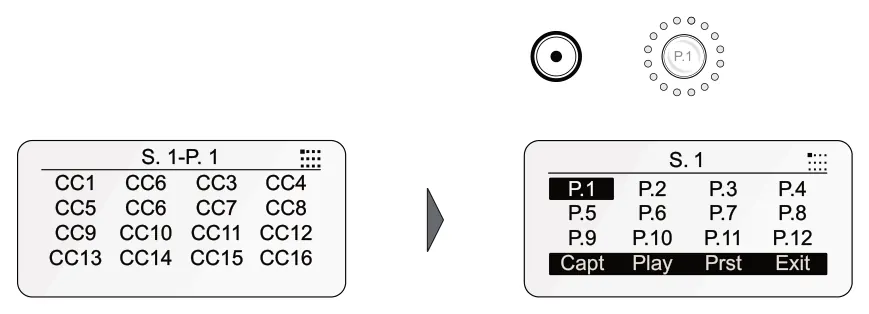
The page options can be edited. This allows the page to be renamed and the MIDI channel and port to be set. Some destination options use the page settings as a default, although they can be set individually. Copying pages is also possible from within the editor. The editor is accessible from the control view but can also be assigned as an Alt menu command. Select a page to edit first.
Edit the Page Settings
- Pages are in the Alt menu, accessible from the control view. Select a scene by
tapping the associated knob to choose the scene and its control view.
- In control view, Hold (Knob) + tap [Shift]. This opens the control editor.
- Select the page tab. Hold [Shift] + tap (Knob 2), 'Page'. The edit options also include
controls with knob 1 and scene with knob 3.
- To navigate and scroll the options, turn (Knob 1). To select an option for editing press
(Knob 1) then turn to change the setting. The '►' tag label indicates that the parameter is editable. Press again to confirm the change.
- Tap [Shift] to backup the menu structure.
Tap [Shift], then Tap (Knob 14) for the editor Hold [Shift] + Tap (Knob 2) for the page options
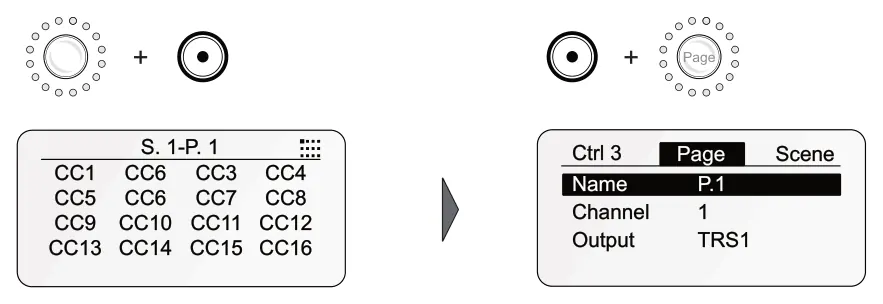
![Edit the Page Settings diagram: Page Settings In the editor, access settings by [Shift] + (Knob 2) Setting Options Description Opens the text editor for renaming the page. The page name has a maximum of 7 characters. The name is presented on the...](../../img/oxi-e16/scenes/scenes-006.webp)
Other commands are also configurable on the knobs in the Alt menu.
Configuring the Alt Menu
- Toggle between control view and the alt menu by tapping [Shift].
- In the Alt menu, hold (Knob) + tap [Shift]. The knob selected will presented for editing.
- To assign a function to the knob press command, select 'Type' and tap (Knob).
- Turn the knob to navigate the choices and tap to select. [Shift] can be used to back
up in the menu.
- The description of each function is covered in the relevant section. When choosing a
function, additional options, specific to the function, are presented. For example, when selecting 'Page', the page number can also be configured.
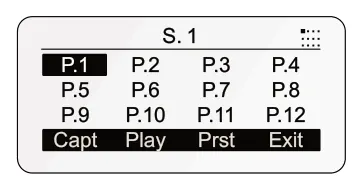
Any of the 16 knobs can be configured with the following options.
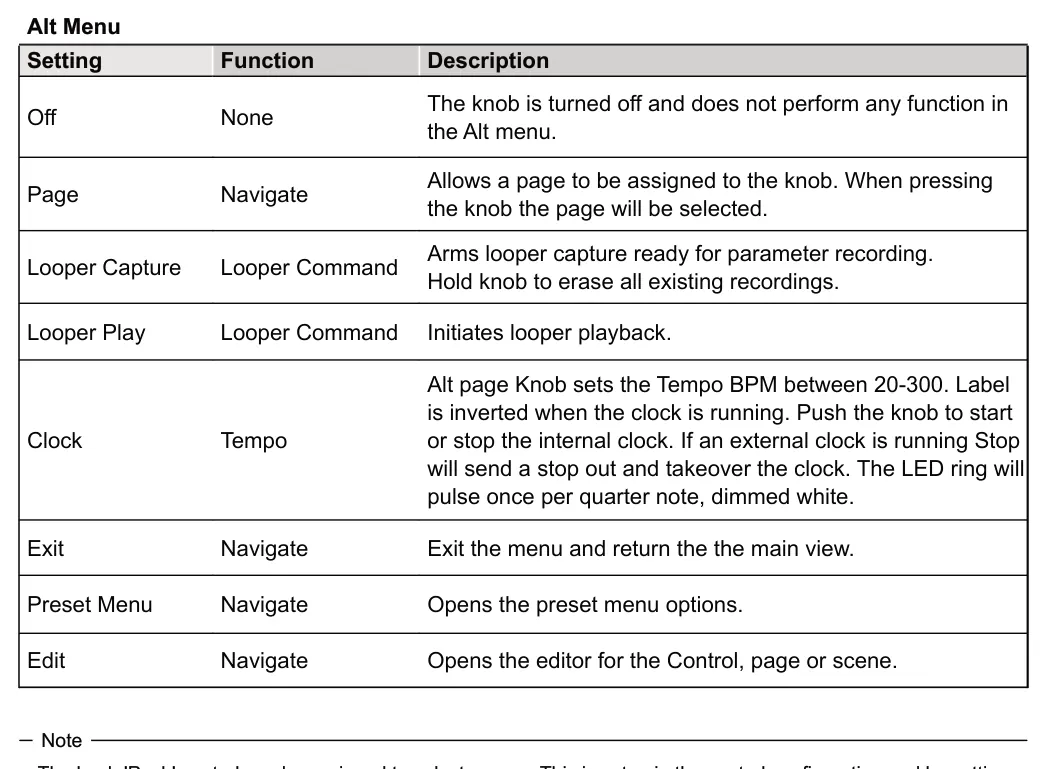
The knob 'Push' control can be assigned to select a page. This is setup in the control configuration and by setting the push option to type 'page'. A page number can be assigned which allows the knob push to switch from the current page and jump directly to the assigned control view.
4.4 Scene Settings
The generic scene settings can be edited. This enables the look and behaviour of the scene to be changed and configured.
Edit the Scene Settings
- Scenes are accessible from the main view by tapping the associated knob.
- In control view, Hold (Knob) + tap [Shift]. This opens the control editor.
- Select the scene tab. Hold [Shift] + tap (Knob 3), 'Scene'. The edit options also
include controls with knob 1 and page with knob 2.
- To navigate and scroll the options, turn (Knob 1). To select an option for editing press
(Knob 1) then turn to change the setting. The '►' tag label indicates that the parameter is editable. Press again to confirm the change.
- Tap [Shift] to backup the menu structure.
Hold [Shift] + Tap (Knob 3) for the scene options Tap [Shift], then Tap (Knob 14) for the editor
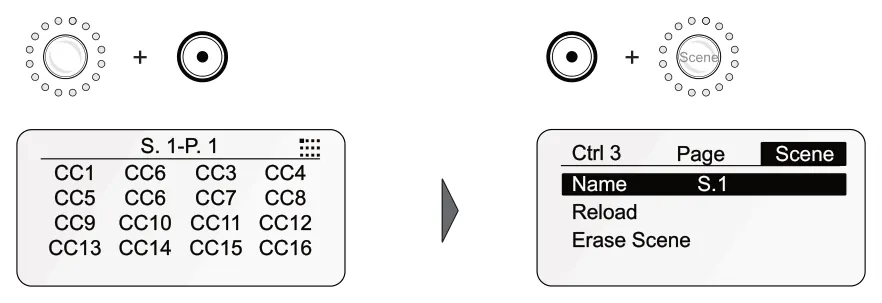
![Edit the Scene Settings diagram: Scene Settings In the editor, access settings by [Shift] + (Knob 3) Setting Options Description Opens the text editor for renaming the scene. The scene name has a maximum of 7 characters. The name is presented on the...](../../img/oxi-e16/scenes/scenes-010.webp)
4.5 Accessing All Scenes
There are 16 scene slots stored on the E16, 8 of which are directly accessible from the home screen. Scenes can be managed in the OXI App but also can be configured on board the E16 device. Assignment of the scenes from the total 16 is performed in the home screen using shift.
Assigning a scene as direct access
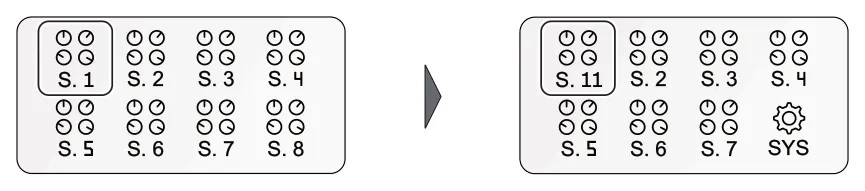
- There are 8 scenes that are assigned to knobs 1-8 in the home screen, scene page.
These are configured by default, but can be changed to another one from the 16 onboard scenes. Navigate to the home screen to start. Tap [Shift] if needed to backup the menu and screen structure.
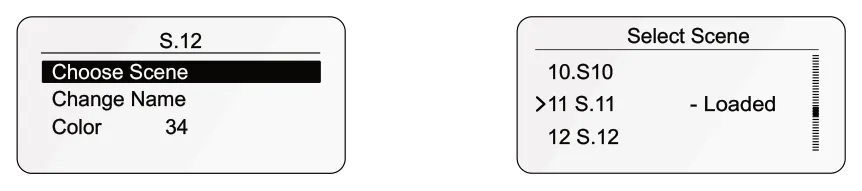
- Hold (Knob 1) to (Knob 8) + Tap [Shift]. These contain the assigned scenes. The
scene selected will be replaced by the chosen scene in the following steps.
- Navigate to the 'Choose Scene' screen option in the menu. Tap the knob to select.
- Turn the selected knob to navigate the 16 available scenes. The scene currently
loaded to the selected knob is shown in the list.
- Tap the knob to select and assign the highlighted scene to the main view.
- The menu is automatically exited and the display returns to the home screen. The
assigned scenes to knobs are shown and the newly added scene will be accessible.
Change Scene Assignments - from the home / scene screen.
![Assigning a scene as direct access diagram: Turn, then tap (Knob) to choose. Hold (Knob) + Tap [Shift] + S.1](../../img/oxi-e16/scenes/scenes-011.webp)
4.6 Presets
Each scene has 16 preset slots. Each preset can store the current state of all of the control knob values from the scene. Presets can be recalled later. The preset menu is accessible from the page view. In control view, tap [Shift] to open the page view, then press the 'Prst', default is (Knob 15). The preset management menu is then navigated using the lit Knob.
Saving a Preset
- Ensure the knob values are set or configured as snapshots or with automation as
desired. This will be the state saved.
- Open the preset manager. In the control view, tap [Shift] then tap 'Prst', default
control is (Knob 15).
- To Save:
- To save to the current slot. Navigate in the menu by turning (Knob 15). Highlight with the '►' tag the 'Save' option. Tap (Knob 15) to select save.
- To save to another slot and rename the preset. Navigate in the menu by turning (Knob 15). Highlight with the '►' tag the 'Save As' option. Tap (Knob 15) to select save. The slot selector will open and a new slot can be selected. The name can also be edited when saving.
Loading a Preset
- Open the preset manager. In the control view, tap [Shift] then tap (Knob 15), 'Prst'.
- To Load a preset. Navigate in the menu by turning (Knob 15). Highlight with the '►'
tag the 'Load' option. Tap (Knob 15) to select load.
- The preset slot selector will open and a preset from the list can be selected. The
currently active preset will be displayed in the list as 'loaded'. Navigate with the '►' to the preset to load and press (Knob 15).
- If the currently active preset has been changed, the option to save prior to loading
the new preset is presented. Tap red (Knob 2) to cancel without saving and green (Knob 3) to save to the current slot prior to loading.
- The selected preset will be loaded, restoring its control values.

The options to clear the currently selected preset slot or page and to rename the preset are also presented in the preset menu. Navigate using the lit knob and select by tapping the knob.