



2.12 Snapshot Morph
Snapshot morph mode assigns a knob as a primary lead. When the primary lead is adjusted, it will morph the values for other, secondary assigned knobs, between two defined A-B points. The lower A and upper B values of each secondary controller's range can be assigned to the A and B range of the primary snapshot knob. The primary snapshot knob only affects the connected secondary controls and does not send any output itself. The secondary controls send manually adjusted outputs valued or snapshot controlled values out. Any control knob can be set to snapshot morph mode.
Example
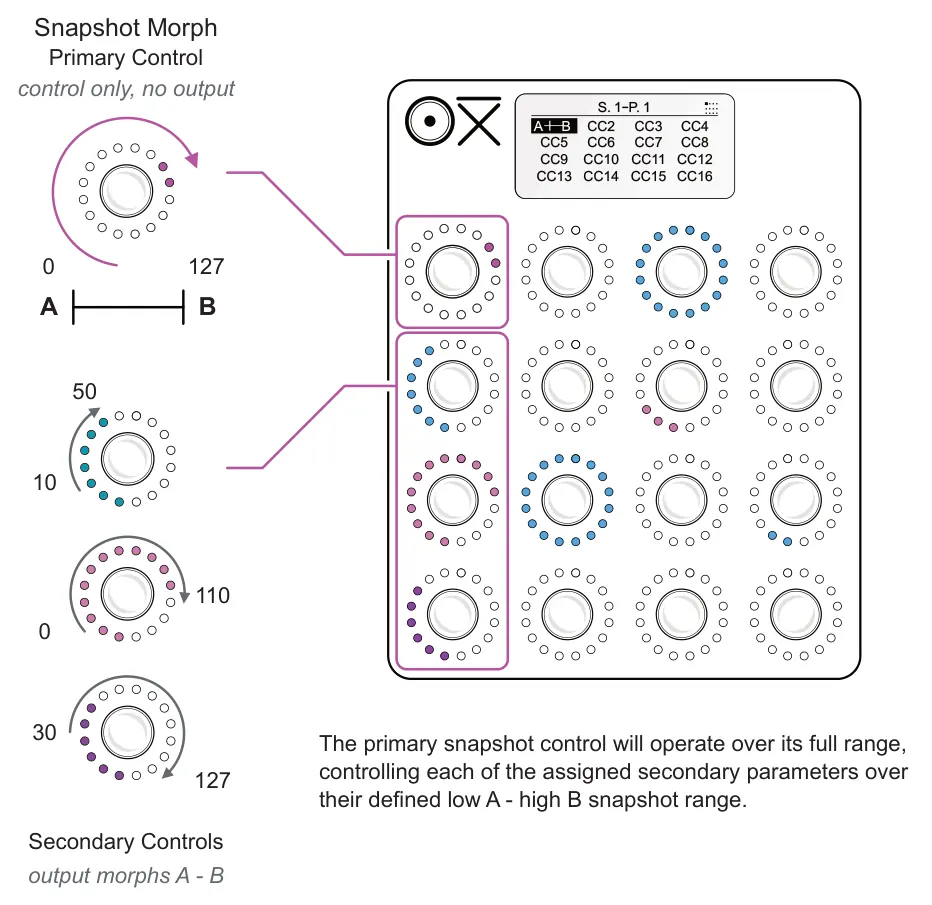
Snapshot A - Captures the lower value of selected secondary controls.
Snapshot B - Captures the upper value of the selected secondary controls.
The primary snapshot control will affect the secondary controls across their defined A-B ranges.
Individual secondary controls can still be adjusted across its full range manually.
The primary snapshot encoder LED ring will display as a special, minimal LED indicator representing the snapshot position rather than a fully ranged LED ring.
Setting Up a Snapshot
- The option for snapshot morph mode is found in the special section of the control
settings, accessed from the control view. Select a scene by tapping the associated knob to choose the scene and its control view.
- To open the settings menu, hold (Knob) to edit + tap [Shift] from the control view.
- The editor tab should be open for 'Ctrl'. If not, hold [Shift] and tap (Knob 1) to choose
the controller settings. The page and scene settings tabs are also available.
- The knob which will be assigned as the primary snapshot control should be setup
first. This is the lead control that affects the other knob values.
- If another control is required, tap a knob to select a control to edit or use the currently selected control. Example (Knob 1).
- To navigate, turn knob, example (Knob 1). Scroll to the 'Special' option and tap (Knob 1) to edit. The selected option is highlighted and when in edit mode the '►' tag label is shown.
- Select the 'Snapshot Morph' option for the special setting. This also sets the 'Destination 1' to snapshot. A primary snapshot control only affects other controls and does not output MIDI messages itself. Tap knob to confirm.
- When complete, tap [Shift] to backup and exit the edit menu.
- Once a primary snapshot control is assigned, the A-B symbol is displayed on the
screen for the control. If this is not yet configured, '?' may be displayed for the control. The next step is to connect the secondary controls that will be controlled.
- Hold the Primary Snapshot knob + Tap the knobs to add to the snapshot control. Example: Hold (Knob 1) + Tap (Knob 5), (Knob 9) and (Knob 13). Holding a knob rather than tapping a secondary knob will select / deselect the entire page. The secondary controls are displayed highlighted while the primary knob is held.
- Set the lower value as the starting point for each of the secondary knobs by turning each knob and setting its value. Example; Knobs 5, 9, 13.
- Hold + Turn counter-clockwise the primary snapshot knob. When the knob is released, the lower values are captured into the slot 'A' for the snapshot. Example turn (Knob 1) counter-clockwise.
- Set the upper value as the end point for each of the secondary knobs by turning each knob and setting its new value. Example; Knobs 5, 9, 13.
- Hold + Turn clockwise the primary snapshot knob. Then release the knob to capture and save the values into the slot 'B'. Example turn (Knob 1) clockwise.
- Adjusting the primary snapshot knob, now labelled A-B, will control and morph the
values of the assigned secondary control knobs within their defined ranges.