



Lua is an open source scripting language often used for web, game development and image processing. The E16 has built-in scripting features and can initiate a Lua script when loading a Scene. The script can then govern the behaviour when pressing and turning knobs, receiving incoming MIDI messages and when switching pages. Lua scripts are lightweight programming tools, written in plain text and lua scripts are recognised by the .lua file extension. The OXI App is a where the Lua scripts are managed, loaded and even created for the E16 device. This section provides a guide to using lua scripts in the E16, but be aware that some programming language experience will help in the application and development of script files. This section covers Lua scripting version 1.2.0.
Remote control is also possible. Remote mode lets other software or hardware use the E16 as its own control surface. Anything connected over USB can drive it, as long as it's programmed to use the E16's Remote messages: a small set of SysEx commands for switching Remote on and off, drawing on the display, and setting the pad and knob-ring colours. While Remote is active, the host decides what the screen shows (for example, knob names that change when you switch tracks), and every knob turn and pad press goes to the host as a standard MIDI message instead of controlling your scenes and pages. You can't start Remote from a menu on the E16; the host switches it on and off. For details of remote control follow the remote control guide here.
6.1 How it Works
The E16 runs Lua scripts that let you customize what happens when you turn encoders, press them, receive MIDI, or switch pages. A script lives inside a scene, when the scene loads, the script starts.
All indices in the Lua API are 1-based (encoder 1–16, page 1–12). The firmware converts internally.
Scripts are loaded or created using the OXI App.
Managed vs Manual
Every script-type encoder is either managed or manual:
- Managed (default): The firmware calculates and stores the new internal value. Your script receives the event after the value has changed, with the resulting value in enc. value and enc.scaled . The script can still replace that value with controller.set() when needed.
- Manual ( manual=true in the assignment): The firmware does not calculate or store a new value. The callback receives the raw increment together with the destination's currently stored value. Your script decides what happens — apply the increment, quantize it, ignore it, or calculate a completely different value — and writes the result with controller.set(id, "v", value).
Manual mode affects value processing only. It does not suppress the configured encoder label or prevent the script from controlling the screen and LED ring.
Values
The E16 stores all values internally as 14-bit integers (0–16383). When you configure a managed control with a range like l=0, h=127, the firmware maps the internal 14-bit value to that output range. The mapped value is what you see in enc.scaled.
All numeric API arguments accept both Lua integers and floating-point numbers. When the firmwarestores a number in an integer-backed field, its fractional part is truncated toward zero. Values are also clamped where the endpoint defines a range. This means calculated values can be passed directly without adding math.floor() throughout a script.
Tip to build big SysEx Editors
Script memory on the E16 is limited. Small scripts will run without any special consideration, however a large editor, like for the JV1080, which declares a Lua table entry for hundreds of parameters can approach the memory limit. Using big tables to do this costs substantial amount of memory. Therefore on very large scripts, the recommended technique is to pack the per-parameter data into a single string literal as a fixed-stride byte table. Each parameter occupies the same number of bytes, so a field is read arithmetically with string.byte rather than by walking nested tables. One string replaces dozens or hundreds of table objects, and lookup remains fast.
6.2 Scripts in the App
Scripts are managed in two places. The Scripts tab is where you create, edit, and delete scripts similar to the scene tab. The script panel in the control editor is where you select which script a scene uses and drag its parameters onto encoders. In both places scripts can be edit and new scripts created.
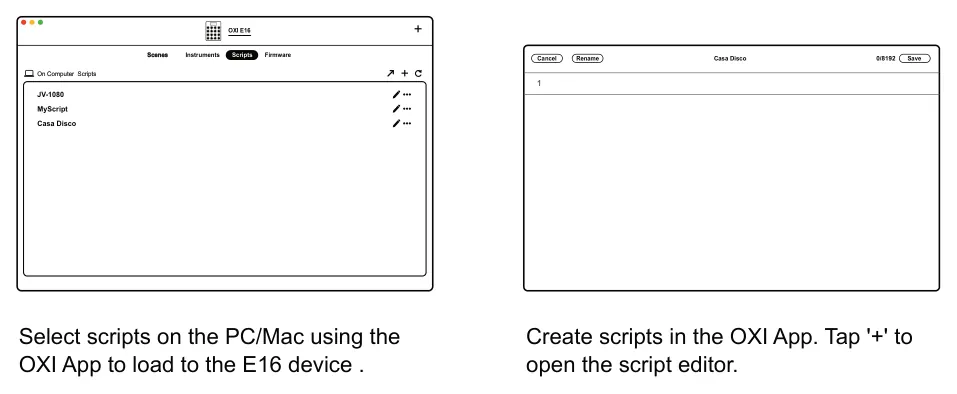
When a script is uploaded to the device, the app minifies it first — comments and whitespace removed, local variables renamed to short forms. The minifier is LuaSrcDiet, extended to handle Lua 5.3/5.4 operators (//, <<, >>, &, |, ~) and the <const> / <close> attributes.
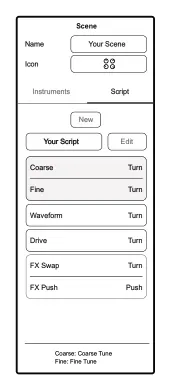
If the minifier can’t run, the app uploads the script with only comments stripped. This almost always means a real Lua syntax error — the device won’t be able to run it either; fix the syntax and the minifier takes over again.
The editor shows a live byte counter: uploaded-size / 8000. Neutral under the limit, red over it (save is blocked). A ⚠ next to the number means the minifier didn’t run.
When you download a scene back from the device, the app matches the script by name against your local library. If the script is not found, the script dropdown in the panel shows red - assignments and full source are only available when the script exists in your library.
6.3 Assignments
When a control’s turn type is set to Script, it gains the following fields: script ID, manual mode flag, lower/upper range, acceleration mode, and display mode. For push actions set to Script, there is only a script ID.
Assignments are --@assign comment directives at the top of your script. They declare the parameters your script exposes — their IDs, labels, ranges, modes, and grouping.
When you load a script in the app, the app parses these directives and presents the parameters in a selection panel - similar to instrument parameters. Parameters with the same g (group) value are grouped together. You then drag parameters onto encoder slots in the control editor - onto turn destination 1, turn destination 2, or push. Grouped parameters can be dropped onto an encoder as a unit.
Assignments are not required - you can manually set each control’s turn type to Script and configure the script ID, range, and mode by hand in the editor. But assignments make this much easier by letting the script declare what it needs and the app handle the wiring.
Like all Lua comments, assignment directives are stripped from the script before uploading to the device. They do not count toward the 8000-byte script limit.
--@assign id=1 abbr="AR"   name="Attack"    desc="Attack Rate"   l=0 h=31
--@assign id=2 abbr="D1R"  name="Decay 1"   desc="Decay 1 Rate"  l=0 h=31 accel=2
--@assign id=3 abbr="Wave" name="Waveform"  desc="Waveform"       l=0 h=3  manual=true
--@assign id=4 abbr="Vol"  name="Volume"    desc="Volume"         l=0 h=99
--@assign id=5 abbr="FX"   name="FX Swap"   desc="FX Turn"        l=0 h=127 d=1 g=1 swap=true
--@assign id=6 abbr="FX"   name="FX Push"   desc="FX Push Toggle" p=true g=1
Assignment Keys
| Key | Type | Required | Default | Description |
|---|---|---|---|---|
| id | int | yes | - | Script ID. Used to identify the control in callbacks (enc.id) |
| abbr | string | * | - | Encoder label on the device (max 4 characters). If omitted, derived from first 4 characters of name |
| name | string | * | - | Display name in the app’s parameter list. If omitted, falls back to abbr |
| desc | string | no | - | Description shown in the app (not on device) |
| l | int | no | 0 | Lower bound of the output range. |
| h | int | no | 127 | Upper bound of the output range. |
| d | int | no | 1 | Destination slot (1 or 2). Controls can have two turn destinations |
| g | int | no | - | Group number. Parameters with the same group are presented together in the app and can be dropped onto an encoder as a unit. |
| swap | bool | no | false | Push swaps between destination 1 and 2. |
| manual | bool | no | false | Manual mode - script owns the value. |
| accel | int | no | 3 | Acceleration mode (0=Div8 slowest … 3=Acc0 default … 6=Acc3 fastest). |
| p | bool | no | false | This parameter is a push action instead of a turn action. |
| dis | int | no | - | Display mode for the turn/push action. |
At least one of abbr or name is required. If only name is provided, abbr is derived from its first 4 characters. If only abbr is provided, name copies it.
Each encoder has one label (current limitation). When two turn destinations share an encoder (e.g. d=1 and d=2 with swap=true), the app sets the label to the abbr of whichever parameter was last dropped onto it. Use the same abbr for both assignments to avoid confusion.
A Script ID belongs to a destination assignment, not to the physical encoder as a whole. Destination1 and Destination 2 may therefore use different IDs. ID-based API calls locate and modify the destination assignment carrying that ID. If multiple destinations use the same ID, the call applies to all of them.
Controls can also be configured at runtime with controller.setControls(), controller. setByIndex(), or controller.set(). This is useful for dynamic behaviour like changing ranges on the fly, but assignments are the standard way to declare the initial setup.
6.4 Global Objects
Your script has access to seven global objects:
| Object | Purpose |
|---|---|
| controller | Configure controls, read page index, attach event callbacks. |
| page | Set the header title, attach init / page-change / var-change callbacks. |
| midi | Send CC, Program Change, Generic MIDI and SysEx messages. |
| leds | Take over LED rings from the firmware. |
| slots | Override the text labels shown under each encoder. |
| var | Declare and read script-defined persistent variables. |
| system | Configure and receive periodic script updates |
6.5 Callbacks
Callbacks are functions you define on the global objects. The firmware calls them when things happen.
page.onInit()
Called once after the script loads and the Lua environment is ready. Use this to set the page title, initialize script state, and request data from external gear.
function page.onInit()
  page.setTitle("Synth Edit")
  midi.sendSysex(0, {0xF0, 0x7D, 0x02, 0xF7})  -- request current values
end
controller.onEncoderTurn(enc)
Called when a turn destination receives a value update, including ordinary controls as well as Script controls. A physical encoder turn is the normal source, but recorder, random, group, or other internal value processing can also produce a callback. With two destinations enabled, each destination is handled independently; with Change Destination enabled, only the active destination is handled.
For ordinary controls and managed Script controls, the callback is sent after the value is stored and only when its mapped output value changes. For manual Script controls, it is sent before any automatic value change; the script receives the currently stored value and decides whether to replace it.
The enc table contain
| Field | Type | Description |
|---|---|---|
| enc.id | int | Script ID for a Script destination. For ordinary controls, use enc.page and enc.index to identify the control. |
| enc.index | int | Encoder position on the page (1–16) |
| enc.page | int | Current page (1–12) |
| enc.increment | int | Raw turn direction and speed: ±1, ±2, ±4, or ±8. This is an independent input signal, not the provenance of enc.value ; it is 0 when no physical increment is available (e.g. ongroup slave turns). |
| enc.value | int | Internal 14-bit value (0–16383). Newly committed in managed mode; currently stored value in manual mode. |
| enc.scaled | int | enc.value mapped to this destination's output range. Newly committed in managed mode; currently stored value in manual mode. |
| end.is held _ | bool | Reserved for held-turn detection; currently always false |
function controller.onEncoderTurn(enc)
  if enc.id == 1 then
  midi.sendCC(0, 1, 74, enc.scaled)
end
end
controller.onEncoderPress(enc)
Called when a script-assigned encoder is pressed. The enc table contains id, index, page, value, and scaled (no increment or is_hel
controller.onSysex(bytes)
Called when the E16 receives a SysEx message. bytes is a table of raw byte values (integers), including the 0xF0 and 0xF7 framing bytes.
function controller.onSysex(bytes)
  if bytes[2] ~= 0x7D then return end  -- check manufacturer ID
  local msg_type = bytes[3]
  if msg_type == 0x11 then
    local param = bytes[4]
    local value = bytes[5]
    -- do something with it
  end
end
page.onPageChange(previous_page, new_page)
Called when the user switches pages. Both arguments are 1-based page indices.
This is where you should clean up overlays from the previous page and set up overlays for the new page. The LED and label overlays are not automatically cleared on page change - your script manages this.
function page.onPageChange(prev, curr)
  -- Clean up
  for i = 1, 16 do
    leds.reset(i)
    slots.reset(i)

  end
  -- Set up the new page if it's one we care about
  if curr == 1 then
    for i = 1, 16 do
      slots.update(i, my_labels[i])
    end
  end
end
page.onVarChange(name)
Called when one of your script-defined variables (see Variables) is changed by the firmware — typically when the user edits it via the device’s variable menu. Not called when the script itself sets a value, so this won’t recurse if you call var.get (or anything else) from inside the handler.
name is the registered variable name (string).
function page.onVarChange(name)
  if name == "channel" then
    slots.update(16, "ch:" .. var.get("channel"))
  end
end
system.update()
Called periodically after polling is enabled with system.setUpdateRate() . It takes no arguments.Use it for animation or other work that must continue without encoder or MIDI events.
If system.update() raises an error, the firmware disables periodic updates for the script. system.
setUpdateRate(20)
function system.update()
  - - Called approximately every 20 ms
end
6.6 Control Configuration
Control Configuration
Turn destinations can be addressed in two ways: by script ID or by index. Script ID is the primary method - it addresses controls by the id from their assignment, regardless of where they are on the page. Index-based address destination 1 of a control by page and encoder position.
controller.set(id, key, value) / controller.set(id, props)
Set properties on every Script turn destination with the given Script ID. The search covers all pages and both turn destinations. If the same ID is intentionally assigned more than once, all matches are updated.
controller.set(1, "v", 8192)
controller.set(1, {l=0, h=63, n="Cutoff"})
Controller.set() updates the specified property on every turn destination with the matching Script ID.It is a direct setter, not a simulated encoder turn, so it does not trigger another callback. The v, l, h, manual, and accel properties are stored separately for each turn destination. The n property sets the encoder's shared label, so both destinations always show the same configured label
controller.setByIndex(page, index, key, value) / controller.setByIndex(page, index, props)
Set properties on turn destination 1 of a control by its page and encoder position. Use controller.set(id, ...) when the exact Script destination must be addressed, especially on controls that use destination swapping.
local pg = controller.getPage()
controller.setByIndex(pg, 1, "v", 8192)
controller.setByIndex(pg, 1, {l=0, h=127, manual=true})
controller.getPage()
Returns the current page index (1-based).
local pg = controller.getPage()Property Reference
| Field | Type | Description |
|---|---|---|
| v | int | Internal value (0–16383). Sets the control’s current value. |
| l | int | Lower bound of the output range |
| h | int | Upper bound of the output range |
| n | string | Display label (writes to control.abbr, max 4 chars) |
| manual | bool | If true, script owns the value; firmware won’t auto-increment |
| accel | int | Acceleration mode (0=Div8 slowest, 3=Acc0 default, 6=Acc3 fastest) |
6.7 MIDI Output
midi.sendCC(output, channel, cc, value)
Send a MIDI Control Change message.
- output: MIDI output port (0 = all outputs)
- channel: MIDI channel (0–15)
- cc: Controller number (0–127)
- value: Value (0–127
midi.sendCC(0, 0, 74, 64) -- CC 74, value 64, channel 1, all outputsmidi.sendPC(output, channel, program)
Send a MIDI Program Change message.
- output: MIDI output port (0 = all outputs)
- channel: MIDI channel (0–15)
- program: Program number (0-127)
midi.sendPC(0, 0, 10)midi.sendMidi(output, channel, status, data1, data2)
Send a generic MIDI message.
- output: MIDI output port (0 = all outputs)
- channel: MIDI channel (0–15)
- status : Complete MIDI status byte, including its channel nibble where applicable (for example, 0x90 is Note On on channel 1)
- data1 : First data byte
- data2 : Second data byte
midi.sendMidi(0, 0, 0x90, 60, 100)midi.sendSysex(output, bytes)
Send a raw SysEx message. bytes must be a table of integers including the 0xF0 start and 0xF7 end bytes. Maximum 128 bytes per call.
midi.sendSysex(0, { 0xF0, 0x7D, 0x01, param, value, 0xF7 })6.8 LED Rings
By default, the firmware draws LED rings based on the control’s internal value. If your script needs to show something different - quantized steps, a custom color, or a completely independent visualization - you can take over.
leds.update(index, value [, color])
Take ownership of an encoder’s LED ring and draw it.
- id: Script ID from --@assign
- value: Ring fill amount (0–16383, where 16383 = full ring)
- color: Color rotation (0–100, optional, defaults to 0)
The batch form accepts an array of {id, value [, color]} entries:
leds.update({
  {201, 8192, 10},
  {204, 4096, 4},
  {205, 12000}, -- default color 0
})
leds.updateByIndex(index, value [, color])
Update a physical encoder ring directly. index is the encoder position from 1–16. Its batch form accepts {index, value [, color]} entries:
leds.updateByIndex(15, 8192, 10)
leds.updateByIndex({
  {1, 8192, 10},
  {3, 4096, 4},
  {4, 12000},
})
Batch entries that are not tables or do not contain numeric target and value fields are ignored. Values and colors are clamped to their valid ranges.
Once either update function targets an encoder, the script owns that physical ring in the normalencoder view. It stays under script control until you call leds.reset() to hand it back. Menus and other special views may temporarily draw their own ring state. The override is not page-specific, so reset or replace it from page.onPageChange() when appropriate.
leds.reset(index)
Hand the LED ring back to the firmware. The firmware will resume drawing it from the control'sinternal value on the next render.
leds.reset(15) -- firmware takes over encoder 15's ring again6.9 Screen Labels
By default, each encoder shows the shared label from its control configuration (the 4- character abbreviation), including Script controls in manual mode. Your script can override this to show parameter names, values, status text, or whatever fits. Labels longer than 4 characters are truncated.
slots.update(index, text)
Override the label for a physical encoder slot. This visual override takes precedence over the label configured through the app or controller.set(id, "n", ...) until it is reset. It is not page-specific, so reset or replace it from page.onPageChange() when appropriate.
- index: Encoder position (1–16)
- text: Label text (max 4 characters displayed)
slots.update(1, "Cut")
slots.update(2, "Reso")
slots.reset(index)
Remove the override and revert to the control’s default label.
slots.reset(1) -- shows control.abbr again6.10 Variables
Variables are persistent script-side state. Unlike Lua locals (which are recreated whenever the script reloads) or values you keep in module-scope tables (which die when the Lua VM is destroyed on scene exit), variables are stored in flash and survive scene exits and power cycles. The user can edit them at runtime via the device’s variable menu; your script reads them with var.get.
Each variable has a name and a type — int, bool, or float — fixed at registration time. Variables exist per scene; two different scenes can both have a variable called "cutoff" without interfering.
var.register(name, type, default)
Declare a variable. The first call seeds the default value; subsequent calls with the same name are silently no-op so that re-running the script (e.g. via hot-reload) preserves whatever value is currently stored — live-coding friendly.
- name: identifier, max 16 characters
- type: "int", "bool", or "float"
- default: initial value used only on first registration
var.register("channel", "int",   1)
var.register("scale",   "float", 1.0)
var.register("muted",   "bool",  false)
If the script registers more than the per-scene capacity, additional registrations are dropped. If you re-register an existing name with a different type, the type tag is not updated - the original type wins.
var.get(name)
Read the current value. Returns the value typed appropriately (integer for int, boolean for bool, float for float). Returns nil if the name was never registered.
local ch  = var.get("channel")    -- 1
local s   = var.get("scale")      -- 1.0
local m   = var.get("muted")      -- false
local x   = var.get("nope")       -- nil
The lookup is by name and is fast enough for hot paths - names registered earlier in the same script are interned by the firmware-side store.
var.set(name, value)
Update an already-registered variable. The value is coerced according to the registered type - pass a number for int / float and a boolean (or truthy value) for bool. If the name was never registered, the call is a no-op and returns nil.
var.set does not trigger page.onVarChange — that callback only fires for firmware-side edits (e.g. via the variable menu). Script-initiated writes are silent, so handlers can call var.set without recursing.
var.set("channel", 5)
var.set("scale",   1.5)
var.set("muted",   true)
var.delete(name)
Remove a single variable. The slot is freed; subsequent var.get(name) returns nil until the script (or firmware) re-registers it.
var.delete("channel")var.deleteAll()
Wipe the entire variable store. Equivalent to deleting every variable.
var.deleteAll()The store is loaded from flash before your script runs, so values registered in previous sessions are present when page.onInit is called. var.register preserves those values across reloads. Calling var.deleteAll resets the store to empty regardless of what was persisted.
Reacting to User Edits - page.onVarChange(name)
When the user changes a variable from the device’s variable menu, the firmware fires page.onVarChange(name) so the script can react (refresh a label, recompute a derived value, etc.). See Callbacks for details.
Example
function page.onInit()
  var.register("channel", "int",   1)
  var.register("base_cc", "int",   20)
  var.register("scale",   "float", 1.0)
  var.register("muted",   "bool",  false)

  page.setTitle("Voices")
  refresh()
end

function refresh()
  slots.update(13, "ch:" .. var.get("channel"))
  slots.update(14, "cc:" .. var.get("base_cc"))
  slots.update(15, string.format("x%.1f", var.get("scale")))
  slots.update(16, var.get("muted") and "MUTE" or "LIVE")
end

function controller.onEncoderTurn(enc)
  if var.get("muted") then return end
  if enc.id >= 1 and enc.id <= 4 then
    local v = math.floor(enc.scaled * var.get("scale"))
    if v < 0   then v = 0   end
    if v > 127 then v = 127 end
    midi.sendCC(0, var.get("channel"), var.get("base_cc") + (enc.id - 1), v)
  end
end

function page.onVarChange(name)
  refresh()
end
6.11 System
system.setUpdateRate(milliseconds)
Set the interval for system.update() . Valid intervals are 20–1000 ms. Passing a value outside that range, including 0, disables periodic updates.
system.setUpdateRate(20) -- enable updates at approximately 50 Hz
system.setUpdateRate(0) -- disable updates
6.12 Page
page.setTitle(text)
Set the header text shown at the top of the screen. Max 15 characters.
The override is redrawn immediately and remains active across page changes until page.resetTitle() is called. Loading or clearing a script removes the title override together with all LED-ring and slot-label overrides.
page.setTitle("SysEx Editor")page.resetTitle()
Revert to the default header (scene name + page name).
page.resetTitle()6.13 Scripts onboard the E16
Scripts are loaded to the E16 using the App. There are several options onboard the E16 for working with scripts. Scripts can be assigned as the parameter type for many of the control knobs. Also variables are accessible in the scene settings along with the command to erase a script.
Accessing the Scene Variables
- Scenes are accessible from the main view by tapping the associated knob.
- In control view, Hold (Knob) + tap [Shift]. This opens the control editor.
- Select the scene tab. Hold [Shift] + tap (Knob 3), 'Scene'. The edit options also
include controls with knob 1 and page with knob 2.
- To navigate and scroll the options, turn (Knob 1). Select the 'Script Variables' option
for editing press (Knob 1) then turn to change the setting. The '►' tag label indicates that the parameter is editable.
- The variable options are displayed depending on how you registered the variable in
the script: int, bool or float. For example
- SomeIntVariableName 15
- SomeFloatVariableName 0.59
- SomeBoolVariableName False
- or
- SomeIntVariableName 2059
- SomeFloatVariableName 0.02
- SomeBoolVariableName True
- Tap [Shift] to backup the menu structure.
Scripts can be cleared from the E16 by using the Scene settings..
Erase a Script
- Scenes are accessible from the main view by tapping the associated knob.
- In control view, Hold (Knob) + tap [Shift]. This opens the control editor.
- Select the scene tab. Hold [Shift] + tap (Knob 3), 'Scene'. The edit options also
include controls with knob 1 and page with knob 2.
- To navigate and scroll the options, turn (Knob 1). Select the 'Erase Script' option and
press (Knob 1) to erase.
- Tap (Knob 3) to confirm clearing the script or (Knob 2) to exit without clearing.
- Tap [Shift] to backup the menu structure.