



Looper is the function that enables the recording and playback of automation loops for one or more controls in the control view. Any knob value changes can be recorded individually into an individual control pattern and then this can be re-played back in a loop. The loop will cycle the value changes of the destination parameter in the same way that a manual adjustment affects the parameter. The recording mode sets the synchronization behaviour that will suit your workflow or the application required. Any manual changes on a recorded loop will override and erase the recorded data unless overdubbing. Recordings are not saved so will be erased when changing scenes or powering the device on or off. This is a particularly creative tool not only to automate individual knob controls, but also together with functions such as recording a snapshot or group lead control can be a powerful feature.
3.1 Looper Recording Introduction
The E16 has a configurable looper which records and plays parameter automation for each control. Parameter changes can be recorded with a variety of synchronization options and then played back in a loop.
Once armed, any knob push or turn, will activate the loop recording process for each knob that is adjusted. Playing the recorded loop, will apply the automated control pattern to the knob and hence to the external destination parameter.
Recordings are not retained when switching scenes or when powering off the device.
There are 3 capture mode selection options to consider:
- Alt Menu Arm. Capture mode can be initiated with the single 'Capt' menu command
found in the page Alt menu. By default this is (Knob 13).
- Hold Menu Arm. if configured with the looper capture, the hold menu also has the
recording commands available.
- Knob Transport Arm. This is part of the 'special' configuration options. Each knob can
be set with its own 'on-the-knob' transport commands. The 'Looper Capture' special function will arm recording when tapping the knob. Playback or pausing loops across all controls can be configured with the 'Looper Playback' special function.
Whichever transport command is used, capture 'on' will arm ready all knobs for loop recording. Knob movement will then start the recording of the automation loop for the selected knob. Knob movement when not armed, for example while playing, will allow manual control to be applied and will clear any recorded loop for the knob.
It is advised to set the synchronization rec mode and associated settings for loop recording prior to starting the recording process. Any state of settings you start recording with will be used for the specific recording. You can switch to other settings between individual knob recordings. The settings are 'baked' in per control recording
Recording Time
The maximum system recording time is 8 Minutes / 480 Seconds, shared across all controls. The maximum recording time per control is 60 Seconds. A warning is issued when starting a recording that would be impacted by the 60 second limit. For example, a low bpm, say 50bpm, at 16 bars would exceed 60 seconds in fixed sync recording mode.
To start a recording, the full 60 seconds must be available in the shared buffer. If the recording ends early, the unused seconds will be placed back into the shared buffer
3.2 Looper Setup Menus
While the transport and arming controls can be made available on the knobs, the menu functions are a good aid to setting up the recording behaviour. Your workflow will govern the best option to choose.
The menu options can be edited in either:-
- The Alt Menu Editor. Select the page view and hold 'Capt' (Knob 13) + [Shift]. The default Alt menu has 'Looper Capture' assigned to knob 13. This menu is useful for pre-configuring the recording setup. Configuration options are presented as a scrollable menu.
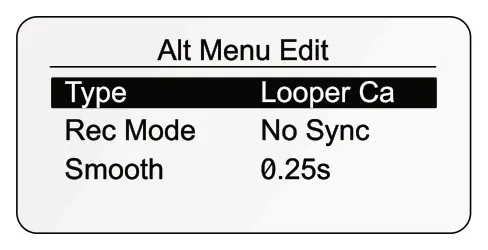
Alt Menu Edit Type
Navigate by turning a knob. Tap to select, turn to change.
Looper Ca
Smooth Rec Mode
0.25s No Sync
- The Hold, Looper Capture Menu. Select the control view and hold [Shift]. The 'Hold' menu must have 'Looper Capture' pre-assigned in order to select it.* Useful for on-the-fly recording changes and transport commands. The knobs are used to edit options and initiate commands.
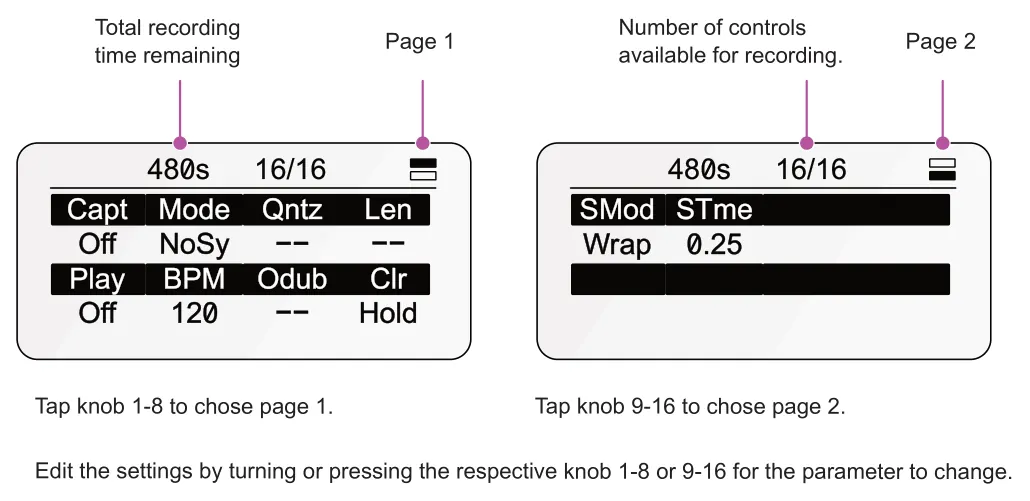
480s 16/16
480s 16/16
SMod STme
Wrap 0.25
* By default, the hold menu is set to 'Off' . The 'Looper Capture' must be assigned as pre-requisite.
Hold Function - Control View [Shift]: The [Shift] button hold behaviour can be changed based on your preferred workflow. Holding [Shift] in page view will open the options to assign to the hold menu. The menu can be assigned as the looper capture. Command knobs in the 'Alt' menu can also be set in the page view by holding a command, example (Knob 13) + [Shift].
| Recording Options | ||
|---|---|---|
| Hold Looper Menu | Rec Mode | Description |
| N/A | All | Assigns a function to the knob 13-15 in the page view Alt menu. Select from Off, Page, Looper Capture, Looper Play or Exit. For recording automation the button default is set to 'Looper Capture' which then presents the set up options as listed here in this table. |
| Mode | All | Recording synchronization mode. No Sync, recording is freely performed without a clock sync. Free sync, records from a quantized stop and start but rounds the recording to the nearest whole bar. Fixed Sync, records to a fixed and defined bar/phrase length. |
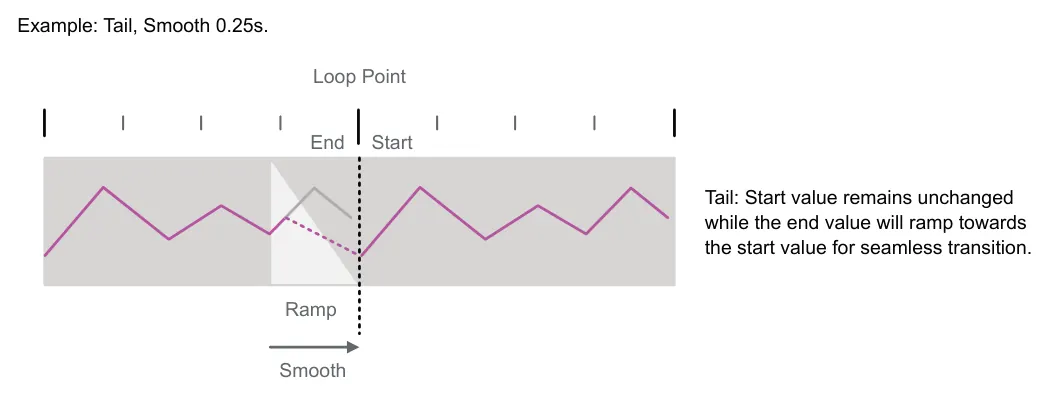
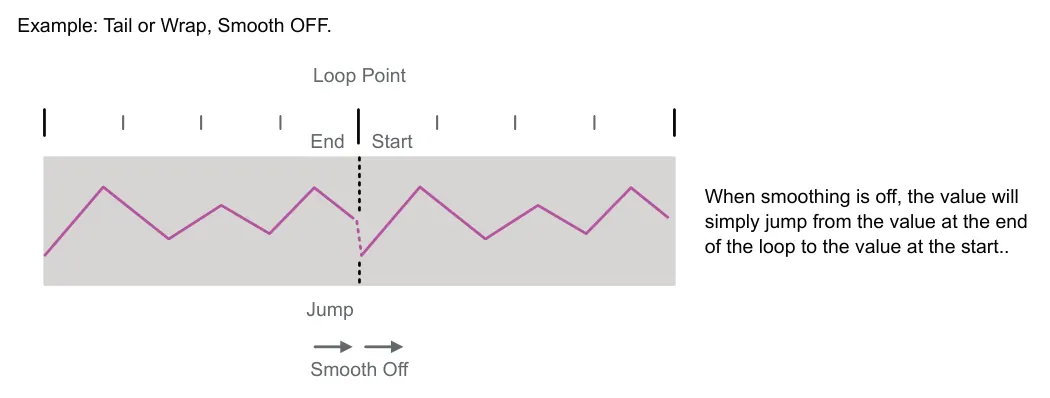
| STime | All | Sets the transition time for the smoothing through the loop based on the smoothing mode selected. Range can be set to Off, 0.01 to 1 Sec. OFF provides no smoothing. |
| SMod | All | Sets the behaviour of the parameter automation to create a smooth transition as the recording through playback and as it loops around from the end. Wrap will provide a cross-fade style transition. Tail will create a ramp from the loop value to the start value. These work in conjunction with the 'Smooth/STime' value. |
| BPM | All | Sets the internal tempo in beats per minute for the E16 clock. Range is 40-300BPM. External clock may override if present. |
| Capt | All | Tap to set capture mode on, arming the recording ready to record the knob automation loops. Recording starts when turning a knob. |
| Qntz | Free & Fixed Sync | Quantization interval applied. Bars or Phrase for fixed sync and bar or beat for free sync. |
| Len | Fixed Sync | Sets the recording length for fixed sync loop recording. Length is based on the quantization interval. |
| Play | Play | Tap to play or stop the recorded knob loops. |
| Odub | Fixed Sync | Sets overdub mode on, allows recordings to be overwritten when new adjustments are made to a control. Off will only record the initial loop automation. |
| Clr | All | Clear all recorded loops. |
The recording mode behaviour and parameters are explained further in the specific mode descriptions.
3.3 Recording Workflow
You will develop your own specific workflow when working with the E16. To get started here is an example, high level, workflow that will illustrate the key steps to looper recording and playback.
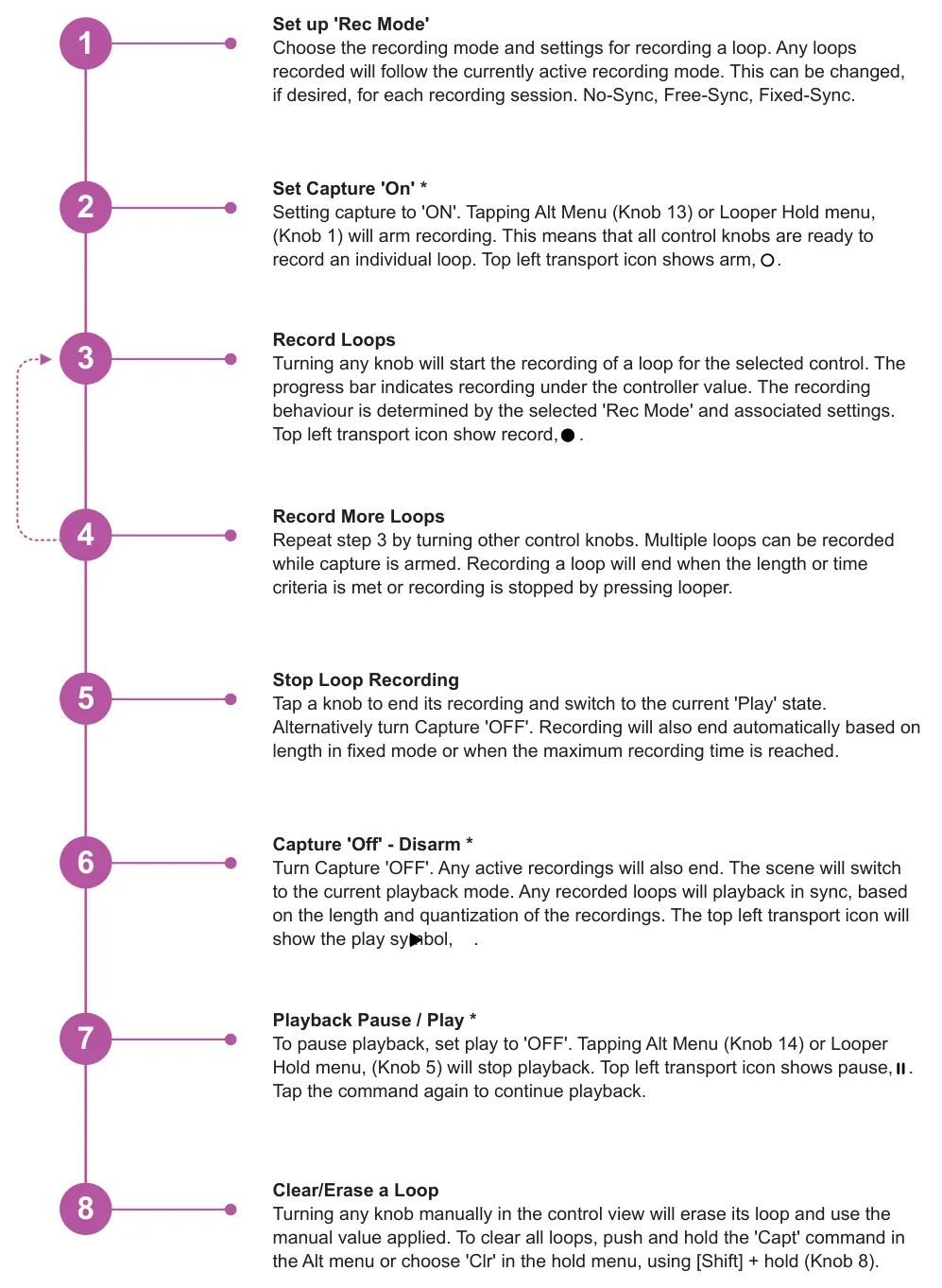
* Knobs can also be assigned with the looper capture and looper record transport controls if required. In this case
the knob will also show the transport icon. Pressing the knob will operate the same commands as capture and play and affect all controls.
3.4 Conventions for Loop Recording
The control view is the primary page for recording and managing playback. It is also possible to use the page menu options. Recorded data and synchronization status is animated in real-time for all values on the control view.
Setting up Rec mode and its parameters is a pre-recording task which determines loop recording synchronization and transition behaviour. After setup, any subsequent loops will be recorded for each knob movement based on the current settings. It is possible to change the rec mode and then to continue to record automation for other knobs. Recordings will adhere to the recorded mode for any knob adjusted. Recording and playback are decoupled, so existing loop recordings can play while recording on other knobs.
The main global synchronization can be viewed with the progress bar under the header for free and fixed sync modes. This shows that a clock is recognised and is running. The transport icon and the progress bar cycle represents 1 bar at tempo speed. In addition, each loop recording has a progress bar under the knob value that represents the loop position, length and status when recording and playing.
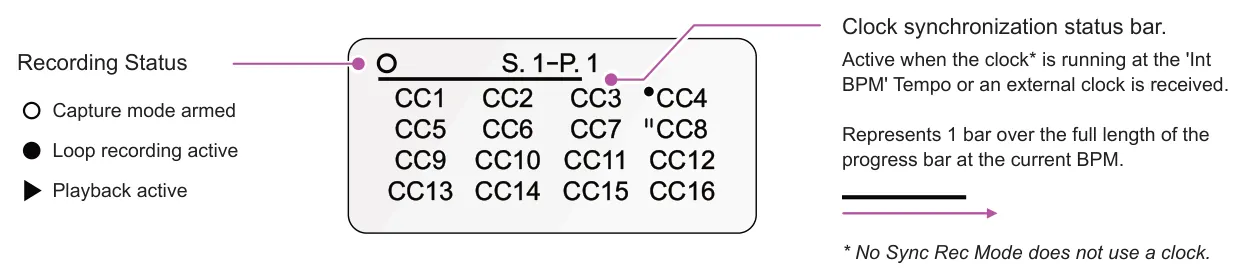
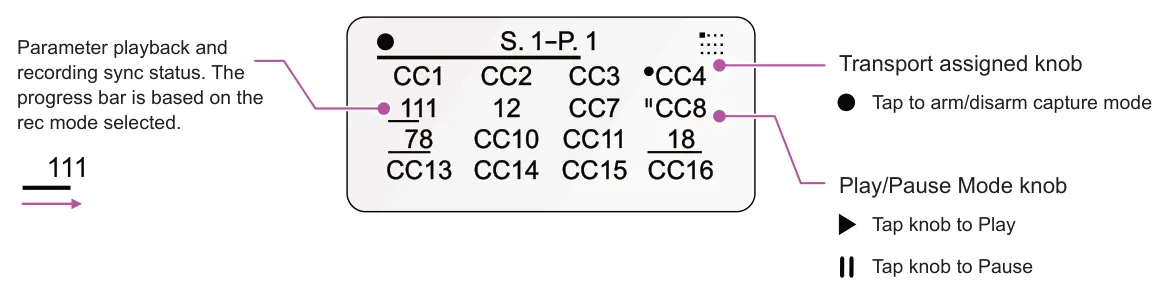
If a knob has a special command assigned for 'Looper Capture' or 'Looper Playback', these commands take precedence for tapping a knob. With no special transport command assigned, tapping any knob will stop/start loop recording if capture is armed. This is the default behaviour for all modes. The following examples of rec modes assume the default mode.
The icons and symbols below are used on all of the Rec Mode examples shown in this manual.

3.5 Recording Mode & Synchronization
Which ever workflow is used for arming recording, any loop recorded is performed with the currently active 'Rec Mode' . This manages the recording and playback synchronization and offers flexibility in how loops are captured and replayed. Three recording modes are available. Internal synchronization of the E16 can also take a clock reference from a connected MIDI device such as the OXI One MkII.
Setting up Rec Mode Behaviour - Hold Menu
- As pre-requisite, the hold menu must be configured to 'Looper Capture'. This is set in
the page view by holding [Shift] and tapping (Knob 2).
- The hold menu can now be selected from the control view by holding [Shift].
Navigate to control view to access the hold menu.
- To set the recording mode from the Hold menu. Hold [Shift] + Turn (Knob) 1-8 to
adjust the settings. Tapping (Knob) 9-16 will switch to page 2. [Shift] must be held throughout as releasing it will close the menu.
- The 'Rec Mode' setting, labelled 'Mode' is set using (Knob 2) in Page 1. The active
page is shown top right by the two icon bars.
- The hold menu header also displays the total recording time remaining in seconds
and the number of controls of the total 16 which have active recordings.
No Sync - Rec Mode
No Sync recording mode is a free flowing mode that does not use a clock for sync. When capture mode is armed, adjusting any knob will start the recording of the parameter changes. When knob movement ceases, recording will capture the last value and continue until recording is stopped.
Recording will stop when either of the following scenarios is true:-
- Loop recording is stopped by pressing the knob being recorded.
- End Capture. Recording is disarmed and stopped. Press 'Capt' or a record enabled knob to stop recording.
Ending capture is also automatically performed when exiting a scene, for example in the Alt menu 'Exit'.
- The 60 Seconds, maximum loop recording length is reached or the total recording time for the device is
reached. A warning message if issued if the recording time available is restricted.
Example.
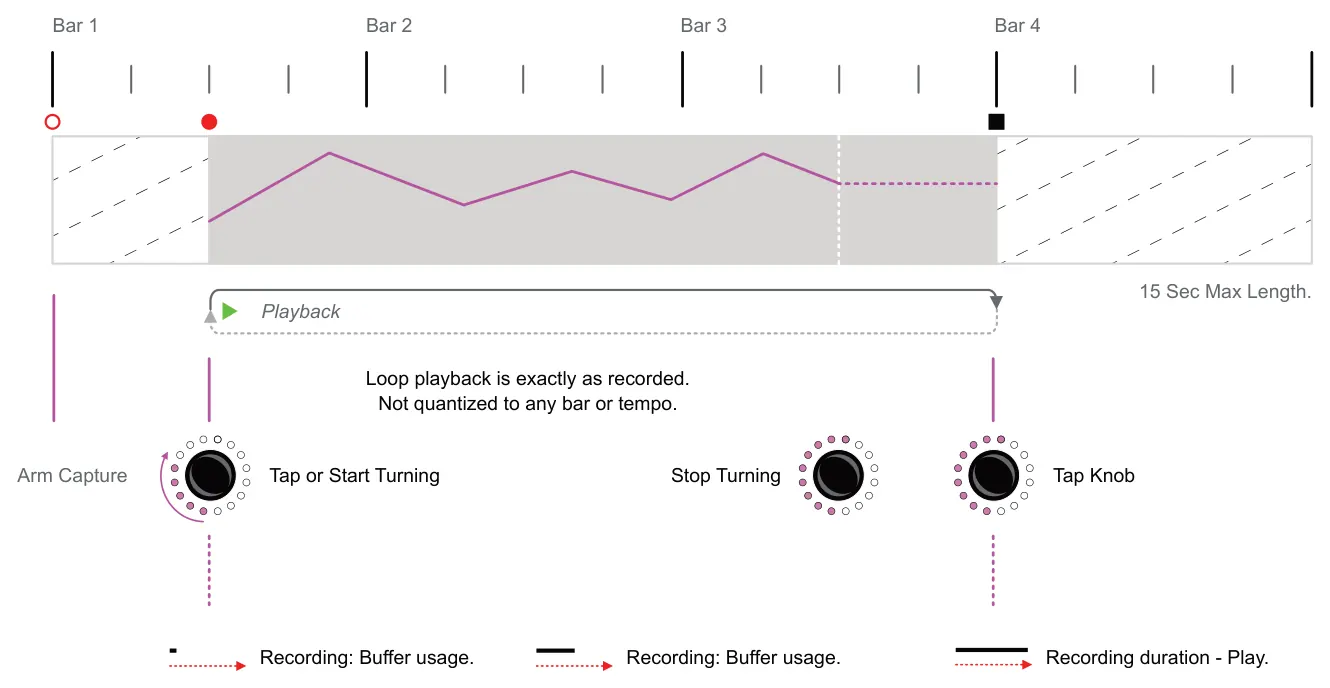
Loop Progress Bar
If 'Play' is On, playback will start when the recording ends.
CC4
Free Sync - Rec Mode
When capture is armed, recording will commence when a knob is turned. The loop will only start recording from the next quantization interval. Any data recorded earlier than the quantization bar/beat will be relocated to the end part of the loop. For example, after turning the knob, the loop will be recording from next whole bar position. When knob movement ceases, the last value will hold and be recorded until recording is stopped. The end is then rounded to the nearest quantization interval. Recording beyond the quantized interval will trim it back and any shortfall will extended the loop to the next interval. The playback range will therefore always cover whole bars/ beats. The interval is set in the Quantize option to bar or beat.
Recording will stop when either of the following scenarios is true:-
- Loop recording is stopped by pressing the knob being recorded.
- End Capture. Recording is disarmed and stopped. Press 'Capt' or a record enabled knob to stop recording.
Ending capture is also automatically performed when exiting a scene, for example in the Alt menu 'Exit'.
- The 60 Seconds, maximum loop recording length is reached or the total recording time for the device is
reached. A warning message if issued if the recording time available is restricted.
| Free Sync Record Mode Options - Alt Menu | ||
|---|---|---|
| Menu Option | Function | Description |
| Rec Mode | Synchronisation | Free sync, records from a manual stop and start but rounds the recording to the nearest whole bar. |
| Quantize * | Recording Interval | Sets the interval that will be used as the recording start and end quantization marker. So recording will start on the first quantized interval after the count-in period and the duration will always round to the nearest whole bar or beat. The selectable options are bar or beat. |
* This options appears when the 'Free Sync' mode is selected. Quantize appears in addition to the other Alt Menu options when this mode is selected.
Example: Quantize set to Bar.
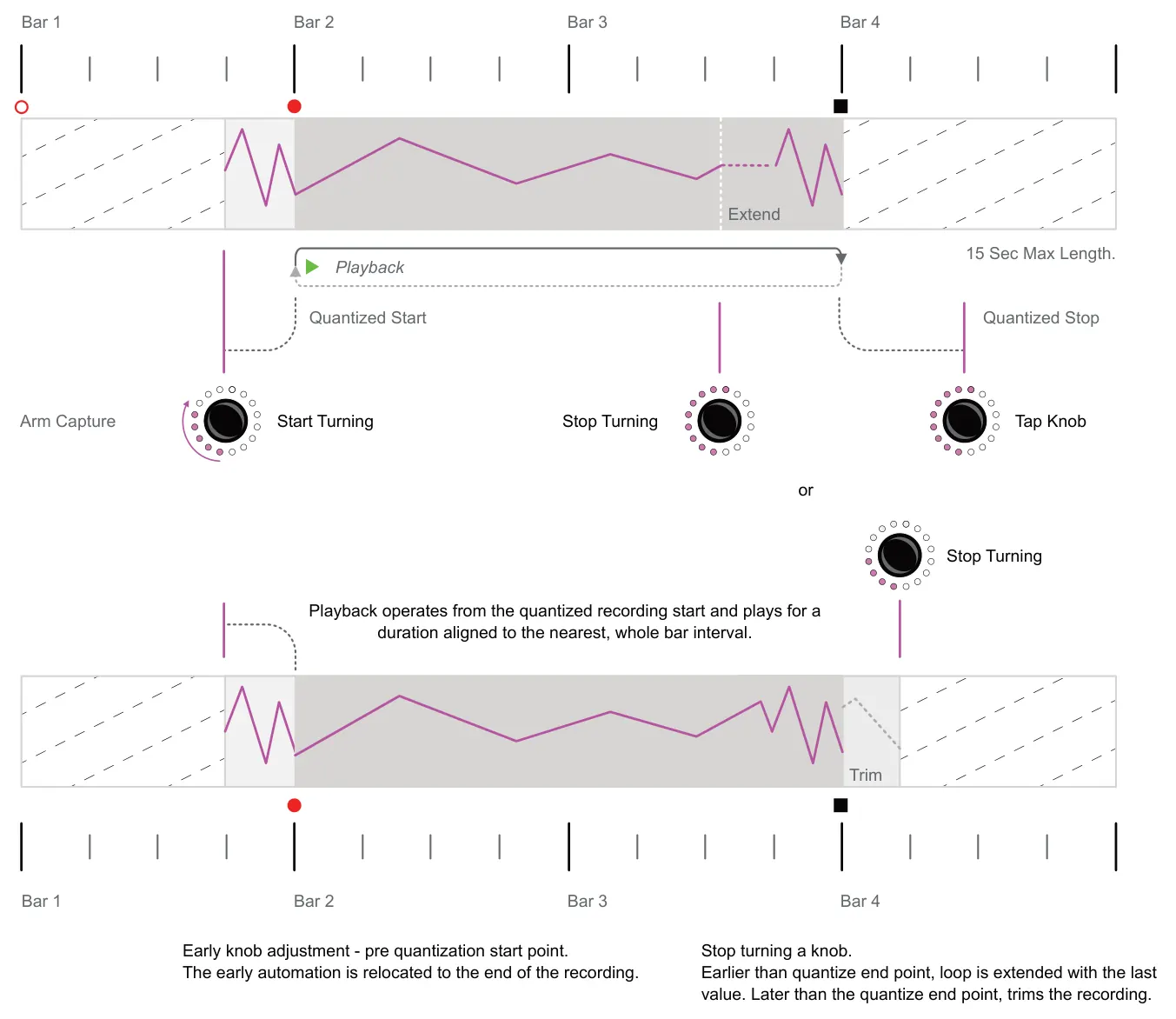

Loop Progress Bar If 'Play' is On, playback will start when the recording ends.
CC4
If 'Play' is Off, playback will pause, then start when the play is set to On. The clock sync progress bar will also be visible in this mode, located in the display header.
Fixed Sync - Rec Mode
When armed, adjusting a knob will trigger the count-in period, ready to record at the next bar interval. This is indicated by the reversed progress bar indicator under the knob parameter value. Once the bar interval is reached, loop recording starts, now the progress bar plays forwards to indicate recording duration. The recording will be performed to a fixed bar length as defined in the Alt menu settings and stops automatically when the bar count is reached. If knob movement ceases during recording, the value is frozen until the end of the range. If overdub is on, the recording will loop and overwrite while further knob adjustments are being made.
Recording will stop when either of the following scenarios is true:-
- Loop recording is stopped by pressing the knob being recorded.
- End Capture. Recording is disarmed and stopped. Press 'Capt' or a record enabled knob to stop recording.
Ending capture is also automatically performed when exiting a scene, for example in the Alt menu 'Exit'.
- The 60 Seconds, maximum loop recording length is reached or the total recording time for the device is
reached. A warning message if issued if the recording time available is restricted.
- Fixed bar length setting is reached, when not in overdub mode. In overdub mode the loop length will cycle to
allow punch-in recording changes.
| Fixed Sync Record Mode Options - Alt Menu | ||
|---|---|---|
| Menu Option | Function | Description |
| Rec Mode | Synchronisation | Fixed Sync, records to a fixed and defined bar/phrase length. |
| Quantize * | Recording Interval | Sets the interval that will be used as the recording start and end marker. So recording will start on the first quantized interval after the count-in period. The options are bar or phrase. |
| Length * | Recording Length | Sets the length used for the recording duration. This will be the fixed recording length after the count-in period, starting from the quantized start position and ending at the set length. Options include 1, 2, 4, 8 or 16 Bars, including sub increment for example, beats 1.1, 1.2, 1.3, 1.4. 2 etc. |
| Overdub * | Overwrite on Loop | With overdub on, the loop will continue recording through further cycles. Any knob changes will replace the existing data with the newly recorded values. If a knob is not adjusted, the existing data will remain unaffected. If overdub is off the recording will stop recording at the fixed length. |
* These options appear when the 'Fixed Sync' mode is selected. They appear in addition to the other Alt Menu options when this mode is selected.
Example: Length - 2 Bars, Quantization - Bars.
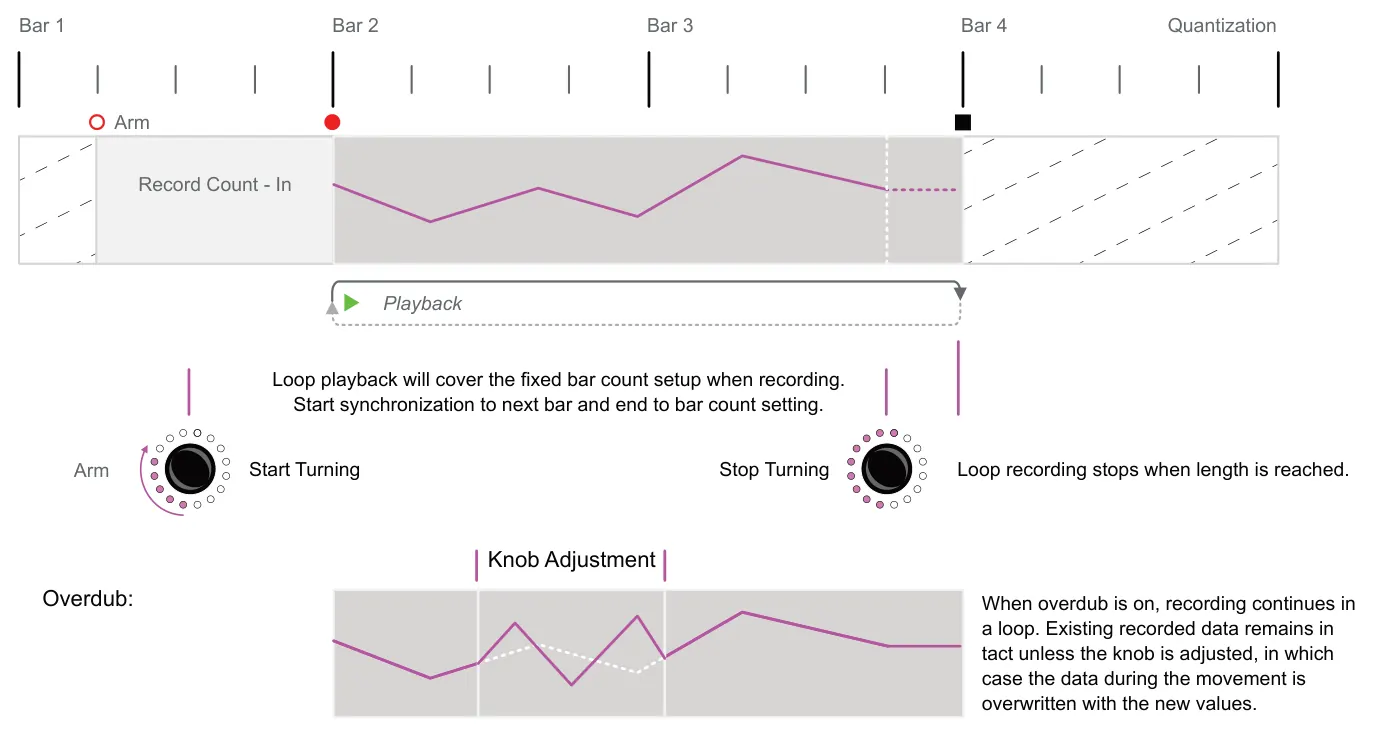

Loop Progress Bar If 'Play' is On, playback will start when the recording ends.
CC4
If 'Play' is Off, playback will pause, then start when the play is set to On. The clock sync progress bar will also be visible in this mode, located in the display header.
Loop Transition Smoothing
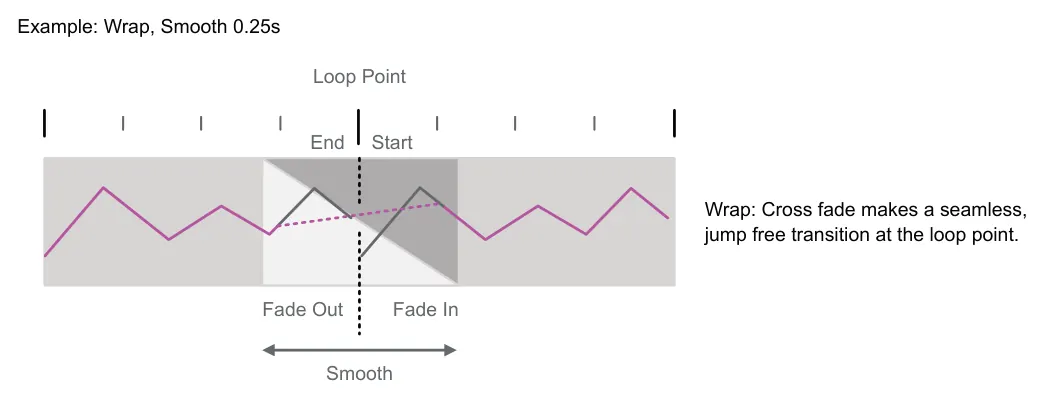
Smoothing determines how the transition will be managed from when the recording ends to when it restarts when playing the loop.
When smoothing mode is set to wrap, the transition is performed with a cross fade which applies a fade in and fade out. Tail will ramp the ending parameter value to the original value of the start position. The transition is applied over the 'Smoothing' time amount set.
3.6 Recording Knobs
The Alt menu, located in page view has commands to arm capture and stop recording. Also to toggle playback mode on or off. If configured with 'Looper Capture', the Hold menu can also select capture and record modes. The hold menu is accessible from the control view. The recording processes are covered here.
Note that the recording and playback commands are decoupled. So the 'Play' mode can be set to on / off whether recording or not. Loops will automatically play once recording has stopped if 'Play' is active or they will pause if 'Play' is inactive.
Recording from Page View, Alt Menu
- From the control view, tap [Shift] to open page view.
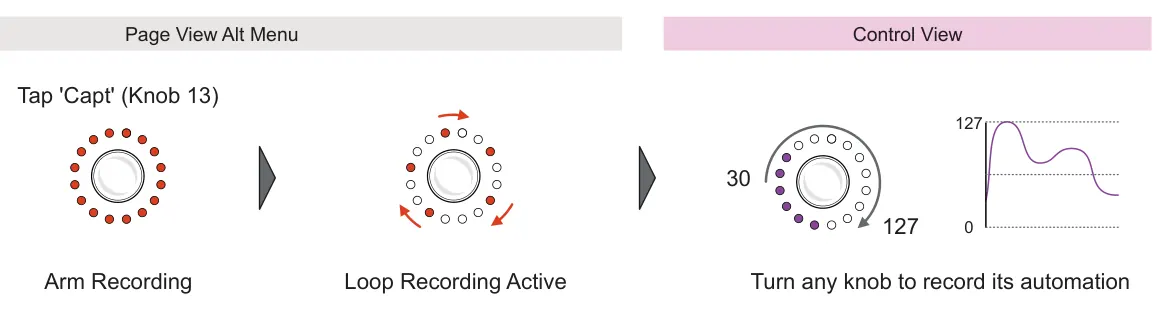
- To arm recording Tap 'Capt' (Knob 13), Default is knob 13. Recording status is
indicated by the arm/record symbol in the top left of the control display. The 'Capt' Knob LEDs will rotate red.
- The interface switches to control view. Recording each control loop can be performed
by adjusting any knob on the page. Multiple knobs on the page can be recorded. Recording status is indicated by the symbol in the top left of the control display.
- The status of the individual loop recording will be displayed by the progress bar under
each control. This is based on the rec mode synchronisation setting.
- Tapping the individual knob being recorded will stop recording that loop.
- To stop global recording, tap [Shift] to go back to page view.
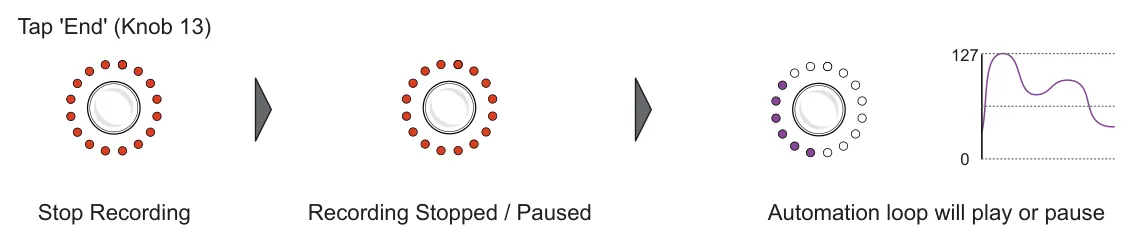
- Tap 'End' (Knob), default is (Knob 13). Same knob as for 'Capt', but the mode
changes to 'End' when recording.
- The state of the 'Play' command will determine if playback commences when
recording stops. The default is (Knob 14) and can toggle between 'Play' and 'Stop' when tapping the knob. The page view 'Play' knob LEDs will rotate green if 'Play' is active.
- To clear all automation recordings for all controls on the page, Hold 'Capt' (Knob 13).
Confirm erasing all tracks by tapping (Knob 3) or cancel by tapping (Knob 2).
Start / Play Recording from the Page Alt Menu Tapping [Shift] in the control view opens the page view and menu
Capt
End
Recording Stopped / Paused Stop Recording
Tap an individual knob when recording to stop the recording for the loop.
![Recording from Page View, Alt Menu diagram: Hold 'Capt' (Knob 13) Turn a Loop Knob While automation plays, turn an encoder to cancel and delete its individual recording. To stop and clear all recordings, Tap [Shift] and then hold 'Capt' (Knob 14). or](../../img/oxi-e16/looper/looper-020.webp)
Clear All
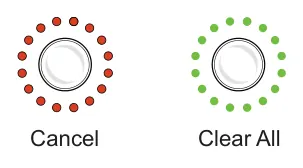
Confirm or cancel the erasing of all tracks.

Recording from Control View, Hold Menu
- A pre-requisite is that the hold menu option is set to 'Looper Capture'. The default is
'Off'. In Page view, hold [Shift] to assign the function to the hold menu. The hold menu will appear while holding [Shift] in the control view.
- To arm recording Hold [Shift] + Tap 'Capt' (Knob 1). Recording status is indicated by
the arm/record symbol in the top left of the control display. Mode will be 'On'.
- Recording each control loop can be performed by adjusting any knob on the page.
Multiple knobs on the page can be recorded. Recording status is indicated by the symbol in the top left of the control display.
- The status of the individual loop recording will be displayed by the progress bar under
each control. This is based on the rec mode synchronisation setting.
- Tapping the individual knob being recorded will stop recording that loop.
- To stop global recording, Hold [Shift] + Tap 'Capt' (Knob 1). Mode changes to 'Off'.
- The state of the 'Play' command will determine if playback commences when
recording stops. Hold [Shift] + Tap (Knob 5) to toggle between 'Play' and 'Stop'.
- To clear all automation recordings for all controls on the page, Hold [Shift] + hold 'Clr'
(Knob 8). All recorded automation will be erased for all knobs.
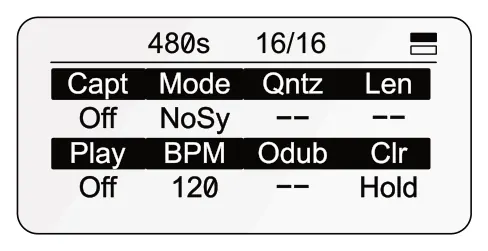
480s 16/16
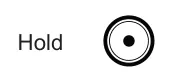
Hold [Shift] to access the hold menu and use knobs 1, 5 and 8 to control recording commands. Other knobs edit settings.
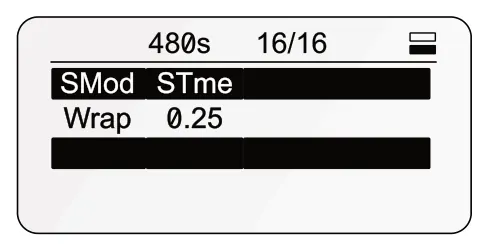
480s 16/16
Tap knob 9-16 to access page 2.
SMod STme
Wrap 0.25
Recording can also be performed by using any knob which has the special function for 'Looper Capture' or 'Looper Playback' assigned. This allows an individual knob to control the recording and playback for all loops.
3.7 Looper Quick Reference
A summary of the looper commands is provided here for a collective reference when recording automation. Commands assume the default configuration of the Alt menu.
| Looper Quick Reference | ||
|---|---|---|
| Function | Command | Description |
| Arm Capture Mode | Hold Menu: Hold [Shift] + Tap (Knob 1) Alt Menu: Tap (Knob 13) | It is recommended to use the hold menu for the recording workflow. User interface knob LEDs will rotate orange. |
| Record a Knob | Tap a (Knob) to start recording Turn a (Knob) to start recording. | Capture mode must be armed ready to record. One or more knobs can be recorded. |
| Stop Recording a Knob | Tap (Knob) to stop it recording | Global playback may continue to be visualised on the display when stopping individual knobs. |
| Stop Recording All knobs | Hold Menu: Hold [Shift] + Tap (Knob 1) Alt Menu: Tap (Knob 13) | End global capture mode to stop recording. |
| Start Playback | Hold Menu: Hold [Shift] + Tap (Knob 5) Alt Menu: Tap (Knob 14) | Select Play. User interface knob LEDs will rotate green. |
| Stop Playback | Hold Menu: Hold [Shift] + Tap (Knob 5) Alt Menu: Tap (Knob 14) | Select Stop. User interface knob LEDs will rotate green. |
| Erase a Knob Automation | Turn (Knob) - Capture OFF/ Disarmed Hold (Knob) - Capture ON / Armed | While in normal playback more, capture disarmed, turning a knob will erase its recorded automation. The manual control will operate as normal. |
| Erase All Knob Automation | Hold Menu: Hold [Shift] + Tap (Knob 8) Alt Menu: Hold (Knob 13) | Holding Alt menu 'Capt' while disarmed. Confirm with (Knob 3) or cancel with (Knob 2). Also use the Hold menu 'clr' will erase all automation. |