



The E16 is a compact yet advanced MIDI parameter controller which can communicate MIDI over TRS, USB or Bluetooth connections. MIDI input also accepts messaging from external devices. There are 16 push/turn endless encoders immediately available on the panel which can be configured for control of a destination device’s MIDI functions such as CC - Control Change, PC - Program Change, note data and many other MIDI parameters. The E16 has a loop recorder which can record and play back parameter automation and can operate with parameter groups and provide precise individual parameter control and function selection. Controls are organised in Scenes. A maximum of 16 Scenes are available on board the E16, 8 of which are presented for immediate access with knobs 1-8 in the home screen at power on and the next 8 accessed by tapping knobs 9-16. A scene stores the E16 settings and each scene has 16 presets which can be used to capture and store the current parameter settings. Presets can be used to recall stored parameter states. A scene contains 12 pages, each with 16 parameter controls. A scene can hold 192 parameters each with 2 destination controls and a push value. Navigating the menus and options is also performed using the 16 push/turn encoder knobs along with the multi-functional shift button. The E16 is a great tool in the MIDI armoury either as a creative contributor to your setup or as a flexible and practical utility tool. The important thing is that the E16 contributes to you making great music, being creative with live performances, and generally having fun!
1.1 Introduction
E16 is the latest part of the OXI family of audio products and the perfect compliment to OXI ONE. E16 is an advanced MIDI performance controller consisting of 16, configurable push / turn rotary encoders. Control over MIDI USB, TRS and Bluetooth is possible.
E16 is a MIDI controller and in itself does not generate any audio output. Audio is generated from the connected devices where E16 will control the synth, effect or sequencer parameters and pattern values.
Specifications
Electrical specifications:
- 5V DC, 200mA (USB type C supply)
Radio equipment:
- Bluetooth: BLE 5.0
Mechanical specifications:
- Aluminium chassis.
- Dimensions: 143 x 114 x 19mm / 39mm incl knobs
- Weight: 370 gr.
User interface
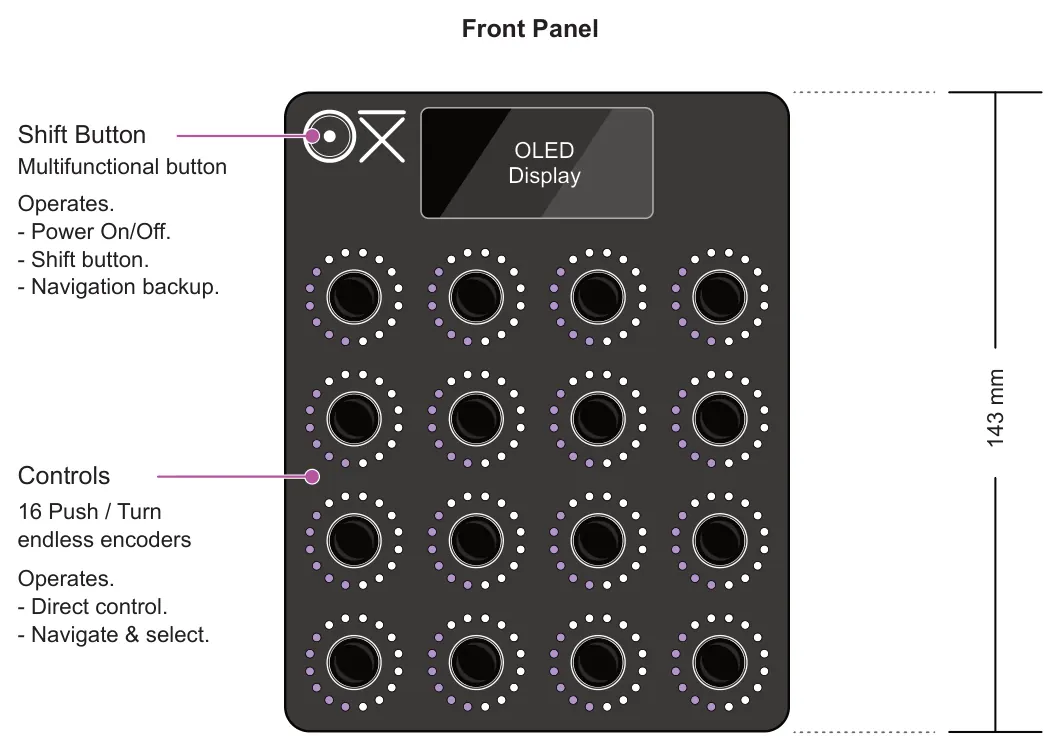
- 16x push / rotary encoders with LED indication. Detent or Non-Detent knob type options available.
- Single power on button, also serves as a user interface navigation aid.
- OLED Display
Inputs & Outputs
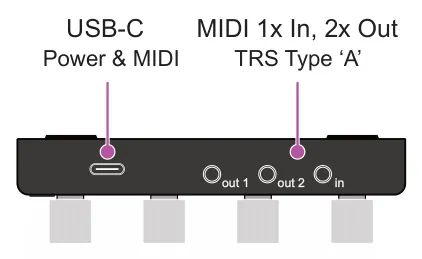
- USB-C for 5V power supply and MIDI USB.
- MIDI TRS input x1 & output x2. MIDI Out is 5V, MIDI IN accepts 5V and 3.3V
- MIDI Bluetooth BLE 5.0 bidirectional, peripheral and central roles.
What’s In The Box
Supplied with the device are the following components:-
- 1 x OXI E16 Controller device.
- 1 x OXI E16 Protective Case.
- 1 x USB A to C right angled cable.
- 1 x Quick start instruction leaflet. Main manual is downloadable.
1.2 How To Use This Manual
This manual combines a formal reference with detailed instructions, illustrations, guides, workflows and tips for your device. You can add your own notes which personalises this into a comprehensive and unique guide book. For clarity, OXI E16 device will simply be called E16 in this manual.
Icons and graphics may be used in the diagrams that reflect the faceplate and display of the device but there will be explained by text commands. Controls on the E16 are multi functional, used for device control, navigation and setup. Therefore it is important to follow a clear convention in the terminology. Any walkthroughs and instructions will refer to these functions in text format.
[Shift]
The multi-functional button located within the OXI ‘O’ will be called [Shift]. This is also the power on and off button and is used to backup in menus and for other navigation commands. This is described in square brackets.

Example: Power On, Hold [Shift]
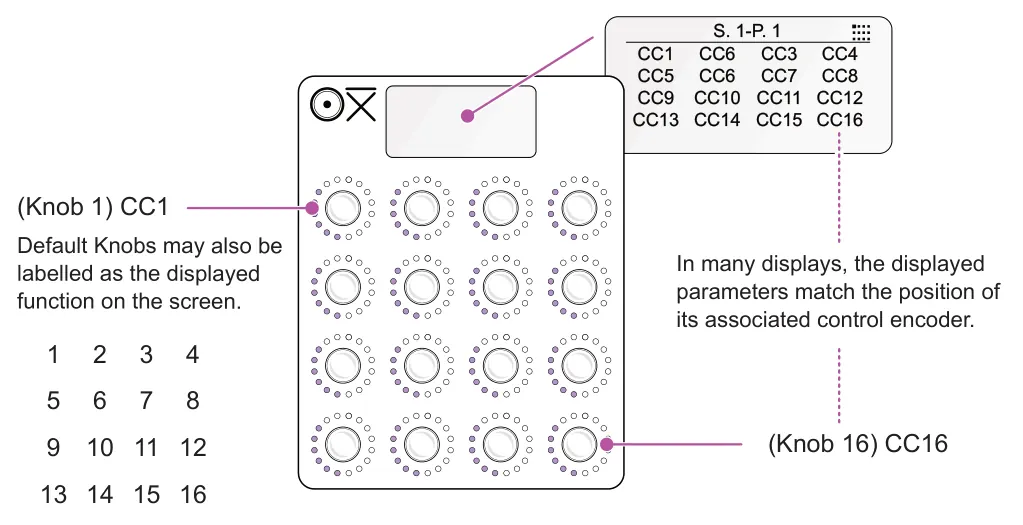
(Knob X)
The 16 Front panel push / encoders generally control the CC or MIDI parameter values. Also they may be presented as menu and function selection or navigation buttons and controls. In order to differentiate, a name or number will be used to describe the parameter. The name is based on how it is dynamically displayed, relevant to the control position. It is possible to change some of these values so they will be referred to by their knob position in the descriptions. Encoder type can be changed to match your version in the config between normal, non-detent knobs or detent knobs.
Examples: Control Change, (Knob 1) for default CC1 encoder, (Knob 5) to edit the default CC5.
1.3 Hardware Overview
Rear / Edge Left / Side Right / Side
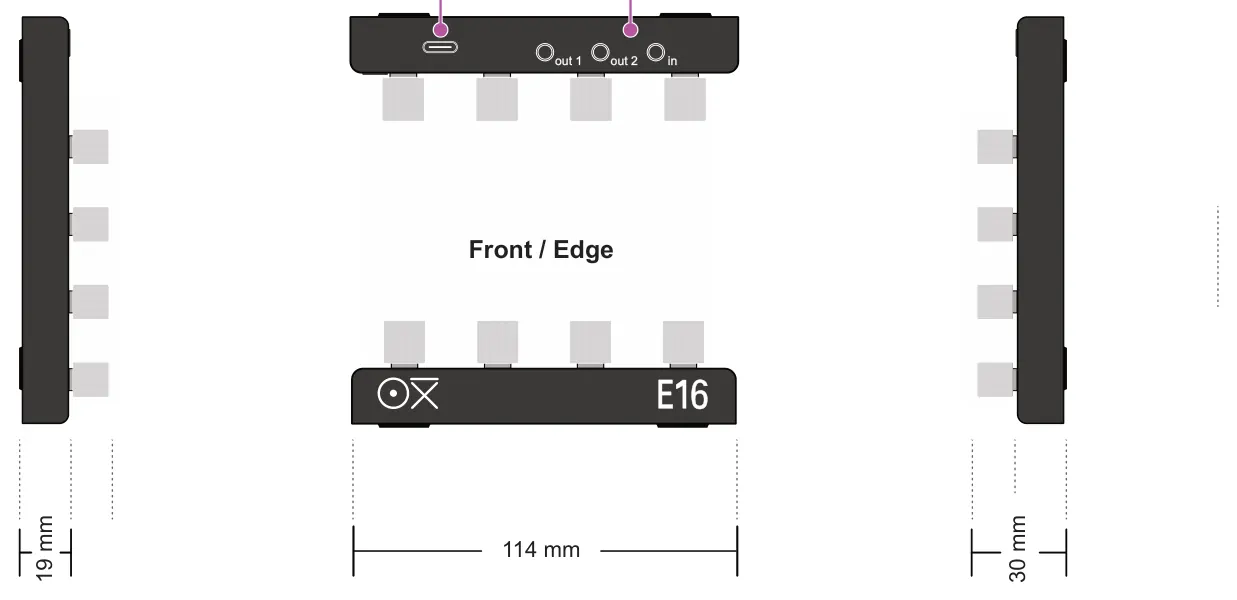
Front / Edge

1.4 Powering Up
The E16 is powered using the USB-C connection. A standard USB Mains charger, PC / Macbook connection or a power bank can be used. The E16 has a low power rating and it is recommended to use a supply with a minimum of 200mA.
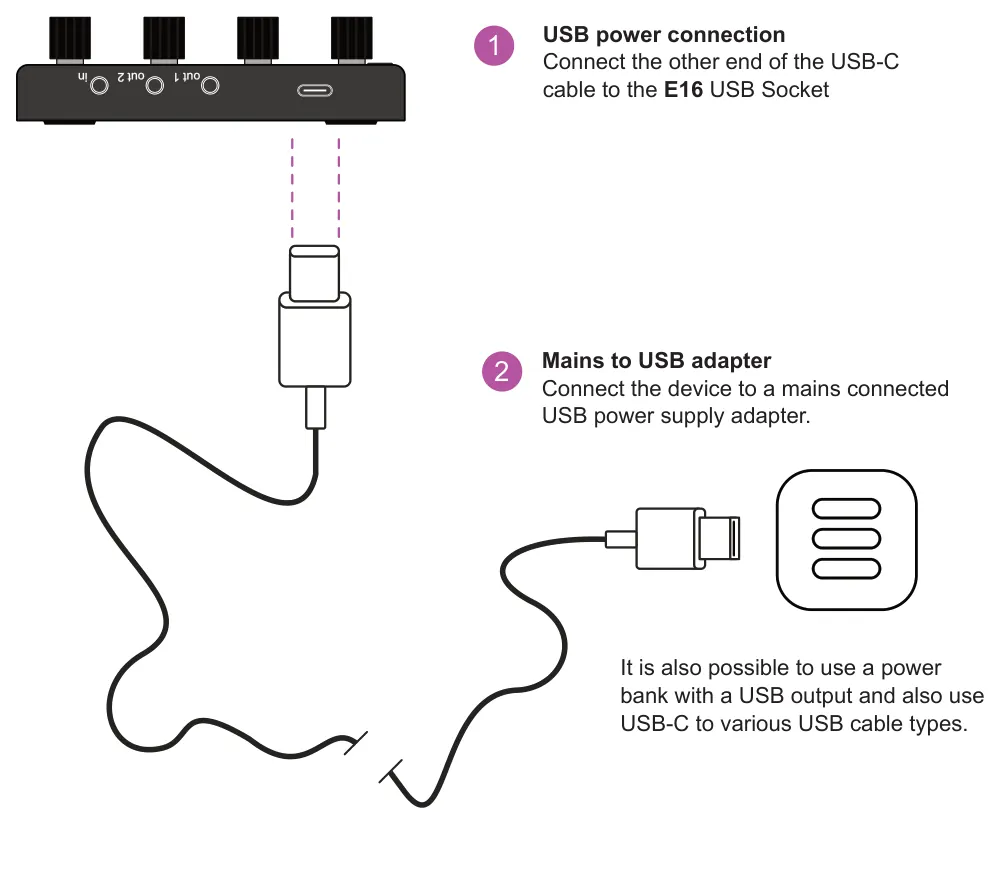


Power On
Hold the multifunctional [Shift] button.
![1.4 Powering Up diagram: Power Off Tap the [Shift] button, then tap (Knob 16), red lit encoder. Turn off from the main, top level scenes page.](../../img/oxi-e16/overview/overview-010.webp)
![1.4 Powering Up diagram: Settings & Off Screen. Available at power down and to access the system settings. Tap [Shift] to backup in the menus. OFF CONF](../../img/oxi-e16/overview/overview-011.webp)
1.5 Navigating the E16
The main ‘home’ screen location in the structure of OXI E16 is presented when first powering on. This display will show the first 8 scenes labelled S.1 to S.8. Tapping an encoder knob 1-8 selects and opens the scene. Tap knob 9- 16 to access the other 8 scenes, S.9 to S.16. In the main scene page, hold [Shift] to access the system config settings and to access the off command. Any knob which is controlling a menu command will be lit. Tap a knob to select the option and tap shift to backup in the menu structure. In a menu, turning a knob selects a value or option.
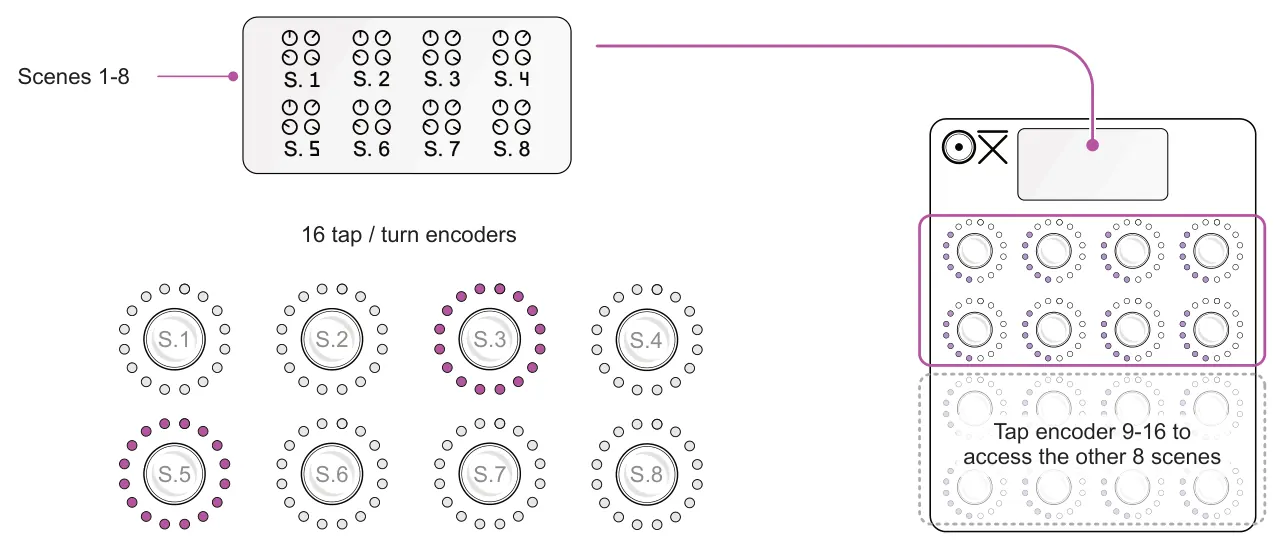
In several screens, the knob position matches the position of the displayed elements. For example the first 8 scenes presented from the home page match the 1-8 knob positions and the lower knobs 9-16 represent Scenes 9-16. The knob LEDs for the scenes are shown in the scene header color.
![1.5 Navigating the E16 diagram: Turn Edit or change value of the Tap or Press Select the respective [Shift] + Turn Edit or select some secondary Tap [Shift] Navigate and backup in the the respective parameter displayed option. values and options....](../../img/oxi-e16/overview/overview-013.webp)
The rotary LEDs will indicate
Any knob which has a currently selectable menu
The [Shift] button is used as a classic shift, to access secondary parameters or to backup or exit menus as
a parameter value setting.
option will be lit.
well as operating as the on/off command.
The option to save is presented when exiting scene editing. Press
a knob to select yes to save or no to backup without saving.

Encoder Type Knob behaviour must be set in the config settings for the encoder types on your controller hardware to the default normal, non-detented control or to the detented style.
1.6 Architecture
The highest elements in the E16 organisational structure are scenes. There are a total of 16 scenes on board with 8 available for direct access from the home screen and the interface knobs. A scene contains 12 pages each with 16 control parameters. Scenes can also be managed and setup on a PC/Mac by using the OXI App.
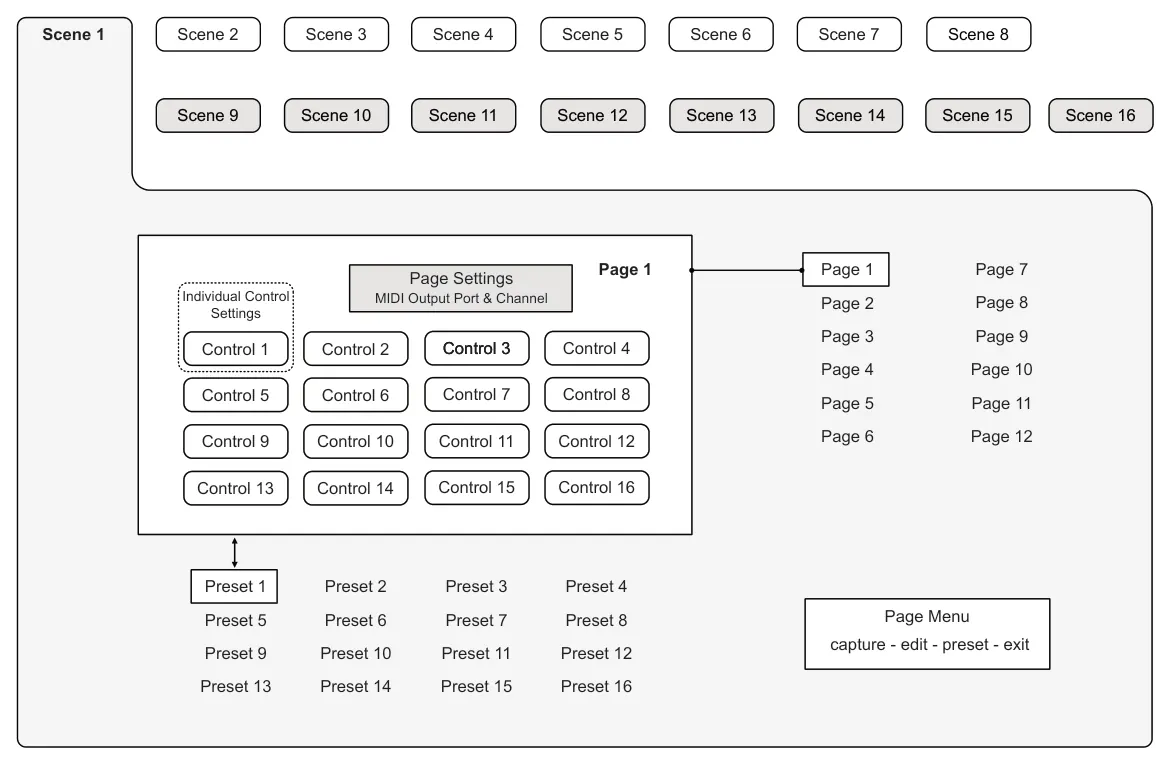
![1.6 Architecture diagram: Navigating Scenes Choose a Scene. Tap knob to select a scene from the home screen. Tap knob 9-16 to switch scene selection options. View or Change Controls. Tap [Shift] to switch between the page / alt menu or...](../../img/oxi-e16/overview/overview-016.webp)
A scene is a function to help organise the controls and saves all of the E16 settings. The scene options are found in the main, home screen, presented on power up. To start, select a scene to work with or to setup. Within the control view one of the 16 pages of parameters can also be selected. You can open one of the 8 direct access scenes from the main, home menu. Tap knob 9-16 to view and select the other 8 scenes.
1.7 Naming Editor
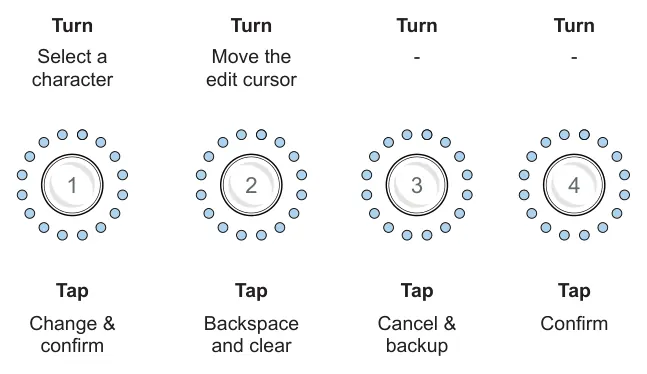
At various points in the workflow the option to save as or rename something will be presented. This includes scenes and presets. The text editing interface is the same for all naming options and requires turning and tapping certain knobs to edit and navigate in the text string name.
The top four encoder knobs are used to perform changes in the text editor.
- Knob 1 - Turn to scroll the selection of the alpha-numeric options. Tap to change the character.
- Knob 2 - Turn to move the edit cursor in the text body being edited. Tap to backspace and clear the previous character.
- Knob 3 - Press to cancel and return to the sub-menu.
- Knob 4 - Press to confirm editing and complete the changes.
- Press [Shift] at anytime to backup, cancel or exit.
Name editor option found in several menus
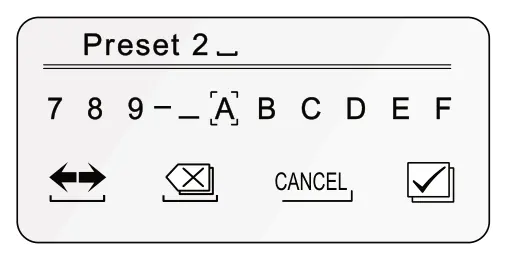
Preset 2
7 8 9 A B C D E F
1.8 Configuration & Set-Up Menus
There are several menu structures in the E16, each serving a specific purpose and enabling global configurations as well as precise application set-up. Each workflow will be covered in the specific application section of this manual, so consider this section as an introduction to the available menus.
Global Configuration
The 'CONF' menu contains global settings that operate across the E16. Workflow and user experience options, Generic MIDI setup and System wide settings are included in this menu. Access from the home scenes page by tapping [Shift].
![Global Configuration diagram: Configuration Menu S. 1 S. 2 S. 3 S. 4 Tap (Knob 15) after tapping [Shift] from the main home page. OFF CONF S. 6 S. 7 S. 8 S. 5](../../img/oxi-e16/overview/overview-019.webp)
Settings Editor
The editor is used to setup each scene, page or control. The editor is available from multiple entry points. The most common workflow is in the control view, hold a control (Knob) + tap [Shift]. Holding [Shift] in this menu will allow switching between a control or between a page or scene editor. The editor can also be configured as an option from the page view, alt menu.
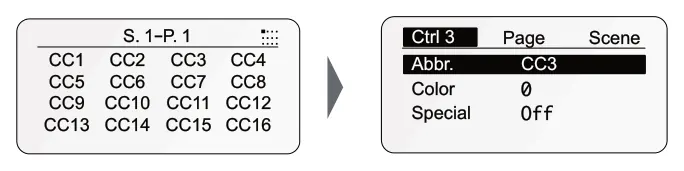
Editor
Hold (Knob) + Tap [Shift] to open the editor. The control selected is immediately available to edit. Hold [Shift] to switch to page or scene.
![Settings Editor diagram: In the control view In the edit page, hold [Shift] for the Ctrl, Page or Scene options + + Hold 1 2 3 Control to Edit Control Hold Shift Page Scene](../../img/oxi-e16/overview/overview-021.webp)
Control View 'Hold' Menu
The control view 'hold' menu is a configurable option for quick access to selected functions. This can be setup based on your preferred workflow. Selecting the function to call when shift is held is performed in the page view by holding [Shift]. The selectable 'hold' functions are:-
- Off. Holding shift in the control view has no effect.
- Looper capture. The recording mode options as displayed when holding shift.
- Lua scripting debug. Shift presents incoming diagnostic information.
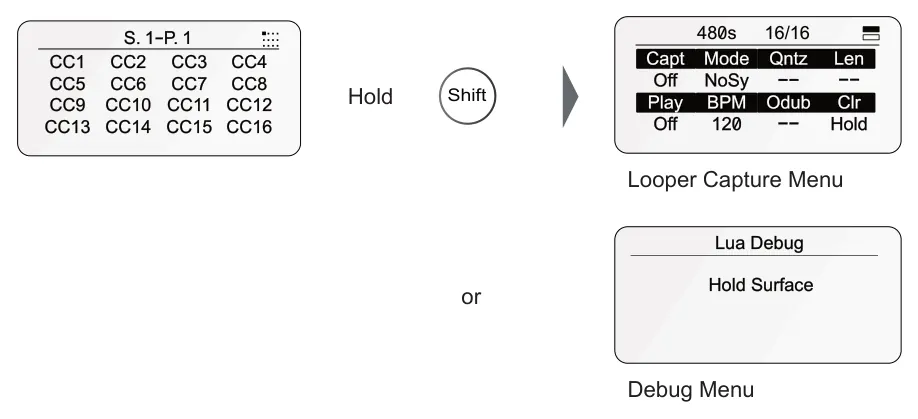
Hold
or OFF default
Configuring the 'Hold' Menu
- Configuration of the hold function is performed in page view. With a scene selected
and from the control view, tap [Shift] to open the Page view.
- To open the configurator, hold [Shift]. Tapping a lit knob will choose the the respective
function to assign to the control view hold shift command. Knob 1; turns the hold function 'Off', Knob 2; Loop Capture menu, Knob 3; Lua Debug for scripting.
- Holding the control view [Shift] button will display the assigned function options. The
buttons needs to be held to edit an option and released to return back to the control view. Default is set to off.
The last used hold mode will be saved with each scene.
Alt Menu
The Alt Menu is presented at the bottom of the Page view. Tap [Shift] in the control view to toggle between the Control and Pages view. The available options in the Alt Menu are selected using Knobs 1-16. The defaults include: Looper Capture, Play, Preset Selection or Scene Exit commands for the lower knobs 13-16 while knobs 1-12 represent pages. These functions can be re-configured from the defaults.
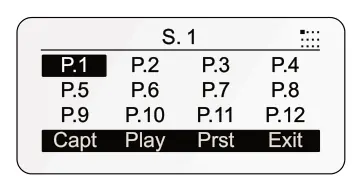
Configuring the Alt Menu Options
- Configuration of the alt menu is performed in page view. With a scene selected and
from the control view, tap [Shift] to open the Page view.
- To configure the options, Hold (Knob) 1-16 + Tap [Shift] to edit the selected knob
command.
- The 'Type' option will determine which command will be presented for the knob.
Turn the knob to edit and tap to select.
The available functions are described in the relevant section in the manual.
Scene Slot Configuration Menu
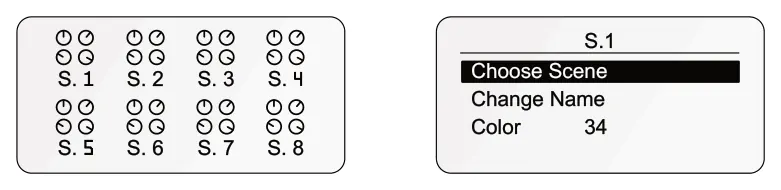
Each Scene slot can be configured. The configuration options are accessed from the main scenes page.
Configuring a Scene Slot
- Ensure the main scenes view is on display.
- To configure a slot options, Hold (Knob) 1-16 + Tap [Shift] to edit the settings for the
selected knobs scene.
- Options such as the scene to select, name, color and also the MIDI messaging when
accessing the scene are configurable.