



2.13 Random
Setting an encoder knob special function to 'random' allows the control, to trigger a randomization of all parameter values on the page. All parameters are covered by default, but each knob can be included or excluded from random generation. In addition, the parameter randomization can be set with a 'morph' timer that slews from the original value to the new random value. The time this takes to transition from one to the other is set across all randomized parameters. Range is 0.0s and 5.0 seconds
Once configured, the encoder can be turned to set a randomization percentage amount and when pressed will initiate a random generation of values across the page.
Example
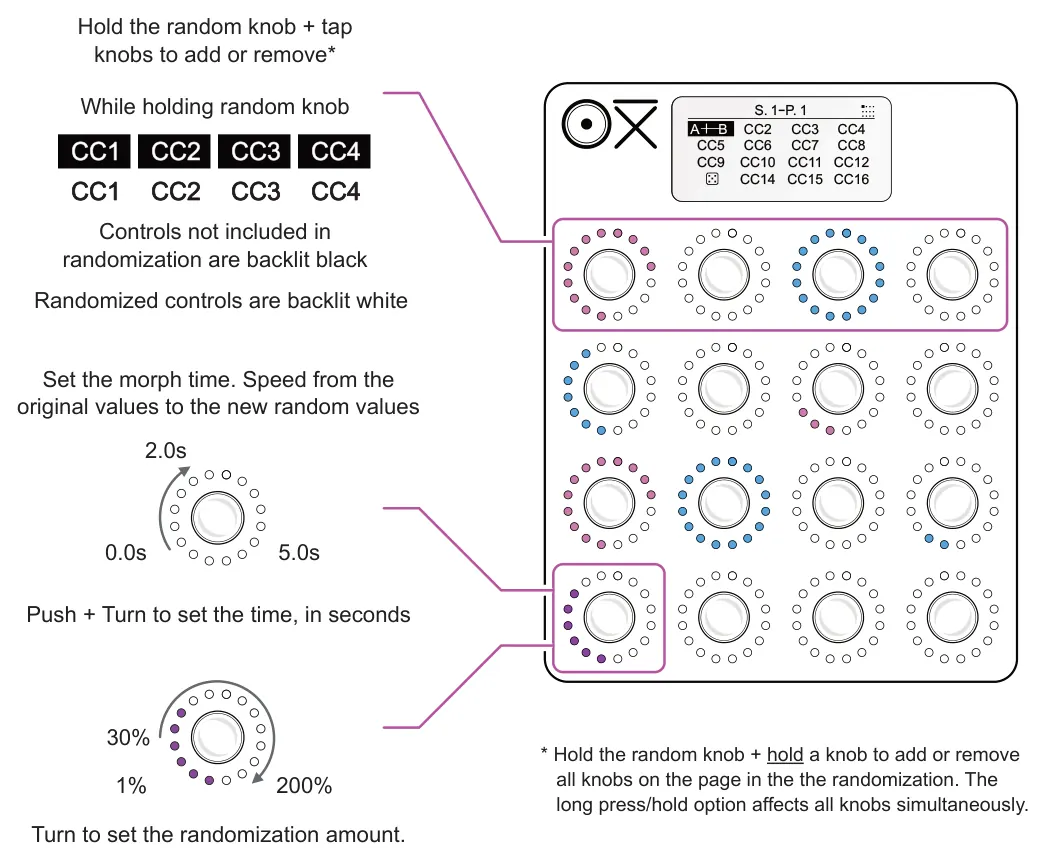
Once assigned as a 'Random' control in the special menu, indicated by the dice symbol, a control can be turned to apply a randomization amount between 1-200%. Push the encoder to initiate randomization of defined values across the page.

Multiple controls can be assigned as random controls but there is only one randomization generator active per page. As such if multiple encoders are configured as 'Random' in the special menu, they will all operate in exactly the same way, controlling the single random generator. The random settings such as amount or morph time are not stored when using the store option.
Setting Up a Random Encoder
- The option for random knob behaviour is found in the special section of the control
settings, accessed from the control view. Select a scene by tapping the associated knob to choose the scene and its control view.
- To open the settings menu, hold (Knob) to edit + tap [Shift]. This is performed from
the control view.
- The editor tab should be open for 'Ctrl'. If not, hold [Shift] and tap (Knob 1) to choose
the controller settings. The page and scene settings tabs are also available.
- The knob which will be assigned as the random control should be setup first.
- Tap a knob to select a control to edit or use the currently selected control. Example (Knob 1).
- To navigate, turn knob, example (Knob 1). Scroll to the 'Special' option and tap (Knob) to edit. The selected option is highlighted and when in edit mode the '►' tag label is shown.
- Select the 'Random' option for the special setting. Tap knob to confirm.
- When complete, tap [Shift] to backup and exit the edit menu.
- Once a random control is assigned, the dice symbol is displayed on the screen for
the control. The next step is to select the controls that will be affected, or not, by the randomization and the morph rate. Default is all parameters.
- Select parameters to randomize. Hold the primary random knob + Tap or Hold a knob to add or remove from the randomization. Tap to select individually or hold to toggle selection for all knobs on the page. Example: Hold (Knob 1) + Tap (Knob 5), (Knob 9) and (Knob 13). The controls affected by randomization are backlit white, excluded controls are backlit black.
- Set the morph time. This is the time it takes to change between the original values and the new random values. Hold + Turn the primary snapshot knob, for example (Knob 1). The slew time is set between 0.0s and 5.0 Seconds and displayed on the control and in the header.
- To now use the random function, turn the primary random knob to set a
randomization percentage between 1% to 200%. This sets the range of values to randomize for the affected parameters. Quickly tap the primary random knob to generate a set of random values. The values will change immediately or if a slew time is set, will transition over the time assigned.