



This chapter covers the main view and the pots, which have two functions each. It also covers engine selection, the encoder click cycle, presets, the options menu and the randomizer.
2.1 Main View
In the main view the LED ring shows the amplitude of each active voice. This is the default screen; turning any pot returns you here from any menu.
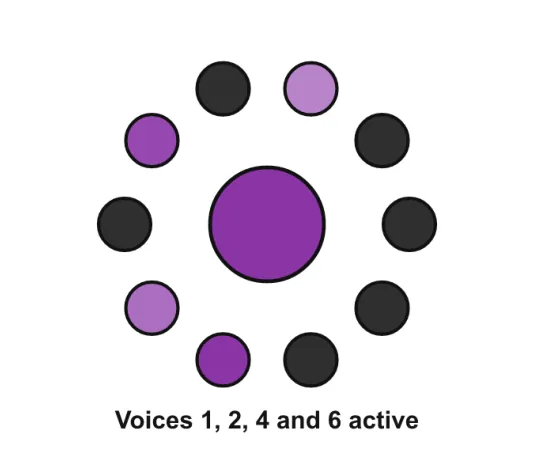
Figure 2.1. Main view, voice status: voices 1, 2, 4 and 6 active.
2.2 Primary and Secondary Parameters
Each pot controls one main parameter and one secondary parameter. This lets Coral pack a lot of control into a small panel. To change a secondary parameter, push and hold the encoder (this acts as SHIFT) and turn the corresponding pot.
The pot position and the stored value may not match, so to avoid sudden jumps you first have to catch up the stored value. This applies to both main and secondary parameters. For a primary parameter the stored value is shown in the section colour and the pot position in white. For a secondary parameter the stored value is white and the current position is orange.
NOTE At start-up the pot position and the stored value may not match. You may then need to catch up the main or secondary values.
Taking control back from MIDI
The same idea applies when something else is driving Coral. A sequencer or DAW can move a parameter with a MIDI CC. The pot then no longer matches the sound. The pot must catch up before it takes control again. As you turn, the pot and the value meet in the middle. Control passes smoothly, without a jump. The same happens when you switch part or load a preset.
It applies to every parameter a CC can reach, on both layers:
- Main functions: HARM, TIMBRE, MORPH, FILTER cutoff, F.RESO, F.ENV, AMP ATK, AMP DR, MOD ATK, MOD DR and SUST.
- Secondary functions: Level, Pan, Noise, Space (reverb) send, Delay send, and Chorus send or HP cutoff.
An incoming CC now arms catch-up properly, including the Delay send, which it did not before. If you would rather the pots stayed live at all times, set noccxt 1 in options.txt (Chapter 8). That suits a sequencer streaming CC automation or parameter locks, where constant re-arming would otherwise make a pot feel dead.
NOTE Recalling an engine is the one exception. Coral restores a per-engine sound as described in Section 2.4. The pot must reach the exact remembered position. The sound then lands precisely on what you saved.
NOTE HARM and OCT behave differently in their secondary functions, which are MIDI channel and fine tune. They take over the moment the pot crosses the stored value. They do not slew towards it. This is how they have always worked.
2.3 The Controls
Primary and secondary functions affect the selected voice, or the voices in the selected part, only. HARM, TIMBRE and MORPH are the three engine parameters and do something different in every engine (see Chapter 5).
| Control | Main function | Secondary (hold encoder + turn) |
|---|---|---|
| ENCODER | Turn: select engine. Click: feature select (sample / bank / wavetable) then LOAD, SAVE, CV, options. Hold + turn: part / voice. | None |
| HARM | Engine Parameter 1 | MIDI channel |
| OCT | Base octave (offset of the MIDI note or CV/Oct pitch) | Fine tune |
| TIMBRE | Engine Parameter 2 | Noise level (Delay send if Delay is on) |
| MORPH | Engine Parameter 3 | HP filter cutoff (if HP on) or Chorus send |
| F.ENV | Mod-envelope to filter amount, bipolar (0% at 12 o’clock) | Level |
| FILTER | Low-pass filter cutoff | Space (reverb) send |
| F.RESO | Filter resonance and drive | Pan (constant-power) |
| AMP ATK | Amp-envelope attack | Atk/Dec CV attenuator |
| AMP DR | Amp-envelope decay and release | Filter CV attenuator |
| SUST | Sustain (amp and mod envelopes) | Harm CV attenuator |
| MOD ATK | Mod-envelope attack | Timbre CV attenuator |
| MOD DR | Mod-envelope decay and release | Morph CV attenuator |
Noise. The noise level (SHIFT + TIMBRE) feeds an internal white-noise source. That source is independent of the voice level, so you can layer noise freely. The MOD (modulation) envelope drives the filter cutoff by default. The MOD controls can also change the sound, depending on the engine you select.
NOTE A few engines re-use these controls for something else. The STITCHER engine in particular puts its main control on OCT and its loop levels on HARM, TIMBRE and MORPH. See Section 5.8.
2.4 Engine Selection
Turn the encoder to change the engine of the selected voice or part. The new engine is applied immediately. The active engine of the selected part is shown in pink on the ring.
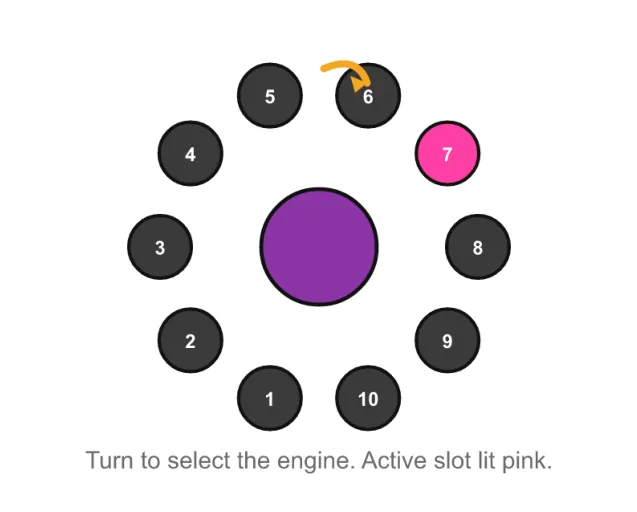
Figure 2.2. Engine-selection ring: 10 engine slots around the ring, the active slot lit pink, remaining slots dim. Slot contents depend on the firmware you built.
NOTE Your 10 engine slots are whatever you chose in the Firmware Updater (Chapter 9). The example rings in this manual are just one possible layout.
What happens to your sound when you switch engine
Every engine on a part keeps its own tone settings. Move to another engine and come back. That engine returns exactly as you left it. It keeps HARM, TIMBRE and MORPH, the filter cutoff, the filter envelope and resonance, both envelopes, sustain and noise.
Your effects mix does not move. The Space (reverb), Delay and Chorus sends belong to the part, not to the engine. The HP filter cutoff does too. Set a reverb and delay balance you like. You can then change engines on stage. The mix stays put and the delay keeps running.
TIP This is what makes engine switching usable on stage. Set the send levels once for the part. You can then move through engines without the effects jumping or dropping out.
2.5 The Encoder Click Cycle
Clicking the encoder steps through a series of screens. The LED ring colour tells you where you are. Turning a pot at any time exits back to the main view.
| Ring colour | What this stop does |
|---|---|
| Lime / amber / orange | Feature stop. It appears only on engines that have something to pick. FMX7 picks a DX7 bank. WAVETABLE and WT SWARM pick a wavetable. DUAL WAVETABLE picks Table A, then Table B. STITCHER picks a sample, and has a second stop for its FX ring. Every other engine has no feature stop, so its first click is LOAD. |
| Blue | LOAD preset. Turn to pick a slot, click to load. |
| Red | SAVE preset. Turn to pick a slot, click to store. |
| Purple | CV routing. Choose which voices the Part CV jack steers (only when Part CV is unpatched). |
| Options ring | The options menu (Section 2.7). Hold about 1 second to exit to playing. |
Order: feature stop (if any), Blue LOAD, Red SAVE, Purple CV, options ring, then back to playing. A green sweep confirms an action; red means reset.
2.6 Presets
You can save and load all parameters and the full voice configuration in 10 preset slots. The extended-presets option gives you 100 (Chapter 8). Everything is stored, so a preset recalls exactly as you left it. Presets can also be recalled with MIDI Program Change messages.
Tap the encoder to jump between screens. Turning the encoder in any screen enters selection mode, so the next tap confirms. Turn any pot to exit to the main view.
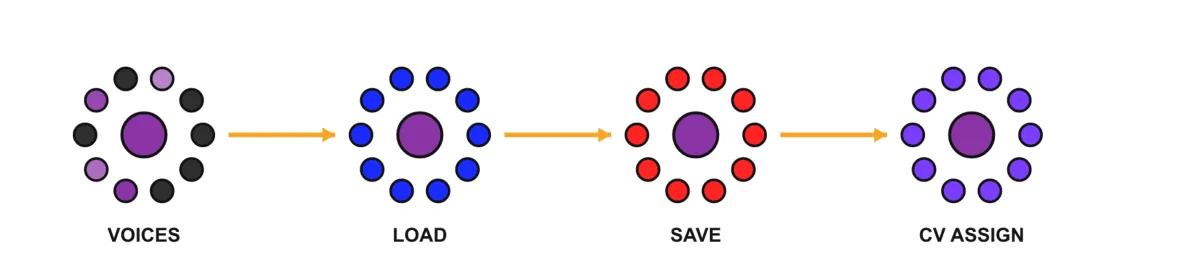
Figure 2.3. Screen navigation strip VOICES to LOAD (blue) to SAVE (red) to CV ASSIGN (purple).
TIP Each saved preset remembers its own wavetable. Older presets fall back to the global default wavetable.
2.7 The Options Menu
The options ring lets you change Coral’s performance settings without a computer. Click the encoder past LOAD, SAVE and CV to reach it. Turn to move the orange cursor. A short click toggles a slot or opens a picker sub-view. A slot glowing its own colour is OFF; white means ON. Hold about 1 second to exit, or leave it alone and it closes itself after about 4 seconds.
Coral saves changes straight away. It also writes them into options.txt on the SD card, so the two always agree. You can set the same options in that file instead if you prefer (Chapter 8).
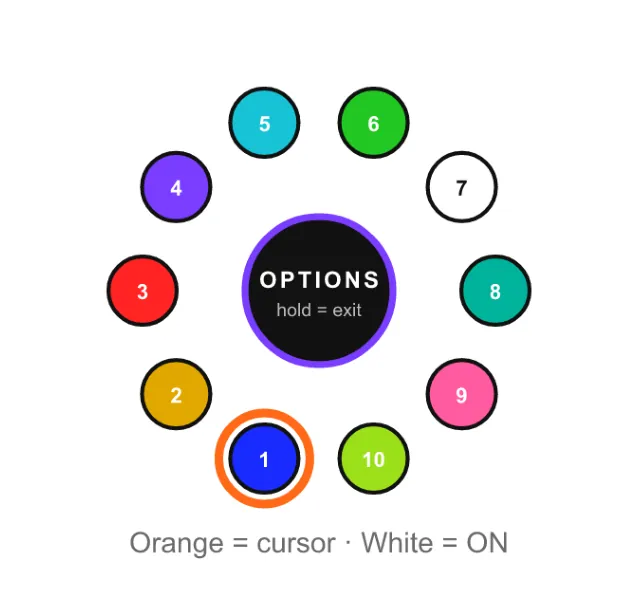
Figure 2.4. Options ring. 10 LED slots sit around the encoder gap. LED 1 is bottom-left and LED 10 is bottom-right. The orange dot is the cursor. One slot is white, which means ON.
| LED | Option | What it does |
|---|---|---|
| 1 | PolyCV | Voice / trigger mode 0 to 5: unison, poly (CV picks the voice), chord hold, chord arp, then two echo modes. Opens a numbered sub-view. |
| 2 | Encoder part priority | Encoder turn selects the part / voice instead of the engine. |
| 3 | CV part to engine | The Part CV jack selects the engine instead of the part. |
| 4 | MPE | MPE in and out. |
| 5 | Program Change | 0 accept all, 1 ignore all, 2 accept only on an active part channel. Opens a numbered sub-view. |
| 6 | Randomizer | Hold the encoder to randomize the sound (Section 2.9). |
| 7 | High-pass filter | On: SHIFT + MORPH is HP cutoff. Off: SHIFT + MORPH is chorus send. |
| 8 | Delay FX | On: SHIFT + TIMBRE is delay send. Off: SHIFT + TIMBRE is noise level. |
| 9 | Drone | Opens the drone picker. Drone keeps the notes you play sounding after you let go of the keys (Section 2.8). |
| 10 | Smart chord | One-finger diatonic chords, on or off per engine (String 2 and PIANOZ today). The sub-view mirrors your 10 slots and the capable engines light up. The scale is picked separately, on the encoder feature stop. |
NOTE The blue, cyan and lime slots are pickers. These are PolyCV, Program Change and Smart chord. Click to open the sub-view. Then click a number or an engine to set it.
2.8 Drone
Drone is a setting of the part you are on. When it is on, the notes you play keep sounding after you let go of the keys.
Turn drone on and off
- Open the options ring and select LED 9 (Drone). The drone picker opens.
- Look at the picker. It shows one LED for each of your 10 engine slots.
- Click a blue engine. The part changes to that engine and starts to drone.
- To stop the drone, click the white engine again.
A blue LED is an engine that can drone. A white LED is the engine that this part drones on. When you stop the drone, the held notes fade out with the RELEASE knob.
The encoder selection sets which part the drone applies to. On a part, it applies to that part. On a single voice, it applies to the part of that voice. On ALL, it applies to every part.
How a drone plays
- Nothing sounds until you play a note.
- Play a chord and let go of the keys. The chord keeps sounding.
- The next chord you play replaces the previous chord. You always hear the last chord that you played.
- ATTACK shapes the start of each note. After the attack, the level stays at full, whatever DECAY and SUSTAIN are set to.
- A note that leaves the drone fades out with RELEASE. This happens when you play the next chord, or when you stop the drone.
- If you change the engine of a droning part, the drone moves to the new engine.
Each part has one drone. Different parts can drone at the same time. For example, 4 parts of 2 voices each can drone 4 different engines, and each part plays its own 2 notes.
Limits
- The voice caps of the engines still apply: FMX7 has 6 voices, ACID 2 has 4 voices and STITCHER has 1 voice. Notes above the cap do not sound.
- The drum engines (BASSDRUM, SNARE, HI-HAT and SNARE / HI-HAT) and WAVPLAYER cannot drone. If you change a droning part to one of them, the drone stops.
- All Notes Off (MIDI CC 123) stops the droning notes. Drone stays on for the part.
- With Smart chord (STRING 2, PIANOZ) or in MPE mode, the level stays at full while you hold the keys. The notes release when you let go.
- Some engines have their own internal envelopes, for example some FMX7 patches. Drone keeps the Coral VCA open, but it cannot stop the envelope of the engine. These sounds can still fade.
TIP The preset saves the drone setting of each part. A droning pad or texture comes back as you left it.
2.9 Randomizer
Turn on the Randomizer slot in the options ring. Then hold the encoder to randomize the sound. With one part selected, it randomizes that part. With all parts selected, it gives each part its own new patch. It keeps the engine, level and pan.
2.10 Voices and Part Reset
Hold the encoder from the main view for at least 5 seconds. Wait for the red LED animation. Coral returns to its default state: all voices on MIDI channel 1, and all parameters at their init values.